
Activități CRM și planuri de activități
În cadrul aplicației CRM, activitățile sunt sarcini de urmărire legate de clienți potențiali și oportunități care sunt vizibile în chatter. Un set de tipuri de activități preconfigurate este disponibil în aplicația CRM, dar pot fi create și tipuri de activități personalizate pentru a se potrivi nevoilor de afaceri. Pentru a vizualiza lista tipurilor de activități disponibile în aplicația CRM, deschideți aplicația și navigați la . Această pagină afișează atât activitățile create de Odoo, cât și orice activități personalizate.
Notă
Diferite aplicații acceptă diferite tipuri de activități. Pentru a vedea lista completă a tipurilor de activități, accesați , apoi derulați la secțiunea Discuss și faceți clic pe linkul Tipuri de activități.
Tipuri de activități implicite și personalizate
Tipurile de activități preconfigurate pentru aplicația CRM sunt:
Email: Adaugă o memento în chatter care solicită vânzătorului să trimită un email.
Apel: Deschide un link de calendar unde vânzătorul poate programa un apel telefonic.
Întâlnire: Deschide un link de calendar unde vânzătorul poate programa o întâlnire.
De făcut: Adaugă o sarcină memento generală în chatter.
Încărcare document: Adaugă un link pe activitate unde poate fi încărcat un document extern. Rețineți că aplicația Documents nu este necesară pentru a utiliza acest tip de activitate.
Notă
Dacă sunt instalate alte aplicații Odoo, cum ar fi Sales sau Accounting, pot apărea tipuri de activități suplimentare în pagina Tipuri de activități a aplicației CRM.
Creare tip de activitate personalizat
Pentru a crea un tip de activitate personalizat, navigați la pagina Tipuri de activități și faceți clic pe Nou în partea stângă sus a paginii pentru a deschide un formular gol. Începeți prin a introduce un Nume pentru noul tip de activitate.
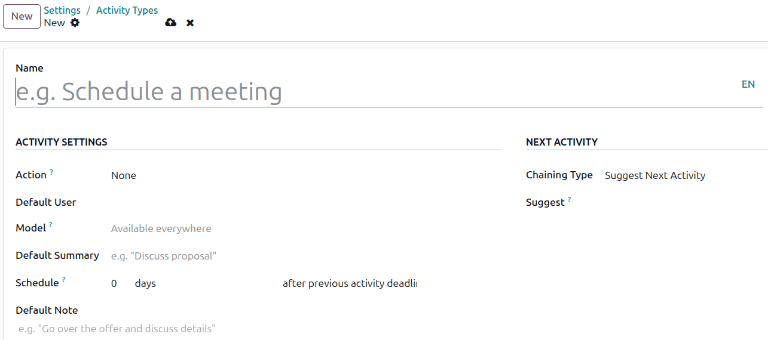
Setări de activitate
Acțiune
Câmpul Acțiune specifică ce acțiune solicită activitatea de la vânzătorul alocat oportunității. Unele acțiuni declanșează comportamente specifice după ce o activitate este programată, nu când activitatea este adăugată la o oportunitate.
Dacă este selectat Încărcați document, un link pentru a încărca un document este adăugat direct la activitatea planificată în chatter.
Dacă sunt selectate fie Apel telefonic, fie Întâlnire, utilizatorii au opțiunea de a-și deschide calendarul pentru a programa o oră pentru această activitate.
Dacă este selectat Solicitare semnătură, se adaugă un link la activitatea planificată în chatter care deschide o fereastră pop-up pentru cererea de semnătură.
Notă
Acțiunile disponibile pentru un tip de activitate pot varia în funcție de aplicațiile instalate în prezent în baza de date.
Utilizator implicit
Pentru a atribui automat această activitate unui anumit utilizator atunci când acest tip de activitate este programat, alegeți un nume din meniul drop-down Utilizator implicit. Dacă acest câmp este lăsat necompletat, activitatea este atribuită utilizatorului care creează activitatea.
Rezumat implicit
Rezumatul implicit servește drept titlu pentru activități atunci când sunt selectate pe oportunități și clienți potențiali. Acestea vor fi vizibile pentru utilizatori, cum ar fi vânzătorii și managerii, în timp ce Numele din partea de sus a formularului Tip de activitate reprezintă modul în care activitatea apare în configurarea aplicației CRM.
Programare
Setați un termen implicit pentru activitatea personalizată în câmpul Programare. Pentru a face acest lucru, configurați numărul dorit de zile, săptămâni sau luni. Apoi, decideți dacă termenul trebuie să aibă loc după data finalizării activității anterioare sau după termenul activității anterioare.
Notă
Setarea implicită după termenul activității anterioare înseamnă data pentru care este stabilit termenul, indiferent dacă termenul a fost sau nu îndeplinit efectiv. Pentru a vă asigura că o activitate este programată doar atunci când activitatea precedentă este finalizată, utilizați opțiunea după data finalizării activității anterioare.
Notă implicită
Pentru a include note de fiecare dată când acest tip de activitate este creat, introduceți-le în câmpul Notă implicită. Acest lucru poate fi folosit pentru a include instrucțiuni pentru un alt utilizator, ca în textul exemplu din acest câmp.
Notă
Informațiile din toate câmpurile anterioare sunt incluse automat când o activitate este creată în cadrul unei oportunități. Cu toate acestea, informațiile pot fi modificate înainte ca activitatea să fie programată sau salvată.
Următoarea activitate
Pentru a sugera sau declanșa automat o nouă activitate după ce o activitate a fost marcată ca finalizată, trebuie setat Tipul de înlănțuire.
Sugerează următoarea activitate
Dacă o activitate are Tipul de înlănțuire setat la Sugerează următoarea activitate și are activități listate în câmpul Sugerare, utilizatorilor li se prezintă recomandări pentru activități ca pașii următori.

În câmpul Tip de înlănțuire, selectați Sugerați următoarea activitate. După ce faceți acest lucru, câmpul de dedesubt se schimbă în: Sugerare. Faceți clic pe meniul derulant câmp Sugerare pentru a selecta activitățile de recomandat ca sarcini ulterioare pentru acest tip de activitate.
Declanșează următoarea activitate
Când o activitate are Tipul de înlănțuire setat la Trigger Next Activity, marcarea activității ca Done lansează imediat următoarea activitate listată în câmpul Trigger.
Setarea Tipul de înlănțuire la Trigger Next Activity lansează imediat următoarea activitate odată ce cea anterioară este finalizată.
Dacă Trigger Next Activity este selectat în câmpul Chaining Type, câmpul de dedesubt se schimbă în: Trigger. Din meniul derulant câmp Trigger, selectați activitatea care ar trebui să fie lansată odată ce această activitate este finalizată.
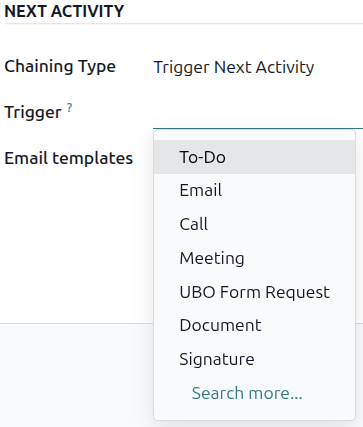
Șabloane de e-mail
Selectați sau creați un șablon de e-mail care să fie sugerat când activitatea este adăugată la o oportunitate. Șablonul va apărea alături de activitate în conversație și poate fi trimis ca atare sau editat de un utilizator.
Urmărirea activității
Pentru a menține pipeline-ul la zi cu cea mai exactă imagine a stării activităților, de îndată ce se interacționează cu o pistă, activitatea asociată ar trebui marcată ca Finalizată. Acest lucru asigură că următoarea activitate poate fi programată după cum este necesar. De asemenea, previne aglomerarea pipeline-ului cu activități restante.
Conducta este cea mai eficientă atunci când este ținută la zi și exactă la interacțiunile pe care le urmărește.
Planuri de activitate
Planurile de activități sunt secvențe preconfigurate de activități. Când un plan de activități este lansat, fiecare activitate din secvență și orice activități setate să se declanșeze din activități din cadrul secvenței sunt programate automat.
Pentru a crea un plan nou, navigați la . Faceți clic pe Nou în partea stângă sus a paginii pentru a deschide un formular gol Planuri de activități pentru piste.
Introduceți un nume pentru noul plan în câmpul Nume plan. Pe fila Activități de creat, faceți clic pe Adăugați o linie pentru a adăuga o nouă activitate.
Selectați un Tip de activitate din meniul drop-down. Faceți clic pe Căutați mai multe pentru a vedea o listă completă a tipurilor de activități disponibile sau pentru a crea un unul nou.
Apoi, în câmpul Rezumat, fie lăsați acest câmp gol pentru a utiliza Rezumatul implicit al activității, fie introduceți un nou rezumat al ceea ce presupune activitatea. Introducerea unui nou rezumat nu suprascrie un Rezumat implicit existent. Conținutul acestui câmp este inclus cu activitatea programată și poate fi editat ulterior.
În câmpul Tarcare, selectați una dintre următoarele opțiuni:
Întreabă la lansare: Activitățile sunt atribuite unui utilizator când planul este programat. În mod implicit, acestea vor fi atribuite utilizatorului care creează activitatea, chiar dacă acesta nu este utilizatorul responsabil pentru oportunitatea pentru care se creează activitatea.
Utilizator implicit: Activitățile sunt întotdeauna atribuite unui anumit utilizator.
Dacă Utilizator implicit este selectat în câmpul Atribuire, alegeți un utilizator în câmpul Atribuit la.
Sfat
Planurile de activitate pot prezenta activități care sunt atribuite utilizatorilor impliciti și utilizatorilor alocați la lansarea planului.

Apoi, configurați cronologia pentru activitate. Activitățile pot fi programate să aibă loc fie înainte de data planului, fie după. Programarea activităților înainte de data planului poate fi utilă pentru activități programate în viitor care necesită pregătiri în prealabil. Utilizați câmpurile Interval și Unități pentru a seta termenul-limită pentru această activitate. În cele din urmă, în câmpul Declanșator, selectați dacă activitatea ar trebui să aibă loc înainte sau după data planului.
Example
Un plan de activitate este creat pentru a gestiona clienții potențiali cu prioritate ridicată. Mai exact, acești clienți potențiali ar trebui contactați rapid, cu o întâlnire programată în termen de două zile de la contactul inițial. Planul este configurat cu următoarele activități:
Trimiteți un e-mail cu două zile înainte de data planului
Întâlnire cu zero zile înainte de data planului
Faceți o ofertă la trei zile după data planului
Încărcați documentul la trei zile după data planului
Urmărire cinci zile după data planului
Aceasta stabilește data planului ca termen limită a întâlnirii, care este obiectivul planului. Înainte de această dată, există timp pentru a contacta clientul și a se pregăti pentru întâlnire. După această dată, agentul de vânzări are timp să creeze o ofertă, să încarce documentul și să urmărească.
Repetați acești pași pentru fiecare activitate inclusă în plan.
Utilizați un plan de activități
Pentru a utiliza un plan de activități cu o oportunitate CRM, navigați la și faceți clic pe cardul Kanban al unei oportunități pentru a o deschide.
Deasupra chatterului oportunității, faceți clic pe Activitate pentru a deschide fereastra pop-up Programează activitate.
În câmpul Plan, selectați planul de activități dorit pentru a-l lansa din secțiunea de deasupra activităților individuale. Aceasta generează un Rezumat plan, enumerând activitățile incluse în plan. Selectați o Dată scadentă utilizând calendarul popover. Aceasta actualizează automat Rezumatul planului cu termene limită bazate pe intervalele configurate în planul de activități.
Selectați un utilizator în câmpul Responsabil. Acest utilizator este atribuit oricăreia dintre activitățile din plan care au fost configurate cu Solicită la lansare în câmpul Atribuire.

Faceți clic pe Programează. Detaliile planului sunt adăugate în secțiunea Activități planificate a chatterului, pe lângă fiecare dintre activitățile care alcătuiesc planul.

Vedeți și