
CRM-aktiviteter och aktivitetsplaner
Inom appen CRM är aktiviteter uppföljningsuppgifter kopplade till leads och möjligheter som är synliga i händelseflödet. En uppsättning förkonfigurerade aktivitetstyper är tillgängliga i appen CRM, men anpassade aktivitetstyper kan också skapas för att passa affärsbehov. För att se listan över tillgängliga aktivitetstyper i appen CRM, öppna appen och navigera till . Denna sida visar både Odoo-skapade aktiviteter och eventuella anpassade aktiviteter.
Observera
Olika applikationer stöder olika aktivitetstyper. För att se den fullständiga listan över aktivitetstyper, gå till och skrolla sedan till sektionen Diskutera och klicka på länken Aktivitetstyper.
Standardaktivitetstyper och anpassade aktivitetstyper
De förkonfigurerade aktivitetstyperna för CRM-appen är:
E-post: Lägger till en påminnelse i händelseflödet som uppmanar säljaren att skicka ett e-postmeddelande.
Samtal: Öppnar en kalenderlänk där säljaren kan schemalägga ett telefonsamtal.
Möte: Öppnar en kalenderlänk där säljaren kan schemalägga ett möte.
Att göra: Lägger till en allmän påminnelseuppgift i händelseflödet.
Ladda upp dokument: Lägger till en länk på aktiviteten där ett externt dokument kan laddas upp. Observera att Dokument-appen inte krävs för att använda denna aktivitetstyp.
Observera
Om andra Odoo-applikationer är installerade, såsom Försäljning eller Bokföring, kan ytterligare aktivitetstyper visas på CRM-appens sida Aktivitetstyper.
Skapa en anpassad aktivitetstyp
För att skapa en anpassad aktivitetstyp, navigera till sidan Aktivitetstyper och klicka på Ny längst upp till vänster på sidan för att öppna ett tomt formulär. Börja med att ange ett Namn för den nya aktivitetstypen.
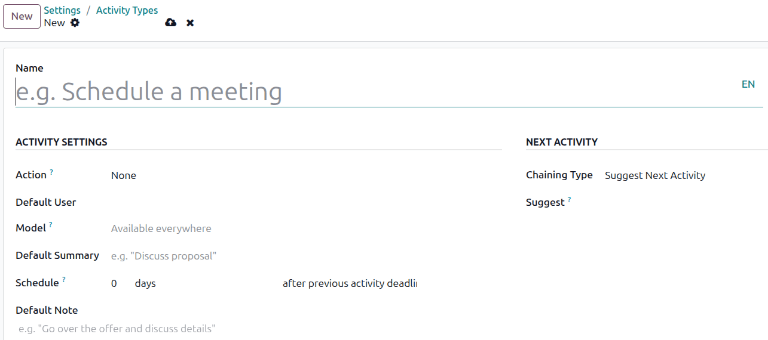
Inställningar för aktiviteter
Åtgärder
Fältet Åtgärd specificerar vilken åtgärd aktiviteten uppmanar från säljaren som är tilldelad möjligheten. Vissa åtgärder utlöser specifika beteenden efter att en aktivitet schemalagts istället för när aktiviteten läggs till i en möjlighet.
Om Upload Document är markerat läggs en länk för att ladda upp ett dokument direkt till den planerade aktiviteten i chattern.
Om antingen Phonecall eller Meeting har valts, har användarna möjlighet att öppna sin kalender för att schemalägga en tid för denna aktivitet.
Om Request Signature är markerat läggs en länk till den planerade aktiviteten i chatten som öppnar ett popup-fönster för signaturförfrågan.
Observera
De åtgärder som är tillgängliga för en aktivitetstyp kan variera beroende på vilka applikationer som för närvarande är installerade i databasen.
Standardanvändare
För att automatiskt tilldela denna aktivitet till en specifik användare när denna aktivitetstyp schemaläggs, välj ett namn från Default User rullgardinsmenyn. Om det här fältet lämnas tomt tilldelas aktiviteten till den användare som skapar aktiviteten.
Standard sammanfattning
Standardsammanfattning fungerar som rubrik för aktiviteter när man väljer dem på möjligheter och leads. Dessa kommer att vara synliga för användare såsom säljare och chefer, medan Namn högst upp på ett Aktivitetstyp-formulär är hur aktiviteten visas i CRM-appens konfiguration.
Schemalägg
Ange en standarddeadline för den anpassade aktiviteten i fältet Schemalägg. För att göra detta, konfigurera önskat antal dagar, veckor eller månader. Bestäm sedan om deadlinen ska inträffa efter föregående aktivitets slutförandedatum eller efter föregående aktivitets deadline.
Observera
Standardinställningen efter föregående aktivitets deadline betyder det datum som deadlinen är satt till, oavsett om deadlinen faktiskt uppfylldes eller inte. För att säkerställa att en aktivitet endast schemaläggs när den föregående aktiviteten är slutförd, använd alternativet efter föregående aktivitets slutförandedatum.
Standardanteckning
För att inkludera anteckningar när denna aktivitetstyp skapas, ange dem i fältet Standardanteckning. Detta kan användas för att inkludera instruktioner för en annan användare, som i exempeltexten i detta fält.
Observera
Informationen i alla föregående fält inkluderas automatiskt när en aktivitet skapas inom en möjlighet. Informationen kan dock fortfarande ändras innan aktiviteten schemaläggs eller sparas.
Nästa aktivitet
För att automatiskt föreslå eller utlösa en ny aktivitet efter att en aktivitet har markerats som klar måste Kedjetyp ställas in.
Föreslå nästa aktivitet
Om en aktivitet har Chaining Type inställd på Suggest Next Activity, och har aktiviteter listade i Suggest fältet, presenteras användare med rekommendationer för aktiviteter som nästa steg.

I fältet Chaining Type väljer du Suggest Next Activity. När du gör det ändras fältet nedanför till: Suggest. Klicka på rullgardinsmenyn Suggest för att välja aktiviteter som du vill rekommendera som uppföljningsuppgifter till denna aktivitetstyp.
Utlös nästa aktivitet
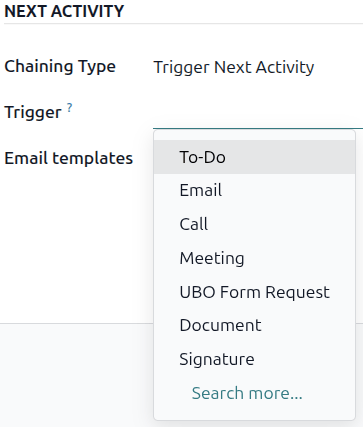
När en aktivitet har Chaining Type inställd på Trigger Next Activity, startar nästa aktivitet som anges i fältet Trigger omedelbart när aktiviteten markeras som Done.
Om du ställer in Chaining Type till Trigger Next Activity startar nästa aktivitet omedelbart när den föregående aktiviteten är slutförd.
Om Trigger Next Activity är markerat i fältet Chaining Type ändras fältet nedanför till: Trigger. I rullgardinsmenyn för fältet Trigger väljer du den aktivitet som ska startas när denna aktivitet är slutförd.
E-postmallar
Välj eller skapa en e-postmall som ska föreslås när aktiviteten läggs till i en möjlighet. Mallen visas bredvid aktiviteten i händelseflödet och kan skickas som den är eller redigeras av en användare.
Aktivitetsspårning
För att hålla flödet uppdaterat med den mest korrekta vyn av aktiviteternas status ska den associerade aktiviteten markeras som Klar så snart en lead interageras med. Detta säkerställer att nästa aktivitet kan schemaläggas vid behov. Det förhindrar också att flödet blir rörigt med försenade aktiviteter.
Pipelinen är som mest effektiv när den hålls uppdaterad och stämmer överens med de interaktioner som den spårar.
Aktivitetsplaner
Aktivitetsplaner är förkonfigurerade sekvenser av aktiviteter. När en aktivitetsplan startas schemaläggs varje aktivitet i sekvensen och alla aktiviteter som är inställda att utlösas av aktiviteter inom sekvensen automatiskt.
För att skapa en ny plan, navigera till . Klicka på Ny längst upp till vänster på sidan för att öppna ett tomt Aktivitetsplaner för leads-formulär.
Ange ett namn för den nya planen i fältet Plannamn. På fliken Aktiviteter att skapa klickar du på Lägg till en rad för att lägga till en ny aktivitet.
Välj en Activity Type från rullgardinsmenyn. Klicka på Sök mer för att se en fullständig lista över tillgängliga aktivitetstyper, eller för att skapa en ny.
I fältet Sammanfattning lämnar du antingen detta tomt för att använda aktivitetens Standardsammanfattning eller anger du en ny sammanfattning av vad aktiviteten innebär. Att ange en ny sammanfattning skriver inte över en befintlig standardsammanfattning. Innehållet i detta fält ingår i den schemalagda aktiviteten och kan redigeras senare.
I fältet Assignment väljer du något av följande alternativ:
Fråga vid start: Aktiviteter tilldelas en användare när planen schemaläggs. Som standard tilldelas de till användaren som skapar aktiviteten, även om de inte är den användare som ansvarar för möjligheten som aktiviteten skapas för.
Standardanvändare: Aktiviteter tilldelas alltid en specifik användare.
Om Default user har valts i fältet Assignment ska du välja en användare i fältet Assigned to.
Tips
Aktivitetsplaner kan innehålla aktiviteter som tilldelas standardanvändare och användare som tilldelas när planen lanseras.

Konfigurera därefter tidslinjen för aktiviteten. Aktiviteter kan schemaläggas att inträffa antingen före plandatumet eller efter. Att schemalägga aktiviteter före plandatumet kan vara användbart för aktiviteter som schemalagts i framtiden och som kräver viss förberedelse i förväg. Använd fälten Intervall och Enheter för att ställa in deadline för denna aktivitet. Slutligen, i fältet Utlösare, väljer du om aktiviteten ska inträffa före eller efter plandatumet.
Example
En aktivitetsplan skapas för att hantera högprioriterade leads. Dessa leads ska kontaktas snabbt och ett möte ska bokas in inom två dagar efter den första kontakten. Planen konfigureras med följande aktiviteter:
E-post två dagar före planeringsdatum
Möte noll dagar före planeringsdatum
Lämna offert tre dagar efter planeringsdatum
Ladda upp dokument tre dagar efter planeringsdatum
Uppföljning fem dagar efter planeringsdatum
Detta innebär att planeringsdatumet fastställs som deadline för mötet, vilket är målet med planen. Före det datumet finns det ledtid för att kontakta kunden och förbereda mötet. Efter det datumet har säljaren tid att skapa en offert, ladda upp dokumentet och göra uppföljningar.
Upprepa dessa steg för varje aktivitet som ingår i planen.
Använd en aktivitetsplan
För att använda en aktivitetsplan med en CRM-möjlighet, navigera till och klicka på Kanban-kortet för en möjlighet för att öppna den.
Ovanför möjlighetens händelseflöde klickar du på Aktivitet för att öppna popup-fönstret Schemalägg aktivitet.
I fältet Plan väljer du önskad aktivitetsplan att starta från sektionen ovanför de individuella aktiviteterna. Detta genererar en Plansammanfattning som listar aktiviteterna som ingår i planen. Välj ett Förfallodatum med hjälp av kalenderns popup-fönster. Detta uppdaterar automatiskt Plansammanfattningen med tidsfrister baserade på intervallen som konfigurerats i aktivitetsplanen.
Välj en användare i fältet Ansvarig. Denna användare tilldelas till de aktiviteter i planen som konfigurerats med Fråga vid start i fältet Tilldelning.

Klicka på Schemalägg. Planens detaljer läggs till i sektionen Planerade aktiviteter i händelseflödet, tillsammans med var och en av aktiviteterna som ingår i planen.

Se även