
Aktivitas CRM dan rencana aktivitas
Dalam aplikasi CRM, aktivitas adalah tugas tindak lanjut yang terkait dengan prospek dan peluang yang terlihat di chatter. Sekumpulan jenis aktivitas yang telah dikonfigurasi sebelumnya tersedia di aplikasi CRM, tetapi jenis aktivitas khusus juga dapat dibuat untuk memenuhi kebutuhan bisnis. Untuk melihat daftar jenis aktivitas yang tersedia di aplikasi CRM, buka aplikasi tersebut dan navigasikan ke . Halaman ini menampilkan aktivitas yang dibuat Odoo dan aktivitas khusus apa pun.
Catatan
Aplikasi yang berbeda mendukung jenis aktivitas yang berbeda. Untuk melihat daftar lengkap jenis aktivitas, buka , lalu gulir ke bagian Diskusi, dan klik tautan Jenis Aktivitas.
Jenis aktivitas default dan khusus
Jenis aktivitas yang telah dikonfigurasi sebelumnya untuk aplikasi CRM adalah:
Email: Menambahkan pengingat ke chatter yang meminta salesperson untuk mengirim email.
Panggilan: Membuka tautan kalender di mana salesperson dapat menjadwalkan panggilan telepon.
Pertemuan: Membuka tautan kalender di mana salesperson dapat menjadwalkan pertemuan.
Tugas: Menambahkan tugas pengingat umum ke chatter.
Unggah Dokumen: Menambahkan tautan pada aktivitas di mana dokumen eksternal dapat diunggah. Perhatikan bahwa aplikasi Dokumen tidak diperlukan untuk menggunakan jenis aktivitas ini.
Catatan
Jika aplikasi Odoo lainnya diinstal, seperti Penjualan atau Akuntansi, jenis aktivitas tambahan mungkin muncul di halaman Jenis Aktivitas aplikasi CRM.
Membuat jenis aktivitas khusus
Untuk membuat jenis aktivitas khusus, navigasikan ke halaman Jenis Aktivitas dan klik Baru di kiri atas halaman untuk membuka formulir kosong. Mulailah dengan memasukkan Nama untuk jenis aktivitas baru.

Pengaturan kegiatan
Tindakan
Field Tindakan menentukan tindakan apa yang diminta aktivitas dari salesperson yang ditugaskan ke peluang. Beberapa tindakan memicu perilaku tertentu setelah aktivitas dijadwalkan, bukan saat aktivitas ditambahkan ke peluang.
Bila Unggah Dokumen dipilih, link untuk mengunggah dokumen ditambahkan langsung ke kegiatan yang direncanakan di chatter.
Bila baik Panggilan telepon atau Meeting dipilih, user memiliki opsi untuk membuka kalender mereka untuk menjadwalkan waktu untuk kegiatan ini.
Bila Permintaan Tanda Tangan dipilih, link ditambahkan ke kegiatan yang direncanakan di chatter yang membuka jendela pop-up permintaan tanda tangan.
Catatan
Tindakan yang tersedia untuk jenis aktivitas dapat bervariasi tergantung pada aplikasi yang saat ini terpasang di database.
User default
Untuk secara otomatis menugaskan kegiatan ini ke user tertentu saat tipe kegiatan ini dijadwalkan, pilih nama dari menu drop-down :guilabel:`User Default `. Bila field ini dibiarkan kosong, kegiatan ini akan ditugaskan ke user yang membuat kegiatan.
Ringkasan default
Default Summary berfungsi sebagai judul untuk aktivitas saat memilihnya pada peluang dan prospek. Ini akan terlihat oleh user seperti salesperson dan manajer, sedangkan Name di bagian atas formulir Activity Type adalah cara aktivitas tersebut muncul dalam konfigurasi aplikasi CRM.
Jadwal
Tetapkan tenggat waktu default untuk aktivitas kustom di field Schedule. Untuk melakukannya, konfigurasikan jumlah days, weeks, atau months yang diinginkan. Kemudian, tentukan apakah tenggat waktu harus terjadi after previous activity completion date atau after previous activity deadline.
Catatan
Pengaturan default after previous activity deadline berarti tanggal di mana tenggat waktu ditetapkan, terlepas dari apakah tenggat waktu tersebut benar-benar terpenuhi atau tidak. Untuk memastikan bahwa aktivitas dijadwalkan hanya ketika aktivitas sebelumnya selesai, gunakan opsi after previous activity completion date.
Catatan Default
Untuk menyertakan catatan setiap kali jenis aktivitas ini dibuat, masukkan catatan tersebut ke dalam field Default Note. Ini dapat digunakan untuk menyertakan instruksi bagi user lain, seperti dalam teks contoh di field ini.
Catatan
Informasi di semua field sebelumnya secara otomatis disertakan saat aktivitas dibuat dalam peluang. Namun, info tersebut masih dapat diubah sebelum aktivitas dijadwalkan atau disimpan.
Kegiatan berikutnya
Untuk secara otomatis menyarankan atau memicu aktivitas baru setelah aktivitas ditandai selesai, Chaining Type harus diatur.
Sarankan aktivitas berikutnya
Bila kegiatan memiliki Chaining Type yang ditetapkan menjadi Sarankan Kegiatan Berikutnya, dan memiliki kegiatan yang didaftarkan di field Saran, user diberikan rekomendasi untuk kegiatan sebagai langkah berikutnya.

Di field Chaining Type, pilih Sarankan Kegiatan Berikutnya. Setelah melakukan itu, field di bawah berubah menjadi Saran. Klik menu drop-down Saran untuk memilih kegiatan apa pun untuk disarankan sebagai task follow-up untuk tipe kegiatan ini.
Picu aktivitas berikutnya
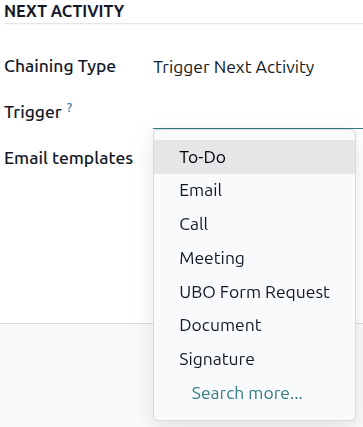
Saat kegiatan memiliki Tipe Rantai yang ditetapkan sebagai Picu Kegiatan Berikutnya, menandai kegiatan sebagai Selesai langsung meluncurkan kegiatan berikutnya yang tertulis di field Picu.
Menetapkan Chaining Type menjadi Picu Kegiatan Berikutnya langsung meluncurkan kegiatan berikutnya setelah yang sebelumnya selesai.
Bila Picu Kegiatan Berikutnya dipilih di field Chaining Type, field di bawah berganti menjadi: Picu. Dari field menu drop-down Picu, pilih kegiatan yang harus diluncurkan setelah kegiatan ini selesai.
Template email
Pilih atau buat template email yang akan disarankan saat aktivitas ditambahkan ke peluang. Template akan muncul bersama aktivitas di chatter dan dapat dikirim apa adanya atau diedit oleh user.
Pelacakan kegiatan
Untuk menjaga pipeline tetap mutakhir dengan tampilan status aktivitas yang paling akurat, segera setelah prospek berinteraksi, aktivitas terkait harus ditandai sebagai Done. Ini memastikan aktivitas berikutnya dapat dijadwalkan sesuai kebutuhan. Ini juga mencegah pipeline menjadi penuh dengan aktivitas yang sudah lewat waktu.
Pipeline paling efektif saat dijaga up-to-date dan akurat sesuai dengan interaksi yang dilacak.
Rencana kegiatan
Rencana aktivitas adalah urutan aktivitas yang telah dikonfigurasi sebelumnya. Ketika rencana aktivitas diluncurkan, setiap aktivitas dalam urutan dan aktivitas apa pun yang diatur untuk dipicu dari aktivitas dalam urutan tersebut dijadwalkan secara otomatis.
Untuk membuat rencana baru, navigasi ke . Klik New di kiri atas halaman untuk membuka formulir Lead Activity Plans kosong.
Masukkan nama untuk rencana baru di field Plan Name. Pada tab Activities To Create, klik Add a line untuk menambahkan aktivitas baru.
Pilih Tipe Kegiatan dari menu drop-down. Klik Cari Lebih Banyak untuk melihat daftar lengkap tipe kegiatan yang tersedia, atau untuk membuat kegiatan baru.
Selanjutnya, di field Summary, biarkan kosong untuk menggunakan Default Summary aktivitas atau masukkan ringkasan baru tentang apa yang diperlukan aktivitas tersebut. Memasukkan ringkasan baru tidak menimpa Default Summary yang ada. Konten field ini disertakan dengan aktivitas yang dijadwalkan, dan dapat diedit nanti.
Di field Penugasan, pilih salah satu opsi berikut:
Ask at launch: Aktivitas ditugaskan kepada user ketika rencana dijadwalkan. Secara default, aktivitas akan ditugaskan kepada user yang membuat aktivitas tersebut, meskipun mereka bukan user yang bertanggung jawab atas peluang tempat aktivitas dibuat.
Default user: Aktivitas selalu ditugaskan kepada user tertentu.
Bila User default dipilih di field Penugasan, pilih user di field Ditugaskan ke.
Tip
Rencana kegiatan dapat memiliki kegiatan yang diberikan ke user default dan user yang diberikan saat pelaksanaan rencana.

Selanjutnya, konfigurasikan timeline untuk aktivitas. Aktivitas dapat dijadwalkan untuk terjadi sebelum tanggal rencana atau setelahnya. Menjadwalkan aktivitas sebelum tanggal rencana dapat berguna untuk aktivitas yang dijadwalkan di masa depan yang memerlukan persiapan terlebih dahulu. Gunakan field Interval dan Units untuk mengatur batas waktu aktivitas ini. Terakhir, di field Trigger, pilih apakah aktivitas harus terjadi sebelum atau setelah tanggal rencana.
Example
Rencana kegiatan dibuat untuk menangali lead berprioritas tinggi. Secara spesifik, lead-lead ini harus dihubungi dengan cepat, dengan meeting yang dijadwalkan dalam dua hari dari kontak pertama. Rencana dikonfigurasi dengan kegiatan-kegiatan berikut:
Email dua hari sebelum tanggal rencana
Meeting nol hari sebelum tanggal rencana
Buat penawaran tiga hari setelah tanggal rencana
Unggah dokumen tiga hari setelah tanggal rencana
Follow-up lima hari setelah tanggal rencana
Ini menetapkan tanggal rencana* sebagai deadline meeting, yang adalah tujuan rencana. Sebelum tanggal tersebut, terdapat waktu tunggu untuk menghubungi pelanggan dan menyiapkan meeting. Setelah htanggal, salesperson memiliki waktu untuk membuat penawaran, mengunggah dokumen, dan follow-up.
Ulangi langkah-langkah ini untuk setiap kegiatan yang termasuk di rencana.
Menggunakan rencana aktivitas
Untuk menggunakan rencana aktivitas dengan peluang CRM, buka dan klik kartu Kanban peluang untuk membukanya.
Di atas chatter peluang, klik Activity untuk membuka jendela pop-up Schedule Activity.
Di field Plan, pilih rencana aktivitas yang diinginkan untuk diluncurkan dari bagian di atas aktivitas individual. Ini menghasilkan Plan Summary, yang mencantumkan aktivitas yang termasuk dalam rencana. Pilih Due Date menggunakan popover kalender. Ini secara otomatis memperbarui Plan summary dengan batas waktu berdasarkan interval yang dikonfigurasi dalam rencana aktivitas.
Pilih user di field Responsible. User ini ditugaskan untuk aktivitas apa pun dalam rencana yang dikonfigurasi dengan Ask at launch di field Assignment.

Klik Schedule. Detail rencana ditambahkan ke bagian Planned Activities dari chatter, selain setiap aktivitas yang membentuk rencana.

Lihat juga