
Instruire
Aplicația Angajați urmărește două tipuri de învățare: cursuri virtuale de eLearning, sau instruire la fața locului. Atât certificările, cât și înregistrările de participare la instruire sunt păstrate în aplicația Angajați, iar toate cursurile și certificările finalizate sunt înregistrate în fila CV a fiecărei fișe de angajat.
eLearning
Pentru a instrui angajații folosind cursuri eLearning, aplicația eLearning trebuie să fie instalată.
Sfat
Cursurile pot fi create fie prin aplicația Angajați, fie prin aplicația eLearning.
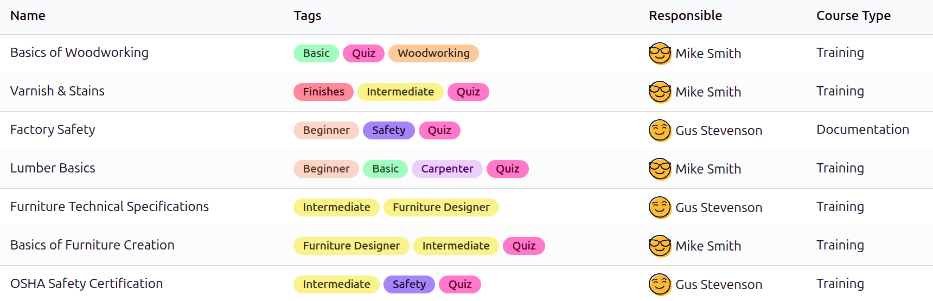
Mai întâi, navigați la , și se încarcă tabloul de bord Cursuri eLearning. Toate cursurile configurate în prezent apar într-o vizualizare listă. Fiecare curs afișează următoarele informații:
Nume: Numele cursului.
Etichete: Adăugați etichete relevante, cum ar fi nivel, subiect etc.
Responsabil: Utilizatorul responsabil de curs, inclusiv invitarea participanților și actualizarea cursului după necesitate. Creatorul cursului nu trebuie să fie persoana Responsabilă.
Tip curs: Acest câmp determină formatul cursului. Cele două opțiuni disponibile sunt:
Instruire: Conținutul trebuie vizualizat în ordine.
Documentație: Angajatul poate vizualiza conținutul în ordinea dorită.
Creare curs eLearning
Niciun curs nu este preconfigurat în aplicația Angajați. Cursurile trebuie create fie în aplicația Angajați, fie în aplicația eLearning.
Notă
Odată ce un curs este disponibil, acesta este accesibil din ambele aplicații.
Pentru a crea un curs eLearning, navigați la . Faceți clic pe butonul Nou în colțul din stânga sus și se încarcă un formular gol Curs eLearning.
Urmați instrucțiunile pentru crearea unui curs, inclusiv adăugarea filelor conținut, descriere, opțiuni și karma.
Important
Doar utilizatorii cu drepturi de acces corespunzătoare pot vizualiza, modifica sau crea orice curs de învățare.
Invitați angajați
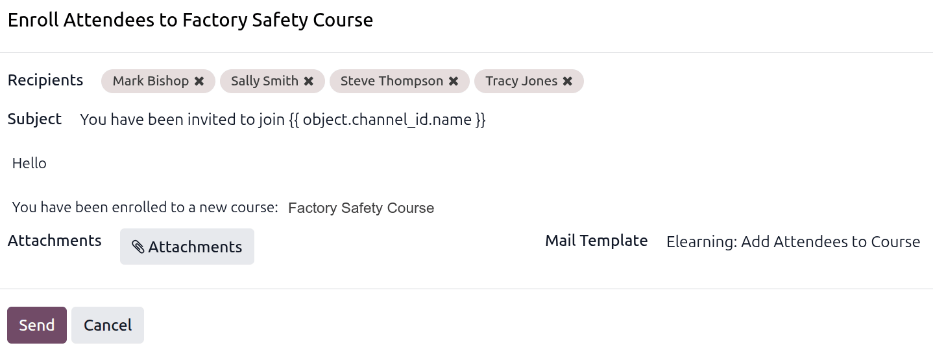
Din tabloul de bord Cursuri eLearning, invitați angajați să urmeze un curs. Navigați la , faceți clic pe cursul dorit din listă și se încarcă formularul cursului. Faceți clic pe butonul Adăugați participanți și se încarcă o fereastră pop-up Înscrie participanți la (Titlul cursului).
Adăugați toți angajații doriți în câmpul Destinatari utilizând meniul drop-down. Toți angajații din baza de date sunt disponibili în această listă.
Sfat
Pentru a filtra doar angajații, faceți clic în câmpul Destinatari, apoi faceți clic pe Căutați mai mult….
În fereastra pop-up Căutare: Destinatari care se încarcă, filtrați rezultatele făcând clic în caseta de căutare și selectând Angajați în coloana Filtre. Sunt prezentați doar angajații, excluzând alte companii sau furnizori. Faceți clic pe caseta de selectare din stânga coloanei Nume pentru a selecta toți angajații.
E-mailul utilizează șablonul implicit Elearning: Add Attendees to Course Șablon e-mail, care include o linie de subiect dinamică ce include numele cursului.
Efectuați orice modificări dorite în e-mail, atașați fișierele necesare, apoi faceți clic pe Trimite pentru a invita angajații.
Odată ce invitația este trimisă, destinatarii apar în lista de participanți. Faceți clic pe butonul smart Participanți pentru a vizualiza toți participanții invitați.
Odată ce angajatul completează cursul eLearning, formarea apare în fișa sa de angajat, în fila CV.
Notă
Alternativ, faceți clic pe butonul Invită și se încarcă o fereastră pop-up Invită participanți la (Numele cursului). Copiați linkul cursului făcând clic pe pictograma (Copiază) pentru a copia linkul și trimiteți-l angajaților. Sau, faceți clic pe comutatorul Trimite e-mail pentru a trimite e-mail angajaților.
La fața locului
Aplicația Angajat poate urmări, de asemenea, formarea în persoană. Acestea pot lua orice format, de la prelegeri la formare interactivă. Pentru a crea cursuri de formare la fața locului, aplicația Evenimente trebuie să fie instalată.
Formarea la fața locului poate fi creată fie prin aplicația Angajat fie prin aplicația Evenimente. Toate cursurile create apar în ambele aplicații.
Notă
Odată ce o formare la fața locului este disponibilă, aceasta este accesibilă din ambele aplicații.
Pentru a vizualiza toate cursurile la fața locului configurate în prezent, navigați la și se încarcă tabloul de bord Cursuri la fața locului. Toate cursurile la fața locului apar într-o vizualizare Kanban implicită, organizate pe etape.
Dați clic pe o cartelă de curs la sediu pentru a vizualiza detaliile.
Creează un curs la sediu
Pentru a crea un nou curs la sediu, navigați la . Dați clic pe butonul Nou din colțul din stânga sus și se încarcă un formular gol pentru evenimentul Cursuri la sediu.
Completați formularul evenimentului pentru a configura cursul de formare la sediu. La finalizare, opțiunea de a-l publica pe site este disponibilă, dacă este necesar. Această opțiune este disponibilă doar dacă aplicația Site este instalată.
Invitați angajați
După ce cursul la sediu este configurat, pasul următor este invitarea angajaților. Navigați la și dați clic pe cartela Kanban a cursului. Dați clic pe butonul Invită din colțul din stânga sus și se încarcă un formular gol de trimitere.
Formularul permite doar invitarea angajaților prin Email. Subiectul este implicit Eveniment: (Titlul evenimentului) și poate fi modificat dacă este necesar.
Apoi, adăugați angajații la Destinatari în câmpul respectiv, apoi creați corpul emailului.
Dați clic pe Trimite și se încarcă o fereastră pop-up de confirmare. Dați clic pe Trimite tuturor în fereastra pop-up și invitațiile sunt trimise.