
Attendance logs
When entering the Attendances application, the Overview dashboard is presented by default, and displays all the user’s attendance logs (their check in and check out information) for the current day. If the user has the required access rights or is an approver for specific employees, those employees» attendance logs also appear on the Overview dashboard.
The Overview dashboard displays the current day, segmented by hour, with the current hour highlighted in yellow. The appearance of the Overview dashboard is determined by the working schedule set on the employee’s records. Each employee’s working hours appear in white, while all other hours appear in gray. This allows managers to visually determine if an employee is working outside of their working hours.
Employees populate the rows, alphabetically by first name. Each attendance log displays the total hours along with the specific check in and check out times. The log colors indicate the following statuses:
Gray: Completed entries where the employee has checked in and out.
Green: Active entries where the employee checked in but has not yet checked out.
Red: Entries with any errors (e.g. employees have double entries, or forget to check out).

A color-coded bar indicates how many hours out of the total expected hours the employee has logged for the day. Rollover the color bar to view the details for the employee’s current day. Solid colors indicate the logged hours (with both a start and end time), while pale colors indicate the employee is signed in, but has not signed out yet. Only completed attendance logs (records with a check in and check out time) appear in the summary of the logged time.
Example
Abigail Peterson is scheduled to work from 9:00 AM to 12:00 PM, then take a one-hour lunch break from 12:00 PM to 1:00 PM, then work from 1:00 PM to 6:00 PM, for a total of eight hours.
Abigails checks in at 9:00 AM, and checks out at 12:00 PM. She logs in again at 1:00 PM. The
current time is 2:15 PM. The rollover information displays 3h / 8h, indicating Abigail has
logged three completed working hours out of a total of eight. There is a pale green line that
extends past the summary block, indicating she checked in at 1:00 PM, but has not yet checked
out. The length of the pale green line indicates the time worked.

The Attendances dashboard allows for changing the displayed time period, either Day, Week, Month, Quarter, Year, or a custom time period. To instantly return the dashboard to the present date, click the Today button at any time.
Notă
Any attendance logs that have errors appear in red, indicating they need to be resolved by a user with the proper access rights or are approvers for the employees with the errors.
Filtre și grupuri
Sometimes, attendance officers and managers need to view specific records, such as all automatic checkouts, to determine which employees chronically forget to check out, or by department, to determine which team is working the most overtime.
For these cases, use the search bar to select a Filters or Group By, or combine both to present the desired information.
Filtre de valoare ridicată
Filtru |
Caz de utilizare frecvent |
|---|---|
La muncă |
Verificați dacă angajații sunt încă la sediu înainte de a închide clădirea pentru noapte sau pentru a face un recensământ. |
Erori |
Vizualizați toate erorile pentru a le corecta înainte de procesarea salariilor. |
Ieșit automat |
Efectuați un audit pentru a determina angajații care uită frecvent să se ponteze la plecare. |
Dată |
Limitați rezultatele la o anumită perioadă de salarizare sau fereastră de audit. |
Angajați activi/arhi vați |
Comutați între personalul actual și foștii angajați când auditați date istorice. |
Grupări relevante
Grupează după |
Când este util |
|---|---|
Angajat |
Review individual attendance logs during a 1:1 meeting. |
Departament |
Comparați nivelurile de personal și orele lucrate pentru a determina echipele care lucrează prea mult sau prea puțin. |
Manager |
Determinați către cine pot fi direcționate întrebările de urmărire a prezenței pentru un angajat. |
Metodă |
Identificați tendințe în metodele de pontaj pentru a rezolva eventuale probleme hardware. |
Dată (Zi/Săptămână/Lună) |
Identificați vârfurile de absenteism sau tiparele sezoniere. |
Detaliile jurnalului de prezență
Odoo records both the time and location for every check-in and check-out, with fields varying by the method used. These detailed attendance logs can confirm where an employee was on any given workday. This can be useful for companies with hybrid working schedules, who may need to perform audits to ensure proper compliance.
To view an attendance log, click on any attendance entry on the Overview dashboard, and the attendance log appears in a pop-up window. This log displays a summary, including the following information:
Employee: The name of the employee.
Check In: The date and time the employee checked in.
Check Out: The date and time the employee checked out. This only appears if the employee has checked out.
Worked Time: The amount of time the employee logged for that specific entry, in an hour and minute format (HH:MM).
Worked Extra Hours: The unpaid overtime hours worked beyond the expected working schedule for that specific entry (shows only when present for the employee).
Extra Hours: The approved overtime for that specific entry (the Worked Time minus the approved Worked Extra Hours.
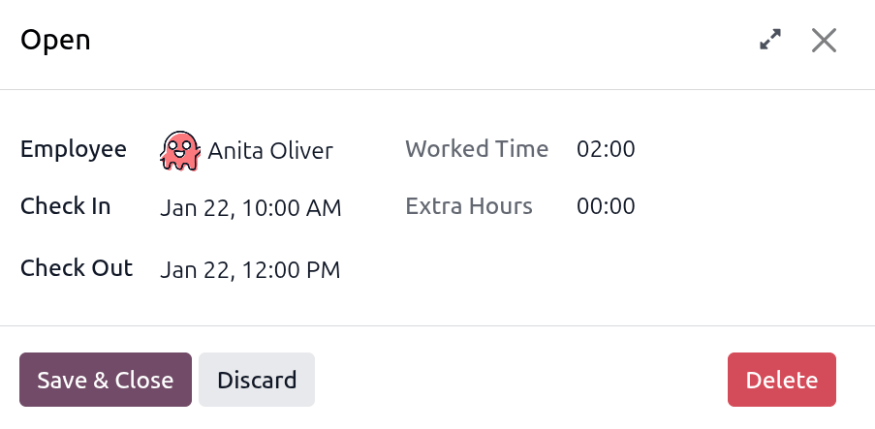
Detalii de check-in/check-out
Additional detailed check in and check out information for the attendance log is available. Click the (expand) icon in the upper-right corner of the attendance log, and the detailed record loads.
The following additional information appears for both the Check In and Check Out sections, which appear in the expanded attendance log.
Mode: The attendance submission method. The available options are:
Systray: The employee checked in or out directly from the database.
Kiosk: The employee checked in or out using an attendance kiosk.
Manual: The employee’s manager or an Attendances app administrator manually created the attendance record. This typically occurs when an employee forgets to check in or check out.
IP Address: The device’s IP address used to check in or out.
Browser: The web browser the employee used to check in or out.
Localisation: The city and country associated with the computer’s IP address.
GPS Coordinates: The coordinates when the user checked in or out. To view the coordinates on a map, click the View on Maps button beneath the GPS coordinates. This opens a map in a new browser tab, with the location pointed out.

Erori de prezență
Entries that contain an error appear on the overview dashboard in red. In the (Gantt) view, the entry appears with a red background; in the (List) view, the entry text appears in red.
O eroare apare atunci când un angajat s-a pontat la intrare, dar nu s-a pontat la ieșire în decurs de 24 de ore sau când o singură perioadă de pontaj depășește 16 ore.
To fix the error, the attendance entry must be modified or deleted. Click on the entry to reveal a pop-up containing the details for that particular entry. To modify the Check In or Check Out information, click on the Check In or Check Out field, and a calendar selector appears. Click on the desired date, then use the time selector beneath the calendar to select the specific time for the entry. When the information is correct, click Apply.
Când toate informațiile din fereastra pop-up sunt corecte, faceți clic pe Salvați și închideți. Când intrarea nu mai are o eroare, intrarea apare cu gri în loc de roșu.
Pentru a șterge o înregistrare, faceți clic pe butonul roșu Șterge din fereastra pop-up, în loc să modificați înregistrarea.