
Feedback 360
Aplicația Evaluări de la Odoo permite managerilor să colecteze feedback despre subordonații direcți de la oricine din companie. Informațiile primite de la colegi oferă managerilor o perspectivă mai completă asupra punctelor forte, a ariilor de dezvoltare și a abilităților de colaborare ale fiecărui angajat.
Tablou de bord feedback 360
Secțiunea Feedback 360 afișează informații pentru toate sondajele configurate în aplicația Evaluări. Pentru a vizualiza sondajele și statisticile acestora, accesați .

Fiecare evaluare sau sondaj este prezentat pe propriul rând în tabloul de bord Feedback 360, împreună cu diverse informații legate de acea evaluare.
Fiecare evaluare include următoarele informații:
Nume sondaj: Numele sondajului specific.
Responsabil: Angajatul responsabil pentru sondaj, inclusiv luna și anul în care au primit această desemnare.
Întrebări: Numărul de întrebări din acel sondaj specific.
Finalizat: Numărul de persoane care au finalizat sondajul.
Pentru a testa sondajul, faceți clic pe butonul Test din partea dreaptă a liniei sondajului. Aceasta deschide evaluarea într-o filă nouă pentru a previzualiza întrebările fără a trimite răspunsuri. Închideți fila pentru a reveni la listă.
Cere feedback
Pentru a solicita feedback de la un coleg, accesați aplicația Evaluări și faceți clic pe cardul de evaluare pentru a-l deschide.
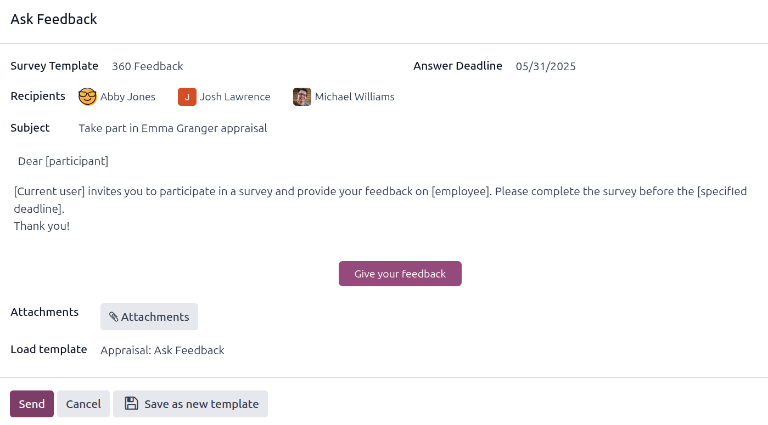
Faceți clic pe butonul Solicită feedback și apare o fereastră pop-up de e-mail Solicită feedback, utilizând șablonul de e-mail Evaluare: Solicită feedback.
Notă
Doar evaluările confirmate afișează butonul Solicită feedback.
Mai întâi, utilizând meniul drop-down, selectați angajații cărora li se cere să furnizeze feedback în câmpul Destinatari. Pot fi selectați mai mulți angajați. Data Termen limită răspuns este setată automat pentru ziua în care evaluarea este scadentă. Utilizați selectorul de calendar pentru a modifica data, dacă este necesar.
Câmpul Subiect este populat cu Participă la evaluarea (Nume angajat), dar poate fi modificat dacă este necesar.
Introduceți orice comentarii suplimentare în spațiul furnizat, dacă este necesar. Textul șablonului de e-mail nu este afișat în fereastra pop-up.
Faceți clic pe Trimite, iar cererile de feedback vor fi trimise angajaților specificați.
Vezi rezultate
Pentru a vizualiza rezultatele, faceți clic pe butonul Feedback-uri din formularul de sondaj. Se încarcă tabloul de bord Sondaje de feedback și prezintă o listă cu toți cei cărora li s-a solicitat să trimită feedback. Fiecare linie afișează următoarele informații:
Angajat: Numele angajatului căruia i s-a solicitat să trimită feedback.
Stare: O pictogramă care indică dacă feedback-ul a fost finalizat sau nou.
Termen limită: Data și ora la care sondajul trebuie finalizat.
Sondaj: Numele sondajului, care este Formular de opinie angajat în mod implicit.

Notă
Solicitările de feedback care au fost trimise dar nu au fost finalizate sunt denumite noi.
Pentru a vizualiza toate răspunsurile, faceți clic pe butonul Vezi rezultate și se încarcă o fereastră pop-up Alege sondaj. Utilizând meniul dropdown, selectați Feedback 360 în câmpul Sondaj, apoi faceți clic pe Vezi rezultate. Feedback-ul combinat se încarcă într-o filă nouă.
Feedback 360 finalizat
Solicitările de feedback care au fost finalizate afișează o etichetă de stare Finalizat verde pe tabloul de bord Chestionare de feedback.
Pentru a vizualiza răspunsurile individuale ale unui formular de feedback finalizat, faceți clic pe Vezi răspunsuri la sfârșitul rândului, iar răspunsurile individuale ale angajatului se vor încărca într-o filă nouă.
Închideți fila când evaluarea este finalizată.
Feedback 360 nou
Solicitările de feedback care au fost trimise, dar nu au fost finalizate, afișează o etichetă de stare Nou albastră pe tabloul de bord Chestionare de feedback.
Dacă este necesar, solicitarea poate fi retrimisă. Faceți clic pe Retrimite la sfârșitul rândului și se va încărca o fereastră pop-up Solicită feedback. Faceți clic pe Trimite pentru a retrimite solicitarea de feedback.