
Attività CRM e piani di attività
All’interno dell’applicazione CRM, le attività sono compiti di follow-up collegati ai lead e alle opportunità che sono visibili nella chat. Un set di tipi di attività preconfigurati è disponibile nell’applicazione CRM, ma possono essere creati anche tipi di attività personalizzati per soddisfare le esigenze aziendali. Per visualizzare l’elenco dei tipi di attività disponibili nell’applicazione CRM, aprire l’app e navigare in . Questa pagina mostra sia le attività create da Odoo che eventuali attività personalizzate.
Nota
Applicazioni diverse supportano tipi di attività diversi. Per vedere l’elenco completo dei tipi di attività, andare nell’app , quindi scorrere fino alla sezione Comunicazioni e cliccare sul link Tipi di attività.
Tipi di attività predefiniti e personalizzati
I tipi di attività preconfigurati per l’applicazione CRM sono:
Email: Aggiunge un promemoria alla chat che invita il venditore a inviare un’email.
Chiamata: Apre un link del calendario dove il venditore può programmare una telefonata.
Riunione: Apre un link del calendario dove il venditore può programmare una riunione.
Da fare: Aggiunge un promemoria di attività generale alla chat.
Carica documento: Aggiunge un link sull’attività dove è possibile caricare un documento esterno. Si noti che l’applicazione Documenti non è necessaria per utilizzare questo tipo di attività.
Nota
Se sono installate altre applicazioni Odoo, come Vendite o Contabilità, nella pagina Tipi di attività dell’app CRM potrebbero apparire ulteriori tipi di attività.
Creare un tipo di attività personalizzato
Per creare un tipo di attività personalizzato, accedere alla pagina Tipi di attività e fare clic su Nuovo in alto a sinistra della pagina per aprire un modulo vuoto. Iniziare inserendo un Nome per il nuovo tipo di attività.
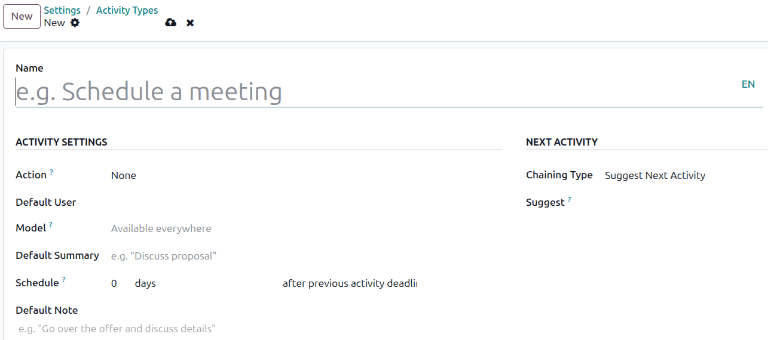
Impostazioni attività
Azione
Il campo Azione specifica quale azione l’attività richiede al venditore assegnato all’opportunità. Alcune azioni attivano comportamenti specifici dopo la pianificazione di un’attività anziché quando l’attività viene aggiunta a un’opportunità.
Se selezioni Carica documento, nel chatter, all’attività pianificata verrà aggiunto direttamente un link per caricare un documento.
Se selezioni Chiamata oppure Incontro, gli utenti hanno la possibilità di aprire il proprio calendario per programmare l’attività stessa.
Se hai selezionato Richiedi firma, all’attività pianificata viene aggiunto un link che apre una finestra pop-up relativa alla richiesta di firma.
Nota
Le azioni disponibili per un tipo di attività possono variare a seconda delle applicazioni attualmente installate nel database.
Utente predefinito
Per assegnare automaticamente l’attività ad un utente specifico quando il tipo di attività è programmato, scegli un nome dal menu a discesa Utente predefinito. Se il campo è vuoto, l’attività viene assegnata all’utente che l’ha creata.
Riepilogo predefinito
Il Riepilogo predefinito funge da titolo per le attività quando vengono scelte su opportunità e lead. Questi saranno visibili agli utenti come venditori e responsabili, mentre il Nome nella parte superiore di un modulo Tipo di attività rappresenta il modo in cui l’attività appare nella configurazione dell’app CRM.
Pianificazione
Impostare una scadenza predefinita per l’attività personalizzata nel campo Pianificazione. Per farlo, configurare il numero desiderato di giorni, settimane o mesi. Quindi, decidere se la scadenza deve verificarsi dopo la data di completamento dell’attività precedente o dopo la scadenza dell’attività precedente.
Nota
L’impostazione predefinita dopo la scadenza dell’attività precedente indica la data per cui è fissata la scadenza, indipendentemente dal fatto che la scadenza sia stata effettivamente rispettata o meno. Per garantire che un’attività venga pianificata solo quando l’attività precedente è completata, utilizzare l’opzione dopo la data di completamento dell’attività precedente.
Nota predefinita
Per includere note ogni volta che viene creato questo tipo di attività, inserirle nel campo Nota predefinita. Questo può essere utilizzato per includere istruzioni per un altro utente, come nel testo di esempio in questo campo.
Nota
Le informazioni in tutti i campi precedenti vengono automaticamente incluse quando un’attività viene creata all’interno di un’opportunità. Tuttavia, le informazioni possono ancora essere modificate prima che l’attività venga pianificata o salvata.
Attività successiva
Per suggerire o attivare automaticamente una nuova attività dopo che un’attività è stata contrassegnata come completata, è necessario impostare il Tipo di concatenamento.
Suggerisci l’attività successiva
Se un’attività ha il Tipo di concatenamento configurato su Suggerisci prossima attività e presenta attività elencate nel campo Suggerisci, gli utenti vengono presentati con raccomandazioni per le attività da svolgere nelle fasi successive.

Nel campo Tipo di concatenamento, seleziona Suggerisci prossima attività. Dopo averlo fatto, il campo al di sotto diventa Suggerisci. Fai clic sul menu a discesa del campo Suggerisci per selezionare qualsiasi attività da consigliare come follow-up per questo tipo di attività.
Attiva l’attività successiva
Quando il Tipo di concatenamento di un’attività è configurato su Attiva attività successiva, contrassegnato l’attività come Completata, l’attività immediatamente successiva elencata nel campo Attiva viene lanciata.
Se configuri il Tipo di concatenamento su Attiva attività successiva, quest’ultima verrà lanciata immediatamente una volta che la precedente viene completata.
Se selezioni Attiva attività successiva nel campo Tipo di concatenamento, il campo in basso diventa: Attiva. Dal menu a discesa del campo Attiva, seleziona l’attività che dovrebbe essere avviata una volta completata.
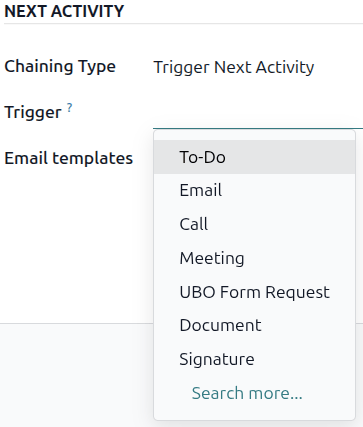
Modelli email
Selezionare o creare un modello email da suggerire quando l’attività viene aggiunta a un’opportunità. Il modello apparirà accanto all’attività nella chat e potrà essere inviato così com’è o modificato da un utente.
Monitorare le attività
Per mantenere la pipeline aggiornata con la vista più accurata dello stato delle attività, non appena viene interagito con un lead, l’attività associata dovrebbe essere contrassegnata come Completata. Ciò garantisce che la prossima attività possa essere pianificata secondo necessità. Inoltre, impedisce alla pipeline di diventare ingombra di attività scadute.
La pipeline è più efficace quando è aggiornata e precisa rispetto alle interazioni che sta monitorando.
Piani attività
I piani di attività sono sequenze preconfigurate di attività. Quando viene avviato un piano di attività, ogni attività nella sequenza e tutte le attività impostate per attivarsi in base alle attività all’interno della sequenza vengono pianificate automaticamente.
Per creare un nuovo piano, andare su . Fare clic su Nuovo in alto a sinistra della pagina per aprire un modulo vuoto Piani di attività lead.
Inserire un nome per il nuovo piano nel campo Nome piano. Nella scheda Attività da creare, fare clic su Aggiungi una riga per aggiungere una nuova attività.
Seleziona un Tipo di attività dal menu a discesa. Fai clic su Cerca di più per vedere un elenco completo di tipi di attività disponibili oppure per crearne uno nuovo.
Successivamente, nel campo Riepilogo, lasciare vuoto per utilizzare il Riepilogo predefinito dell’attività oppure inserire un nuovo riepilogo di ciò che comporta l’attività. L’inserimento di un nuovo riepilogo non sovrascrive un Riepilogo predefinito esistente. Il contenuto di questo campo è incluso nell’attività pianificata e può essere modificato in seguito.
Scegli una delle seguenti opzioni per il campo Assegnazione:
Chiedi all’avvio: le attività vengono assegnate a un utente quando il piano viene pianificato. Per impostazione predefinita, saranno assegnate all’utente che crea l’attività, anche se non è l’utente responsabile dell’opportunità su cui viene creata l’attività.
Utente predefinito: le attività sono sempre assegnate a un utente specifico.
Se scegli Utente predefinito per il campo Assegnazione, scegli un utente per il campo Assegnato a.
Suggerimento
I piani di attività possono presentare attività assegnate a utenti predefiniti e a utenti assegnati all’avvio del piano.

Successivamente, configurare la tempistica per l’attività. Le attività possono essere pianificate per verificarsi prima della data del piano o dopo. Pianificare le attività prima della data del piano può essere utile per attività pianificate in futuro che richiedono una preparazione preventiva. Utilizzare i campi Intervallo e Unità per impostare la scadenza di questa attività. Infine, nel campo Trigger, selezionare se l’attività deve verificarsi prima o dopo la data del piano.
Example
Viene creato un piano di attività per gestire i contatti ad alta priorità. In particolare, questi lead devono essere contattati rapidamente con un meeting programmato a due giorni dal primo contatto. Il piano viene configurato con le seguenti attività:
E-mail due giorni prima della data del piano
Meeting zero giorni prima della data del piano
Crea preventivo tre giorni dopo la data del piano
Carica documenti tre giorni dopo la data del piano
Follow-up cinque giorni dopo la data del piano
In questo modo si stabilisce la data del piano come scadenza dell’incontro, che è l’obiettivo del piano. Prima di questa data, c’è il tempo necessario per contattare il cliente e preparare il meeting. Dopo tale data, l’addetto alle vendite ha il tempo di creare un preventivo, caricare il documento ed eseguire il follow-up.
Ripeti questi step per ogni attività inclusa nel piano.
Utilizzare un piano di attività
Per utilizzare un piano di attività con un’opportunità CRM, andare su e fare clic sulla scheda Kanban di un’opportunità per aprirla.
Sopra il chatter dell’opportunità, fare clic su Attività per aprire la finestra pop-up Pianifica attività.
Nel campo Piano, selezionare il piano di attività desiderato da avviare dalla sezione sopra le singole attività. Questo genera un Riepilogo piano, che elenca le attività incluse nel piano. Selezionare una Data di scadenza utilizzando il calendario a comparsa. Questo aggiorna automaticamente il Riepilogo piano con le scadenze basate sugli intervalli configurati nel piano di attività.
Selezionare un utente nel campo Responsabile. Questo utente viene assegnato a tutte le attività del piano configurate con Chiedi all’avvio nel campo Assegnazione.

Fare clic su Pianifica. I dettagli del piano vengono aggiunti alla sezione Attività pianificate del chatter, insieme a ciascuna delle attività che compongono il piano.

Vedi anche