
Fluturași de salariu
Payslips are individual records of payment, containing all the details of how the pay was calculated (hours, deductions, other inputs, etc.), and generated by payroll officers through the Payroll app. Payslips can be created and processed individually, or multiple payslips can be processed at one time, in a single batch, referred to in Odoo as pay runs.
Creează un stat de plată
To create a new payslip, navigate to , and the Employee Payslips dashboard loads. Click the New Off-Cycle button in the corner, and a blank payslip form loads. Fill out the following information on the payslip form:
Employee: Select the employee being paid using the drop-down menu. This field is required. Once a selection is made, other fields may auto-populate according to the employee record.
Notă
It is recommended to only create payslips for employees that are already in the database. If there is no current employee record, and therefore no employee contract, it is recommended to create the new employee in the Employees application before creating payslips for that employee. Refer to the new employee documentation for instructions on how to add an employee.
Employee Record: The date the current contract began for the selected employee automatically populates this field. This field is required.
Important
All employees are required to have a contract in order to generate payslips. Additionally, only one contract can be in the running stage for each employee. Therefore the current contract start date populates this field, and it is not recommended to make changes to this field.
Pay Run: Select the pay run this new payslip should be added to, if applicable, using the drop-down menu. For individual payslips not related to a pay run, leave this field blank.
Structură: Structura asociată contractului angajatului completează automat acest câmp implicit. Dacă doriți, utilizați meniul drop-down pentru a selecta o structură diferită.
Period: The start and end dates of the pay period. The first and last days of the current month auto-populate the two Period fields by default. The dates can be changed, if desired.
To change the start or end date, click on the first date in the Period field to reveal a pop-up calendar. Navigate to the desired month, and click on the desired day to select that specific date. These fields are required.
Important
If modifications to auto-populated fields are made, it is recommended to check with the accounting department to ensure every entry that affects the Accounting app is correct.

Worked days tab
The Worked Days tab lists the number of days and hours the employee worked during the Period specified at the top portion of the payslip form. This tab is automatically populated with all the individual attendance records for the time period, including both worked time and any time off taken.
Each individual entry lists:
The Type of entry
A Description
The number of Days worked
The total Hours
The Amount earned
Additional records cannot be created for the Worked Days tab as it is auto-populated according to the employee’s attendance records or working schedule on their employee record.

Sfat
Adjusting work entries can be done on the Work Entry dashboard or in the Attendances app.
Salary inputs tab
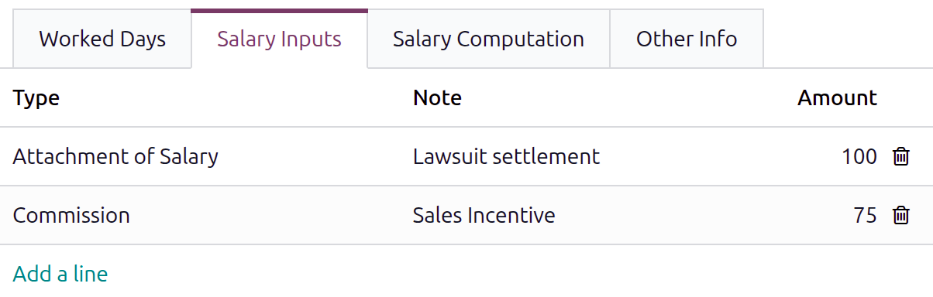
The Salary Inputs tab automatically lists all running salary adjustments and other additional inputs such as tips, bonuses, etc.
Each salary input lists:
The Type of input
The Note related to it
The Amount
To manually add an additional salary input, click Add a line, and a blank line appears in the tab. Select the Type using the drop-down menu. Add any relevant Notes to the corresponding field, then enter the Amount.
Fila de calcul a salariului
The Salary Computation tab calculates each individual salary rule. This includes everything from the employee’s salary to all the deductions and allowances associated with the installed payroll localization, such as taxes, expenses, benefit contributions, and any other items.
When the payslip is first created, this tab remains blank. Click the Compute Sheet button in the corner, and the Salary Computation tab is populated.
Nu este posibil să faceți modificări la această filă, deoarece calculele se bazează pe alte înregistrări din fluturaşul de salariu.
Important
The Compute Sheet button does not disappear from view after it is clicked, so the payslip can be recalculated at any point prior to processing it.
If any changes need to be made to the Worked Days or Salary Inputs tabs, make the necessary changes, then click the Compute Sheet button to recalculate the payslip.

Fila Alte informații
The Other Info tab displays accounting details that are not used in the Salary Computation tab.
The Payslip Name is auto-populated according to the employee name and the time period
the payslip is for, in the following format: Salary Slip - (Employee) - (Month) (Year). Make any
desired edits to the name in this field. This field is required.
Câmpul Companie este completat automat în funcție de fișa angajatului și nu poate fi modificat.
Enter the Payment Date using the calendar selector in the corresponding field. This is the date payment is issued to the employee. The Date Account field is the date the payslip is recorded in the accounting journals. If left blank, the validation date of the payslip is used to determine when the payslip is logged in the accounting journals.
Câmpul Jurnal salarial este completat implicit și nu poate fi editat. Acesta este jurnalul contabil în care este înregistrat cecul de salariu.
If there are any additional notes or information needed for the payslip, add them to the Add an Internal Note field.

Procesarea unui stat de plată
Before processing payslips, check for possible issues concerning payroll. To view all payroll issues, navigate to . The Payroll app dashboard loads, including a Warnings section that appears in the corner of the dashboard.
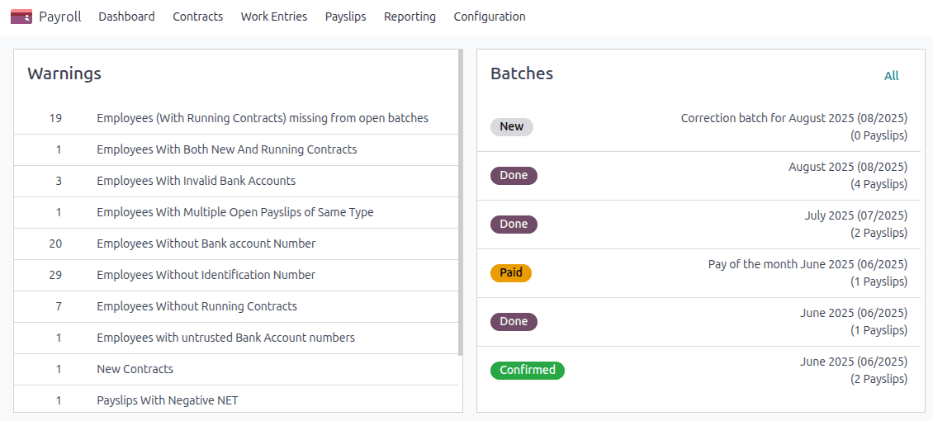
Avertismentele sunt grupate în funcție de tip, cum ar fi „Angajați fără contracte în derulare” sau „Angajați fără număr de cont bancar”. Faceți clic pe un avertisment pentru a vedea toate intrările asociate cu acea problemă specifică.
If the warnings are not resolved at any point in the payslip processing process, an error may occur. Errors appear in a pop-up window, providing details for each error and how to resolve them.
After all relevant warnings are resolved, and all the necessary information on the payslip is entered, the payslip can be processed. First, the payslip is validated, then a payment report is created, the journal entries are posted, and finally, the employee is paid.
Validate the payslip
Once everything on the payslip form is correct, and the payslip has been computed, click the Validate button. A Confirmation pop-up window appears, asking Are you sure you want to proceed? Click Ok to confirm.
Once the payslip is validated, the status changes from Draft to Validated, and a Journal Entry (Draft) smart button appears at the top. A PDF of the payslip appears in the sidebar, if the screen is wide enough to display it.
Sfat
To email a PDF payslip to the employee, click the Send By Email button. The email is sent, and logged in the chatter.
Generate a payment report
Once the payslip status has changed to Done, a payment report must be created. A payment report is a document that contains all the necessary information to transfer the pay earnings from the company’s bank account to the employee’s bank account. These are submitted by the payroll department to the appropriate institution.
Click the Create Payment Report button and a Generate a Payment Report pop-up window loads. Using the drop-down menu, select the Export Format for the payment report. The two default options available are CSV and NACHA. NACHA stands for the National Automated Clearing House Association, and this selection creates a compatible ACH file ,which is sent to the company’s bank.
Notă
Pot fi disponibile și alte opțiuni, în funcție de localizarea pentru stat de plată instalată în baza de date.
Dacă este selectat CSV, toate celelalte câmpuri sunt ascunse din vizualizare.
Next, set the date the paycheck is issued in the Payment Date field using the calendar selector. Lastly, select the desired Bank Journal the paycheck is logged to using the drop-down menu.
Once the Generate a Payment Report pop-up window is configured, click the Generate button, and the file appears on the payslip form, in a new Payment Report field.

Post the journal entry
Before the payment can be sent to the employee, the journal entry must be posted.
Click the Journal Entry (Draft) smart button, and the journal entry loads. Click Post to post the entry, then click the payslip breadcrumb to return to the payslip. The Journal Entry (Draft) smart button changes to Journal Entry (Posted).
Pay the employee
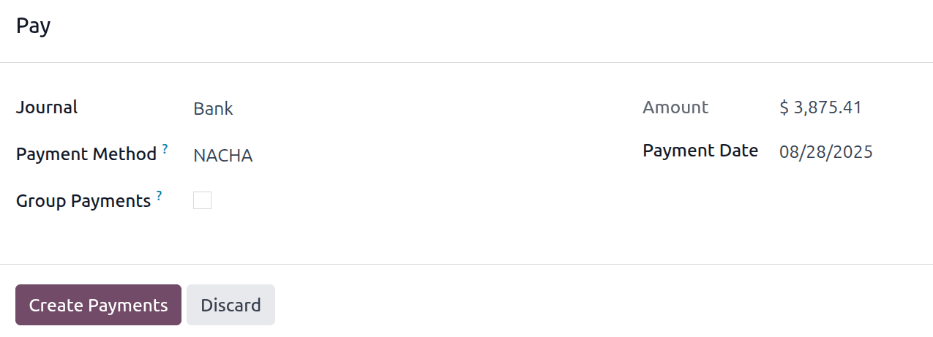
To pay the employee, click the Pay button in the corner. Doing so reveals a Pay pop-up window.
Important
Employees cannot be paid until the journal entry is posted.
Toate informațiile necesare sunt precompletate pe formular conform configurației foii de salarizare, dar pot fi efectuate modificări, dacă este necesar, pentru oricare dintre câmpuri cu excepția Sumă. Aceasta este completată conform calculelor din foaia de salarizare și nu poate fi modificată.
Jurnal: Jurnalul contabil la care este înregistrată foaia de salarizare.
Metodă de plată: Folosind meniul derulant, selectați cum este plătit angajatul. Opțiunile implicite sunt:
Manual Payment: Select this if paying the employee in a method other than Check or NACHA.
Cec: Selectați aceasta când emiteți un cec direct către angajat.
NACHA: Selectați aceasta dacă folosiți National Automated Clearing House Association pentru a transfera plata către angajat, prin depozit direct.
Group Payments: If the employee has multiple payslips for the same time period (for example, separate payroll, reimbursement, and commission checks), click the checkbox to group all payments into one payment.
Data plății: Folosind selectorul de calendar, selectați data la care angajatul urmează să fie plătit.
Once the Pay pop-up form is complete, click the Create Payments button, and the payment is processed.
After the payment is processed, and there is confirmation that the checks have been issued, or the funds have been directly deposited to the employee’s bank account, click the Mark as paid button, and the payslip’s status changes to Paid.
Important
For a payslip to be paid, the employee must have a bank account entered in the private information tab of their employee record, and the bank account must be marked as Trusted.
Dacă nu există informații bancare sau dacă banca nu este listată ca De încredere, foile de salarizare nu pot fi plătite și apare o eroare când se face clic pe butonul Plătește. Editați înregistrarea angajatului și adăugați informații bancare sau marcați contul bancar ca fiind de încredere, după caz.
Rambursează un fluturaș de salariu
Când se rambursează o plată, rambursarea se realizează prin crearea unui fluturaș de salariu pentru o sumă negativă a fluturaș-ului de salariu original.
Example
Un angajat este plătit cu 5.000,00 USD într-un cec de salariu, din greșeală. Când se rambursează fluturaș-ul de salariu, se creează un nou fluturaș de salariu în valoare de -5.000,00 USD.
If a payment needs to be refunded, navigate to , and click on the individual payslip being refunded. Click the Revert button, located in the corner of the screen.
The Refund Payslip dashboard loads, with both the original payslip being refunded (with a status of Paid) and the newly created payslip in the negative amount of the original payslip, in a list view.
By default, the refund payslip has a status of Draft. This refund payslip is processed in the same way a regular payslip is processed.

Tipărește un fluturaș de salariu
To print a payslip, navigate to , and click on the individual payslip being printed. Click the Print button in the corner of the payslip record, and a file explorer window opens in a new tab.
The name of the file is Payslip - (Employee).pdf by default. Modify the file name if desired,
navigate to where the payslip should be saved, and click Save.
A PDF file is downloaded to the selected location.
Sfat
Depending on the configured settings of the browser, the file may automatically download.
Vizualizează toate fluturașii de salariu
To view all payslips, regardless of status, go to . The Employee Payslips dashboard loads, displaying all payslips in a default list view.
The Status for each individual payslip is displayed, indicating one of the following status options:
Draft: The payslip has not been validated yet, and edits can still be made.
Done: The payslip is calculated, validated, and ready to be paid.
Paid: The employee has been paid.
Canceled: The payslip has been canceled.
Warning: The payslip has errors that must be resolved before the payslip can be processed.
Error: The payslip is in the Draft stage, but an error prevents it from being processed further.

Faceți clic pe o fișă de salariu individuală pentru a vedea detaliile pentru acea fișă de salariu pe o pagină separată. Folosind meniul breadcrumb, faceți clic pe File de salariu ale angajaților pentru a reveni la vizualizarea listă a tuturor fișelor de plată.
Export payslips
All or a select number of payslips can be exported to an Excel spreadsheet.
All payslips
To export all payslips, navigate to . Click the (Actions) icon, then click Export All in the drop-down menu.
In the file explorer window that loads, select the desired location for the file, update the default
Pay Slip (hr.payslip).xlsx file name if desired, and click Save.
Select payslips
To export only specific payslips, first click the checkbox to the left of each individual payslip on the Employee Payslips dashboard to select the payslip. As payslips are selected, a # Selected smart button appears, indicating the number of selected payslips.
Click the Actions button at the top of the page, click Export, and an Export Data pop-up window loads. Configure the Export Data pop-up window, then click Export to export the data.
In the file explorer window that loads, select the desired location for the file, update the default
Pay Slip (hr.payslip).xlsx file name if desired, and click Save.