
CRM 활동 및 활동 계획
CRM 앱 내에서 활동은 채터에 표시되는 리드 및 기회에 연결된 후속 작업입니다. 사전 구성된 활동 유형 세트가 CRM 앱에서 제공되지만 비즈니스 요구에 맞게 사용자 정의 활동 유형을 생성할 수도 있습니다. CRM 앱에서 사용 가능한 활동 유형 목록을 보려면 앱을 열고으로 이동합니다. 이 페이지에는 Odoo에서 생성한 활동과 사용자 정의 활동이 모두 표시됩니다.
참고
다른 애플리케이션은 다른 활동 유형을 지원합니다. 활동 유형의 전체 목록을 보려면으로 이동한 다음메일 및 채팅섹션으로 스크롤하여활동 유형링크를 클릭합니다.
기본 및 사용자 정의 활동 유형
CRM 앱에 대해 사전 구성된 활동 유형은 다음과 같습니다:
이메일: 영업 담당자에게 이메일을 보내도록 알림을 채터에 추가합니다.
전화: 영업 담당자가 전화 통화를 예약할 수 있는 캘린더 링크를 엽니다.
회의: 영업 담당자가 회의를 예약할 수 있는 캘린더 링크를 엽니다.
할 일: 채터에 일반 알림 작업을 추가합니다.
문서 업로드: 외부 문서를 업로드할 수 있는 링크를 활동에 추가합니다. 이 활동 유형을 사용하는 데 문서 앱이 필요하지않습니다.
참고
판매 또는 회계와 같은 다른 Odoo 애플리케이션이 설치된 경우 CRM 앱의 활동 유형 페이지에 추가 활동 유형이 나타날 수 있습니다.
사용자 정의 활동 유형 만들기
사용자 정의 활동 유형을 만들려면 활동 유형 페이지로 이동하여 페이지 왼쪽 상단의새로 만들기를 클릭하여 빈 양식을 엽니다. 새 활동 유형의이름을 입력하여 시작합니다.
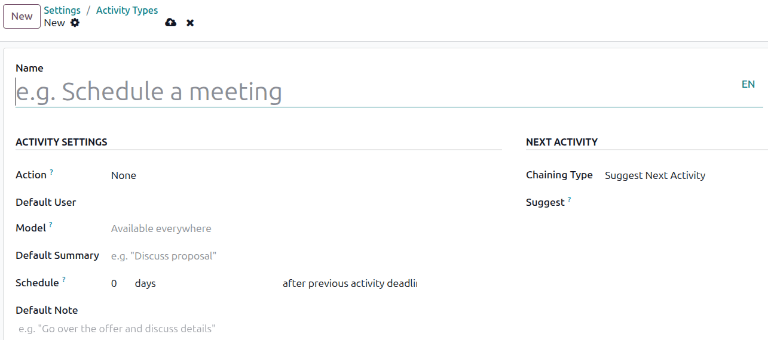
활동 설정
추가 작업
작업 필드는 기회에 할당된 영업 담당자에게 활동이 요구하는 작업을 지정합니다. 일부 작업은 활동이 기회에 추가될 때가 아니라 활동이 예약된 후에 특정 동작을 트리거합니다.
문서 업로드 를 선택하면 문서를 업로드할 링크가 메시지창에 있는 계획된 활동에 바로 추가됩니다.
전화 통화 또는 미팅 을 선택한 경우 캘린더를 열어서 활동 시간을 예약할 수 있습니다.
서명 요청 을 선택하면 메시지창에 있는 계획된 활동에 링크가 추가되며, 이 링크로 서명을 요청하는 팝업 창이 열립니다.
참고
활동 유형에 사용 가능한 작업은 데이터베이스에 현재 설치된 애플리케이션에 따라 다를 수 있습니다.
기본 사용자
이 활동 유형을 예약할 경우 특정 사용자에게 자동으로 활동이 배정되게 하려면 기본 사용자 드롭다운 메뉴에서 이름을 선택합니다. 이 항목을 비워두면 활동을 생성한 사용자에게 활동이 배정됩니다.
기본 요약
기본 요약은 기회 및 리드에서 활동을 선택할 때 활동의 제목 역할을 합니다. 이는 영업 담당자 및 관리자와 같은 사용자에게 표시되는 반면,활동 유형양식 상단의이름은 CRM 앱의 구성 내에서 활동이 표시되는 방식입니다.
예약
일정필드에서 사용자 정의 활동의 기본 마감일을 설정합니다. 이렇게 하려면 원하는일,주또는개월수를 구성합니다. 그런 다음 마감일이이전 활동 완료 날짜 이후에 발생해야 하는지이전 활동 마감일 이후에 발생해야 하는지 결정합니다.
참고
이전 활동 마감일 이후의 기본 설정은 실제로 마감일을 지켰는지 여부와 관계없이 마감일로 설정된 날짜를 의미합니다. 이전 활동이 완료된 경우에만 활동이 예약되도록 하려면이전 활동 완료일 이후옵션을 사용하십시오.
메모 기본값
이 활동 유형이 생성될 때마다 메모를 포함하려면기본 메모필드에 입력하십시오. 이 필드의 샘플 텍스트처럼 다른 사용자를 위한 지침을 포함하는 데 사용할 수 있습니다.
참고
앞의 모든 필드의 정보는 기회 내에서 활동이 생성될 때 자동으로 포함됩니다. 그러나 활동이 예약되거나 저장되기 전에 정보를 변경할 수 있습니다.
다음 활동
활동이 완료로 표시된 후 새 활동을 자동으로 제안하거나 트리거하려면연결 유형을 설정해야 합니다.
다음 활동 제안
활동에 대한 연결 유형 이 다음 활동 제안 으로 설정되어 있고 제안 항목에 활동이 입력되어 있는 경우에는 사용자에게 다음 단계로 추천하는 활동이 표시됩니다.

연결 유형 항목에서 다음 활동 제안 을 선택합니다. 선택하면 아래에 있는 항목이 제안 으로 변경됩니다. 제안 드롭다운 메뉴를 클릭하여 이 활동 유형의 후속 작업으로 추천할 활동을 선택합니다.
다음 활동 트리거
활동의 연결 유형`을 :guilabel:`다음 활동 트리거 로 설정하면, 활동을 완료 로 표시하는 즉시 트리거 필드에 설정되어 있는 다음 활동이 시작됩니다.
연결 유형 을 다음 활동 트리거 로 설정할 경우 이전 활동이 완료되면 즉시 다음 활동이 시작됩니다.
연결 유형 을 다음 활동 트리거 로 선택하면 아래에 있는 항목이 트리거 로 변경됩니다. 이 활동이 완료되면 시작할 활동을 트리거 드롭다운 메뉴에서 선택합니다.

이메일 템플릿
활동이 기회에 추가될 때 제안할 이메일 템플릿을 선택하거나 생성하십시오. 템플릿은 채터의 활동과 함께 표시되며 그대로 보내거나 사용자가 편집할 수 있습니다.
활동 추적
파이프라인을 활동 상태에 대한 가장 정확한 보기로 최신 상태로 유지하려면 리드와 상호 작용하는 즉시 관련 활동을 *완료*로 표시해야 합니다. 이렇게 하면 필요에 따라 다음 활동을 예약할 수 있습니다. 또한 파이프라인이 기한이 지난 활동으로 혼잡해지는 것을 방지합니다.
파이프라인은추적하는상호작용에대해최신상태를유지하고정확할때가장효과적입니다.
활동 계획
*활동 계획*은 미리 구성된 활동 시퀀스입니다. 활동 계획이 시작되면 시퀀스의 모든 활동과 시퀀스 내 활동에서 트리거되도록 설정된 모든 활동이 자동으로 예약됩니다.
새 계획을 생성하려면으로 이동하십시오. 페이지 왼쪽 상단의신규를 클릭하여 빈리드 활동 계획양식을 엽니다.
계획 이름필드에 새 계획의 이름을 입력하십시오.생성할 활동탭에서라인 추가를 클릭하여 새 활동을 추가합니다.
드롭다운 메뉴에서 활동 유형 을 선택합니다. 더 보기 를 클릭하면 사용 가능한 활동 유형을 전체 목록으로 보거나 새 활동 을 만들 수 있습니다.
다음으로요약필드에서 활동의 *기본 요약*을 사용하려면 비워 두거나 활동의 내용에 대한 새 요약을 입력하십시오. 새 요약을 입력해도 기존 기본 요약을 덮어쓰지 않습니다. 이 필드의 내용은 예약된 활동에 포함되며 나중에 편집할 수 있습니다.
배정 필드에서 다음 옵션 중 하나를 선택합니다.
시작 시 묻기: 활동은 계획이 예약될 때 사용자에게 할당됩니다. 기본적으로 활동이 생성되는 기회를 담당하는 사용자가 아니더라도 활동을 생성하는 사용자에게 할당됩니다.
기본 사용자: 활동은 항상 특정 사용자에게 할당됩니다.
할당필드에서기본 사용자`가선택된경우:guilabel:`할당 대상필드에서사용자를선택하십시오.
팁
활동계획은기본사용자에게할당된활동과계획시작시할당된사용자를포함할수있습니다.

다음으로 활동의 타임라인을 구성하십시오. 활동은 계획 날짜 이전 또는 이후에 발생하도록 예약할 수 있습니다. 계획 날짜 이전에 활동을 예약하면 미리 준비가 필요한 향후 예약된 활동에 유용할 수 있습니다.간격및단위필드를 사용하여 이 활동의 마감일을 설정하십시오. 마지막으로트리거필드에서 활동이 계획 날짜 이전 또는 이후에 발생할지 선택하십시오.
Example
우선순위가 높은 영업제안을 처리하기 위한 활동 계획이 생성됩니다. 특히 이와 같은 영업제안에게는 신속하게 연락해야 하며, 최초 연락 후 2일 이내에 미팅 예약을 해야 합니다. 다음과 같은 활동으로 계획을 구성합니다.
예정일 2일 전 에 이메일 보내기
예정일 0일 전 에 회의하기
예정일 3일 후 견적 작성하기
예정일 3일 후 문서 업로드하기
예정일 5일 후 에 후속 조치하기
계획일 을 계획의 목표인 회의 마감일로 설정합니다. 해당일 이전에는 고객에게 연락하고 회의를 준비할 수 있는 리드 타임이 있습니다. 해당일 이후에는 영업 담당자가 견적서를 작성하고 문서를 업로드하며 후속 조치를 취할 시간을 가지게 됩니다.
계획에 있는 각 활동에 대해 이 단계를 반복합니다.
활동 계획 사용
CRM 기회와 함께 활동 계획을 사용하려면으로 이동하여 기회의 칸반 카드를 클릭하여 엽니다.
기회의 대화 상단에서활동을 클릭하여활동 예약팝업 창을 엽니다.
계획필드에서 개별 활동 위의 섹션에서 시작하려는 원하는 활동 계획을 선택합니다. 이렇게 하면 계획에 포함된 활동을 나열하는계획 요약이 생성됩니다. 캘린더 팝오버를 사용하여마감 날짜를 선택합니다. 이렇게 하면활동 계획에서 구성된 간격을 기반으로 마감일이 포함된계획 요약이 자동으로 업데이트됩니다.
담당자필드에서 사용자를 선택합니다. 이 사용자는할당필드에서시작 시 문의로 구성된 계획의 모든 활동에 할당됩니다.

예약을 클릭합니다. 계획의 세부 정보가 계획을 구성하는 각 활동과 함께 대화의예정된 활동섹션에 추가됩니다.
