
Retroalimentación 360
La aplicación Evaluaciones de Odoo permite que los gerentes recopilen retroalimentación sobre sus empleados por parte de cualquier persona en la empresa. Gracias a los comentarios de sus compañeros, los gerentes tienen una visión más completa de las fortalezas, áreas de crecimiento y habilidades de colaboración de cada empleado.
Tablero de retroalimentación 360
La sección Retroalimentación 360 muestra información de todas las encuestas configuradas en la aplicación Evaluaciones. Para ver las encuestas y sus respectivas estadísticas, vaya a .

Cada evaluación o encuesta aparece en su propia línea en el tablero Retroalimentación 360, así como distinta información relacionada a esa evaluación en particular.
Cada evaluación incluye la siguiente información:
Nombre de la encuesta: El nombre de esa encuesta en específico.
Responsable: El empleado responsable de la encuesta, con el mes y el año en el que recibió esa asignación.
Preguntas: El número de preguntas en esa encuesta en particular.
Completado: El número de personas que completaron la encuesta.
Para probar la encuesta, haz clic en el botón Probar ubicado del lado derecho de la línea de la encuesta. Esta acción abre la evaluación en una nueva pestaña para que revises las preguntas sin enviar las respuestas. Cierra la pestaña para regresar a la lista.
Solicitar retroalimentación
Para solicitar retroalimentación de otra persona, vaya a Evaluaciones y haga clic en la tarjeta de evaluación para abrirla.
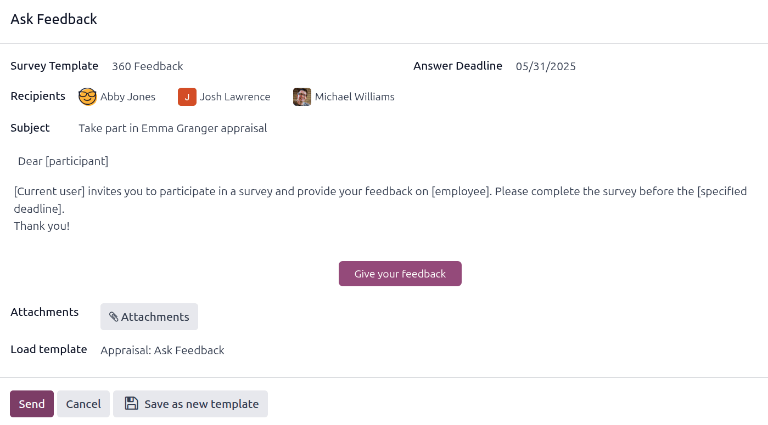
Haz clic en el botón Solicitar retroalimentación y aparecerá la ventana emergente de correo Solicitar retroalimentación con la plantilla Evaluación: Solicitar retroalimentación.
Nota
Solo las evaluaciones confirmadas muestran el botón Solicitar retroalimentación.
Primero, usa el menú desplegable para seleccionar a los empleados a quienes solicitarás retroalimentación en el campo Destinatarios. Puedes seleccionar varios empleados. La fecha en el campo Fecha límite para responder está configurada de forma predeterminada con el día en que vence la evaluación. Usa el selector de calendario para cambiar la fecha en caso de que sea necesario.
El asunto es Participa en la evaluación de (Nombre del empleado), pero puedes cambiarlo en caso de que sea necesario.
Escribe comentarios adicionales en el espacio disponible si lo necesitas. La copia de la plantilla del correo no aparece en la ventana emergente.
Haga clic en Enviar para enviar las solicitudes de retroalimentación a los empleados especificados.
Ver resultados
Para ver los resultados, haz clic en el botón Retroalimentaciones del formulario de la encuesta. Esta acción cargará el tablero de encuestas de retroalimentación y podrás ver una lista con todas las personas a quienes les solicitaste retroalimentación. Cada línea muestra la siguiente información:
Empleado: El nombre del empleado a quien le solicitaste retroalimentación.
Estado: Un icono que indica si la retroalimentación está completada si es o nueva.
Fecha límite: La fecha y hora antes de la que se debe completar la encuesta.
Encuesta: El nombre de la encuesta que es Formulario de opinión del empleado de forma predeterminada.

Nota
Las solicitudes de retroalimentación enviadas que no han sido completadas se consideran nuevas.
Para ver todas las respuestas, haz clic en el botón Ver resultados y se abrirá una ventana emergente Elegir encuesta. Usa el menú desplegable y selecciona Retroalimentación 360 en el campo Encuesta, luego haz clic en Ver resultados. La retroalimentación combinada aparecerá en una nueva pestaña.
Retroalimentación 360 completada
Las solicitudes de retroalimentación completadas muestran una etiqueta de estado verde con el texto Completada en el tablero de encuestas de retroalimentación.
Para ver las respuestas individuales de un formulario de retroalimentación completado, haz clic en Ver respuestas al final de la línea y las respuestas individuales del empleado aparecerán en una nueva pestaña.
Cierra la pestaña cuando termines de revisarlas.
Nueva retroalimentación 360
Las solicitudes de retroalimentación enviadas que no han sido completadas muestran una etiqueta de estado azul con el texto Nuevo en el tablero de encuestas de retroalimentación.
Puedes reenviar la solicitud en caso de que sea necesario. Haz clic en Reenviar al final de la línea, esta acción abrirá la ventana emergente Solicitar retroalimentación. Haz clic en Enviar para reenviar la solicitud de retroalimentación.