
360도 피드백
Odoo 평가 앱을 통해 관리자는 회사 내 모든 직원들로부터 직속 부하 직원에 대한 피드백을 수집할 수 있습니다. 동료들의 의견을 종합하여 관리자는 각 직원의 강점, 성장 영역, 그리고 협업 능력에 대해 더욱 자세히 파악할 수 있습니다.
360 피드백 현황판
360 피드백 섹션에는 평가 앱에 설정되어 있는 모든 설문조사 항목이 표시됩니다. 해당 설문 및 관련된 통계 자료를 확인하려면 으로 이동합니다.

각360 피드백현황판에는 각 업무 평가 또는 설문 조사가 해당 평가와 관련된 다양한 정보와 함께 각각의 줄에 표시됩니다.
각 평가에 있는 정보는 다음과 같습니다.
설문 조사 이름: 특정 설문 조사의 이름입니다.
책임자: 설문 조사를 담당하는 임직원이며, 해당 직책을 부여받은 월과 연도를 포함합니다.
질문: 해당 설문 조사의 질문 수입니다.
완료됨: 설문 조사를 완료한 사람의 수입니다.
설문 조사를 테스트하려면 설문 조사 줄 오른쪽에 있는테스트버튼을 클릭하십시오. 이렇게 하면 새 탭에서 업무 평가가 열리며 답변을 제출하지 않고 질문을 미리 볼 수 있습니다. 탭을 닫으면 목록으로 돌아갑니다.
피드백 요청
동료에게 피드백을 요청하려면 업무 평가 앱으로 이동하여 평가 카드를 클릭하여 엽니다.
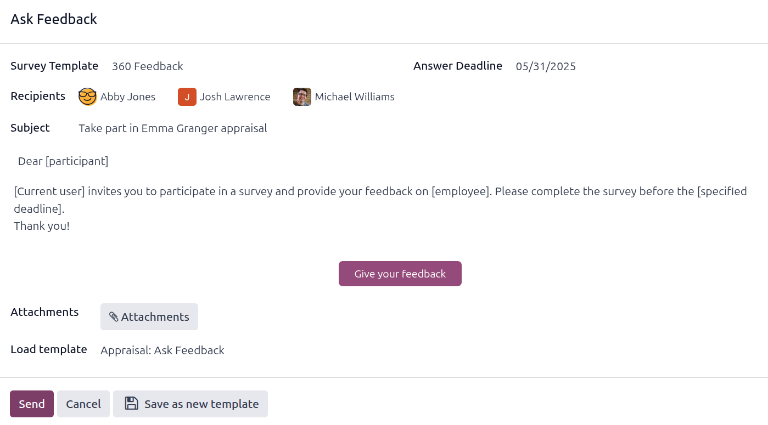
피드백 요청버튼을 클릭하면피드백 요청이메일 팝업 창이 나타나며업무 평가: 피드백 요청이메일 템플릿을 사용합니다.
참고
확정된 업무 평가만피드백 요청버튼이 표시됩니다.
먼저 드롭다운 메뉴를 사용하여수신자필드에서 피드백을 제공하도록 요청받는 임직원을 선택하십시오. 여러 임직원을 선택할 수 있습니다.답변 마감일날짜는 업무 평가 만료일로 자동 설정됩니다. 원하는 경우 캘린더 선택기를 사용하여 날짜를 수정하십시오.
제목은 `(임직원 이름) 업무 평가에 참여하기`로 채워지지만 원하는 경우 수정할 수 있습니다.
원하는 경우 제공된 공간에 추가 의견을 입력하십시오. 이메일 템플릿 내용은 팝업 창에 표시되지않습니다.
전송을 클릭하면 지정된 임직원에게 피드백 요청이 전송됩니다.
결과 보기
결과를 보려면 설문 조사 양식의피드백버튼을 클릭하십시오.피드백 설문 조사현황판이 로드되고 피드백 제출을 요청받은 모든 사람의 목록이 표시됩니다. 각 줄에는 다음 정보가 표시됩니다.
임직원: 피드백 제출을 요청받은 임직원의 이름입니다.
마감일: 설문 조사를 완료해야 하는 날짜와 시간입니다.
설문 조사: 설문 조사 이름이며 기본값은임직원 의견 양식입니다.

참고
발송되었지만 완료되지않은피드백 요청은신규라고 합니다.
모든 응답을 보려면결과 보기버튼을 클릭하면설문 조사 선택팝업 창이 로드됩니다. 드롭다운 메뉴를 사용하여설문 조사필드에서360 피드백을 선택한 다음결과 보기를 클릭하십시오. 통합 피드백이 새 탭에 로드됩니다.
360도 다면 평가 완료
완료된 피드백 요청은피드백 설문 조사현황판에 녹색완료됨상태 태그가 표시됩니다.
완료된 피드백 양식의 개별 응답을 보려면 줄 끝에 있는답변 보기를 클릭하면 임직원의 개별 응답이 새 탭에 로드됩니다.
검토가 완료되면 탭을 닫으십시오.
신규 360도 다면 평가
발송되었지만 완료되지 않은 피드백 요청은피드백 설문 조사현황판에 파란색신규상태 태그가 표시됩니다.
필요한 경우 요청을 다시 보낼 수 있습니다. 줄 끝에 있는재전송을 클릭하면피드백 요청팝업 창이 로드됩니다.전송을 클릭하여 피드백 요청을 다시 보내십시오.