
360 Feedback
แอป การประเมิน ของ Odoo ช่วยให้ผู้จัดการรวบรวมคำติชมโดยตรงจากทุกคนในบริษัท ข้อมูลจากเพื่อนร่วมงานช่วยให้ผู้จัดการมองเห็นภาพรวมที่สมบูรณ์ยิ่งขึ้นเกี่ยวกับจุดแข็ง ด้านการพัฒนา และทักษะการทำงานร่วมกันของข้อมูลพนักงานแต่ละคน
แดชบอร์ดข้อเสนอแนะแบบ 360
ข้อเสนอแนะแบบ 360 องศา แสดงข้อมูลสำหรับแบบสำรวจทั้งหมดที่กำหนดค่าไว้สำหรับแอป การประเมินผล หากต้องการดูแบบสำรวจและสถิติ ให้ไปที่

แต่ละการประเมิน หรือแบบสำรวจ จะแสดงในบรรทัดของตัวเองบนแดชบอร์ด ข้อเสนอแนะ 360 องศา พร้อมกับข้อมูลต่างๆ ที่เกี่ยวข้องกับการประเมินนั้นๆ
การประเมินแต่ละครั้งประกอบด้วยข้อมูลดังต่อไปนี้:
ชื่อแบบสำรวจ: ชื่อของแบบสำรวจเฉพาะ
ผู้รับผิดชอบ: ข้อมูลพนักงานที่รับผิดชอบแบบสำรวจ รวมถึงเดือนและปีที่ได้รับการกำหนดตำแหน่งนั้น
คำถาม: จำนวนคำถามในแบบสำรวจนั้นๆ
เสร็จสมบูรณ์: จำนวนผู้ที่ทำแบบสำรวจเสร็จสมบูรณ์
เพื่อทดสอบแบบสำรวจ ให้คลิกปุ่ม ทดสอบ ทางด้านขวาของแถวแบบสำรวจ การกระทำนี้จะเปิดการประเมินในแท็บใหม่เพื่อดูตัวอย่างคำถามโดยไม่ต้องส่งคำตอบ ปิดแท็บเพื่อกลับไปยังรายการ
ขอความคิดเห็น
เพื่อขอข้อเสนอแนะจากเพื่อนร่วมงาน ให้ไปที่แอป การประเมิน และคลิกที่การ์ดการประเมินเพื่อเปิด
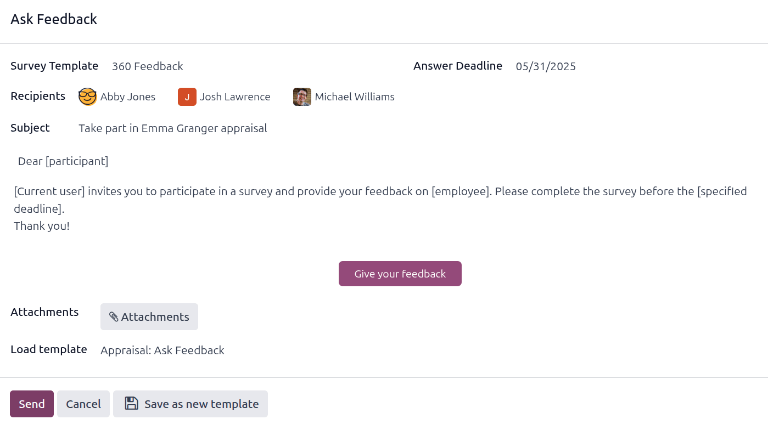
คลิกปุ่ม ขอข้อเสนอแนะ และหน้าต่างป๊อปอัปอีเมลสำหรับ ขอข้อเสนอแนะ จะปรากฏขึ้นโดยใช้เทมเพลตอีเมล การประเมิน: ขอข้อเสนอแนะ
Note
เฉพาะการประเมินที่ได้รับการยืนยันเท่านั้นที่จะแสดงปุ่ม ขอข้อเสนอแนะ
ขั้นแรก ใช้เมนูแบบเลื่อนลงเลือกพนักงานที่ถูกขอให้ให้ข้อเสนอแนะในฟิลด์ ผู้รับ สามารถเลือกพนักงานได้หลายคน วันที่ กำหนดเส้นตายการตอบ จะถูกตั้งค่าโดยอัตโนมัติเป็นวันที่การประเมินครบกำหนด ใช้ตัวเลือกปฏิทินเพื่อแก้ไขวันที่ หากต้องการ
หัวเรื่อง จะถูกเติมข้อมูลด้วย มีส่วนร่วมในการประเมิน (ชื่อพนักงาน) แต่สามารถแก้ไขได้หากต้องการ
พิมพ์ความคิดเห็นเพิ่มเติมในช่องที่ให้มา หากต้องการ เนื้อหาเทมเพลตอีเมล ไม่ แสดงในหน้าต่างป๊อปอัป
คลิก ส่ง และคำขอข้อเสนอแนะจะถูกส่งไปยังพนักงานที่ระบุ
ดูผลลัพธ์
เพื่อดูผลลัพธ์ ให้คลิกปุ่ม ข้อเสนอแนะ บนแบบฟอร์มแบบสอบถาม แดชบอร์ด แบบสอบถามข้อเสนอแนะ จะโหลด และแสดงรายชื่อของทุกคนที่ถูกขอให้ส่งข้อเสนอแนะ แต่ละบรรทัดแสดงข้อมูลต่อไปนี้:
พนักงาน: ชื่อของพนักงานที่ถูกขอให้ส่งข้อเสนอแนะ
สถานะ: ไอคอนที่บ่งชี้ว่าข้อเสนอแนะ เสร็จสมบูรณ์ หรือ ใหม่
กำหนดเวลา: วันที่และเวลาที่ต้องทำแบบสอบถามให้เสร็จ
แบบสอบถาม: ชื่อของแบบสอบถาม ซึ่งโดยค่าเริ่มต้นคือ แบบฟอร์มความคิดเห็นของพนักงาน

Note
คำขอข้อเสนอแนะที่ส่งแล้วแต่**ยัง**ไม่เสร็จสมบูรณ์จะถูกเรียกว่า ใหม่
หากต้องการดูการตอบกลับทั้งหมด ให้คลิกปุ่ม ดูผลลัพธ์ และหน้าต่างป๊อปอัป เลือกแบบสอบถาม จะโหลดขึ้นมา ใช้เมนูแบบเลื่อนลงเลือก 360 Feedback ในฟิลด์ แบบสอบถาม จากนั้นคลิก ดูผลลัพธ์ ข้อเสนอแนะรวมจะโหลดในแท็บใหม่
ข้อเสนอแนะ 360 ที่เสร็จสมบูรณ์
คำขอข้อเสนอแนะที่เสร็จสมบูรณ์แล้วจะแสดงแท็กสถานะสีเขียว เสร็จสมบูรณ์ บนแดชบอร์ด แบบสอบถามข้อเสนอแนะ
หากต้องการดูการตอบกลับแต่ละรายการของแบบฟอร์มข้อเสนอแนะที่เสร็จสมบูรณ์ ให้คลิก ดูคำตอบ ที่ท้ายบรรทัด และการตอบกลับแต่ละรายการของพนักงานจะโหลดในแท็บใหม่
ปิดแท็บเมื่อการตรวจสอบเสร็จสิ้น
ข้อเสนอแนะ 360 ใหม่
คำขอข้อเสนอแนะที่ส่งแล้วแต่ยังไม่เสร็จสมบูรณ์จะแสดงแท็กสถานะสีน้ำเงิน ใหม่ บนแดชบอร์ด แบบสอบถามข้อเสนอแนะ
หากจำเป็น สามารถส่งคำขอได้อีกครั้ง คลิก ส่งอีกครั้ง ที่ท้ายบรรทัด และหน้าต่างป๊อปอัป ขอข้อเสนอแนะ จะโหลดขึ้นมา คลิก ส่ง เพื่อส่งคำขอข้อเสนอแนะอีกครั้ง