
360フィードバック
Odooの 評価 アプリを使うと、マネジャーは直属の部下について、社内の誰からでもフィードバックを集めることができます。同僚からの意見を取り入れることで、各従業員の強み、成長分野、協働スキルをより総合的に把握することができます。
360フィードバックダッシュボード
360 フィードバック`セクションには、**評価** アプリで設定されたすべてのアンケートの情報が表示されます。アンケートおよび統計を確認するには、 :menuselection:`評価アプリ --> 設定 --> 360フィードバック に移動してください。

各評価(またはアンケート)は、360フィードバック ダッシュボード上で1行ずつ表示され、当該評価に関する各種情報も併せて表示されます。
各評価には次の情報が含まれます:
アンケート調査名 :特定のアンケート調査の名前。
担当者: アンケートの担当者。担当者として指定された月と年も表示されます。
質問数: その特定のアンケートにおける質問の数。
完了: アンケート調査を完了した人数。
アンケート調査をテストするには、アンケート調査行の右側にあるテストボタンをクリックします。これにより、新しいタブで評価が開き、回答を送信せずに質問をプレビューできます。タブを閉じてリストに戻ります。
フィードバックを依頼
同僚にフィードバックを依頼するには、評価 アプリに移動し、該当する評価カードをクリックして開きます。
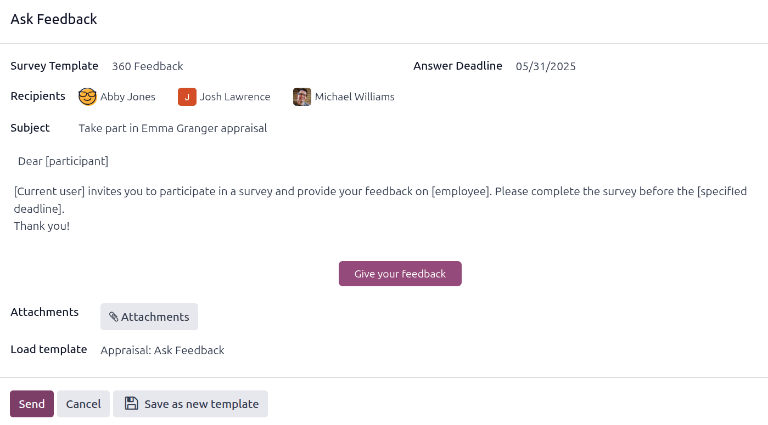
フィードバックを求めるボタンをクリックすると、フィードバックを求めるメールポップアップウィンドウが表示され、評価: フィードバックを求めるメールテンプレートが使用されます。
注釈
確認済みの評価のみがフィードバックを求めるボタンを表示します。
まず、ドロップダウンメニューを使用して、受信者フィールドでフィードバックの提供を求める従業員を選択します。複数の従業員を選択できます。回答期限日付は、評価の期日に自動的に設定されます。必要に応じて、カレンダーセレクターを使用して日付を変更します。
件名には(従業員名) の評価に参加するが入力されていますが、必要に応じて変更できます。
必要に応じて、提供されたスペースに追加のコメントを入力します。メールテンプレートのコピーはポップアップウィンドウに表示されません。
送信をクリックすると、フィードバックリクエストが指定された従業員に送信されます。
結果を表示
結果を表示するには、アンケート調査フォームのフィードバックボタンをクリックします。フィードバックアンケート調査ダッシュボードが読み込まれ、フィードバックの送信を要求されたすべての人のリストが表示されます。各行には次の情報が表示されます:
従業員: フィードバックの送信を要求された従業員の名前。
期限: アンケート調査を完了する必要がある日時。
Survey:アンケート調査の名前で、デフォルトではEmployee Opinion Formです。

注釈
送信されたが完了していないフィードバック申請は新規と呼ばれます。
すべての回答を表示するにはSee resultsボタンをクリックすると、アンケート調査を選択ポップアップウィンドウが読み込まれます。ドロップダウンメニューを使用して、Surveyフィールドで360 Feedbackを選択し、See Resultsをクリックします。統合されたフィードバックが新しいタブで読み込まれます。
完了した360度フィードバック
完了したフィードバック申請は、フィードバックアンケート調査ダッシュボードに緑色のCompletedステータスタグが表示されます。
完了したフィードバックフォームの個別回答を表示するには、行の最後にあるSee Answersをクリックすると、従業員の個別回答が新しいタブで読み込まれます。
確認が完了したらタブを閉じます。
新規360度フィードバック
送信されたが完了していないフィードバック申請は、フィードバックアンケート調査ダッシュボードに青色のNewステータスタグが表示されます。
必要に応じて申請を再送信できます。行の最後にあるResendをクリックすると、フィードバックを依頼ポップアップウィンドウが読み込まれます。Sendをクリックしてフィードバック申請を再送信します。