
Anwesenheitsprotokolle
Beim Öffnen der Anwendung Anwesenheiten wird standardmäßig das Übersicht-Dashboard angezeigt, das alle Anwesenheitsprotokolle des Benutzers (seine An- und Abmeldeinformationen) für den aktuellen Tag zeigt. Wenn der Benutzer über die erforderlichen Zugriffsrechte verfügt oder Genehmiger für bestimmte Mitarbeiter ist, erscheinen auch die Anwesenheitsprotokolle dieser Mitarbeiter im Übersicht-Dashboard.
Das Übersicht-Dashboard zeigt den aktuellen Tag, nach Stunden unterteilt, wobei die aktuelle Stunde gelb hervorgehoben ist. Das Erscheinungsbild des Übersicht-Dashboards wird durch den Arbeitsplan bestimmt, der in den Mitarbeiterdatensätzen festgelegt ist. Die Arbeitszeiten jedes Mitarbeiters erscheinen in Weiß, während alle anderen Stunden grau dargestellt werden. Dies ermöglicht es Führungskräften, visuell zu erkennen, ob ein Mitarbeiter außerhalb seiner Arbeitszeiten arbeitet.
Mitarbeiter füllen die Zeilen alphabetisch nach Vornamen. Jedes Anwesenheitsprotokoll zeigt die Gesamtstunden zusammen mit den spezifischen An- und Abmeldezeiten an. Die Farben der Protokolle zeigen folgende Status an:
Grau: Abgeschlossene Einträge, bei denen sich der Mitarbeiter an- und abgemeldet hat.
Grün: Aktive Einträge, bei denen sich der Mitarbeiter angemeldet, aber noch nicht abgemeldet hat.
Rot: Einträge mit Fehlern (z. B. Mitarbeiter haben doppelte Einträge oder haben vergessen, sich abzumelden).

Ein farbcodierter Balken zeigt an, wie viele Stunden von den erwarteten Gesamtstunden der Mitarbeiter für den Tag protokolliert hat. Fahren Sie mit der Maus über den Farbbalken, um die Details für den aktuellen Tag des Mitarbeiters anzuzeigen. Volle Farben zeigen die protokollierten Stunden an (mit Start- und Endzeit), während blasse Farben anzeigen, dass der Mitarbeiter angemeldet ist, sich aber noch nicht abgemeldet hat. Nur abgeschlossene Anwesenheitsprotokolle (Datensätze mit An- und Abmeldezeit) erscheinen in der Zusammenfassung der protokollierten Zeit.
Example
Abigail Peterson soll von 9:00 Uhr bis 12:00 Uhr arbeiten, dann eine einstündige Mittagspause von 12:00 Uhr bis 13:00 Uhr einlegen und dann von 13:00 Uhr bis 18:00 Uhr arbeiten, insgesamt acht Stunden.
Abigail meldet sich um 9:00 Uhr an und um 12:00 Uhr ab. Sie meldet sich um 13:00 Uhr erneut an. Die aktuelle Zeit ist 14:15 Uhr. Die Rollover-Information zeigt 3h / 8h an, was bedeutet, dass Abigail drei abgeschlossene Arbeitsstunden von insgesamt acht protokolliert hat. Es gibt eine blassgrüne Linie, die über den Zusammenfassungsblock hinausgeht und anzeigt, dass sie sich um 13:00 Uhr angemeldet, sich aber noch nicht abgemeldet hat. Die Länge der blassgrünen Linie zeigt die gearbeitete Zeit an.

Das Anwesenheiten-Dashboard ermöglicht die Änderung des angezeigten Zeitraums, entweder Tag, Woche, Monat, Quartal, Jahr oder einen benutzerdefinierten Zeitraum. Um das Dashboard jederzeit sofort zum aktuellen Datum zurückzusetzen, klicken Sie auf die Schaltfläche Heute.
Bemerkung
Alle Anwesenheitsprotokolle mit Fehlern erscheinen rot und zeigen an, dass sie von einem Benutzer mit den entsprechenden Zugriffsrechten oder Genehmigern für die Mitarbeiter mit den Fehlern behoben werden müssen.
Filter und Gruppen
Manchmal müssen Anwesenheitsbeauftragte und Manager bestimmte Datensätze einsehen, beispielsweise alle automatischen Ausstempelungen, um festzustellen, welche Mitarbeiter chronisch vergessen, sich auszustempeln, oder nach Abteilung, um festzustellen, welches Team die meisten Überstunden leistet.
Für diese Fälle die Suchleiste verwenden, um Filters oder Group By auszuwählen oder beide zu kombinieren, um die gewünschten Informationen darzustellen.
Aufschlussreiche Filter
Filter |
Geläufige Anwendungsfälle |
|---|---|
Auf der Arbeit |
Überprüfen Sie, welche Mitarbeiter noch vor Ort sind, bevor das Gebäude nachts geschlossen wird, oder zählen Sie die Anzahl Mitarbeiter. |
Fehler |
Zeigen Sie alle Fehler an, um sie vor der Gehaltsabrechnung zu korrigieren. |
Automatisch abgemeldet |
Führen Sie eine Prüfung durch, um Mitarbeiter zu ermitteln, die regelmäßig vergessen, sich anzumelden. |
Datum |
Beschränken Sie Ergebnisse auf einen bestimmten Abrechnungs- oder Prüfungszeitraum. |
Aktive/Archivierte Mitarbeiter |
Wechseln Sie zwischen dem aktuellen Personal und ehemaligen Mitarbeitern, wenn historische Daten geprüft werden. |
Aufschlussreiche Gruppierungen
Gruppieren nach |
Wo sollten Gruppierungen verwendet werden? |
|---|---|
Mitarbeiter |
Einzelne Anwesenheitsprotokolle während eines Einzelgesprächs überprüfen. |
Abteilung |
Vergleichen Sie Personalauslastung und Arbeitszeiten, um über- oder unterbelastete Teams zu erkennen. |
Manager |
Ermitteln Sie, an wen sich Fragen zur Anwesenheitsnachverfolgung für einen Mitarbeiter richten können. |
Methode |
Entdecken Sie Trends bei den Anwesenheitsmethoden, um mögliche Hardwareprobleme zu beheben. |
Datum (Tag/Woche/Monat) |
Identifizieren Sie Höchstwerte an Fehltagen oder saisonale Muster. |
Details zum Anwesenheitsprotokoll
Odoo erfasst sowohl die Uhrzeit als auch den Standort für jedes Ein- und Ausstempeln, wobei die Felder je nach verwendeter Methode variieren. Diese detaillierten Anwesenheitsprotokolle können bestätigen, wo sich ein Mitarbeiter an einem bestimmten Arbeitstag befand. Dies kann für Unternehmen mit hybriden Arbeitsmodellen nützlich sein, die möglicherweise Audits durchführen müssen, um die ordnungsgemäße Einhaltung sicherzustellen.
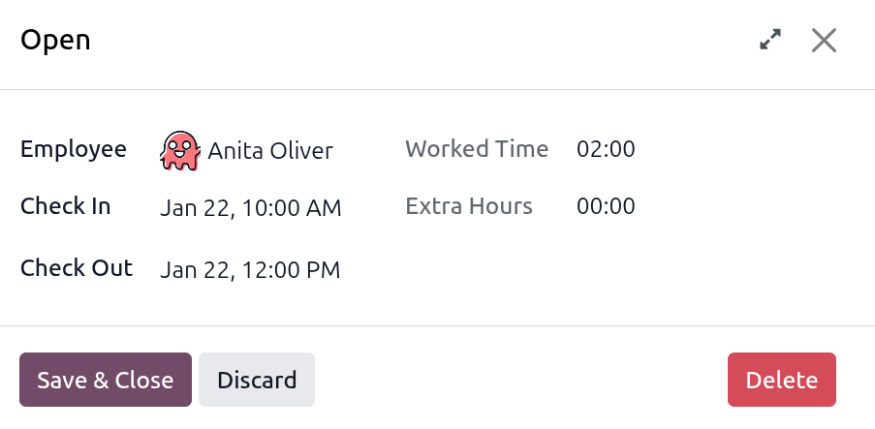
Um ein Anwesenheitsprotokoll anzuzeigen, klicken Sie auf einen beliebigen Anwesenheitseintrag im Übersicht-Dashboard. Das Anwesenheitsprotokoll wird in einem Pop-up-Fenster angezeigt. Dieses Protokoll zeigt eine Zusammenfassung mit folgenden Informationen:
Employee: Der Name des Mitarbeiters.
Check In: Datum und Uhrzeit, zu der sich der Mitarbeiter eingestempelt hat.
Check-Out: Datum und Uhrzeit, zu der sich der Mitarbeiter abgemeldet hat. Dies erscheint nur, wenn sich der Mitarbeiter abgemeldet hat.
Arbeitszeit: Die Zeit, die der Mitarbeiter für diesen spezifischen Eintrag erfasst hat, im Stunden- und Minutenformat (HH:MM).
Geleistete Überstunden: Die unbezahlten Überstunden, die über den erwarteten Arbeitsplan hinaus für diesen spezifischen Eintrag geleistet wurden (wird nur angezeigt, wenn für den Mitarbeiter vorhanden).
Überstunden: Die genehmigten Überstunden für diesen spezifischen Eintrag (die Arbeitszeit minus die genehmigten Geleistete Überstunden).
Daten zur An-/Abmeldung
Zusätzliche detaillierte Informationen zum Ein- und Ausstempeln für das Anwesenheitsprotokoll sind verfügbar. Klicken Sie auf das (Erweitern)-Symbol in der oberen rechten Ecke des Anwesenheitsprotokolls, und der detaillierte Datensatz wird geladen.
Die folgenden zusätzlichen Informationen erscheinen sowohl für die Abschnitte Einstempeln als auch Ausstempeln, die im erweiterten Anwesenheitsprotokoll angezeigt werden.
Modus: Die Methode zur Erfassung der Anwesenheit. Die verfügbaren Optionen sind:
Systray: Der Mitarbeiter hat sich direkt aus der Datenbank ein- oder ausgestempelt.
Kiosk: Der Mitarbeiter hat sich über einen Anwesenheitskiosk ein- oder ausgestempelt.
Manuell: Der Vorgesetzte des Mitarbeiters oder ein Administrator der Anwesenheiten-App hat den Anwesenheitsdatensatz manuell erstellt. Dies geschieht typischerweise, wenn ein Mitarbeiter vergisst, sich ein- oder auszustempeln.
IP-Adresse: Die IP-Adresse des Geräts, das zum Ein- oder Ausstempeln verwendet wurde.
Browser: Der Webbrowser, den der Mitarbeiter zum Ein- oder Ausstempeln verwendet hat.
Lokalisierung: Stadt und Land, die mit der IP-Adresse des Computers verknüpft sind.
GPS-Koordinaten: Die Koordinaten, wenn der Benutzer ein- oder ausgecheckt hat. Um die Koordinaten auf einer Karte anzuzeigen, klicken Sie auf die Schaltfläche Auf Karte anzeigen unterhalb der GPS-Koordinaten. Dadurch wird eine Karte in einem neuen Browser-Tab geöffnet, auf der die Position markiert ist.

Anwesenheitsfehler
Einträge mit Fehlern erscheinen im Übersichts-Dashboard rot. In der Gantt-Ansicht erscheint der Eintrag mit rotem Hintergrund. In der Listen-Ansicht erscheint der Eintragstext in Rot.
Ein Fehler tritt auf, wenn ein Mitarbeiter sich angemeldet hat, sich aber innerhalb von 24 Stunden nicht abgemeldet hat, oder wenn ein einzelner Anmeldezeitraum 16 Stunden überschreitet.
Um den Fehler zu beheben, muss der Anwesenheitseintrag geändert oder gelöscht werden. Klicken Sie auf den Eintrag, um ein Pop-up mit den Details für diesen bestimmten Eintrag anzuzeigen. Um die Einstempeln- oder Ausstempeln-Informationen zu ändern, klicken Sie auf das Feld Einstempeln oder Ausstempeln, und eine Kalenderauswahl erscheint. Klicken Sie auf das gewünschte Datum und verwenden Sie dann die Zeitauswahl unter dem Kalender, um die spezifische Zeit für den Eintrag auszuwählen. Wenn die Informationen korrekt sind, klicken Sie auf Anwenden.
Wenn alle Informationen auf dem Pop-up-Fenster korrekt sind, klicken Sie auf Speichern & Schließen. Wenn der Eintrag keinen Fehler mehr aufweist, wird er grau statt rot angezeigt.
Um einen Eintrag zu löschen, klicken Sie im Pop-up-Fenster auf die rote Schaötfläche Löschen, anstatt Änderungen am Eintrag vorzunehmen.