
Zertifizierungen
Wenn Stellen spezifisches Wissen, Schulungen oder Zertifizierungen erfordern, ist es notwendig, die Zertifizierungen der Mitarbeiter zu verfolgen, um sicherzustellen, dass sie ordnungsgemäß geschult sind und die erforderliche Dokumentation vorliegt.
Wenn für bestimmte Aufgaben spezifische Kenntnisse erforderlich sind, verfolgen Sie die Zertifizierungen Ihrer Mitarbeiter (z. B. Kurse, Tests, Seminare), um die erforderlichen Fähigkeiten zu überprüfen. Odoo akzeptiert alle Arten von Zertifizierungen ohne Einschränkungen.
Wichtig
Um Zertifizierungen zu einem Mitarbeiterprofil hinzuzufügen und auf den Bericht Zertifizierungen zuzugreifen, muss die App Umfragen installiert sein.
Zertifizierungen erstellen
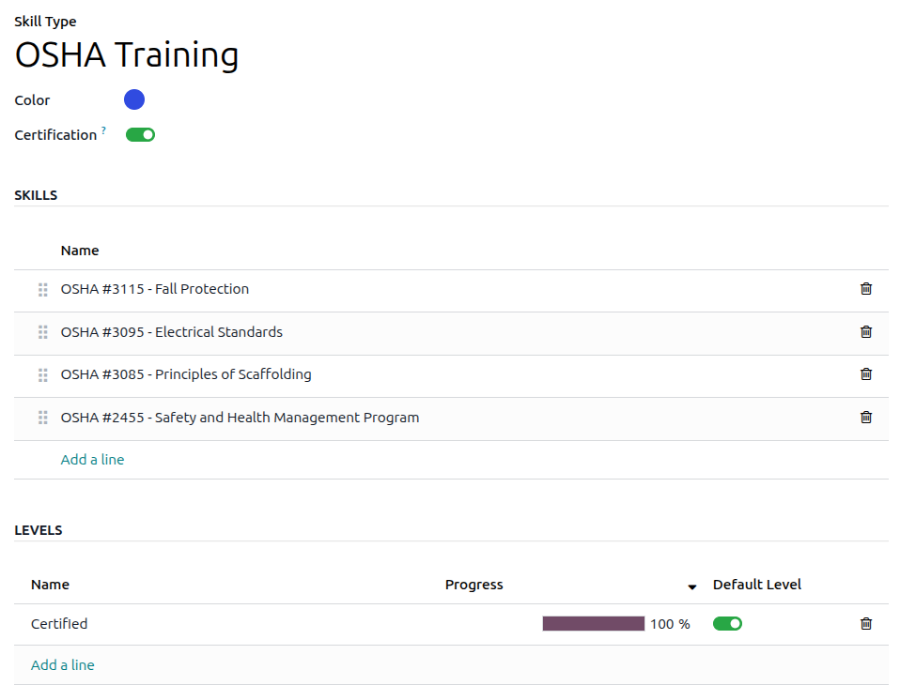
In der Mitarbeiter-App von Odoo sind keine Zertifizierungen vorkonfiguriert. Daher müssen alle Zertifizierungen zur Datenbank hinzugefügt werden. Um eine Zertifizierung zu erstellen, navigieren Sie zu . Klicken Sie auf die Schaltfläche Neu in der oberen linken Ecke, und es wird ein leeres Formular Fähigkeitstypen geladen.
Füllen Sie die folgenden Informationen des Formulars aus:
Fähigkeitstyp: Geben Sie den Typ der hinzuzufügenden Zertifizierung ein. Dies fungiert als Kategorie, und einzelne Zertifizierungen werden darunter verschachtelt.
Farbe: Klicken Sie auf die vorhandene Farbe, um die verfügbaren Farben anzuzeigen. Klicken Sie auf die gewünschte Farbe, um sie auszuwählen.
Zertifizierung: Klicken Sie auf den Schalter, um anzugeben, dass die Fähigkeit eine Zertifizierung ist. Der Schalter wird grün, wenn er aktiv ist.
Fähigkeiten: Klicken Sie auf Zeile hinzufügen und geben Sie den Namen für die spezifische Zertifizierung ein.
Stufen: Klicken Sie auf Zeile hinzufügen und geben Sie einen Namen und einen Fortschritt in Prozent (
0-100) für jede Stufe ein. Legen Sie eine Standardstufe fest, indem Sie auf den Schalter in der gewünschten Zeile klicken (es kann nur eine Stufe ausgewählt werden).
Example
Ein in den Vereinigten Staaten ansässiges Unternehmen verlangt von seinen Mitarbeitern, verschiedene OSHA-Schulungen zu absolvieren und zu bestätigen, dass die Schulung abgeschlossen ist.
Das Unternehmen erstellt einen neuen Fähigkeitstyp und gibt OSHA-Schulung in das Feld Fähigkeitstyp ein.
Die verschiedenen Kurse werden im Abschnitt Fähigkeiten eingegeben, darunter OSHA 3115 - Absturzsicherung, OSHA 3095 - Elektrische Normen und weitere.
Im Abschnitt Stufen gibt es nur eine Stufe, Zertifiziert, die auf 100% festgelegt ist.
Zertifizierungen ansehen
Um eine vollständige Liste aller Mitarbeiterzertifizierungen anzuzeigen, navigieren Sie zu .
Alle Zertifizierungen werden in einer Listenansicht angezeigt, gruppiert nach Zertifizierungs-Typ. Jeder Zertifizierungseintrag zeigt Folgendes an:
Mitarbeiter: Der Name des Mitarbeiters zusammen mit seinem Avatarbild.
Zertifizierung: Der Name der Zertifizierung.
Von: Wann der Mitarbeiter die Zertifizierung erhalten hat.
Bis: Das Datum, an dem die Zertifizierung abläuft. Wenn die Zertifizierung kein Ablaufdatum hat, erscheint Unbefristet in diesem Feld.

Wichtig
Nur Fähigkeitstyp-Datensätze mit aktivierter Umschaltfläche Zertifizierung erscheinen im Bericht Zertifizierungen. Alle anderen Zertifizierungen erscheinen im Lebenslauf-Bereich des Mitarbeiterformulars.
Zertifizierungen nach Gültigkeitsstatus anzeigen
Bei der Verwaltung einer großen Anzahl von Mitarbeitern mit einer Vielzahl von Zertifizierungen kann es schwierig sein, in der Standard-Listenansicht zu bestimmen, welche Mitarbeiter ihre erforderlichen Zertifizierungen auf dem neuesten Stand halten müssen. In diesem Fall ist es von Vorteil, die Zertifizierungen nach Gültigkeitsstatus anzuzeigen.
Navigieren Sie dazu zu . Entfernen Sie als Nächstes die standardmäßige Typ-Gruppierung in der Suchleiste. Klicken Sie dann auf das Symbol Suchfeld ein-/ausblenden, dann auf Benutzerdefinierte Gruppe , um ein Dropdown-Menü anzuzeigen. Klicken Sie auf Gültigkeitsende und klicken Sie dann außerhalb des Dropdown-Menüs, um es zu schließen.
Danach werden alle Zertifizierungen nach Ablaufmonat gruppiert, in absteigender Reihenfolge, mit den ältesten oben.
Die Einträge sind farbcodiert. Aktuelle gültige Zertifizierungen erscheinen in Schwarz, abgelaufene Zertifizierungen in Grau und Zertifizierungen, die innerhalb der nächsten 90 Tage ablaufen, in Orange.

Tipp
Der Zeitrahmen kann auf Jahr, Quartal, Woche oder Tag eingestellt werden. Um die angezeigten Zeitrahmengruppen zu ändern, klicken Sie auf die Suchleiste, dann auf Gültigkeitsende und wählen Sie den gewünschten Zeitrahmen aus.
Eine Zertifizierung erfassen
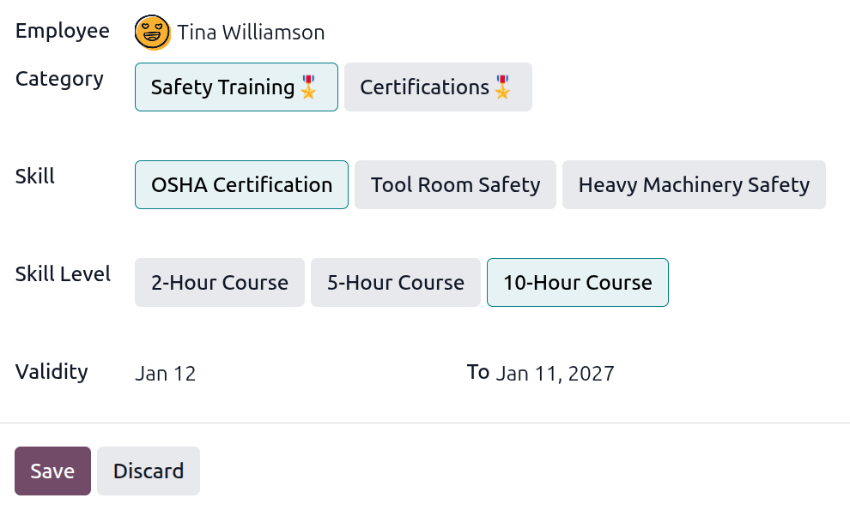
Um eine Zertifizierung für einen Mitarbeiter zu erfassen, navigieren Sie zu . Klicken Sie auf Neu, um ein leeres Zertifizierungsformular zu laden. Geben Sie die folgenden Informationen in das Formular ein:
Mitarbeiter: Wählen Sie über das Dropdown-Menü den Mitarbeiter aus, der die Zertifizierung erhalten hat.
Kategorie: Klicken Sie auf den Typ der erhaltenen Zertifizierung.
Fähigkeit: Wählen Sie die spezifische erhaltene Zertifizierung aus. Die angezeigten Optionen ändern sich, wenn die Kategorie geändert wird.
Fähigkeitsstufe: Wenn die ausgewählte Zertifizierung Fähigkeitsstufen hat, erscheinen diese Stufen in diesem Bereich. Klicken Sie auf eine Stufe, um die durch die Zertifizierung erreichte Stufe auszuwählen.
Gültigkeit: Legen Sie das Start- und Enddatum der Gültigkeit in den beiden Feldern fest. Das aktuelle Datum wird standardmäßig im ersten Feld eingetragen und unbefristet im Feld Bis.
Sobald alle Felder konfiguriert sind, klicken Sie auf die Schaltfläche Speichern. Die Zertifizierung wird für den Mitarbeiter erfasst und erscheint im Bericht Zertifizierungen sowie im Mitarbeiterdatensatz.
Zertifizierungsbericht
Um einen Bericht aller Mitarbeiterzertifizierungen anzuzeigen, navigieren Sie zu .
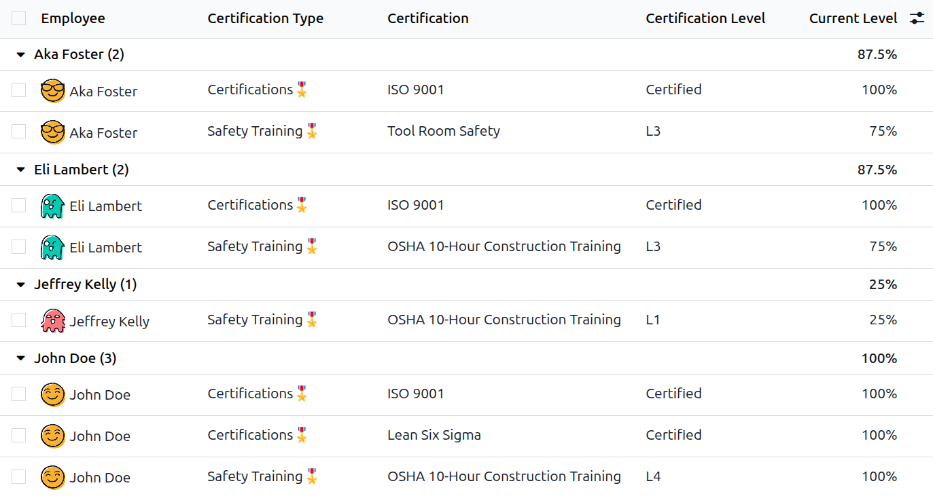
Alle Zertifizierungen werden in einer nach Mitarbeitern gruppierten Listenansicht angezeigt. Jeder Zertifizierungseintrag enthält folgende Angaben:
Mitarbeiter: Der Name des Mitarbeiters zusammen mit seinem Avatarbild.
Zertifizierungstyp: Der für die Zertifizierung konfigurierte Fähigkeitstyp. Dies kann als Zertifizierungs-Kategorie betrachtet werden.
Zertifizierung: Der Name der Zertifizierung.
Gültigkeitsbeginn: Wann der Mitarbeiter die Zertifizierung erhalten hat.
Zertifizierungsstufe: Die Stufe, die der Mitarbeiter für die Zertifizierung erreicht hat. Diese wird durch die konfigurierten Stufen des Fähigkeitstyps bestimmt.
Aktuelle Stufe: Der entsprechende Prozentsatz für die Zertifizierungsstufe, die der Mitarbeiter erreicht hat.
Wichtig
Nur Zertifizierungsdatensätze, bei denen der Anzeigetyp auf dem Zertifizierungsformular auf Zertifizierung eingestellt ist, erscheinen im Bericht Mitarbeiterzertifizierungen. Alle anderen Zertifizierungen erscheinen im Abschnitt „Lebenslauf“ des Mitarbeiterformulars.