
Certificazioni
Quando i lavori richiedono conoscenze, formazione o certificazioni specifiche, è necessario tenere traccia delle certificazioni dei dipendenti per garantire che siano adeguatamente formati e che la documentazione necessaria sia disponibile.
Quando le mansioni richiedono conoscenze specifiche, traccia le certificazioni dei dipendenti (ad esempio, corsi, test, seminari) per verificare le competenze richieste. Odoo accetta qualsiasi tipo di certificazione senza restrizioni.
Importante
Per aggiungere certificazioni a un profilo dipendente e per accedere al report Certificazioni, l’app Sondaggi deve essere installata.
Creare certificazioni
Nessuna certificazione è preconfigurata nell’app Dipendenti di Odoo; pertanto, tutte le certificazioni devono essere aggiunte al database. Per creare una certificazione, andare a . Fare clic sul pulsante Nuovo nell’angolo in alto a sinistra, e si carica un modulo Tipi di Competenza vuoto.
Inserisci le seguenti informazioni nel modulo:
Tipo di Competenza: Inserire il tipo di certificazione da aggiungere. Questa funziona come categoria, e le singole certificazioni sono annidate sotto di essa.
Colore: Fare clic sul colore esistente per visualizzare i colori disponibili. Fare clic sul colore desiderato per selezionarlo.
Certificazione: Fare clic sull’interruttore per indicare che la competenza è una certificazione. L’interruttore diventa verde quando è attivo.
Competenze: Fare clic su Aggiungi una riga e inserire il Nome della certificazione specifica.
Livelli: Fare clic su Aggiungi una riga, e inserire un Nome e una percentuale Progresso (da
0a100) per ogni livello. Impostare un Livello Predefinito facendo clic sull’interruttore nella riga desiderata (è possibile selezionare solo un livello).
Example
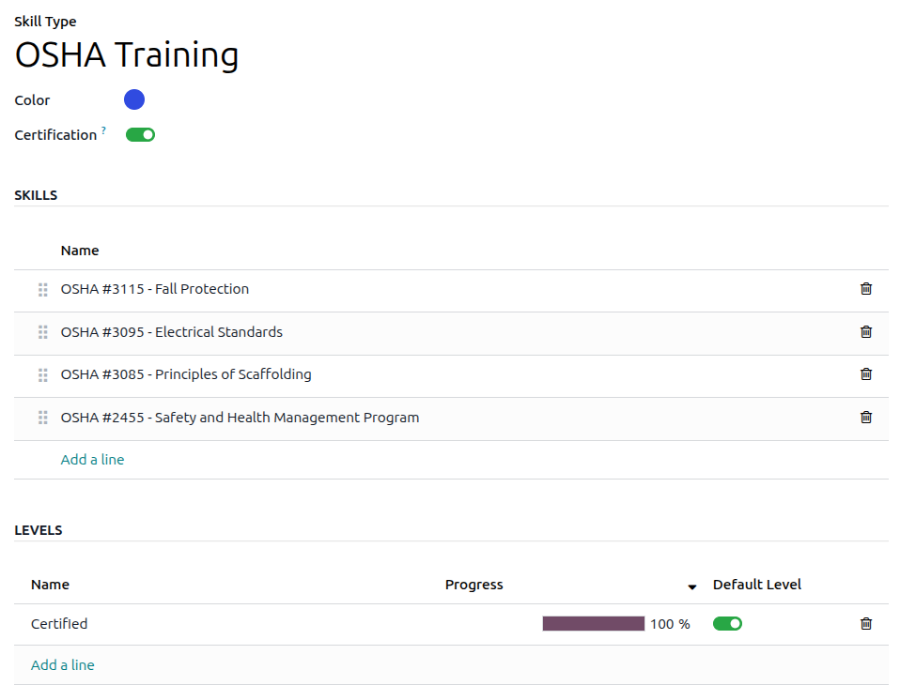
Un’azienda con sede negli Stati Uniti richiede ai propri dipendenti di completare vari corsi di formazione OSHA e di certificare il completamento della formazione.
L’azienda crea un nuovo tipo di competenza e inserisce Formazione OSHA nel campo Tipo di Competenza.
I vari corsi vengono inseriti nella sezione Competenze, tra cui OSHA 3115 - Protezione dalle Cadute, OSHA 3095 - Standard Elettrici e altri.
C’è un solo livello nella sezione Livelli, Certificato, che è impostato al 100%.
Visualizza certificazioni
Per visualizzare un elenco completo di tutte le certificazioni dei dipendenti, andare su .
Tutte le certificazioni appaiono in una vista elenco, raggruppate per tipo di certificazione. Ogni voce di certificazione visualizza quanto segue:
Dipendente: il nome del dipendente insieme alla sua immagine avatar.
Certificazione: il nome della certificazione.
Da: quando il dipendente ha ricevuto la certificazione.
A: la data di scadenza della certificazione. Se la certificazione non ha data di scadenza, in questo campo appare Indefinita.

Importante
Solo i record di tipo competenza con l’opzione Certificazione attiva appaiono nel report Certificazioni. Tutte le altre certificazioni appaiono nella sezione curriculum del modulo dipendente.
Visualizza certificazioni per stato di scadenza
Quando si gestisce un gran numero di dipendenti con una varietà di certificazioni, può essere difficile determinare quali dipendenti devono mantenere aggiornate le certificazioni necessarie nella vista elenco predefinita. In questo scenario, è utile visualizzare le certificazioni per stato di scadenza.
Per farlo, andare su . Successivamente, cancellare il raggruppamento predefinito Tipo nella barra di ricerca. Quindi, fare clic sull’icona Attiva/disattiva pannello di ricerca, quindi fare clic su Raggruppamento personalizzato per visualizzare un menu a discesa. Fare clic su Fine validità, quindi fare clic all’esterno del menu a discesa per chiuderlo.
Dopo averlo fatto, tutte le certificazioni sono raggruppate per mese di scadenza, in ordine decrescente, con le più vecchie in alto.
Le voci sono codificate a colori. Le certificazioni correnti ancora valide appaiono in nero, le certificazioni scadute appaiono in grigio e le certificazioni che scadranno entro i prossimi 90 giorni appaiono in arancione.

Suggerimento
L’intervallo di tempo può essere impostato su Anno, Trimestre, Settimana o Giorno. Per modificare i gruppi di intervalli di tempo presentati, fare clic sulla barra di ricerca, quindi fare clic su Fine validità e selezionare l’intervallo di tempo desiderato.
Registra una certificazione
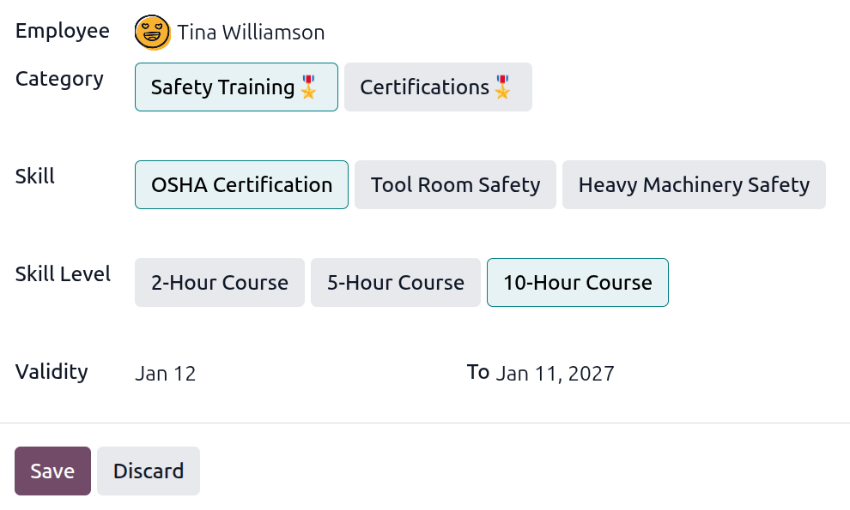
Per registrare una certificazione per un dipendente, andare su . Fare clic su Nuovo per caricare un modulo di certificazione vuoto. Inserire le seguenti informazioni nel modulo:
Dipendente: selezionare il dipendente che ha ricevuto la certificazione utilizzando il menu a discesa.
Categoria: fare clic sul tipo di certificazione ricevuta.
Competenza: selezionare la certificazione specifica ricevuta. Le opzioni presentate cambiano se viene modificata la Categoria.
Livello di competenza: se la certificazione selezionata ha un insieme di livelli di competenza, tali livelli appaiono in questa sezione. Fare clic su un livello per selezionare il livello raggiunto dalla certificazione.
Validità: impostare le date di inizio e fine validità nei due campi. La data corrente è inserita nel primo campo e indefinita è inserita nel campo A, per impostazione predefinita.
Una volta configurati tutti i campi, fare clic sul pulsante Salva. La certificazione viene registrata per il dipendente e appare nel report Certificazioni e nel record del dipendente.
Report certificazioni
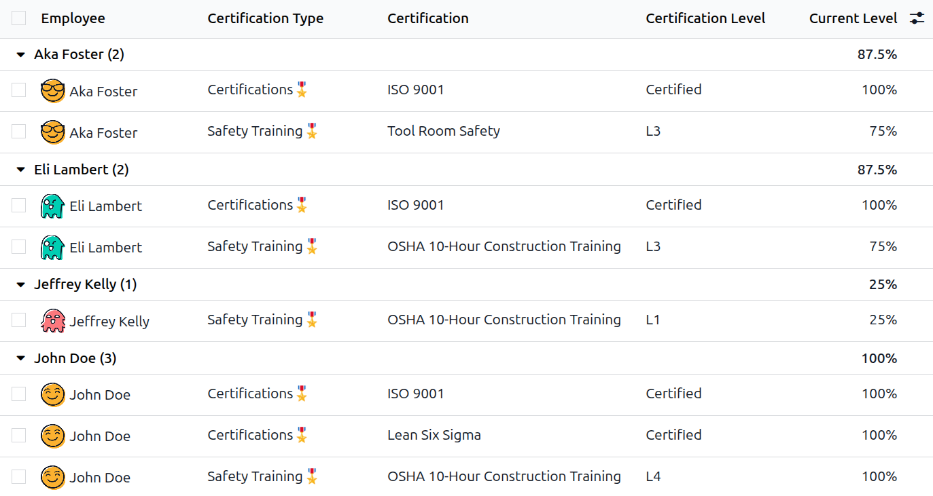
Per visualizzare un report di tutte le certificazioni dei dipendenti, vai su .
Tutte le certificazioni appaiono in una vista elenco, raggruppate per dipendente. Ogni voce di certificazione mostra quanto segue:
Dipendente: il nome del dipendente insieme alla sua immagine avatar.
Tipo di certificazione: Il tipo di competenza configurato per la certificazione. Può essere considerato come la categoria della certificazione.
Certificazione: il nome della certificazione.
Inizio validità: Quando il dipendente ha ricevuto la certificazione.
Livello di certificazione: Il livello raggiunto dal dipendente per la certificazione. Questo è determinato dai livelli configurati sul tipo di competenza.
Livello attuale: La percentuale corrispondente al Livello di certificazione raggiunto dal dipendente.
Importante
Solo i record di certificazione con Tipo di visualizzazione impostato su Certificazione nel loro modulo di certificazione appaiono nel report Certificazioni dipendenti. Tutte le altre certificazioni appaiono nella sezione curriculum del modulo dipendente.