
Ziele
Mit Odoo Mitarbeiterbeurteilung können Manager klare Ziele für ihre Mitarbeiter festlegen (und deren Erreichung verfolgen). Kontinuierliche Fortschritte bei der Zielerreichung geben den Mitarbeitern zwischen den Beurteilungen konkrete Ziele vor und liefern den Managern zuverlässige Erkenntnisse für die Leistungsbewertung.
Bemerkung
Im Modul Mitarbeiterbeurteilung sind keine Ziele vorkonfiguriert. Alle Ziele müssen der Datenbank hinzugefügt werden.
Ziele-Bibliothek
Die Ziele-Bibliothek enthält alle in der Datenbank konfigurierten Ziele und ist der Ort, an dem neue Ziele hinzugefügt werden. Um alle aktuell konfigurierten Ziele anzuzeigen, navigieren Sie zu , und das Dashboard Zielvorlage wird geladen. Alle Ziele werden in einer Standard-Listenansicht angezeigt, und jedes Ziel zeigt die folgenden Informationen:
Name: der Name des Ziels.
Empfohlen für: Die Fähigkeiten, auf die das Ziel hinarbeitet. Wenn ein Mitarbeiter eine in der Spalte Empfohlen für aufgeführte Fähigkeit weiterentwickeln möchte, ist das Ziel ein effektiver Weg, diese Fähigkeiten zu erlangen.
Unterziele: Die verschiedenen Ziele, die erreicht werden müssen, bevor das angegebene Ziel erreicht wird. Diese können auch als Voraussetzungen bezeichnet werden.
Neue Ziele erstellen
Um ein neues Ziel zur Zielbibliothek hinzuzufügen, navigieren Sie zu , klicken Sie auf die Schaltfläche Neu, und ein Zielvorlage-Formular wird geladen. Füllen Sie die folgenden Informationen im Formular aus:
Name: Geben Sie in dieses Feld einen Namen für das Ziel ein.
Übergeordnete Zielvorlage: Wenn das Ziel ein Unterziel unter einem anderen Ziel ist, das als übergeordnetes Ziel bezeichnet wird, wählen Sie es über das Dropdown-Menü aus.
Erwartete Fähigkeiten: Wenn das Ziel eine Voraussetzung für eine Fähigkeit ist, wählen Sie diese über das Dropdown-Menü aus. Wenn ein Mitarbeiter damit beauftragt wird, eine Fähigkeit zu erlernen, werden ihm die entsprechenden Ziele empfohlen, die mit dieser Fähigkeit verbunden sind.
Üblicher Zeitrahmen: Geben Sie die typische Zeit in Monaten ein, die zum Erreichen des Ziels benötigt wird. Wenn das Ziel einem Mitarbeiter zugewiesen wird, wird das Fälligkeitsdatum basierend auf diesem Feld berechnet.
Schlagwörter: Fügen Sie über das Dropdown-Menü relevante Schlagwörter hinzu.
Example
Ein Unternehmen möchte ein Ziel erstellen, damit Mitarbeiter die grundlegende Sicherheit für alle schweren Maschinen erlernen. Um dieses Ziel einzurichten, wird das Ziel Werks-Sicherheitsschulung genannt. Die Übergeordnete Zielvorlage ist Sicherheitsschulung für schwere Maschinen, die die fortgeschrittene Sicherheitsschulung für alle Geräte umfasst. Dies bedeutet, dass die Ziele von Werks-Sicherheitsschulung unter die umfassendere Sicherheitsschulung für schwere Maschinen fallen.
Die Erwarteten Fähigkeiten sind die verschiedenen fortgeschrittenen Sicherheitsschulungsfähigkeiten, wie Gabelstaplerbedienung: Fortgeschritten. Dies bedeutet, dass einem Mitarbeiter, der die Fähigkeit Gabelstaplerfahrer: Fortgeschritten erwerben möchte, das Ziel Werks-Sicherheitsschulung empfohlen wird.
Der Übliche Zeitrahmen ist auf einen Monat festgelegt, was bedeutet, dass ein Mitarbeiter typischerweise einen Monat benötigt, um das Ziel zu erreichen.
Zuletzt werden die Schlagwörter Werk und Sicherheit dem Ziel zugewiesen.

Reiter „Beschreibung“
Geben Sie relevante Informationen in diesem Reiter ein, um dem Mitarbeiter Informationen, Kontext und Unterstützung zu bieten.
Dieser Text ist für den Mitarbeiter sichtbar und kann Schritte, Vorteile beim Erreichen des Ziels sowie Hinweise zur Erreichung enthalten. Verwenden Sie den Rich-Text-Editor, um die bereitgestellten Informationen anzupassen.
Example
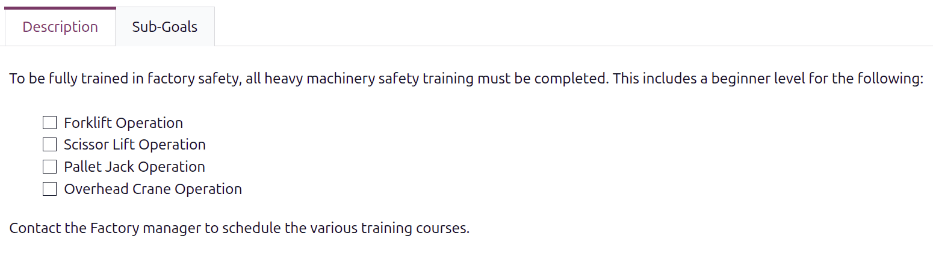
Ein Werks-Sicherheitsschulung-Ziel füllt den Reiter Beschreibung mit einer kurzen Beschreibung des Ziels, einer Checkliste der Sicherheitsschulungen, die absolviert werden müssen, um das Ziel zu erreichen, sowie Anweisungen, an wen man sich zur Planung der erforderlichen Schulung wenden kann.
Reiter Unterziele
Bestimmte Ziele können erst nach Abschluss verwandter Ziele erreicht werden, die als Unterziele bezeichnet werden. Wenn dies zutrifft, müssen die erforderlichen Unterziele zum Reiter Unterziele hinzugefügt werden.
Um ein Unterziel hinzuzufügen, klicken Sie auf Zeile hinzufügen, und ein Pop-up-Fenster Unterzielvorlage erstellen wird geladen. Das Formular enthält die gleichen Felder wie die Zielvorlage, mit der Ausnahme, dass die Übergeordnete Zielvorlage nicht in diesem Formular erscheint. Füllen Sie das Pop-up-Fenster aus und klicken Sie dann auf Speichern & Schließen, wenn nur ein Ziel benötigt wird, oder auf Speichern & Neu, um das Ziel zu speichern und ein weiteres hinzuzufügen.
Example
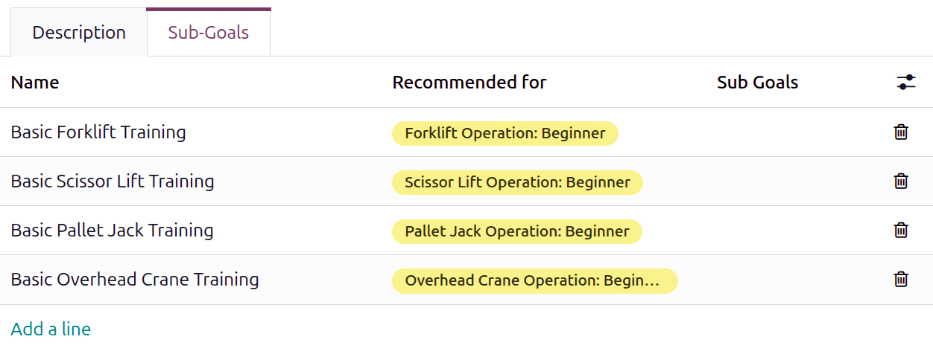
Eine Werks-Sicherheitsschulung hat vier konfigurierte Unterziele. Jedes Unterziel dient der Grundausbildung für ein bestimmtes schweres Gerät, wie Gabelstapler-Grundschulung. Jedes Unterziel hat eine Empfohlen für-Fähigkeit, die damit aufgeführt ist. Die Gabelstapler-Grundschulung wird für Mitarbeiter empfohlen, denen die Fähigkeit Gabelstaplerfahrer: Anfänger zugewiesen wurde.
Stichwörter
Das Hinzufügen von Tags zu Zielen kann beim Anzeigen des Zielberichts hilfreich sein, um zu sehen, wie viele Ziele mit bestimmten Tags Mitarbeitern zugewiesen sind. Sie können auch dabei helfen, verschiedene Ziele organisiert zu halten und zu sehen, welche Ziele miteinander verbunden sind.
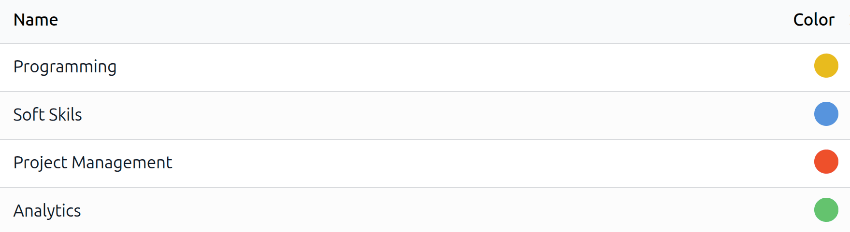
Um alle aktuellen Tags anzuzeigen und neue hinzuzufügen, navigieren Sie zu . Alle Tags werden in einer Listenansicht angezeigt. Es sind keine Tags vorkonfiguriert, daher müssen alle Tags zur Datenbank hinzugefügt werden.
Um ein neues Tag hinzuzufügen, klicken Sie auf die Schaltfläche Neu in der oberen linken Ecke. Eine neue Zeile erscheint am Ende der Liste. Geben Sie den Tag-Namen ein und drücken Sie die Eingabetaste oder klicken Sie außerhalb des Feldes. Klicken Sie auf einen farbigen Punkt am Ende der Zeile, um eine Farbe für das Tag auszuwählen.
Mitarbeiterziele anzeigen
Um alle Mitarbeitern zugewiesenen Ziele anzuzeigen, navigieren Sie zu . Dies zeigt alle Ziele für jeden Mitarbeiter in einer Standard-Listenansicht, gruppiert nach Mitarbeiter.
Klicken Sie auf einen Mitarbeiter, um die aufgelisteten Ziele auszuklappen. Jedes Ziel enthält die folgenden Informationen:
Name: der Name des Ziels.
Fortschritt: der Prozentsatz des Fortschritts, den der Mitarbeiter erreicht hat.
Mitarbeiter: der Mitarbeiter, der dem Ziel zugewiesen wurde.
Frist: Das Datum, an dem das Ziel erreicht werden soll.
Die Fortschritt-Prozentsätze erscheinen alle in Grau, bis ein Ziel erreicht wurde. Sobald es erreicht wurde, zeigt der Fortschritt 100% an und erscheint in Grün.
Alle Ziele, deren Frist überschritten wurde, erscheinen in rotem Text.

Bemerkung
In der Liste werden nur Mitarbeiter angezeigt, denen Ziele zugewiesen wurden.

Ziele Mitarbeitern zuweisen
Sobald Ziele in der Datenbank konfiguriert wurden, besteht der nächste Schritt darin, Ziele Mitarbeitern zuzuweisen. Konfigurierte Ziele können Mitarbeitern zugewiesen werden und neue Ziele können erstellt und zugewiesen werden.
Vorhandene Ziele zuweisen
Um Mitarbeitern Ziele zuzuweisen, öffnen Sie zunächst das Haupt-Ziele-Dashboard, indem Sie zu navigieren. Klicken Sie auf die Schaltfläche Bibliothek öffnen und ein Popup-Fenster Zielvorlagen-Bibliothek wird geladen, das alle aktuell konfigurierten Ziele anzeigt. Aktivieren Sie das Kontrollkästchen neben jedem Ziel, das Mitarbeitern zugewiesen werden soll.
Klicken Sie anschließend auf die Schaltfläche Weiter und ein Popup-Fenster Mitarbeiter auswählen wird geladen. Aktivieren Sie das Kontrollkästchen neben jedem Mitarbeiter, dem die ausgewählten Ziele zugewiesen werden sollen, und klicken Sie dann auf die Schaltfläche Ziele zu Mitarbeitern hinzufügen.
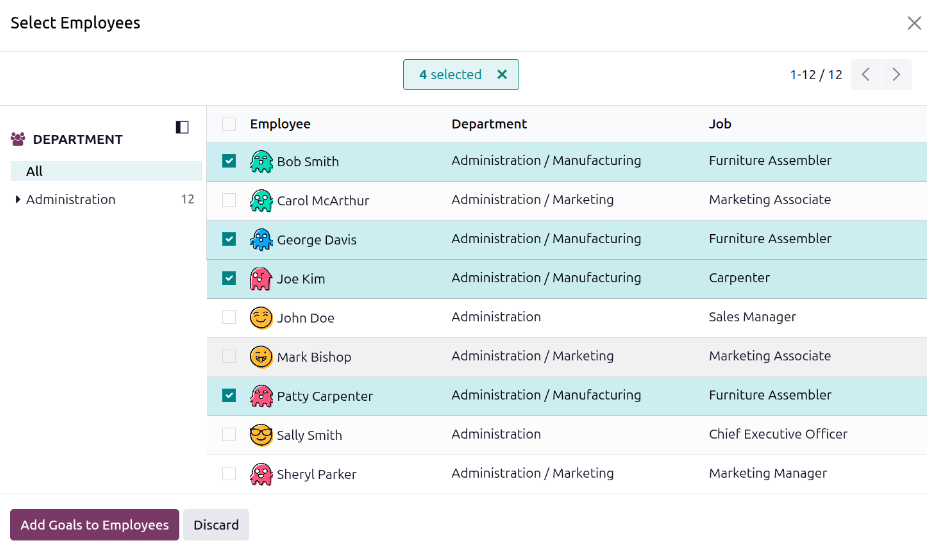
Das Popup-Fenster schließt sich und die ausgewählten Ziele sind nun den ausgewählten Mitarbeitern zugewiesen und erscheinen im Ziele-Dashboard.
Neue Ziele zuweisen
Falls ein Ziel nicht existiert, kann es erstellt und einem Mitarbeiter über das Dashboard Ziele zugewiesen werden. Um neue Ziele zu erstellen, navigieren Sie zu und klicken Sie oben links auf Neu, um ein leeres Formular Ziele zu öffnen. Fügen Sie die folgenden Informationen im Formular hinzu:
Ziel: Geben Sie einen Kurznamen für das Ziel in das Feld ein.
Mitarbeiter: Wählen Sie über das Dropdown-Menü den Mitarbeiter aus, dem das Ziel zugewiesen wird. Sobald dieses Feld ausgefüllt ist, wird das Feld Vorgesetzter mit dem Vorgesetzten des Mitarbeiters ausgefüllt.
Fortschritt: Klicken Sie auf den aktuellen Prozentsatz der Kompetenz für das Ziel. Die Optionen sind 0 %, 25 %, 50 %, 75 % oder 100 %.
Vorgesetzter: Wählen Sie den Vorgesetzten des Mitarbeiters über das Dropdown-Menü aus, falls noch nicht ausgewählt.
Frist: Geben Sie das Fälligkeitsdatum für das Ziel über die Kalenderauswahl ein.
Schlagwörter: Fügen Sie dem Ziel über das Dropdown-Menü alle relevanten Schlagwörter hinzu.
Beschreibung: Geben Sie in diesem Tab alle Details zum Ziel ein.
Tipp
Einige Ziele können in Schritte unterteilt werden, die als Checkliste eingegeben werden können. Eine Checkliste ist ein Tool, mit dem der Mitarbeiter seinen Fortschritt markieren kann.

Mitarbeiterziele aktualisieren
Ziele werden üblicherweise während einer Mitarbeiterbeurteilung direkt im Beurteilungsformular aktualisiert. In einigen Fällen ist es jedoch notwendig, den Zielfortschritt außerhalb einer Beurteilung zu aktualisieren. Dies könnte der Fall sein, wenn ein Mitarbeiter einen Kurs oder eine Zertifizierung abschließt und seinen Zielfortschritt oder die Fertigstellung dokumentiert.
Um den Fortschritt eines Ziels außerhalb einer Beurteilung zu aktualisieren, navigieren Sie zu . Klappen Sie den Mitarbeiter auf, dessen Ziele aktualisiert werden sollen, und klicken Sie auf ein einzelnes Ziel, um den Zieldatensatz zu öffnen.
Klicken Sie auf das neue Feld Fortschritt, um das neuen Fortschrittslevel festzulegen. Es wird empfohlen, im Reiter Beschreibung Notizen hinzuzufügen, während der Mitarbeiter Fortschritte bei der Zielerreichung macht. Die Notizen sollten das Datum der Fortschrittsänderung und alle unterstützenden Informationen zu der Änderung enthalten.
Abgeschlossene Mitarbeiterziele
Wenn ein Ziel erreicht wurde, ist es wichtig, den Datensatz zu aktualisieren. Navigieren Sie zu . Erweitern Sie den Mitarbeiter, dessen Ziele bewertet werden, und klicken Sie auf ein einzelnes Ziel, um den Ziel-Datensatz zu öffnen.
Klicken Sie auf die Schaltfläche Als erledigt markieren in der oberen linken Ecke. In der oberen rechten Ecke der Zielkarte wird ein grüner Banner Erledigt angezeigt und der Fortschritt ändert sich auf 100 %.
Bemerkung
Im Dashboard Ziele werden abgeschlossene Ziele mit einem grünen 100%-Tag in der Spalte Fortschritt angezeigt.
