
Grundlagen der Unteraufauftragsvergabe
Bei der einfachen Untervergabe wird das Produkt eines Unternehmens vollständig von einem Subunternehmer produziert. Das Produkt wird zunächst vom Subunternehmer gekauft, der seine eigenen Komponenten beschafft, das Endprodukt herstellt und dann das Endprodukt an das Lager des Unternehmens liefert.
Das folgende Dokument beschreibt, wie Sie ein untervergabepflichtiges Produkt konfigurieren und den Untervergabeprozess auslösen.
Bemerkung
Dieses Dokument verwendet den Begriff Unternehmen für das interne Unternehmen, das untervergabepflichtige Waren benötigt, und den Begriff Subunternehmer für den externen Lieferanten, der die ausgelagerte Produktion der untervergabepflichtigen Waren übernimmt.
Konfiguration
Um Fremdvergabe zu nutzen, muss ein Unternehmen zunächst Produkte mit einer Lieferantenpreisliste sowie einer Fremdvergabe-Stückliste konfigurieren.
Die Preisliste ermöglicht es dem Unternehmen, das Produkt über eine PO vom Lieferanten (Subunternehmer) zu kaufen, während die BoM es ermöglicht, dass das Produkt extern vom Subunternehmer gefertigt wird.
Produktlieferanten konfigurieren
Um den Lieferanten eines Produkts für die einfache Fremdvergabe zu konfigurieren, navigieren Sie zu . Wählen Sie dann ein Produkt aus oder erstellen Sie ein neues.
Klicken Sie auf dem Produktformular auf die Registerkarte Einkauf und fügen Sie den Subunternehmer des Produkts als Lieferanten hinzu, indem Sie auf Zeile hinzufügen klicken. Wählen Sie den Subunternehmer über das Dropdown-Menü Lieferant aus.
Geben Sie dann den Preis des Produkts in das Feld Einzelpreis ein.
Legen Sie schließlich eine Vorlaufzeit für das Produkt im entsprechenden Feld fest, um die Anzahl der Tage anzugeben, die der Subunternehmer für die Produktion und Lieferung des Endprodukts benötigt.
Bemerkung
Da Unternehmen nur für den Einkauf und Empfang des Endprodukts verantwortlich sind, müssen sie keine zusätzlichen Fertigungsvorlaufzeiten in einer BoM konfigurieren. Geben Sie stattdessen nur eine einzige Vorlaufzeit in der Lieferantenpreisliste an, die sowohl die Fertigungs- als auch die Lieferzeit des Subunternehmers berücksichtigt.
Stückliste konfigurieren
Nach Angabe des Lieferanten konfigurieren Sie eine Fremdvergabe-BoM für das Produkt. Klicken Sie auf die Smartbutton-Schaltfläche Stücklisten auf dem Produktformular. Wählen Sie dann die gewünschte BoM aus oder erstellen Sie eine neue.
Tipp
Navigieren Sie alternativ zu , und wählen Sie die Stückliste für das an Subunternehmer vergebene Produkt aus.
Wählen Sie im Feld Stücklistentyp die Option Fremdvergabe. Fügen Sie im daraufhin angezeigten Feld Subunternehmer einen oder mehrere Subunternehmer hinzu.
Da die Komponenten und die Fertigung beide vom Subunternehmer übernommen werden, müssen keine Komponenten in der Registerkarte Komponenten der BoM aufgeführt werden.

Arbeitsablauf der allgemeinen Unterauftragsvergabe
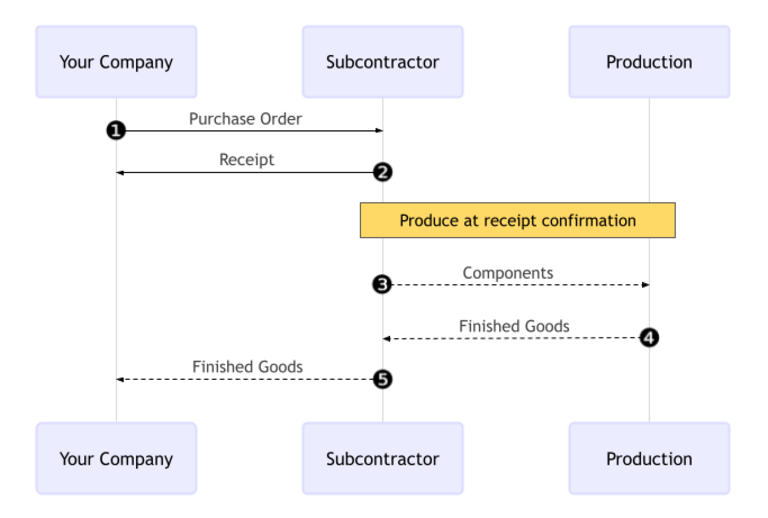
Der einfache Fremdvergabe-Workflow beginnt mit dem Erstellen einer Bestellung, um das Produkt vom Subunternehmer zu kaufen (1).
Das Unternehmen bestätigt dann die PO, wodurch ein Wareneingang für die Übergabe des Endprodukts (2) erstellt wird. Der Subunternehmer fertigt das Produkt und liefert es nach Fertigstellung an das Unternehmen zurück.
Sobald das Produkt gefertigt und empfangen wurde, validiert das Unternehmen den Wareneingang (5), um Bestandsbewegungen vom Subunternehmer zum Lager des Unternehmens auszulösen (3, 4).
Bestellung erstellen und bestätigen
Um eine PO für das fremdvergebene Produkt zu erstellen, navigieren Sie zu und klicken Sie auf Neu.
Beginnen Sie mit dem Ausfüllen der PO, indem Sie einen Subunternehmer aus dem Dropdown-Menü Lieferant auswählen. Klicken Sie im Tab Produkte auf Produkt hinzufügen, um eine neue Produktzeile zu erstellen. Wählen Sie das an den Subunternehmer vergebene Produkt im Feld Produkt aus und geben Sie die Menge im Feld Menge ein.
Nach dem Hinzufügen des Produkts wird das Feld Voraussichtliches Eintreffen mit dem erwarteten Lieferdatum des Fertigprodukts aktualisiert, wie zuvor mit der Vorlaufzeit des Lieferanten konfiguriert.
Klicken Sie abschließend auf Bestellung bestätigen, um die PO zu bestätigen. Ein Eingangsbeleg wird automatisch erstellt und ein Smart Button Eingangsbeleg erscheint oben im Formular.
Wareneingang verarbeiten
Nach Bestätigung des Auftrags fertigt der Subunternehmer das Produkt und liefert die Fertigware an das Unternehmen zurück.
Um das Fertigprodukt vom Subunternehmer zu empfangen, klicken Sie auf die Schaltfläche Empfangen in der PO oder klicken Sie oben auf der Seite auf die Smartbutton-Schaltfläche Wareneingang. Klicken Sie dann auf Validieren, um die eingehende Lieferung im Bestand zu erfassen.
Bemerkung
Wenn mehrstufige Lagerbewegungen aktiviert sind, müssen zusätzliche Transfers bestätigt werden, um das eingehende Produkt ins Lager zu buchen.
Lagerbewegungen verfolgen
Nach der Validierung eines Wareneingangs erstellt Odoo automatisch Bestandsbewegungen, um die Bewegung von fremdvergebenen Produkten zwischen Lagerorten zu verfolgen. Um diese Bestandsbewegungen anzuzeigen, navigieren Sie zu .
Um Bestandsbewegungen bei der Fremdvergabe zu verfolgen, sendet Odoo alle Produktkomponenten an einen dedizierten Lagerort namens Fremdvergabe. Ein weiterer Lagerort namens Produktion verbraucht dann die Komponenten und produziert die Fertigware. Nach der Produktion gelangt die Ware zurück zum Lagerort Fremdvergabe, bevor sie schließlich in das Lager des Unternehmens gelangt, wenn der Wareneingang validiert wird.

Bemerkung
Da bei der einfachen Fremdvergabe keine Komponenten versendet werden, gibt es keine Bewegung vom Lagerort Fremdvergabe zum Lagerort Produktion.