
Certificaciones
Cuando los puestos requieren conocimientos específicos, formación o certificaciones, es necesario hacer seguimiento de las certificaciones de los empleados para garantizar que estén correctamente capacitados y que la documentación necesaria esté disponible.
Cuando los puestos requieren conocimientos específicos, rastrea las certificaciones de los empleados (por ejemplo, clases, exámenes, seminarios) para verificar las habilidades requeridas. Odoo acepta cualquier tipo de certificación sin restricción.
Importante
Para añadir certificaciones a un perfil de empleado y acceder al informe de Certificaciones, la aplicación Encuestas debe estar instalada.
Crear certificaciones
No hay certificaciones preconfiguradas en la aplicación Empleados de Odoo; por lo tanto, todas las certificaciones deben añadirse a la base de datos. Para crear una certificación, navega a . Haz clic en el botón Nuevo en la esquina superior izquierda, y se carga un formulario de Tipos de habilidades en blanco.
Proporcione la siguiente información en el formulario:
Tipo de habilidad: Introduce el tipo de certificación que se está añadiendo. Esto actúa como la categoría, y las certificaciones individuales se anidan debajo de ella.
Color: Haz clic en el color existente para ver los colores disponibles. Haz clic en el color deseado para seleccionarlo.
Certificación: Haz clic en el interruptor para indicar que la habilidad es una certificación. El interruptor se vuelve verde cuando está activo.
Habilidades: Haz clic en Añadir una línea e introduce el Nombre de la certificación específica.
Niveles: Haz clic en Añadir una línea, e introduce un Nombre y porcentaje de Progreso (
0-100) para cada nivel. Establece un Nivel predeterminado haciendo clic en el interruptor de la línea deseada (solo se puede seleccionar un nivel).
Example
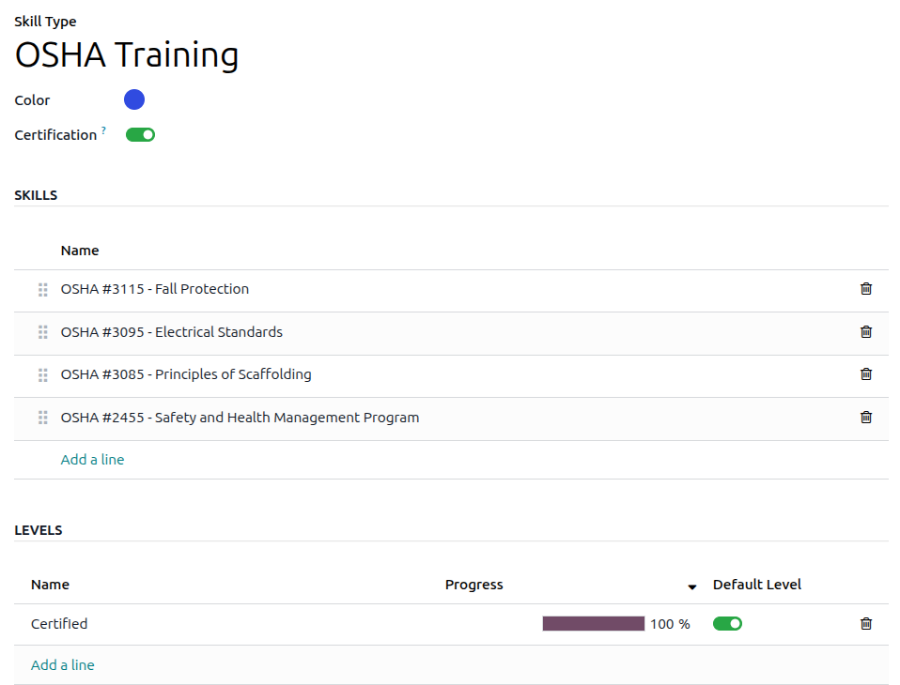
Una empresa con sede en Estados Unidos requiere que sus empleados completen diversas formaciones de OSHA y certifiquen que la formación está completa.
La empresa crea un nuevo tipo de habilidad e introduce Formación OSHA en el campo Tipo de habilidad.
Los diversos cursos se introducen en la sección Habilidades, incluyendo OSHA 3115 - Protección contra caídas, OSHA 3095 - Normas eléctricas, y más.
Hay solo un nivel en la sección Niveles, Certificado, que está configurado en 100%.
Ver certificaciones
Para ver una lista completa de todas las certificaciones de empleados, ve a .
Todas las certificaciones aparecen en una vista de lista, agrupadas por tipo de certificación. Cada entrada de certificación muestra lo siguiente:
Empleado: El nombre del empleado, junto con su imagen de avatar.
Certificación: El nombre de la certificación.
Desde: Cuándo el empleado recibió la certificación.
Hasta: La fecha en que expira la certificación. Si la certificación no tiene fecha de caducidad, aparece Indefinida en este campo.

Importante
Solo los registros de tipo de habilidad con el interruptor Certificación activado aparecen en el informe Certificaciones. Todas las demás certificaciones aparecen en la sección de currículum del formulario de empleado.
Ver certificaciones por estado de vencimiento
Al gestionar un gran número de empleados con una variedad de certificaciones, puede ser difícil determinar qué empleados necesitan mantener actualizadas las certificaciones necesarias en la vista de lista predeterminada. En este escenario, es beneficioso ver las certificaciones por estado de vencimiento.
Para hacerlo, ve a . A continuación, borra la agrupación predeterminada Tipo en la barra de búsqueda. Luego, haz clic en el icono Alternar panel de búsqueda, después haz clic en Agrupación personalizada para mostrar un menú desplegable. Haz clic en Fin de validez y luego haz clic fuera del menú desplegable para cerrarlo.
Después de hacerlo, todas las certificaciones se agrupan por mes de caducidad, en orden descendente, con las más antiguas en la parte superior.
Las entradas están codificadas por colores. Las certificaciones actuales que aún son válidas aparecen en negro, las certificaciones caducadas aparecen en gris y las certificaciones que van a caducar en los próximos 90 días aparecen en naranja.

Truco
El marco temporal puede configurarse como Año, Trimestre, Semana o Día. Para cambiar los grupos de marco temporal presentados, haz clic en la barra de búsqueda, luego haz clic en Fin de validez y selecciona el marco temporal deseado.
Registrar una certificación
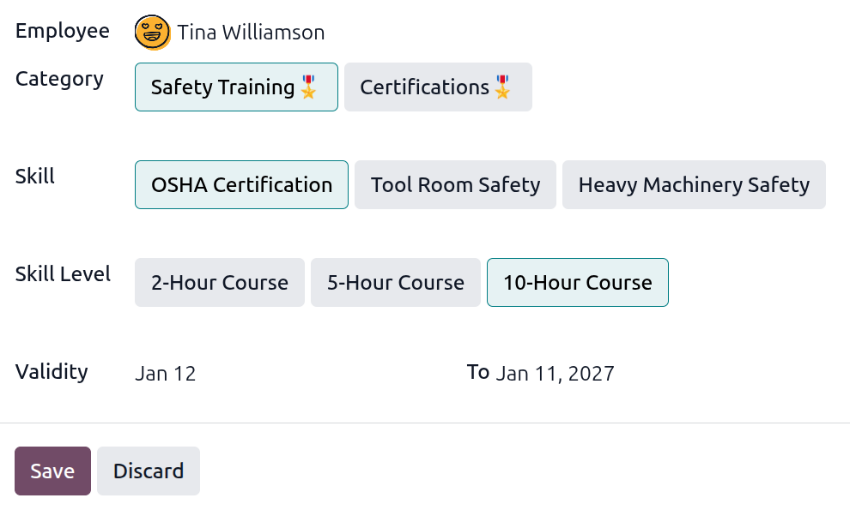
Para registrar una certificación para un empleado, ve a . Haz clic en Nuevo para cargar un formulario de certificación en blanco. Introduce la siguiente información en el formulario:
Empleado: Selecciona el empleado que recibió la certificación usando el menú desplegable.
Categoría: Haz clic en el tipo de certificación recibida.
Habilidad: Selecciona la certificación específica recibida. Las opciones presentadas cambian si se modifica la Categoría.
Nivel de habilidad: Si la certificación seleccionada tiene un conjunto de niveles de habilidad, esos niveles aparecen en esta sección. Haz clic en un nivel para seleccionar el nivel alcanzado con la certificación.
Validez: Establece las fechas de inicio y fin de validez en los dos campos. La fecha actual se rellena en el primer campo, y indefinida se rellena en el campo Hasta, por defecto.
Una vez que todos los campos estén configurados, haz clic en el botón Guardar. La certificación se registra para el empleado y aparece en el informe Certificaciones y en el registro del empleado.
Informe de certificaciones
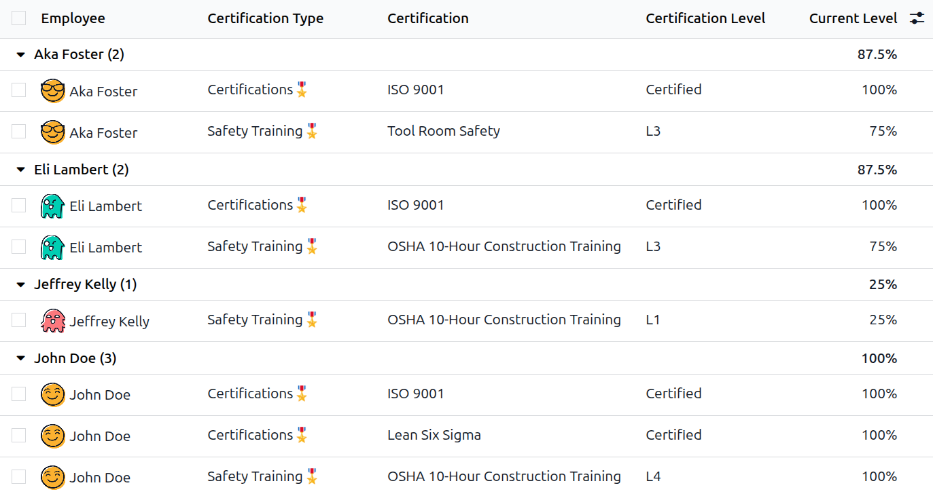
Para ver un informe de todas las certificaciones de empleados, navega a .
Todas las certificaciones aparecen en una vista de lista y están agrupadas por empleado. Cada entrada de certificación muestra lo siguiente:
Empleado: El nombre del empleado, junto con su imagen de avatar.
Tipo de certificación: El tipo de habilidad configurado para la certificación. Puede considerarse como la categoría de certificación.
Certificación: El nombre de la certificación.
Inicio de validez: Cuándo el empleado recibió la certificación.
Nivel de certificación: El nivel que el empleado alcanzó para la certificación. Esto se determina por los niveles configurados en el tipo de habilidad.
Nivel actual: El porcentaje correspondiente al Nivel de certificación que el empleado alcanzó.
Importante
Solo los registros de certificación con el Tipo de Visualización establecido en Certificación en su formulario de certificación aparecen en el informe Employee Certifications. Todas las demás certificaciones aparecen en la sección de currículum del formulario de empleado.