
Certifications
Lorsque les postes nécessitent des connaissances, une formation ou des certifications spécifiques, il est nécessaire de suivre les certifications des employés pour s’assurer qu’ils sont correctement formés et que la documentation nécessaire est en place.
Lorsque des postes requièrent des connaissances spécifiques, suivre les certifications des employés (par ex., cours, tests, séminaires) pour vérifier les compétences requises. Odoo accepte tout type de certification sans restriction.
Important
Pour ajouter des certifications à un profil d’employé et accéder au rapport Certifications, l’application Sondages doit être installée.
Créer des certifications
Aucune certification n’est préconfigurée dans l’application Employés d’Odoo ; par conséquent, toutes les certifications doivent être ajoutées à la base de données. Pour créer une certification, aller dans . Cliquer sur le bouton Nouveau en haut à gauche, et un formulaire Types de compétences vierge se charge.
Saisir les informations suivantes dans le formulaire :
Type de compétence : Saisir le type de certification ajouté. Cela agit comme la catégorie, et les certifications individuelles sont imbriquées en dessous.
Couleur : cliquer sur la couleur existante pour afficher les couleurs disponibles. Cliquer sur la couleur souhaitée pour la sélectionner.
Certification : cliquer sur le bouton à bascule pour indiquer que la compétence est une certification. Le bouton devient vert lorsqu’il est actif.
Compétences : cliquer sur Ajouter une ligne et saisir le Nom de la certification spécifique.
Niveaux : cliquer sur Ajouter une ligne et saisir un Nom et un pourcentage de Progression (
0-100) pour chaque niveau. Définir un Niveau par défaut en cliquant sur le bouton à bascule de la ligne souhaitée (un seul niveau peut être sélectionné).
Example
Une entreprise basée aux États-Unis exige que ses employés suivent diverses formations OSHA et certifient que la formation est terminée.
L’entreprise crée un nouveau type de compétence et saisit Formation OSHA dans le champ Type de compétence.
Les différents cours sont saisis dans la section Compétences, notamment OSHA 3115 - Protection contre les chutes, OSHA 3095 - Normes électriques, et plus encore.
Il n’y a qu’un seul niveau dans la section Niveaux, Certifié, qui est défini à 100 %.

Consulter les certifications
Pour afficher la liste complète de toutes les certifications des employés, aller à .
Toutes les certifications apparaissent dans une vue liste, groupées par type de certification. Chaque entrée de certification affiche les éléments suivants :
Employé : le nom de l’employé, ainsi que son avatar.
Certification : le nom de la certification.
De : la date à laquelle l’employé a reçu la certification.
À : la date d’expiration de la certification. Si la certification n’a pas de date d’expiration, Indéfinie apparaît dans ce champ.

Important
Seuls les enregistrements de type de compétence dont le bouton à bascule Certification est actif apparaissent dans le rapport Certifications. Toutes les autres certifications apparaissent dans la section CV du formulaire employé.
Consulter les certifications par statut d’expiration
Lors de la gestion d’un grand nombre d’employés avec diverses certifications, il peut être difficile de déterminer quels employés doivent maintenir à jour les certifications nécessaires dans la vue liste par défaut. Dans ce scénario, il est utile de consulter les certifications par statut d’expiration.
Pour ce faire, aller à . Ensuite, supprimer le regroupement par défaut Type dans la barre de recherche. Ensuite, cliquer sur l’icône Afficher/masquer le panneau de recherche, puis cliquer sur Regroupement personnalisé pour afficher un menu déroulant. Cliquer sur Fin de validité, puis cliquer ailleurs pour fermer le menu déroulant.
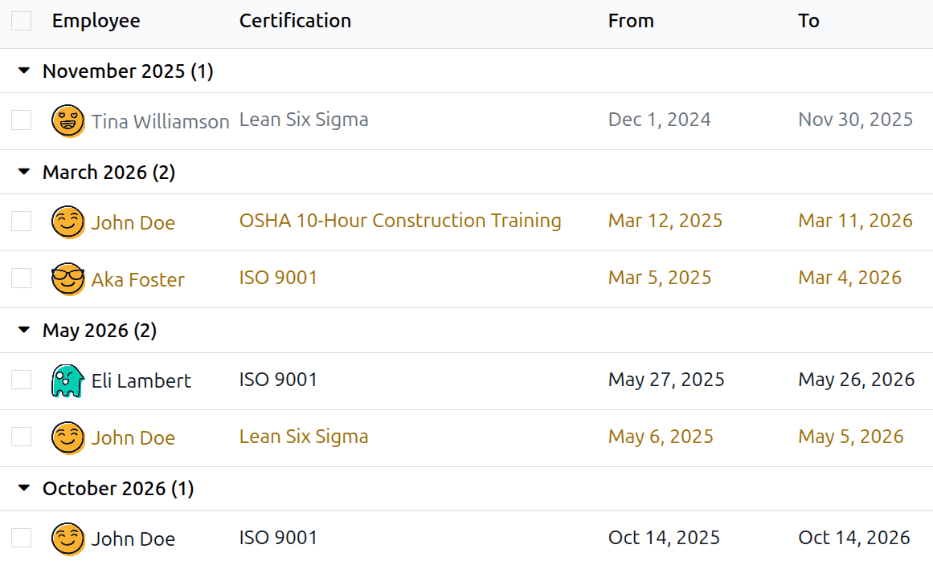
Après cela, toutes les certifications sont groupées par mois d’expiration, dans l’ordre décroissant, les plus anciennes en haut.
Les entrées sont codées par couleur. Les certifications actuelles encore valides apparaissent en noir, les certifications expirées apparaissent en gris et les certifications qui vont expirer dans les 90 prochains jours apparaissent en orange.
Astuce
Le délai peut être défini sur Année, Trimestre, Semaine ou Jour. Pour modifier les groupes de délai présentés, cliquer sur la barre de recherche, puis cliquer sur Fin de validité et sélectionner le délai souhaité.
Enregistrer une certification
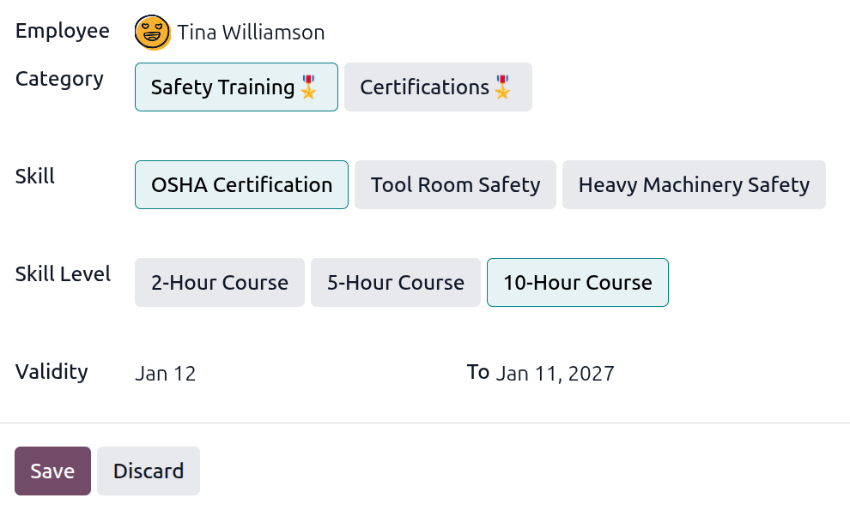
Pour enregistrer une certification pour un employé, aller dans . Cliquer sur Nouveau pour charger un formulaire de certification vierge. Saisir les informations suivantes dans le formulaire :
Employé : Sélectionner l’employé ayant reçu la certification via le menu déroulant.
Catégorie : Cliquer sur le type de certification reçue.
Compétence : Sélectionner la certification spécifique reçue. Les options présentées changent si la Catégorie est modifiée.
Niveau de compétence : Si la certification sélectionnée possède un ensemble de niveaux de compétence, ces niveaux apparaissent dans cette section. Cliquer sur un niveau pour sélectionner le niveau atteint avec la certification.
Validité : Définir les dates de début et de fin de validité dans les deux champs. La date actuelle est renseignée dans le premier champ, et indéfini est renseigné dans le champ Au, par défaut.
Une fois tous les champs configurés, cliquer sur le bouton Enregistrer. La certification est enregistrée pour l’employé et apparaît dans le rapport Certifications et la fiche employé.
Rapport des certifications
Pour consulter un rapport de toutes les certifications des employés, aller dans .
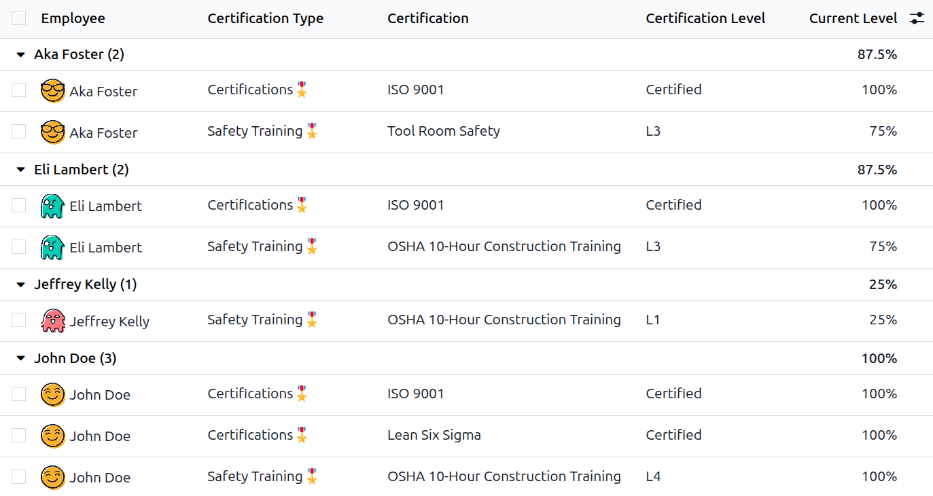
Toutes les certifications apparaissent dans une vue liste, groupées par employé. Chaque entrée de certification affiche les éléments suivants :
Employé : le nom de l’employé, ainsi que son avatar.
Type de certification : Le type de compétence configuré pour la certification. Ceci peut être considéré comme la catégorie de certification.
Certification : le nom de la certification.
Début de validité : Quand l’employé a reçu la certification.
Niveau de certification : Le niveau que l’employé a atteint pour la certification. Ceci est déterminé par les niveaux configurés sur le type de compétence.
Niveau actuel : Le pourcentage correspondant au Niveau de certification que l’employé a atteint.
Important
Seuls les enregistrements de certification dont le type d’affichage est défini sur Certification dans leur formulaire de certification apparaissent dans le rapport Certifications des employés. Toutes les autres certifications apparaissent dans la section CV du formulaire employé.