
Certificaciones
Cuando un trabajo requiera conocimiento, capacitación o certificaciones específicas, es necesario llevar un seguimiento de las certificaciones del empleado para asegurar que están bien capacitados y que cuentan con la documentación necesaria.
Cuando los trabajos requieren conocimiento específico, puede monitorear las certificaciones de los empleados (como clases, exámenes, seminarios) para verificar que tienen las habilidades necesiarias. Odoo acepta cualquier tipo de certificación sin restricción.
Importante
Debe instalar la aplicación Encuesta para agregar certificaciones al perfil de un empleado y acceder al reporte Ceritificaciones del emplado.
Crear certificaciones
No hay certificaciones preconfiguradas en la aplicación Empleados de Odoo; todas las certificaciones se deben agregar de forma manual a la base de datos. Para crear una certificación ve a . Haz clic en el botón Nuevo en la esquina superior izquierda para abrir un formulario en blanco de Tipos de habilidades.
Proporcione la siguiente información en el formulario:
Tipo de habilidad: Ingresa el tipo de certificación que se está agregando. Esto actuará como una categoría en la que se almacenarán las certificaciones individuales.
Color: Haz clic en el color existente para ver los colores disponibles. Selecciona el color que desees.
Certificación: Activa esta opción para indicar que la habilidad es una certificación. La opción se verá en verde cuando se active.
Habilidades: Haz clic en Agregar una línea e ingresa el Nombre de esa certificación en específico.
Niveles: Haz clic en Agregar una línea e ingresa un nombre y porcentaje de progreso (de
0a100) para cada nivel. Activa la opción Nivel predeterminado en la línea deseada (solo se puede seleccionar un nivel para esta opción).
Example
Una empresa de los Estados Unidos requiere que sus empleados completen varias capacitaciones OSHA y certifiquen que completaron la capacitación.
La empresa crea un nuevo tipo de habilidad y en el campo Tipo de habilidad ingresa Capacitación OSHA.
Los cursos se agregan a la sección Habilidades, incluyendo OSHA 3115 - Protección contra caídas, OSHA 3095 - Estándares eléctricos y más.
Solo hay un nivel en la sección Niveles, Certificado, que se establece a 100%.

Ver certificaciones
Para ver una lista completa de todas las certificaciones de los empleados, ve a .
Todas las certificaciones aparecerán en vista de lista, agrupadas por tipo de certificación. Cada certificación muestra la información a continuación:
Empleado: El nombre del empleado junto con su avatar.
Certificación: El nombre de la certificación.
Desde: El momento en el que el empleado recibe la certificación.
Hasta: La fecha en la que la certificación vence. Si la certificación no tiene fecha de vencimiento, aparecerá Indefinido en este campo.

Importante
Solo los registros de tipo de habilidad que tengan activa la opción Certificación aparecerán en el reporte de Certificaciones. El resto de las certificaciones aparecen en la sección de CV del formulario del empleado.
Ver certificaciones por estado de vencimiento
Si tiene varios empleados con distintas certificaciones es posible que sea difícil determinar cuáles de ellos necesitan tener sus certificaciones actualizadas en la vista desde la vista de lista predeterminada. En este caso sería útil poder consultar las certificaciones por su estado de vencimiento.
Para hacerlo, ve a . Luego, elimina el agrupamiento predeterminado Tipo en la barra de búsqueda. Haz clic en el icono (panel de búsqueda) y haz clic en Grupo personalizado para mostrar el menú desplegable. Haz clic en Término de la validez y haz clic fuera del menú desplegable para cerrarlo.
Después de hacerlo, todas las certificaciones se agrupan por mes de caducidad, en orden descendente, con la más antigua en la parte superior.
Los registros están clasificados por color. Las certificaciones actuales que siguen válidas aparecen en negro, las certificaciones vencidas aparecen en gris y las certificaciones que vencerán en los próximos 90 días aparecen en naranja.

Truco
El periodo puede ser ya sea año, trimestre. semana o día. Para cambiar los grupos de periodos de tiempo presentados, haz clic en la barra de búsqueda, haz clic en Término de la validez y selecciona el periodo deseado.
Registrar una certificación
Para registrar la certificación de un empleado, ve a . Haz clic en Nuevo para abrir un formulario vacío de certificación en el que deberás completar la siguiente información:
Empleado: Con el menú desplegable selecciona al empleado que recibió la certificación.
Categoría: Selecciona el tipo de certificación que se recibirá.
Habilidad: Selecciona la certificación específica que se recibirá. Las opciones que se muestran cambiarán si se cambia la Categoría.
Nivel de habilidad: Si la certificación seleccionada tiene un conjunto de niveles de habilidad, esos niveles aparecerán en esta sección. Haz clic en un nivel para seleccionar el nivel que se logra con una certificación.
Validez: Establece las fechas de inicio y fin de la validez en los dos campos. De forma predeterminada, en el primer campo aparecerá la fecha actual, mientras que en el campo Hasta aparecerá Indefinido.
Cuando se hayan configurado todos los campos, haz clic en el botón Guardar. La certificación se registra para el empleado y aparece en el reporte de Certificaciones en el registro del empleado.

Reporte de certificaciones
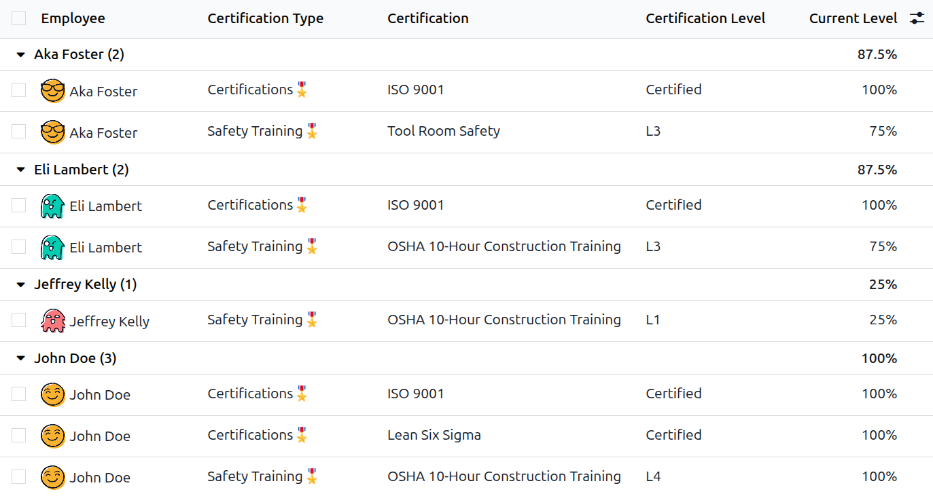
Para ver un reporte de todas las certificaciones del empleado, ve a .
Todas las certificaciones aparecen en una vista de lista y están agrupadas por empleado. Cada entrada de certificación muestra lo siguiente:
Empleado: El nombre del empleado junto con su avatar.
Tipo de certificación: El tipo de habilidad configurado para la certificación. Se puede ver como la categoría de la certificaión.
Certificación: El nombre de la certificación.
Inicio de la validez: La fecha en la que el empleado recibió la certificación.
Nivel de certificación: El nivel que el empleado logró para la certificación. Eso lo determinan los niveles configurados en el tipo de habilidad.
Nivel actual: El porcentaje correspondiente para el nivel de certificación que logró el empleado.
Importante
Solo los registros de certificación que tienen Certificación configurado como tipo de visualización en su formulario de certificación aparecen en el reporte de certificaciones del empleado. El resto de las certificaciones aparecen en la sección «Currículum» del formulario del empleado.