
Certifieringar
När jobb kräver specifik kunskap, utbildning eller certifieringar är det nödvändigt att spåra anställdas certifieringar för att säkerställa att de är korrekt utbildade och att nödvändig dokumentation finns på plats.
När jobb kräver specifik kunskap, spåra anställdas certifieringar (t.ex. kurser, tester, seminarier) för att verifiera nödvändiga färdigheter. Odoo accepterar alla typer av certifieringar utan begränsningar.
Viktigt
För att lägga till certifieringar i en anställds profil och för att få åtkomst till rapporten Certifieringar måste appen Enkäter vara installerad.
Skapa certifieringar
Inga certifieringar är förkonfigurerade i Odoos app Anställda; därför måste alla certifieringar läggas till i databasen. För att skapa en certifiering, navigera till . Klicka på knappen Skapa i det övre vänstra hörnet, så laddas ett tomt formulär för Kompetenstyper.
Ange följande information på formuläret:
Kompetenstyp: Ange den typ av certifiering som läggs till. Detta fungerar som kategorin, och individuella certifieringar är kapslade under den.
Färg: Klicka på den befintliga färgen för att visa tillgängliga färger. Klicka på önskad färg för att välja den.
Certifiering: Klicka på växlingsknappen för att indikera att kompetensen är en certifiering. Växlingsknappen blir grön när den är aktiv.
Kompetenser: Klicka på Lägg till en rad och ange Namn för den specifika certifieringen.
Nivåer: Klicka på Lägg till en rad och ange ett Namn och Framsteg`sprocent (`0-
100) för varje nivå. Ställ in en Standardnivå genom att klicka på växlingsknappen på önskad rad (endast en nivå kan väljas).
Example
Ett USA-baserat företag kräver att dess anställda genomför olika OSHA-utbildningar och certifierar att utbildningen är genomförd.
Företaget skapar en ny kompetenstyp och anger OSHA Training i fältet Kompetenstyp.
De olika kurserna anges i avsnittet Kompetenser, inklusive OSHA 3115 - Fall Protection, OSHA 3095 - Electrical Standards och fler.
Det finns endast en nivå i avsnittet Nivåer, Certifierad, som är inställd på 100%.

Visa certifieringar
För att visa en fullständig lista över alla anställdas certifieringar, navigera till .
Alla certifieringar visas i en listvy, grupperade efter certifierings*typ*. Varje certifieringsinlägg visar följande:
Anställd: Den anställdes namn, tillsammans med deras avatarbild.
Certifiering: Namnet på certifieringen.
Från: När den anställde erhöll certifieringen.
Till: Datumet då certifieringen förfaller. Om certifieringen inte har något förfallodatum visas Obegränsat i detta fält.

Viktigt
Endast kompetensstyphandlingar med växlingsknappen Certifiering inställd på aktiv visas i rapporten Certifieringar. Alla andra certifieringar visas i CV-avsnittet i anställdformuläret.
Visa certifieringar efter utgångsstatus
När du hanterar ett stort antal anställda med olika certifieringar kan det vara svårt att avgöra vilka anställda som behöver hålla sina certifieringar aktuella i standardlistvyn. I det här scenariot är det fördelaktigt att visa certifieringarna efter utgångsstatus.
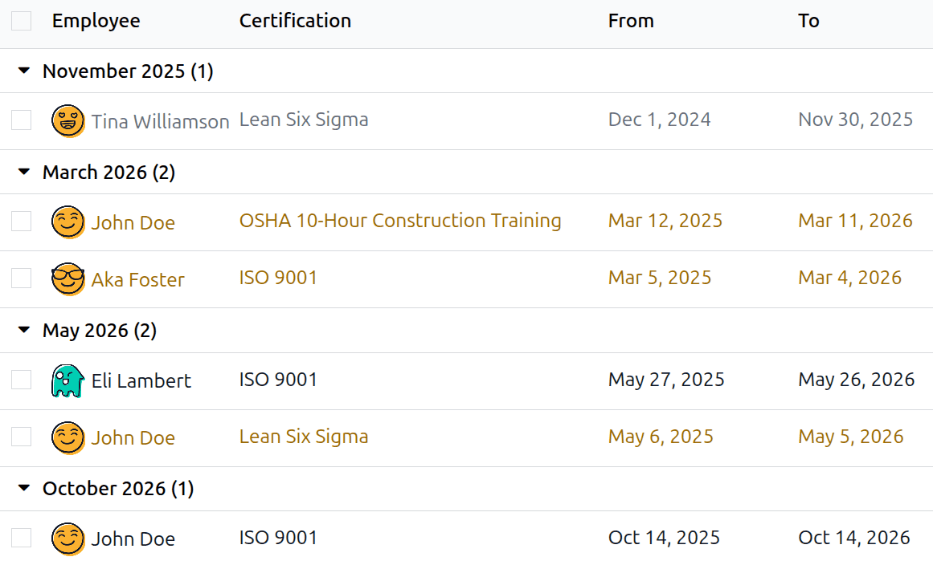
För att göra detta, navigera till . Ta sedan bort standardgruppering Typ i sökfältet. Klicka sedan på ikonen (Växla sökpanel), klicka sedan på Anpassad gruppering för att visa en rullgardinsmeny. Klicka på Giltighetsstopp och klicka sedan bort från rullgardinsmenyn för att stänga den.
Efter det grupperas alla certifieringar efter utgångsmånad, i fallande ordning, med de äldsta högst upp.
Inläggen är färgkodade. Aktuella certifieringar som fortfarande är giltiga visas i svart, utgångna certifieringar visas i grått och certifieringar som kommer att förfalla inom de kommande 90 dagarna visas i orange.
Tips
Tidsramen kan ställas in på antingen År, Kvartal, Vecka eller Dag. För att ändra de presenterade tidsramsgrupperna, klicka på sökfältet, klicka sedan på Giltighetsstopp och välj önskad tidsram.
Logga en certifiering
För att logga en certifiering för en anställd, navigera till . Klicka på Ny för att ladda ett tomt certifieringsformulär. Ange följande information i formuläret:
Anställd: Välj den anställd som erhöll certifieringen med hjälp av rullgardinsmenyn.
Kategori: Klicka på typen av certifiering som erhållits.
Kompetens: Välj den specifika certifiering som erhållits. De presenterade optionerna ändras om Kategori ändras.
Kompetensnivå: Om den valda certifieringen har en uppsättning kompetensnivåer, visas dessa nivåer i den här sektionen. Klicka på en nivå för att välja den nivå som uppnåtts från certifieringen.
Giltighet: Ange giltighetens start- och slutdatum i de två fälten. Aktuellt datum fylls i i det första fältet, och obegränsad fylls i i fältet Till som standard.
När alla fält har konfigurerats klickar du på knappen Spara. Certifieringen loggas för den anställd och visas i rapporten Certifieringar och i den anställdas handlingar.

Certifieringsrapport
För att visa en rapport över alla anställdas certifieringar, navigera till .
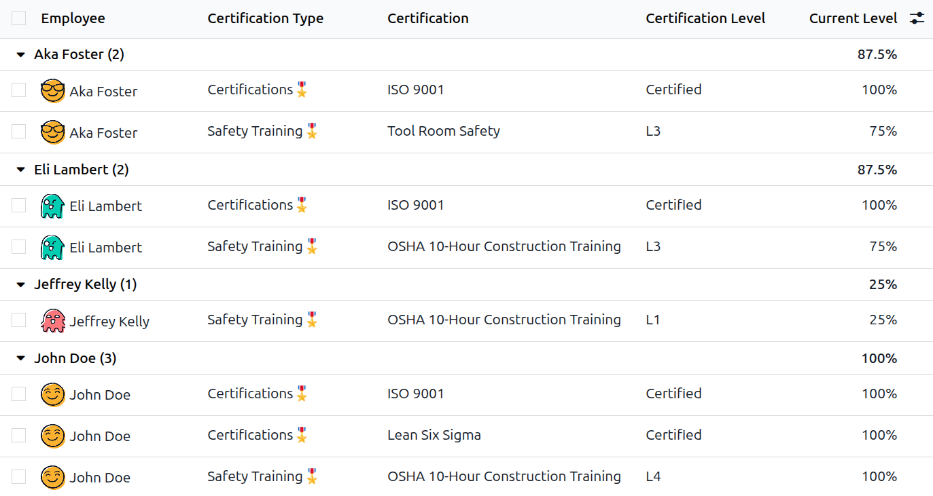
Alla certifieringar visas i en listvy, grupperade efter anställd. Varje certifieringspost visar följande:
Anställd: Den anställdes namn, tillsammans med deras avatarbild.
Certifieringstyp: Den kompetenstyp som är konfigurerad för certifieringen. Detta kan ses som certifieringens kategori.
Certifiering: Namnet på certifieringen.
Giltighet start: När den anställd erhöll certifieringen.
Certifieringsnivå: Den nivå den anställd uppnådde för certifieringen. Detta bestäms av de konfigurerade nivåerna på kompetenstypen.
Aktuell nivå: Motsvarande procentsats för Certifieringsnivå som den anställd uppnådde.
Viktigt
Endast certifieringshandlingar med Visningstyp inställd på Certifiering på deras certifieringsformulär visas i rapporten Anställdas certifieringar. Alla andra certifieringar visas i CV-sektionen av anställdformuläret.