
Gestione degli ordini
Nel flusso di lavoro e-commerce di Odoo, un acquisto online passa tipicamente attraverso tre fasi principali: vendita, consegna e fatturazione. Ogni fase genera documenti chiave, inclusi gli ordini di vendita dopo la conferma dell’ordine, gli ordini di consegna per gestire prelievo, imballaggio e spedizione, e le fatture. Odoo e-commerce offre anche strumenti aggiuntivi per inviare email per carrelli abbandonati, garantire la disponibilità di magazzino e gestire resi e rimborsi dei prodotti.
Vendita
Per visualizzare tutti i preventivi e gli ordini, vai su e selezionane uno per aprirlo. La barra di stato nella parte superiore dell’ordine mostra il suo stato attuale:
Preventivo: un prodotto è stato aggiunto al carrello, ma il cliente non ha ancora completato il processo di checkout. Se il cliente non ha effettuato l’accesso, il preventivo viene assegnato al contatto predefinito utente pubblico.
Preventivo inviato: il cliente ha completato il processo di checkout e confermato l’ordine, ma il pagamento non è ancora stato confermato.
Ordine di vendita: il cliente ha completato il processo di checkout, confermato l’ordine e il pagamento è stato ricevuto con successo.
Suggerimento
Il filtro confermato è abilitato per impostazione predefinita nell’elenco ordini. Per visualizzare tutti i preventivi e gli ordini, rimuovi il filtro.
Per visualizzare solo gli ordini nella fase preventivo inviato, vai su e rimuovi il filtro confermato. Quindi, apri il menu a discesa e, in filtri, seleziona non pagato.
Gli ordini e-commerce possono essere assegnati automaticamente a un team di vendita o a un venditore specifico. Per farlo, vai su . Nella sezione e-commerce, in assegnazione ordini, seleziona il team di vendita o il venditore pertinente.
Nota
Questo processo in tre fasi non è visibile ai clienti. Tuttavia, possono visualizzare i loro ordini e verificarne lo stato tramite il portale cliente.
Se il cliente paga tramite bonifico bancario, il preventivo non viene confermato automaticamente. In questo caso, il cliente riceve una notifica nella pagina Il mio account del proprio account cliente per rivedere e pagare l’ordine. Dopo la ricezione del pagamento, l’ordine deve essere confermato manualmente nel backend.
Vedi anche
Carrelli abbandonati
Un carrello abbandonato viene creato quando un cliente aggiunge prodotti al carrello ma non completa il processo di checkout o abbandona il sito web prima di completarlo. È possibile inviare automaticamente un’e-mail di promemoria al cliente per questi ordini in sospeso.
Per abilitare i promemoria per i carrelli abbandonati:
Vai a .
Nella sezione E-commerce, abilitare Segui i carrelli abbandonati.
Impostare l’intervallo di tempo dopo il quale viene inviata l’e-mail di promemoria nel campo Invia dopo, quindi fare clic su Salva.
Se necessario, fare clic sul collegamento Personalizza modello e-mail carrello abbandonato per personalizzare il modello di e-mail.
Per visualizzare tutti i carrelli abbandonati, andare su e rimuovere il filtro Confermato. Aprire il menu a discesa e, sotto Filtri, selezionare Abbandonato.
Nota
Per ricevere i promemoria, i clienti devono aver inserito i loro dati di contatto durante il checkout o essere connessi quando aggiungono articoli al carrello. Senza i dettagli del cliente, rimane un preventivo senza seguito.
I promemoria per i carrelli abbandonati vengono inviati solo per i carrelli creati dopo l’abilitazione della funzionalità. I carrelli abbandonati esistenti non sono interessati.
Consegna
Nota
L”app Magazzino deve essere installata per elaborare le consegne.
Gli ordini di consegna non vengono generati per i prodotti Servizio o abbonamento.
Una volta confermato un ordine di vendita, viene creato automaticamente un ordine di consegna. Per accedervi, fare clic sul pulsante intelligente Consegna sull’ordine di vendita.
Il passaggio successivo è la preparazione degli ordini e-commerce nel magazzino. A seconda del volume degli ordini, delle strategie di rifornimento e gestione delle scorte o delle risorse disponibili, è possibile implementare diversi flussi di gestione delle scorte per ricevute e consegne. Questi flussi possono comportare la ricezione, il prelievo e l”imballaggio manuali dei prodotti, la stampa delle etichette di spedizione, e la spedizione degli ordini ai clienti, oppure la gestione di questi processi tramite dropshipping o flussi di consignment.
Dopo aver completato le operazioni di magazzino, tornare all’ordine di consegna e fare clic su Convalida una volta che l’ordine è stato spedito.
Suggerimento
Per abilitare le e-mail di conferma automatiche per gli ordini di consegna completati (stato Fatto), andare su , scorrere fino alla sezione Spedizione e abilitare Conferma via e-mail.
Gestione delle scorte
Per garantire che i prodotti ordinati dai clienti siano riservati in magazzino, andare su , fare clic sul tipo di operazione Ordini di consegna e impostare il campo Metodo di prenotazione su Alla conferma. Quando abilitata, le quantità di prodotto vengono riservate automaticamente una volta confermato l’ordine, impedendo che gli articoli diventino non disponibili dopo che l’ordine è stato effettuato.
Nota
Se il cliente paga tramite bonifico bancario, i prodotti non vengono riservati in magazzino fino a quando il pagamento non viene ricevuto e l’ordine non viene confermato manualmente.
Vedi anche
Resi e rimborsi
I clienti possono restituire prodotti tramite il portale cliente navigando nella sezione I tuoi ordini, selezionando l’ordine pertinente e cliccando sul pulsante Restituisci. Un documento di reso viene generato automaticamente.
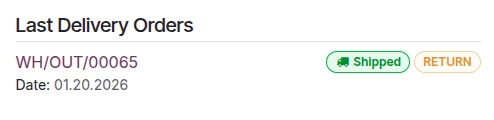
Una volta ricevuti gli articoli restituiti, avvia il processo di reso e rimborso nel backend.
Nota
La restituzione di prodotti potrebbe non essere possibile a seconda del tipo di prodotto.
Per emettere rimborsi, il pagamento deve essere stato effettuato tramite un fornitore di pagamento compatibile con i rimborsi.
Vedi anche
Fatturazione
Il passaggio finale di un ordine e-commerce è generare e inviare la fattura cliente. A seconda delle tue esigenze, le fatture possono essere generate manualmente o automaticamente.
Per automatizzare la fatturazione:
Vai a .
Nella sezione E-commerce, abilita Fattura automatica.
Seleziona il Modello email pertinente, quindi clicca su Salva.
Se necessario, clicca sull’icona accanto al nome del modello per personalizzare il modello email.
Nota
I clienti possono visualizzare le loro fatture in Le tue fatture nel portale.
Le fatture vengono inviate automaticamente solo se (e quando) il pagamento è registrato.
Quando la fatturazione automatica è disabilitata e le fatture vengono create manualmente, appaiono come fatture pro-forma nel portale cliente finché non vengono manualmente inviate al cliente.