
Prodotti
Odoo eCommerce allows you to create products and manage their visibility on the website. Products can be configured in various ways, including adding product images and videos, creating product combinations, implementing cross-selling and upselling strategies, attaching digital files, translating product information, managing stock, and setting packaging options.
Product creation
To create a product from the frontend, go to the Website app, click New in the top-right corner, then select Product. Enter the Product Name, and other relevant details such as the Barcode, Sales Price, default Sales Taxes, and a Website Category, then add an image. Once you click Save, you are redirected to the product page where you can customize it using the website editor. Once you are finished, click Save. To configure additional advanced product details, click Product in the top-right corner to access the backend product form.
Suggerimento
It is also possible to create a product from the backend by navigating to . Then:
Configure a new product by clicking New, or
Import product data using XLSX or CSV files by clicking the (gear) icon next to Products, then Import records.
Product visibility
To publish a product, access the product page on the website and switch the toggle from Unpublished to Published.
Suggerimento
To access the product page from the product form in the backend, click the Go to Website smart button.
To publish products from the backend, navigate to the Sales tab of the product form, then go to the Ecommerce shop section and toggle the Is Published switch on.
To publish multiple products at once, follow these steps:
Go to .
Remove the Published filter and switch to the List view.
Click the (dropdown toggle) icon on the far right of the view and enable Is Published.
Click the Is Published column to re-order it by published or unpublished products.
Select the products to publish by ticking their box on the far left.
In the Is Published column, tick the box for any of the selected products, then Update to publish them.
Nota
When managing multiple websites, the availability of a product on each website can be set from the product form. Navigate to the Sales tab, then in the Ecommerce shop section, select the Website where the product should be available. Leave the field blank to make the product available on all websites. You can make a product available on either one website or all websites, but selecting only some websites is not possible. To sell the product on multiple specific websites without making it available on all of them, duplicate the product for each website and assign the corresponding website to each duplicate.
Product configuration
To add general information to a product, navigate to and select the relevant product. You can configure various options, such as choosing a product type, adding variants and categories, or defining prices.
Additionally, add an e-commerce-specific product description to be displayed below the product name on the frontend product page. To do so, go to the Sales tab, scroll down to the Ecommerce description section, and write a description. Use Odoo’s rich-text editor to customize the content.
Suggerimento
Click the Go to Website smart button to access the frontend product page and customize it using the website editor.
Product descriptions can also be generated using AI. To do so, type
/in the Ecommerce description section and select AI to open the AI agent.
Product images and videos
To add media items, such as images and videos, navigate to the product form and go to the Sales tab. In the Ecommerce Media section, click Add Media. In the Select a media pop-up window:
To add an image, select an image, click Add URL or Upload an image in the Images tab.
To add a video, navigate to the Videos tab, paste a video URL, or embed HTML code. Then, enable the relevant video options.
Once the media is selected, click Add.
Suggerimento
Customize product images and videos using the website editor from the frontend.
Product combos
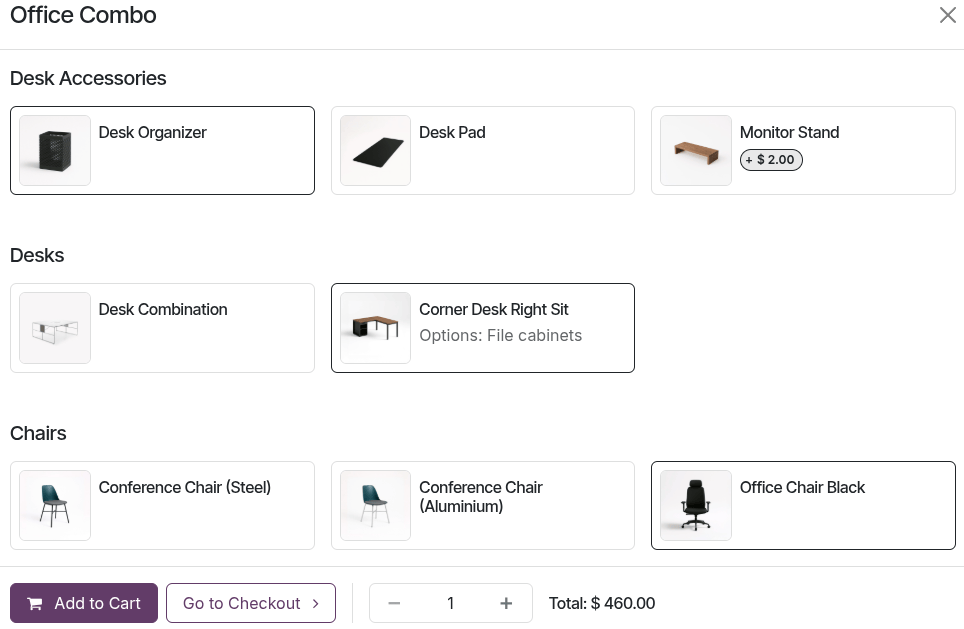
Product combinations allow users to configure a set of related products to buy as a bundle. To configure combos, go to . Once finished and published, customers can choose the combo when adding the product to the cart. Depending on the configuration, certain items may incur an additional charge.
Cross-selling & Upselling
Cross-selling and upselling are sales techniques used to present customers with additional or higher-tier products and services from the catalog. Cross-selling focuses on recommending accessory or optional products alongside the item being purchased during ordering and checkout. Upselling, on the other hand, encourages customers to choose a higher-priced or upgraded alternative product.
To configure these product suggestions, go to , select the relevant product, go to the Sales tab, and add the desired products in the corresponding Optional products, Accessory Products, and/or Alternative products fields.
Optional products are suggested when the customer clicks the Add to cart button to buy a specific product.

Accessory products appear in the Suggested accessories section during the Order summary step, just prior to proceeding to checkout.

Nota
To hide this section, open the website editor, go to the Style tab, and toggle the Suggested Accessories switch off.
Alternative products are displayed at the bottom of the product page under the Alternative Products heading.

Suggerimento
To customize this block, open the website editor, click the block on the page, and adapt the heading and text if necessary. Go to the Style tab, scroll to the Alternative Products section, and modify the options as needed.
Digital files
It is possible to link digital files, such as certificates, eBooks, or user manuals, to the products. To do so, go to the product form and click the Documents smart button. Then, click Upload to upload a file directly, or for additional options, click New. Choose the Type of attachment:
File: Upload your file.
URL: Insert the link to the file or media item.
Cloud Storage (if applicable): Insert a link to your cloud storage to store the file on the cloud storage platform instead of the database’s server.
These documents can be made available:
On the product page (before checkout): Set the Sales visibility field to Hidden and enable Publish on website.
In the customer portal on the confirmed sales order (after checkout): Set the Sales visibility field to On confirmed order and disable Publish on website.
Suggerimento
In Kanban view, click the (dropdown menu) in the top-right corner of the document card to Edit, Delete, or Download the document.
Multilingua
If a website is available in multiple languages, product information can be translated directly on
the product form. Fields that support multiple languages
are identifiable by their language abbreviation (e.g., EN) next to the field, such as the
Product name, Out-of-Stock Message, the
E-Commerce Description, ribbon or badge names, categories and variants names, etc.
Nota
Having untranslated content on a web page may be detrimental to the user experience and SEO. To avoid this, use the Translate feature to translate any remaining untranslated content on the page.
Vedi anche
Stock management
Importante
The Inventory app must be installed to handle stock-related settings and operations.
To configure stock-related e-commerce options, go to , scroll down to the eCommerce section, then to the Inventory Defaults subsection. The following settings are available:
If multiple warehouses exist, select the relevant one from the Warehouse dropdown menu to set it as the default.
Next to Out-of-Stock, enable Continue Selling to allow customers to place orders even when the product is out of stock. Keep this option disabled to prevent customers from ordering products that are out of stock.
Enable the Show Available Quantity option to display the remaining available quantity on the product page when it drops below a defined threshold. The available quantity is calculated based on the On hand quantity minus the quantity already reserved for outgoing transfers.
These settings apply to all products, but can be adapted for individual products if needed. To do so, go to the product form and make sure the Track inventory option is enabled. Then, navigate to the Sales tab and, under the Ecommerce shop section, enable or disable the relevant Sell when Out-of-Stock and Show Available Qty options. You can also compose an Out-of-Stock Message or create an out-of-stock ribbon or badge.
Nota
Modifying the general Inventory Defaults settings does not automatically modify the related option(s) on the product form for existing products; it only affects products created after the feature is enabled/disabled.
To display the stock level on the product page, the Product Type field on the product form must be set to Goods or Combo.
A (envelope) Get notified when back in stock button appears on the product page when an item is out of stock. Customers can click the link to enter their email address and receive a notification once the item is back in stock.
If the Click & Collect feature is enabled, the product availability is displayed on the product page based on the stock in the warehouse defined on the related delivery method form.
Example
Currently, the Boko Chair is not available in any warehouses. However, customers can click
the (envelope) Get notified when back in
stock link to receive a notification as soon as the product becomes available again. An
Out-of-Stock Message can also be added to inform customers that the item will be
replenished.

Suggerimento
If a unique reference is needed for inventory management, install the Manufacturing app and create kit bills of materials. Each kit links its published «virtual» products to the main reference tracked in Inventory. This ensures that any item sold on the website is converted into the corresponding stocked item in the delivery order.
Packagings
To offer different product pack sizes to customers on the e-commerce, configure product packagings. Then go to the product form and navigate to the Sales tab. Under Upsell & cross-sell, add as many package types as needed in the Packagings field. The available package types are displayed on the e-commerce product page.

Suggerimento
It is also possible to add packagings to a specific product variant. To do so, go to the product form, click the Variants smart button, and select the relevant product variant. Under Sales, add as many package types as needed in the Packagings field.