
Subfornitura di base
Nel subappalto di base, il prodotto di un’azienda viene prodotto interamente da un subappaltatore. Il prodotto viene prima acquistato dal subappaltatore, che acquisisce i propri componenti, produce il prodotto finale, quindi consegna il prodotto finale al magazzino dell’azienda.
Il seguente documento illustra come configurare un prodotto in subappalto e attivare il processo di subappalto.
Nota
Questo documento usa il termine azienda per riferirsi all’azienda interna che richiede beni in subappalto e il termine subappaltatore per riferirsi al fornitore esterno che gestisce la produzione esternalizzata dei beni in subappalto.
Configurazione
Per utilizzare il subappalto, un’azienda deve prima configurare i prodotti con un listino prezzi fornitore e una distinta base di tipo subappalto.
Il listino prezzi consente all’azienda di acquistare il prodotto dal fornitore (subappaltatore) tramite un PO, mentre la BoM consente di far produrre il prodotto esternamente dal subappaltatore.
Configurare il fornitore del prodotto
Per configurare il fornitore di un prodotto per il subappalto di base, andare in . Quindi, selezionare un prodotto o crearne uno nuovo.
Nella scheda prodotto, fare clic sulla scheda Acquisti e aggiungere il subappaltatore del prodotto come fornitore facendo clic su Aggiungi una riga. Selezionare il subappaltatore utilizzando il menu a discesa Fornitore.
Quindi, inserire il prezzo del prodotto nel campo Prezzo unitario.
Infine, impostare un tempo di consegna per il prodotto nel campo corrispondente per specificare il numero di giorni necessari al subappaltatore per produrre e consegnare il prodotto finito.
Nota
Poiché le aziende sono responsabili solo dell’acquisto e della ricezione del prodotto finito, non è necessario configurare ulteriormente i tempi di produzione su una BoM. Fornire invece solo un singolo Tempo di consegna sul listino prezzi del fornitore che tenga conto sia del tempo di produzione che di consegna del subappaltatore.
Configurare la distinta base
Dopo aver specificato il fornitore, configurare una BoM di tipo subappalto per il prodotto. Fare clic sul pulsante intelligente Distinta base nella scheda prodotto. Quindi, selezionare la BoM desiderata o crearne una nuova.
Suggerimento
In alternativa, andare su , e selezionare la BoM per il prodotto in subfornitura.
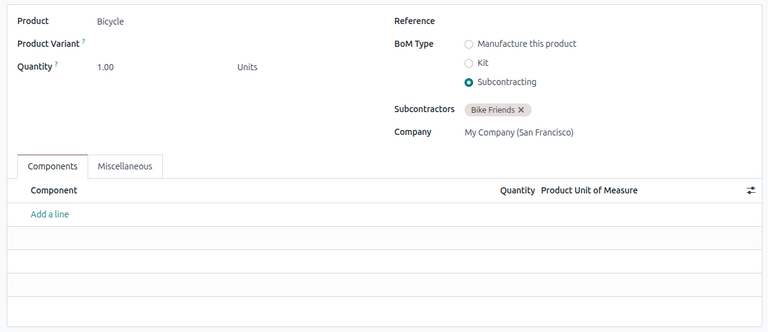
Nel campo Tipo di DB, selezionare Subappalto. Nel campo Subappaltatori risultante, aggiungere uno o più subappaltatori.
Poiché sia i componenti che la produzione sono gestiti dal subappaltatore, non è necessario elencare alcun componente nella scheda Componenti della BoM.
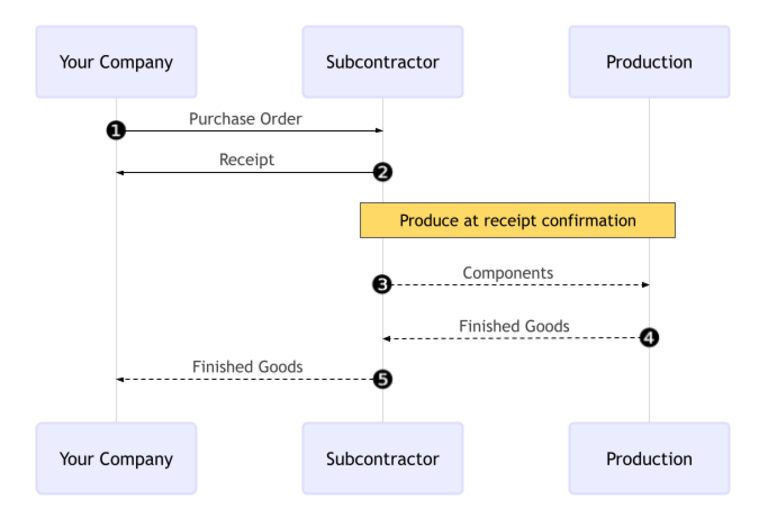
Flusso di lavoro di subfornitura di base
Il flusso di lavoro del subappalto di base inizia creando un ordine di acquisto per acquistare il prodotto dal subappaltatore (1).
L’azienda conferma quindi il PO, che crea una ricevuta per trasferire il prodotto finito (2). Il subappaltatore produce il prodotto e lo consegna all’azienda quando è pronto.
Una volta che il prodotto è stato prodotto e ricevuto, l’azienda convalida la ricevuta (5) per attivare i movimenti di magazzino dal subappaltatore allo stock dell’azienda (3, 4).
Creare e confermare un ordine di acquisto
Per creare un PO per il prodotto subappaltato, andare in e fare clic su Nuovo.
Iniziare a compilare il PO selezionando un subfornitore dal menu a discesa Fornitore. Nella scheda Prodotti, fare clic su Aggiungi un prodotto per creare una nuova riga di prodotto. Selezionare il prodotto subfornito nel campo Prodotto e inserire la quantità nel campo Quantità.
Dopo aver aggiunto il prodotto, il campo Arrivo previsto viene aggiornato con la data di consegna prevista del prodotto finito, come configurato in precedenza con il Tempo di consegna del fornitore.
Infine, fare clic su Conferma ordine per confermare il PO. Viene creata automaticamente una ricevuta e in alto nel modulo appare un pulsante intelligente Ricevuta.
Elaborare la ricevuta
Dopo la conferma dell’ordine, il subappaltatore produce il prodotto e consegna il bene finito all’azienda.
Per ricevere il prodotto finito dal subappaltatore, fare clic sul pulsante Ricevi sul PO, oppure fare clic sul pulsante intelligente Ricevuta nella parte superiore della pagina. Quindi, fare clic su Convalida per registrare la spedizione in entrata nel magazzino.
Nota
Se sono abilitati flussi di inventario multifase, è necessario convalidare ulteriori trasferimenti per inserire il prodotto in entrata in stock.
Tracciare i movimenti di inventario
Dopo aver convalidato una ricevuta, Odoo genera automaticamente movimenti di magazzino per tracciare il movimento dei prodotti subappaltati tra le ubicazioni. Per visualizzare questi movimenti di magazzino, andare a .
Per tracciare il movimento di magazzino nel subappalto, Odoo invia tutti i componenti del prodotto a un’ubicazione dedicata chiamata Subappalto. Un’altra ubicazione chiamata Produzione consuma quindi i componenti e produce il bene finito. Una volta prodotto, il bene torna all’ubicazione Subappalto prima di entrare infine nello stock dell’azienda quando la ricevuta viene convalidata.

Nota
Poiché nel subappalto di base non vengono inviati componenti, non c’è movimento dall’ubicazione Subappalto all’ubicazione Produzione.