
การจ้างเหมาช่วงเบื้องต้น
ในการรับเหมาช่วงพื้นฐาน สินค้าของบริษัทจะถูกผลิตโดยผู้รับเหมาช่วงทั้งหมด สินค้าจะถูกจัดซื้อจากผู้รับเหมาช่วงก่อน ซึ่งจัดหาส่วนประกอบของตนเอง ผลิตสินค้าขั้นสุดท้าย จากนั้นส่งมอบสินค้าขั้นสุดท้ายไปยังคลังสินค้าของบริษัท
เอกสารต่อไปนี้ครอบคลุมวิธีการกำหนดค่าสินค้ารับเหมาช่วงและเริ่มกระบวนการรับเหมาช่วง
Note
เอกสารนี้ใช้คำว่า บริษัท เพื่ออ้างถึงบริษัทภายในที่ต้องการสินค้ารับเหมาช่วง และใช้คำว่า ผู้รับเหมาช่วง เพื่ออ้างถึงผู้ขายภายนอกที่จัดการการผลิตภายนอกของสินค้ารับเหมาช่วง
การกำหนดค่า
ในการใช้งานการจ้างผลิต บริษัทต้องกำหนดค่าสินค้าด้วย:ref:`รายการราคาผู้จัดจำหน่าย <purchase/products/pricelist>`และ:ref:`BoM ประเภทการจ้างผลิต <manufacturing/workflows/subcontracting_basic/bom-config>`ก่อน
รายการราคาช่วยให้บริษัทสามารถจัดซื้อสินค้าจากผู้จัดจำหน่าย (ผู้รับจ้างผลิต) ผ่าน|PO| ในขณะที่|BoM|ช่วยให้สินค้าสามารถผลิตภายนอกโดยผู้รับจ้างผลิต
ตั้งค่าผู้จำหน่ายสินค้า
ในการตั้งค่าผู้จำหน่ายของสินค้าสำหรับการรับช่วงการผลิตพื้นฐาน ให้ไปที่:menuselection:แอปคลังสินค้า --> สินค้า --> สินค้า จากนั้นเลือกสินค้าหรือสร้างสินค้าใหม่
ในฟอร์มสินค้า คลิกแท็บ การจัดซื้อ และเพิ่มผู้รับจ้างผลิตของสินค้าเป็นผู้จัดจำหน่ายโดยคลิก เพิ่มบรรทัด เลือกผู้รับจ้างผลิตโดยใช้เมนูแบบเลื่อนลง ผู้จัดจำหน่าย
จากนั้น ป้อนราคาของสินค้าในฟิลด์ ราคาต่อหน่วย
สุดท้าย ตั้งค่า ระยะเวลานำ สำหรับสินค้าในฟิลด์ที่เกี่ยวข้องเพื่อระบุจำนวนวันสำหรับผู้รับจ้างผลิตในการผลิตและส่งมอบสินค้าสำเร็จรูป
Note
เนื่องจากบริษัทมีหน้าที่เพียงจัดซื้อและรับสินค้าสำเร็จรูปเท่านั้น จึงไม่จำเป็นต้องกำหนดค่าระยะเวลานำการผลิตเพิ่มเติมบน|BoM| แต่ให้ระบุเพียง ระยะเวลานำ เดียวในรายการราคาผู้จัดจำหน่ายที่รวมทั้งเวลาการผลิตและการส่งมอบของผู้รับจ้างผลิต
กำหนดค่า BoM
หลังจากระบุผู้จัดจำหน่ายแล้ว ให้กำหนดค่า|BoM|ประเภทการจ้างผลิตสำหรับสินค้า คลิกปุ่มอัจฉริยะ บิลออฟแมทีเรียล ในฟอร์มสินค้า จากนั้น เลือก|BoM|หรือ สร้างใหม่
Tip
หรือไปที่ และเลือก BoM สำหรับสินค้าที่จ้างเหมาช่วง
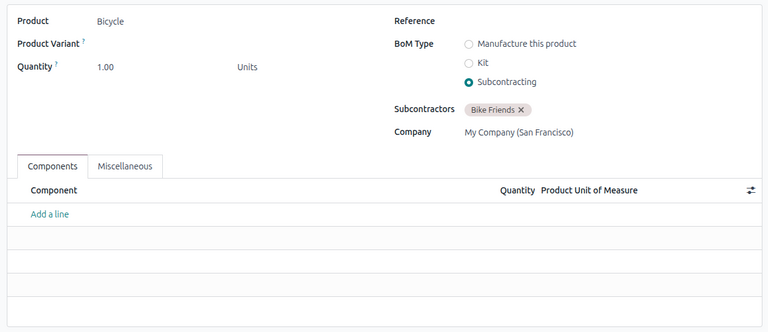
ในฟิลด์:guilabel:ประเภท BoM ให้เลือก:guilabel:การรับช่วงการผลิต ในฟิลด์:guilabel:`ผู้รับเหมาช่วง`ที่แสดงขึ้น ให้เพิ่มผู้รับเหมาช่วงหนึ่งรายหรือมากกว่า
เนื่องจากทั้งส่วนประกอบและการผลิตดำเนินการโดยผู้รับจ้างผลิต จึงไม่จำเป็นต้องระบุส่วนประกอบใดๆ ในแท็บ ส่วนประกอบ ของ|BoM|
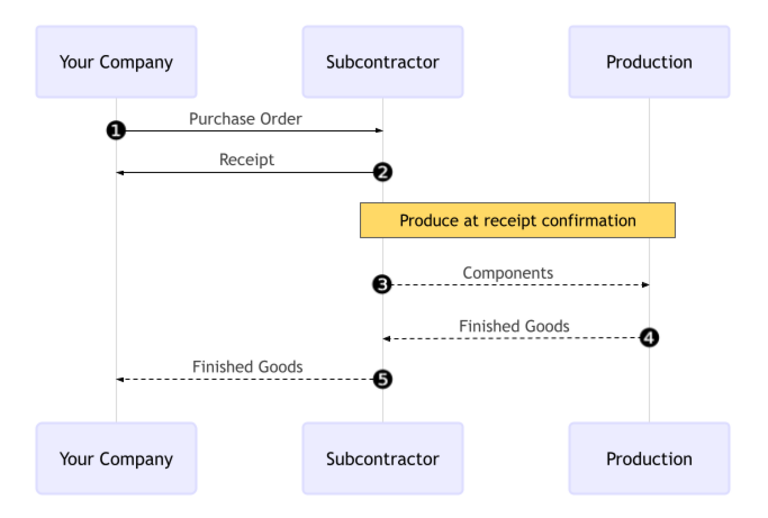
ขั้นตอนการจ้างเหมาช่วงเบื้องต้น
ขั้นตอนการรับช่วงการผลิตพื้นฐานเริ่มต้นด้วย:ref:`การสร้างใบสั่งซื้อ <subcontracting_basic/workflow/create_po>`เพื่อจัดซื้อสินค้าจากผู้รับเหมาช่วง (1)
จากนั้นบริษัทยืนยัน|PO| ซึ่งสร้างใบรับเพื่อโอนสินค้าสำเร็จรูป (2) ผู้รับจ้างผลิตผลิตสินค้าและส่งกลับมายังบริษัทเมื่อเสร็จสิ้น
เมื่อผลิตและรับสินค้าแล้ว บริษัท ตรวจสอบใบรับ (5) เพื่อเรียก การเคลื่อนย้ายสินค้าคงคลัง จากผู้รับจ้างผลิตไปยังสต็อกของบริษัท (3, 4)
สร้างและยืนยันใบสั่งซื้อ
ในการสร้าง|PO|สำหรับสินค้าที่รับช่วงการผลิต ให้ไปที่:menuselection:แอปการจัดซื้อ --> คำสั่งซื้อ --> ใบสั่งซื้อ และคลิก:guilabel:สร้าง
เริ่มกรอก|PO|โดยเลือกผู้รับเหมาช่วงจากเมนูแบบเลื่อนลง:guilabel:ผู้จำหน่าย ในแท็บ:guilabel:สินค้า ให้คลิก:guilabel:เพิ่มสินค้า`เพื่อสร้างรายการสินค้าใหม่ เลือกสินค้าที่รับช่วงการผลิตในฟิลด์:guilabel:`สินค้า และป้อนจำนวนในฟิลด์:guilabel:จำนวน
หลังจากเพิ่มสินค้าแล้ว ฟิลด์ วันที่คาดว่าจะมาถึง จะได้รับการอัปเดตด้วยวันที่คาดว่าจะส่งมอบสินค้าสำเร็จรูป ตามที่กำหนดค่าไว้ก่อนหน้านี้ด้วย ระยะเวลานำ ของผู้จัดจำหน่าย
สุดท้าย คลิก ยืนยันคำสั่งซื้อ เพื่อยืนยัน PO ใบรับสินค้าจะถูกสร้างขึ้นโดยอัตโนมัติ และปุ่มอัจฉริยะ ใบรับสินค้า จะปรากฏที่ด้านบนของแบบฟอร์ม
ขั้นตอนการได้รับเอกสาร
หลังจากยืนยันคำสั่งซื้อแล้ว ผู้รับจ้างผลิตจะผลิตสินค้าและส่งมอบสินค้าสำเร็จรูปกลับมายังบริษัท
ในการรับสินค้าสำเร็จรูปจากผู้รับจ้างผลิต ให้คลิกปุ่ม รับ บน|PO| หรือคลิกปุ่มอัจฉริยะ ใบรับ ที่ด้านบนของหน้า จากนั้น คลิก ตรวจสอบ เพื่อบันทึกการจัดส่งขาเข้าไปยังคลังสินค้า
Note
หากเปิดใช้งาน ขั้นตอนการจัดการคลังสินค้าแบบหลายขั้นตอน จะต้องมีการตรวจสอบการโอนย้ายเพิ่มเติมเพื่อบันทึกสินค้าเข้าสู่คลัง
ติดตามการเคลื่อนไหวสินค้าในคลัง
หลังจากตรวจสอบใบรับแล้ว Odoo จะสร้างการเคลื่อนย้ายสินค้าคงคลังโดยอัตโนมัติเพื่อติดตามการเคลื่อนไหวของสินค้าจ้างผลิตระหว่าง สถานที่ ในการดูการเคลื่อนย้ายสินค้าคงคลังเหล่านี้ ไปที่
ในการติดตามการเคลื่อนย้ายสินค้าคงคลังในการจ้างผลิต Odoo จะส่งส่วนประกอบสินค้าใดๆ ไปยังสถานที่เฉพาะที่เรียกว่า การจ้างผลิต จากนั้นสถานที่อีกแห่งหนึ่งที่เรียกว่า การผลิต จะใช้ส่วนประกอบและผลิตสินค้าสำเร็จรูป เมื่อผลิตเสร็จแล้ว สินค้าจะย้ายกลับไปยังสถานที่ การจ้างผลิต ก่อนที่จะเข้าสู่สต็อกของบริษัทในที่สุดเมื่อใบรับได้รับการตรวจสอบ

Note
เนื่องจากไม่มีการส่งส่วนประกอบในการจ้างผลิตแบบพื้นฐาน จึงไม่มีการเคลื่อนย้ายจากสถานที่ การจ้างผลิต ไปยังสถานที่ การผลิต