Rapport d’analyse de l’odomètre
L’application Parc automobile permet d’analyser tous les relevés d’odomètre enregistrés dans le système, que les responsables peuvent utiliser pour déterminer l’utilisation, en termes de kilométrage, de leurs véhicules.
Ces informations peuvent aider à la prise de décision pour déterminer quels véhicules ajouter au parc ou quels véhicules retirer. De plus, ces informations peuvent aider lors d’audits de routine, en s’assurant que les véhicules utilisés respectent la politique de l’entreprise et que des dossiers précis sont tenus.
Pour que le rapport Analyse de l’odomètre fournisse des informations fiables et significatives, s’assurer que les relevés d’odomètre sont mis à jour régulièrement pour chaque véhicule. Généralement, les valeurs de l’odomètre sont mises à jour lorsqu’un véhicule est ajouté au parc et lorsque des réparations sont effectuées sur un véhicule.
Note
De nombreuses entreprises suivent des politiques internes pour les mises à jour régulières de l’odomètre. Par exemple, les camions de livraison peuvent nécessiter un relevé d’odomètre hebdomadaire, tandis que les véhicules d’employés peuvent seulement avoir besoin de rapporter le kilométrage sur une base mensuelle.
Valeurs mensuelles de l’odomètre
Pour voir le rapport Analyse de l’odomètre, aller à . Le rapport par défaut montre un graphique en courbes des valeurs de l’odomètre, groupées par mois, puis par catégorie de véhicule.
Le kilométrage affiché est la valeur de l’odomètre par mois, et non le kilométrage total accumulé chaque mois. Ce rapport permet aux responsables de voir quelles catégories de véhicules sont les plus conduites sur une base mensuelle.
Les données de ce rapport peuvent aider les responsables lors d’audits, car les données de ce rapport peuvent être comparées au kilométrage attendu, comme les distances aller-retour pour les réparations ou les livraisons. Cela peut aider à s’assurer que les véhicules ne sont pas utilisés à des fins non professionnelles. De plus, le kilométrage total parcouru pour les véhicules d’employés peut être comparé au kilométrage attendu selon la distance domicile-travail configurée sur les fiches d’employés.
Example
Dans ce rapport, il est possible de déterminer que les Camions de livraison ont à la fois le kilométrage le plus élevé et le plus constant, d’un mois à l’autre.

Valeurs totales du compteur kilométrique
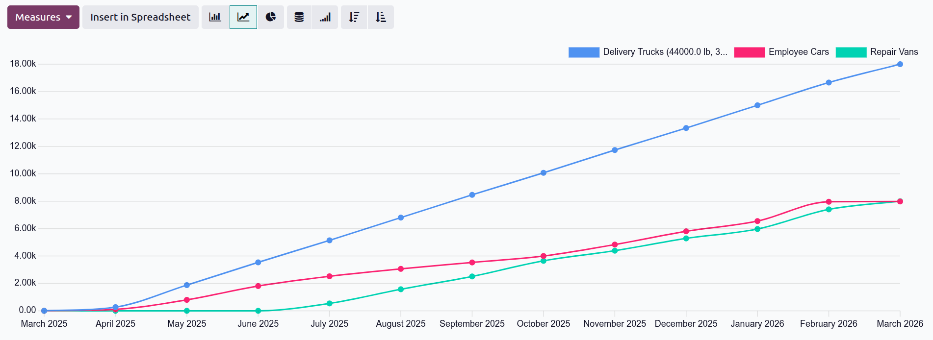
Pour afficher la valeur totale du compteur kilométrique de tous les véhicules du parc, ouvrir le rapport Analyse du compteur kilométrique en allant à . Cliquer sur le bouton Mesures, et sélectionner Valeur du compteur kilométrique dans le menu déroulant.
Cela présente toutes les valeurs du compteur kilométrique, regroupées par mois et par catégorie. Cela permet aux entreprises de savoir quel type de véhicule enregistre le plus de kilomètres, et est donc le plus sur la route ou le plus utilisé. Ces informations peuvent aider les gestionnaires à déterminer quels véhicules apportent le plus de valeur et doivent être conservés, et quels véhicules doivent être retirés.
Example
Dans ce rapport, on peut déterminer que les Camions de livraison (la ligne bleue dans le graphique) parcourent le plus de kilomètres chaque mois, plus du double du kilométrage combiné des autres véhicules. Les Camionnettes de réparation et les Voitures d’employés parcourent toutes deux un nombre comparable de kilomètres chaque mois, les Voitures d’employés enregistrant globalement un peu plus de kilomètres.