
Objetivos
La aplicación Evaluaciones de Odoo permite que los gerentes definan (y den seguimiento) objetivos claros para sus empleados. Un progreso continuo hacia los objetivos hace que los empleados tengan metas concretas entre evaluaciones y le proporciona información confiable a los gerentes para que puedan evaluar su desempeño.
Nota
La aplicación Evaluaciones no cuenta con objetivos preconfigurados, así que debes agregarlos a la base de datos.
Biblioteca de objetivos
La biblioteca de objetivos reúne todos los objetivos configurados en la base de datos y te permite agregar nuevos objetivos. Para ver todos los objetivos configurados de forma actual, ve a y aparecerá el tablero de plantillas de objetivos. Todos los objetivos aparecen en la vista de lista predeterminada y cada uno muestra la siguiente información:
Nombre: El nombre del objetivo.
Recomendado para: Las habilidades hacia las que apunta el objetivo. Si un empleado quiere desarrollar una habilidad que aparece en la columna Recomendado para, este objetivo ofrece una forma eficaz de alcanzar esas habilidades.
Objetivos secundarios: Los distintos objetivos que es necesario completar antes de alcanzar el objetivo indicado. También se les conoce como prerrequisitos.
Crear nuevos objetivos
Para agregar un nuevo objetivo a la biblioteca de objetivos, ve a , haz clic en el botón Nuevo y aparecerá un formulario para una plantilla de objetivos. Completa la siguiente información en el formulario:
Nombre: Escribe el nombre del objetivo en este campo.
Plantilla de objetivo principal: Si el objetivo es un subobjetivo de otro objetivo, conocido como objetivo principal, selecciónalo en el menú desplegable.
Habilidades esperadas: Si el objetivo es un prerrequisito para una habilidad, selecciónala en el menú desplegable. Luego de asignar la tarea de aprender una habilidad a un empleado, el sistema le recomienda los objetivos asociados con esa habilidad.
Tiempo habitual: Escribe el tiempo típico, en meses, que toma alcanzar el objetivo. Al asignar el objetivo a un empleado, el sistema calcula la fecha de vencimiento en función de este campo.
Etiquetas: Agrega las etiquetas relevantes con el menú desplegable.
Example
Una empresa quiere crear un objetivo para que sus empleados aprendan las reglas de seguridad básica de toda su maquinaria pesada. Para configurarlo, le asignan el nombre Capacitación en seguridad de fábrica. La plantilla del objetivo principal es Capacitación en seguridad de maquinaria pesada, que incluye la capacitación avanzada de seguridad para todos los equipos. Esto significa que los objetivos de capacitación en seguridad de fábrica dependen del objetivo más completo, que es capacitación en seguridad de maquinaria pesada.
Las habilidades esperadas son las distintas habilidades de capacitación avanzada en seguridad, como Operación de montacargas: Avanzado. Esto significa que cuando un empleado quiere obtener la habilidad Operador de montacargas: Avanzado, el sistema le recomendará el objetivo Capacitación en seguridad de fábrica.
El tiempo habitual está configurado con un mes, así que un empleado suele tardar un mes en alcanzar el objetivo.
Por último, asignan las etiquetas Fábrica y Seguridad al objetivo .

Pestaña de descripción
Ingresa cualquier información relevante en esta pestaña para proporcionar información, contexto y apoyo al empleado.
Este texto podrá verlo el empleado e incluye los pasos a seguir, los beneficios por alcanzar el objetivo y la forma de lograrlo. Usa el editor de texto enriquecido para personalizar la información.
Example
El objetivo Capacitación en seguridad de fábrica completa la pestaña Descripción con un resumen del objetivo, una lista de verificación con las capacitaciones de seguridad a completar para alcanzarlo y las instrucciones sobre a quién contactar para agendar la capacitación necesaria.

Pestaña de objetivos secundarios
Algunos objetivos solo se pueden alcanzar después de completar los objetivos relacionados, conocidos como objetivos secundarios. Cuando esto deba ocurrir, es necesario que agregues los objetivos secundarios necesarios a la pestaña Objetivos secundarios.
Para agregar un objetivo secundario, haz clic en Agregar una línea y esta acción abrirá la ventana emergente Crear plantilla de objetivo secundario. El formulario contiene los mismos campos que la plantilla de objetivos, a excepción de Plantilla del objetivo principal, que no aparece aquí. Completa la ventana emergente y haz clic en Guardar y cerrar si solo necesitas un objetivo o en Guardar y crear nuevo para guardarlo y agregar otro.
Example
Capacitación en seguridad de fábrica incluye cuatro objetivos secundarios configurados. Cada objetivo secundario corresponde a la capacitación básica de una pieza de maquinaria pesada específica, como Capacitación básica de montacargas. Cada objetivo secundario muestra una habilidad en Recomendado para. Capacitación básica de montacargas es la que se le recomienda a los empleados con la habilidad Operador de montacargas: Principiante.

Etiquetas
Agregar etiquetas a los objetivos facilita la revisión del reporte de objetivos para ver cuántos objetivos con etiquetas específicas tienen asignados los empleados. También ayuda a mantener los objetivos organizados e identificar cuáles están relacionados entre sí.
Para ver todas las etiquetas actuales y agregar nuevas, ve a . Todas las etiquetas aparecerán en la vista de lista. No hay etiquetas preconfiguradas, así que es necesario agregarlas a la base de datos.
Para agregar una etiqueta nueva, haz clic en el botón Nuevo ubicado en la esquina superior izquierda y aparecerá una línea nueva al final de la lista. Escribe el nombre de la etiqueta y presiona Enter o haz clic fuera del campo. Haz clic en el punto de color que se encuentra al final de la línea para elegir un color para la etiqueta.

Ver los objetivos de los empleados
Para ver todos los objetivos asignados a los empleados, ve a . Ahí aparecerán todos los objetivos de cada empleado en la vista de lista predeterminada agrupados por empleado.
Haga clic en un empleado para abrir la lista de objetivos. Cada uno de ellos mostrará la siguiente información:
Nombre: El nombre del objetivo.
Progreso: El porcentaje del progreso que el empleado ha logrado.
Empleado: El empleado asignado al objetivo.
Fecha límite: La fecha en que se debe alcanzar el objetivo.
Los porcentajes de progreso aparecen en color gris hasta alcanzar el objetivo. Después de alcanzarlo, el progreso muestra el 100% en color verde.
Cualquier objetivo cuya fecha límite ya haya pasado aparece en rojo.

Nota
En la lista solo aparecerán los empleados que tengan un objetivo asignado.

Asignar objetivos a los empleados
Luego de configurar los objetivos en la base de datos, el siguiente paso es asignárselos a los empleados. Puedes asignar los objetivos configurados a los empleados y también puedes crear objetivos nuevos y asignarlos.
Asignar objetivos existentes
Para asignar los objetivos a tus empleados, primero abre el tablero principal de objetivos desde . Haz clic en el botón Abrir biblioteca y aparecerá la ventana emergente Biblioteca de plantillas de objetivos que te mostrará todos los objetivos configurados. Haz clic en la casilla junto a cada objetivo que quieras asignarle a los empleados.
Después, haz clic en el botón Continuar y aparecerá la ventana emergente Seleccionar empleados. Haz clic en la casilla ubicada junto a cada empleado al que le asignarás los objetivos seleccionados y haz clic en el botón Agregar objetivos a los empleados.
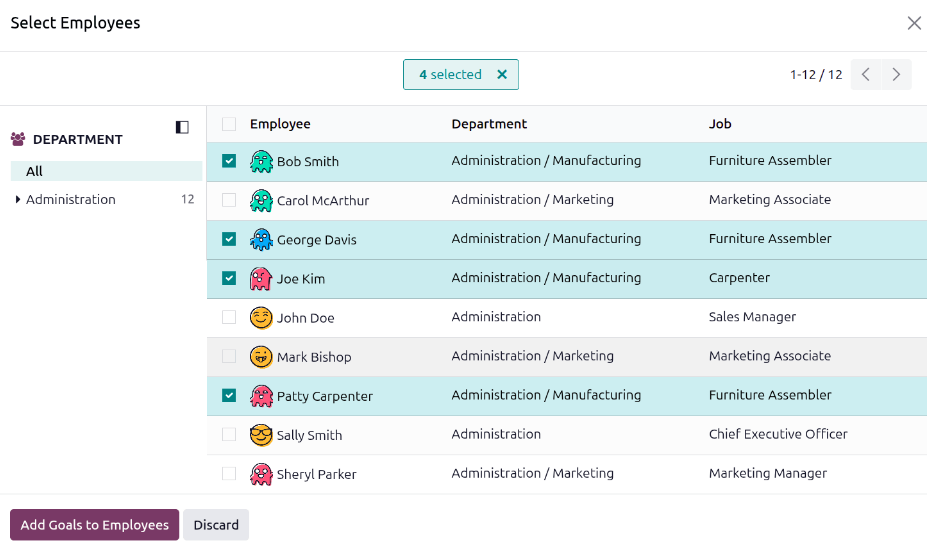
La ventana emergente se cerrará y los objetivos seleccionados quedarán asignados a los empleados elegidos. También aparecerán en el tablero de objetivos.
Asignar nuevos objetivos
Si un objetivo no existe, puedes crearlo y asignárselo a un empleado desde el tablero de objetivos. Para crear nuevos objetivos, ve a y haz clic en Nuevo en la esquina superior izquierda para abrir un formulario vacío de objetivos. Agrega la siguiente información al formulario:
Objetivo: Escriba un nombre corto para el objetivo en este campo.
Empleado: Selecciona al empleado al que asignarás el objetivo con el menú desplegable. Una vez que completes este campo, el sistema completará el campo Gerente con el gerente del empleado.
Progreso: Haga clic en el porcentaje actual de competencia del objetivo. Las opciones son 0%, 25%, 50%, 75% y 100%.
Gerente: Selecciona al gerente del empleado con el menú desplegable si no aparece seleccionado.
Fecha límite: Indica la fecha de vencimiento del objetivo con el selector de calendario.
Etiquetas: Agrega las etiquetas correspondientes al objetivo con el menú desplegable.
Descripción: Escribe los detalles del objetivo en esta pestaña.
Truco
Algunos objetivos se pueden desglosar en pasos, que pueden agregarse como lista de verificación. Una lista de verificación es una herramienta que el empleado usa para marcar su progreso.

Actualizar los objetivos de los empleados
Por lo general, los objetivos se actualizan durante la evaluación de un empleado, directo en el formulario de la misma. Sin embargo, a veces es necesario actualizar el progreso fuera de una evaluación. Esto puede ocurrir cuando un empleado completa un curso o una certificación y registra su avance o la finalización del objetivo.
Para actualizar el porcentaje de progreso de un objetivo fuera de una evaluación, ve a . Abre el empleado cuyos objetivos quieres actualizar y haz clic en uno de ellos para abrir su registro.
Haga clic en la caja nueva Progreso para establecer el nuevo nivel de progreso. Recomendamos agregar notas en la pestaña Descripción conforme el empleado progrese con el objetivo. Las notas deben incluir las fechas en las que el progreso cambió y cualquier información correspondiente al cambio.
Objetivos de empleados completados
Cuando se haya logrado un objetivo, es importante actualizar el registro. Vaya a y abra el empleado cuyos objetivos evaluará. Haga clic en un objetivo específico para abrir el registro.
Haga clic en el botón Marcar como hecho ubicado en la esquina superior izquierda. Aparecerá una cinta verde con el mensaje Hecho en la esquina superior derecha de la tarjeta del objetivo y el progreso cambiará a 100%.
Nota
En el tablero de objetivos, los objetivos completados aparecerán con una etiqueta verde 100% en la columna Progreso.
