
Mål
The Odoo Appraisals application allows managers to set and track clear goals for their employees. Continuous progress towards goals gives employees a concrete target between reviews, and gives managers reliable insights when evaluating performance.
Observera
No goals come preconfigured in the Appraisals app; all goals must be added to the database.
Goals library
The Goals Library houses all the goals configured in the database, and is where new goals are added. To view all the currently configured goals, navigate to , and the Goals template dashboard loads. All goals are displayed in a default list view, and each goal displays the following information:
Name: The name of the goal.
Recommended for: The skills the goal works towards. If an employee wants to advance a skill listed in the Recommended for column, the goal is an effective way to attain those skills.
Sub Goals: The various goals that must be achieved before attaining the specified goal. These can also be referred to as prerequisites.
Create new goals
To add a new goal to the goals library, navigate to , click the New button, and a Goals Template form loads. Fill out the following information on the form:
Name: Enter a name for the goal in this field.
Parent Goal Template: If the goal is a sub-goal under another goal, referred to as a parent goal, select it using the drop-down menu.
Expected Skills: If the goal is a prerequisite for a skill, select it using the drop-down menu. When an employee is tasked to learn a skill, the corresponding goals associated with that skill are recommended for them.
Usual Timing: Enter the typical amount of time, in months, the goal takes to achieve. When the goal is assigned to an employee, the due date is calculated based on this field.
Tags: Add any relevant tags using the drop-down menu.
Example
A company wants to create a goal for employees to learn basic safety for all their heavy
machinery. To set up this goal, the goal is named Factory Safety Training. The
Parent Goal Template is Heavy Machinery Safety Training, which includes the
advanced safety training for all the equipment. This means the goals of Factory Safety Training
fall underneath the more comprehensive Heavy Machinery Safety Training.
The Expected Skills are the various advanced safety training skills, such as
Forklift Operation: Advanced. This means that when an employee wants to obtain the skill
Forklift Operator: Advanced, they will be recommended the Factory Safety Training goal.
The Usual Timing is set to one month, meaning that it is typical for an employee to take one month to achieve the goal.
Last, the tags Factory and Safety are assigned to the goal.

Fliken Beskrivning
Enter any relevant information in this tab to provide information, context, and assistance to the employee.
This text is visible to the employee, and may include steps to take, any benefits from achieving the goal, and how they can achieve it. Use the rich text editor to customize the information provided.
Example
A Factory Safety Training goal populates the Description tab with a short description of the
goal, a checklist of safety training that must be completed to achieve the goal, as well as
instructions for whom to contact to schedule the necessary training.

Sub-Goals tab
Certain goals can only be achieved after completing related goals, referred to as sub-goals. When this applies, the necessary sub-goals must be added to the Sub-goals tab.
To add a sub-goal, click Add a line, and a Create Sub Goal Template pop-up window loads. The form contains the same fields as the goals template, except the Parent Goal Template does not appear on this form. Fill out the pop-up window, then click Save & Close if only one goal is needed, or Save & New to save the goal and add another.
Example
A Factory Safety Training has four sub-goals configured. Each sub-goal is for the basic
training of a specific piece of heavy machinery, such as Basic Forklift Training. Each sub-goal
has a Recommended for skill listed with it. The Basic Forklift Training is
recommended for employees assigned the Forklift Operator: Beginner skill.

Etiketter
Adding tags to goals can help when viewing the goals report, to see how many goals with specific tags are assigned to employees. They also can aid with keeping various goals organized, and see which goals are related to one another.
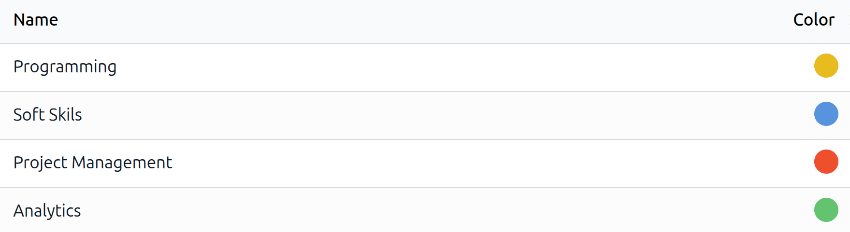
To view all the current tags, and add new ones, navigate to . All tags appear in a list view. No tags come preconfigured, so all tags must be added to the database.
To add a new tag, click the New button in the upper-left corner, and a new line appears at the bottom of the list. Enter the tag name, then press return or click away from the field. Click on a colored dot at the end of the line to select a color for the tag.
View employee goals
To view all goals assigned to employees, navigate to . This presents all the goals for every employee, in a default list view, grouped by Employee.
Click on an employee to expand the listed goals. Each goal displays the following information:
Name: The name of the goal.
Progress: The percentage of progress the employee has achieved.
Employee: The employee assigned to the goal.
Deadline: The date the goal should be achieved.
The Progress percentages all appear in gray until a goal has been achieved. Once
achieved, the Progress displays 100% and appears in green.
Any goals whose Deadline has passed appears in red text.

Observera
Only employees with goals assigned to them appear in the list.

Assign goals to employees
Once goals have been configured in the database, the next step is to assign goals to employees. Configured goals can be assigned to employees, and new goals can be created and assigned.
Assign existing goals
To assign goals to employees, first open to the main Goals dashboard by navigating to . Click the Open Library button and a Goals Template Library pop-up window loads, displaying all the currently configured goals. Click the checkbox next to each goal being assigned to employees.
Next, click the Continue button and a Select Employees pop-up window loads. Click the checkbox next to each employee being assigned the selected goals, then click the Add Goals to Employees button.
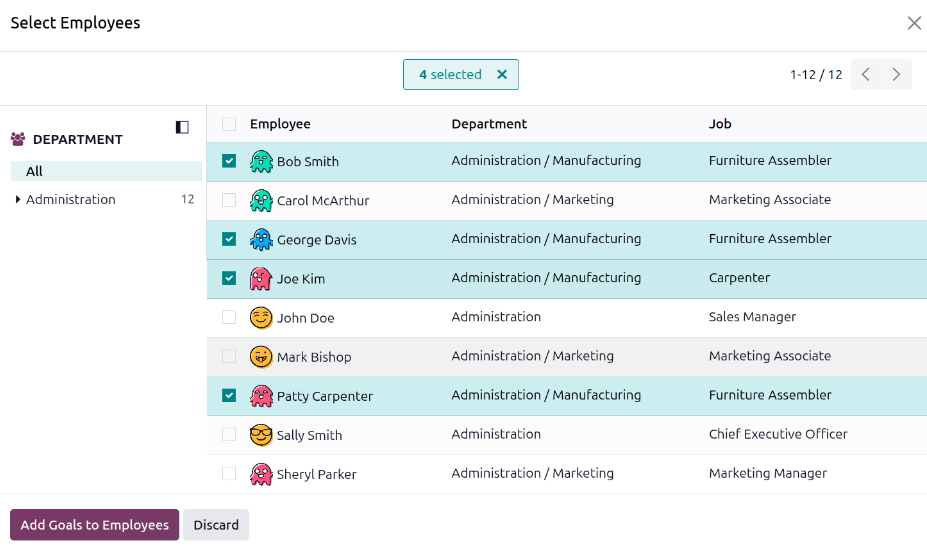
The pop-up window closes, and the selected goals are now assigned to the selected employees, and appear on the Goals dashboard.
Assign new goals
If a goal does not exist, it can be created and assigned to an employee from the Goals dashboard. To create new goals, navigate to , and click New in the top-left corner to open a blank Goals form. Add the following information on the form:
Goal: Type in a brief name for the goal in this field.
Employee: Select the employee being assigned the goal using the drop-down menu. Once this field is populated, the employee’s manager populates the Manager field.
Progress: Click the current percentage of competency for the goal. The options are 0%, 25%, 50%, 75%, or 100%.
Manager: Select the employee’s manager using the drop-down menu, if not already selected.
Deadline: Enter the due date for the goal using the calendar selector.
Tags: Add any relevant tags to the goal using the drop-down menu.
Description: Enter any details regarding the goal in this tab.
Tips
Some goals can be broken down into steps, which may be input as a checklist. A checklist is a tool the employee may use to mark their progress.

Update employee goals
Typically, goals are updated during an employee appraisal, directly on the appraisal form. However, in some cases, it is necessary to update goal progress outside of an appraisal. This could be from an employee completing a course or certification, documenting their goal progress or completion.
To update a goal’s progress percentage outside of an appraisal, navigate to . Expand the employee whose goals are being updated, and click on an individual goal to open the goal record.
Click the new Progress box to set the new progress level. It is recommended to add notes in the Description tab, as the employee progresses with the goal. The notes should include dates the progress changed, and any supporting information regarding the change.
Completed employee goals
When a goal has been met, it is important to update the record. Navigate to . Expand the employee whose goals are being evaluated, and click on an individual goal to open the goal record.
Click the Mark as Done button in the upper-left corner. A green Done banner appears in the top-right corner of the goal card, and the Progress changes to 100%.
Observera
On the Goals dashboard, completed goals are indicated with a green 100% tag in the Progress column.
