
Skatter
Det finns många olika typer av skatter, och deras tillämpning varierar kraftigt, främst beroende på ditt företags lokalisering. För att se till att de registreras korrekt stöder Odoos skattemotor alla typer av användningsområden och beräkningar.
Standardskatter
Default taxes define which taxes are automatically selected when creating a new product. They are also used to prefill the Taxes field when adding a new line on an invoice in Accounting Firms mode.
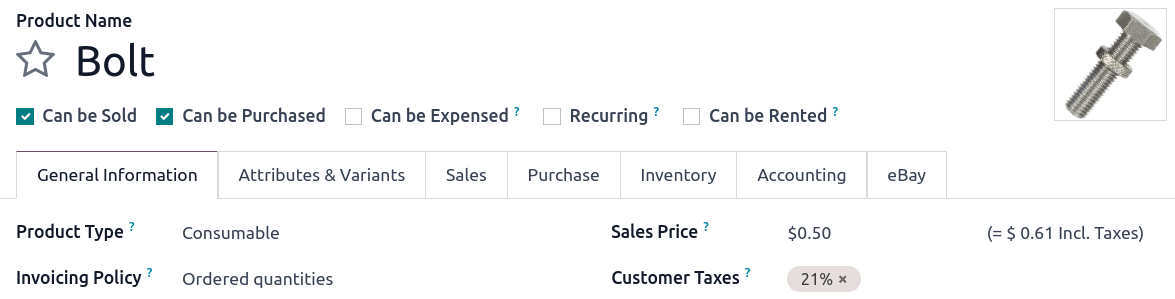
Om du vill ändra dina standardskatter går du till , väljer lämpliga skatter för din standardförsäljningsskatt och inköpsskatt och klickar på Spara.

Observera
Förvalda skatter ställs automatiskt in enligt det land som valdes när databasen skapades, eller när du ställer in ett fiscal localization package för ditt företag.
Activate taxes from the list view
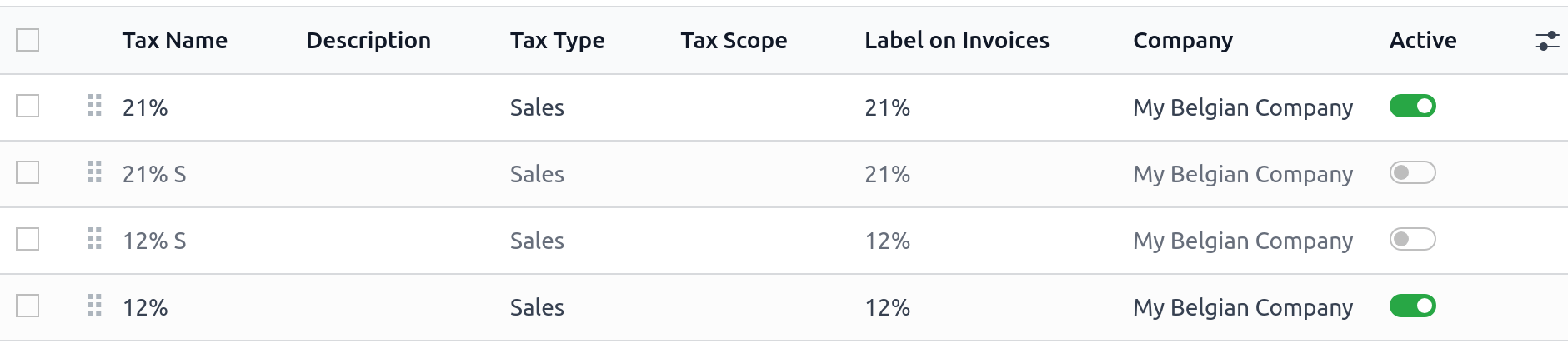
Som en del av ditt fiscal localization package är de flesta av ditt lands försäljningsskatter redan förkonfigurerade i din databas. Det är dock bara ett fåtal skatter som är aktiverade som standard. För att aktivera skatter som är relevanta för ditt företag, gå till och aktivera växlingsknappen under Active-kolumnen.
Konfiguration
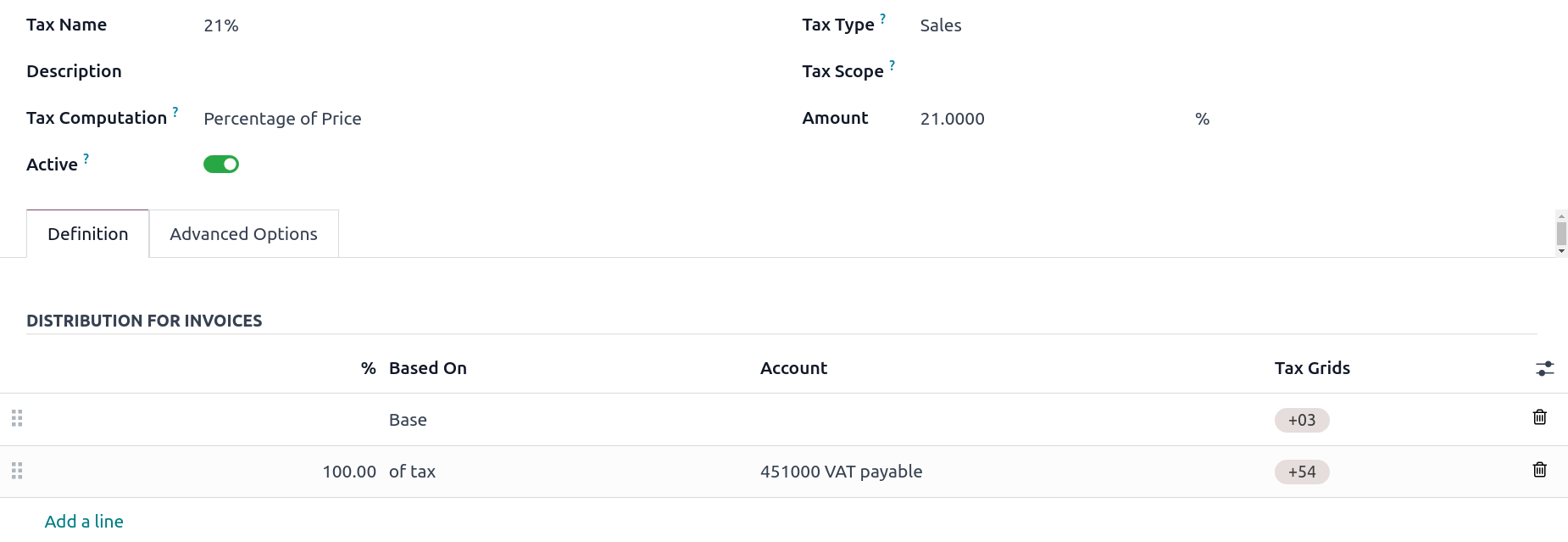
För att redigera eller skapa en skatt, gå till och öppna en skatt eller klicka på New.
Grundläggande alternativ
Tax name
Skattenamnet** visas för backend-användare i fältet Taxes i sales orders, invoices, produktformulär, etc.
Skatteberäkning
The Tax Computation field determines how the tax amount is computed from the sales price. The following options are available:
Group of Taxes: a combination of several other taxes
Fixed: a fixed amount
Percentage of Price: a percentage of the tax-excluded sales price
Percentage of Price Tax Included: a percentage of the tax-included total
Python Code: a custom user-defined formula
Group of taxes
Skatten är en kombination av flera underskatter. Du kan lägga till så många skatter som du vill, i den ordning du vill att de ska tillämpas.
Viktigt
Make sure the tax sequence is correct, as the display order determines the application order and may affect tax computation, particularly if a tax affects the base of subsequent taxes.
Fast
The tax has a fixed amount in the default currency. The amount remains the same per unit, regardless of the sales price.
The computation is \(\text{tax amount} = \text{fixed tax amount} \times \text{quantity}\).
Example
A product has a sales price of $1000, and we apply a $10 Fixed tax. We then have:
Försäljningspris för produkten |
Pris utan skatt |
Skatt |
Totalt |
|---|---|---|---|
1,000 |
1,000 |
10 |
1,010.00 |
Percentage of price
The tax rate is a percentage of the tax-excluded subtotal.
The exact tax computation depends on the Included in Price field, which determines whether the sales price should be treated as tax-excluded or tax-included:
If Included in Price is disabled, the computation is \(\text{tax amount} = \text{sales price} \times \text{tax rate}\).
Example
A product has a sales price of $1000, and we apply a 10% Percentage of Price tax that is not Included in Price. We then have:
Försäljningspris för produkten |
Pris utan skatt |
Skatt |
Totalt |
|---|---|---|---|
1,000 |
1,000 |
100 |
1,100.00 |
If Included in Price is enabled, the computation is \(\text{tax amount} = \text{sales price} \times \frac{\text{tax rate}}{1 + \text{tax rate}}\).
Example
A product has a sales price of $1000, and we apply a 10% Percentage of Price tax that is Included in Price. We then have:
Försäljningspris för produkten |
Pris utan skatt |
Skatt |
Totalt |
|---|---|---|---|
1,000 |
909.09 |
90.91 |
1,000.00 |
Percentage of price tax included
Viktigt
This tax computation is rarely used and only useful in countries (e.g., Brazil, Bolivia) that quote tax rates as a percentage of the tax-included total. For the more common need to compute tax amounts from a tax-included price, use the Percentage of Price tax computation with the Included in Price option.
The tax rate is a percentage of the tax-included total.
The exact tax computation depends on the Included in Price field, which determines whether the sales price should be treated as tax-excluded or tax-included:
If Included in Price is disabled, the computation is \(\text{tax amount} = \text{sales price} \times \frac{\text{tax rate}}{1 - \text{tax rate}}\).
Example
A product has a sales price of $1000, and we apply a 10% Percentage of Price Tax Included tax that is not Included in Price. We then have:
Försäljningspris för produkten |
Pris utan skatt |
Skatt |
Totalt |
|---|---|---|---|
1,000 |
1,000 |
111.11 |
1,111.11 |
Note that the real tax rate in terms of the tax-excluded price is \(\frac{111.11}{1000} = 11.111\%\).
If Included in Price is enabled, the computation is \(\text{tax amount} = \text{sales price} \times \text{tax rate}\).
Example
A product has a sales price of $1000, and we apply a 10% Percentage of Price Tax Included tax that is Included in Price. We then have:
Försäljningspris för produkten |
Pris utan skatt |
Skatt |
Totalt |
|---|---|---|---|
1,000 |
900 |
100 |
1,000.00 |
Note that the real tax rate in terms of the tax-excluded price is \(\frac{100}{900} = 11.111\%\).
Python-kod
Viktigt
If a tax can be expressed as a multiple of the quantity of the product to which it applies, it can be defined as a Fixed tax. Doing so is strongly recommended over defining a Python Code tax.
A tax defined as Python Code consists of two snippets of Python code that are executed in a local environment that can access the unit price, quantity, product, and partner. Python Code defines the amount of the tax, and Applicable Code defines whether the tax is applied. Enter a formula for each field at the bottom of the Definition tab.
Example
A product has a sales price of $1000, and we apply a Python Code tax with the following configuration:
Python Code:
result = price_unit * 0.10andApplicable Code:
result = True.
We then have:
Försäljningspris för produkten |
Pris utan skatt |
Skatt |
Totalt |
|---|---|---|---|
1,000 |
1,000 |
100 |
1,100.00 |
Aktiv
Endast aktiva skatter kan läggas till i nya dokument.
Viktigt
Det är inte möjligt att radera skatter som redan har använts. Istället kan du avaktivera dem för att förhindra framtida användning.
Observera
Detta fält kan modifieras från list view.
Typ av skatt
Tax Type bestämmer skatteapplikationen, vilket också begränsar var den visas.
Försäljning: Kundfakturor, skatter för produktkunder etc.
Köp: Leverantörsfakturor, produktleverantörsskatter etc.
Ingen
Tips
Du kan använda None för skatter som du vill inkludera i en Group of Taxes men som du inte vill lista tillsammans med andra omsättnings- eller inköpsskatter.
Skatteutrymme
I Tax Scope begränsas användningen av skatter till en typ av produkt, antingen varor eller tjänster.
Definition flik
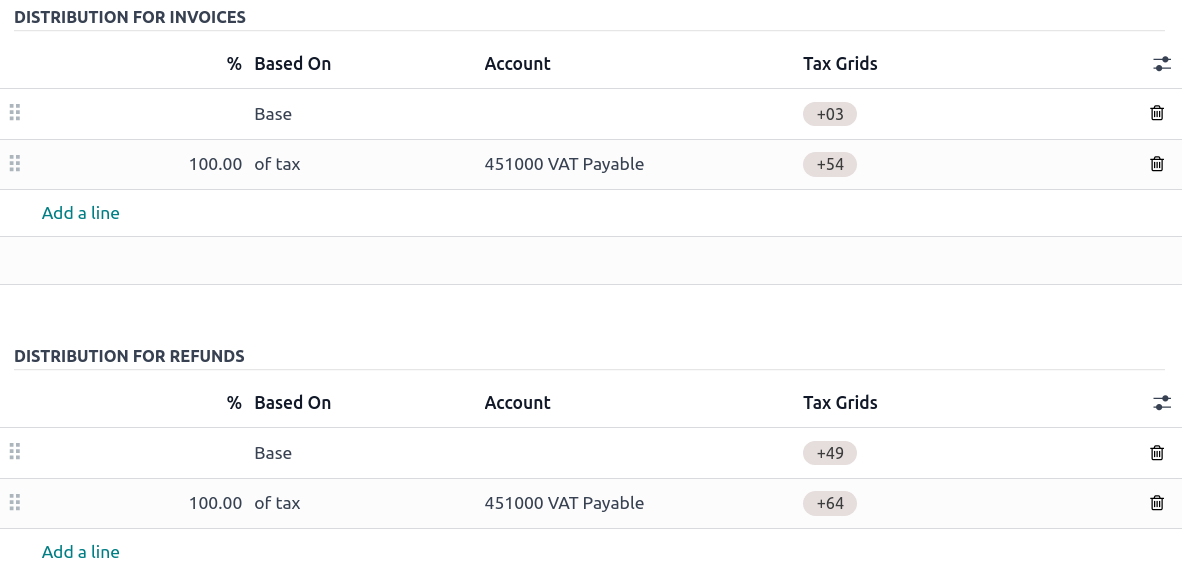
Fördela med precision beloppet för beskattningsunderlaget eller procentandelar av den beräknade skatten till flera konton och skattetabeller.
Baserat på:
Base: priset på fakturaraden
% av skatt: en procentsats av den beräknade skatten.
Konto: om definierat, registreras en ytterligare journalpost.
Tax Grids: används för att generera skatterapporter automatiskt, enligt ditt lands bestämmelser.
Fliken Avancerade alternativ
Etikett på fakturor
Skattetiketten visas på varje fakturarad i kolumnen Taxes. Detta är synligt för front-end-användare på exporterade fakturor, i kundportaler etc.

Skattegrupp
Välj vilken skattegrupp som skatten tillhör. Skattegruppens namn visas ovanför raden total på exporterade fakturor och i kundportaler.
Skattegrupper inkluderar olika upprepningar av samma skatt. Detta kan vara användbart när du måste redovisa samma skatt på olika sätt enligt fiskala positioner.
Example

I exemplet ovan bokför 0% EU S-skatten för kunder inom gemenskapen i Europa beloppet på specifika konton och skattetabeller. Det är dock fortfarande en skatt på 0% för kunden. Det är därför etiketten anger 0% EU S, och skattegruppsnamnet ovanför raden Total anger VAT 0%.
Viktigt
Skatter har tre olika etiketter, var och en med en specifik användning. Se följande tabell för att se var de visas.
Skattenamn |
||
|---|---|---|
Backend |
:guilabel:Kolumn |
Över raden Total på exportfakturor |
Inkludera i analyskostnad
Med detta alternativ aktiverat kommer skattebeloppet att hänföras till samma objektkonto som fakturaraden.
Ingår i priset
With this option activated, the tax will treat the sales price on which it is applied as a total including the tax amount. The tax computation will split the sales price into a base amount and a tax amount. This makes it suitable for B2C sales in most countries where prices are quoted tax-inclusive.
”Totalt = Försäljningspris = Beräknat pris exklusive skatt + skatt
Example
A product has a sales price of $1000, and we apply a 10% Percentage of Price tax with Included in Price. We then have:
Försäljningspris för produkten |
Pris utan skatt |
Skatt |
Totalt |
|---|---|---|---|
1,000 |
909.09 |
90.91 |
1,000.00 |
Observera
For a guide on configuring tax-excluded and tax-included prices for B2B and B2C customers, see Prissättning B2B (exklusive skatt) och B2C (inklusive skatt).
Påverkar basen för efterföljande skatter
If this setting is enabled, any subsequent tax applied on the same product line that has Base affected by preceding taxes will be based on a modified sales price. The exact behavior depends on whether the tax with Affect base of subsequent taxes is Ingår i priset or not.
If Included in Price is disabled, subsequent taxes with Base affected by preceding taxes will be based on a modified sales price equal to the original sales price plus the tax amount.
Example
A product has a sales price of $1000, and we apply a 10% Percentage of Price tax with Affect base of subsequent taxes. Any subsequent tax with Base affected by preceding taxes will be based on a modified sales price of $1100.
If Included in Price is enabled, subsequent taxes with Base affected by preceding taxes will be based on a modified sales price equal to the original sales price minus the tax amount.
Example
A product has a sales price of $1100, and we apply a 10% Percentage of Price tax with Included in Price and Affect base of subsequent taxes. Any subsequent tax with Base affected by preceding taxes will be based on a modified sales price of $1000.
This setting is considered any time multiple taxes are applied to the same product line, whether via a group of taxes or multiple taxes added directly to a product line.

Varning
Den ordning i vilken du lägger till skatterna på en produktrad påverkar inte hur beloppen beräknas. Om du lägger till skatter direkt på en produktrad är det endast skattesekvensen som avgör i vilken ordning de ska tillämpas.
Om du vill ändra ordningen går du till och drar och släpper raderna med handtagen bredvid skattenamnen.

Base affected by preceding taxes
This setting, which is only visible in developer mode, determines whether any previous tax that affects the base of subsequent taxes will modify the sales price that this tax is based on.
Observera
Taxes with Included in Price always behave as if this setting is enabled.
Extra skatter
”Extraskatter” är ett brett begrepp som syftar på ytterligare skatter utöver de standard- eller grundskatter som åläggs av regeringar. Dessa extra skatter kan vara lyxskatter, miljöskatter, import- eller exporttullar etc.
Observera
Metoden för att beräkna dessa skatter varierar mellan olika länder. Vi rekommenderar att du läser ditt lands bestämmelser för att förstå hur du beräknar dem för ditt företag.
To compute an extra tax in Odoo, create a tax, enter a tax name, select a Tax Computation, set an Amount, and in the Advanced Options tab, enable Affect Base of Subsequent Taxes. Then, drag and drop the taxes in the order they should be computed.
Example
I Belgien är formeln för att beräkna en miljöskatt följande
(produktpris + miljöskatt) x omsättningsskatt. Därför måste vår miljöskatt komma före omsättningsskatten i beräkningssekvensen.I vårt fall skapade vi en miljöskatt (Ecotax) på 5 % och lade den före den belgiska grundskatten på 21 %.

Se även
:doc:`skatter/B2B_B2C
rapportering/skatt_återbäring