
Fält och widgetar
Fält strukturerar modellerna i en databas. Om du tänker dig en modell som en tabell eller ett kalkylark är fälten kolumnerna och handlingarna de enskilda raderna. Fält definierar också vilken typ av data som lagras i dem. Sättet på vilket ett fälts data presenteras och formateras på användargränssnittet styrs av dess widget.
Med Studio är det möjligt att:
add new fields till din databas. Från en teknisk synvinkel finns det 15 field types i Odoo. Du kan dock välja mellan 20 fälttyper i Studio, eftersom vissa fälttyper finns tillgängliga mer än en gång med en annan standard-widget;
lägga till befintliga fält, dvs. fält som redan finns på en modell, till valfri vy av den modellen;
ändra ett fälts egenskaper; eller
Fälttyper
Fält kan grovt delas in i två kategorier:
Enkla fält, som innehåller grundläggande värden, såsom text, nummer, filer osv.
Relationsfält, som används för att länka och visa data från handlingar på en annan modell.
Enkla fält
Enkla fält innehåller grundläggande värden, t.ex. text, siffror, filer etc.
Observera
Non-default widgets, when available, are presented as bullet points or sub-headings below.
Text (char)
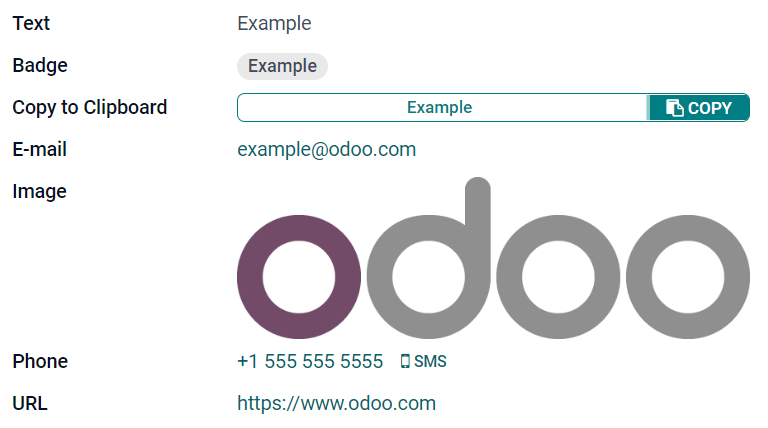
Fältet Text används för kort text som innehåller valfritt tecken. En textrad visas när fältet fylls i.
Badge: visar värdet inuti en rundad form, liknande en tagg. Värdet kan inte redigeras i användargränssnittet, men ett standardvärde kan anges.
Copy to Clipboard: användare kan kopiera värdet genom att klicka på en knapp.
E-post: värdet blir en klickbar mailto-länk.
Image: visar en bild med hjälp av en URL. Värdet kan inte redigeras manuellt, men ett standardvärde kan anges.
Observera
This works differently than selecting the Image field directly, as the image is not stored in Odoo when using a Text field with the Image widget. For example, it can be useful if you want to save disk space.
Phone: värdet blir en klickbar tel-länk.
Tips
Bocka i Enable SMS för att lägga till ett alternativ för att skicka ett SMS direkt från Odoo bredvid fältet.
URL: värdet blir en klickbar URL.
Example
Text med flera rader (text)
Fältet Multiline Text används för längre text som innehåller alla typer av tecken. Två textrader visas på användargränssnittet när fältet fylls i.
Copy to Clipboard: användare kan kopiera värdet genom att klicka på en knapp.
Example

Heltal (integer)
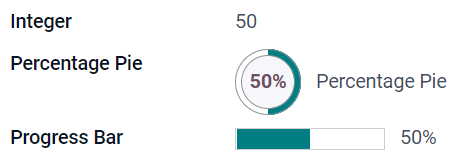
Fältet Integer används för alla heltal (positivt, negativt, eller noll, utan decimal).
Percentage Pie: visar värdet inuti en procentcirkel, vanligtvis för ett beräknat värde. Värdet kan inte redigeras i användargränssnittet, men ett standardvärde kan anges.
Progressstapel: visar värdet bredvid en procentstapel, vanligtvis för ett beräknat värde. Fältet kan inte redigeras manuellt, men ett standardvärde kan anges.
Handle: visar en draghandtagsikon för att beställa poster manuellt i Listvy.
Example
Decimal (float)
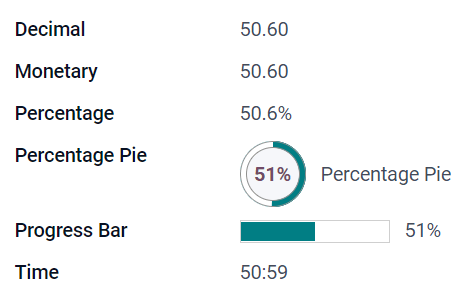
Fältet Decimal används för alla decimaltal (positiv, negativ eller noll, med decimal).
Observera
Decimaltal visas med två decimaler efter decimaltecknet på användargränssnittet, men de lagras i databasen med större precision.
Valutafält: liknar användningen av valutafältet. Det rekommenderas att använda det senare eftersom det erbjuder fler funktioner.
Percentage: visar ett procenttecken
%efter värdet.Percentage Pie: visar värdet i en procentcirkel, vanligtvis för ett beräknat värde. Fältet kan inte redigeras manuellt, men ett standardvärde kan anges.
Progressstapel: visar värdet bredvid en procentstapel, vanligtvis för ett beräknat värde. Fältet kan inte redigeras manuellt, men ett standardvärde kan anges.
Time: värdet måste följa formatet hh:mm, med ett maximum på 59 minuter.
Example
Monetära (monetära)
Fältet Monetary används för alla monetära värden.
Observera
När du först lägger till ett Monetary-fält uppmanas du att lägga till ett Currency-fält om det inte redan finns något i modellen. Odoo erbjuder sig att lägga till Currency-fältet åt dig. När det har lagts till lägger du till Monetary-fältet igen.
Example

Html (html)
Fältet Html används för att lägga till text som kan redigeras med Odoos HTML-redigerare.
Multiline Text: inaktiverar Odoo HTML-editor för att tillåta redigering av rå HTML.
Example

Datum (datum)
Fältet Date används för att välja ett datum i en kalender.
Återstående dagar: antalet återstående dagar före det valda datumet visas (t.ex. Om 5 dagar), baserat på det aktuella datumet. Detta fält bör ställas in på Skrivskyddat.
Example

Datum och tid (datetime)
Fältet Datum & Tid används för att välja ett datum i en kalender och en tid i en klocka. Användarens aktuella tid används automatiskt om ingen tid anges.
Tips
Förutom allmänna egenskaper finns vissa specifika egenskaper tillgängliga för datum- och tidfält som har widgeten Datum och tid eller Datumintervall inställd.
Datumintervall (daterange)
Widgeten Datumintervall används för att visa en tidsperiod som definieras av ett startdatum och ett slutdatum på en enda rad. Ett datumintervall kan ha ett obligatoriskt start- och slutdatum, t.ex. för en flerdagars händelse, eller tillåta ett valfritt start- eller slutdatum, t.ex. för en fältserviceinsats eller en projektarbetsuppgift.
Att lägga till ett datumintervall kräver två fält: ett datum- och tidfält med widgeten Datumintervall inställd och ett annat fält som väljs som startdatum eller slutdatum. Detta underliggande fält kan vara ett befintligt datum- eller datum- och tidfält, eller ett som skapats specifikt för detta ändamål.
Så här lägger du till ett datumintervall:
Identifiera ett befintligt datum- eller datum- och tidfält som kan användas som underliggande start-/slutdatumfält, eller lägg till ett nytt. Om datumintervallet:
har ett obligatoriskt startdatum och slutdatum kan detta fält vara antingen startdatumet eller slutdatumet; resultatet är detsamma.
tillåter ett valfritt start- eller slutdatum är detta fält startdatumet respektive slutdatumet.
Tips
För att undvika att visa samma information två gånger kan det underliggande start-/slutdatumfältet göras osynligt genom att aktivera Osynlig eller tas bort från vyn genom att klicka på Ta bort från vy.
Lägg till ett datum- och tidfält och ställ in fältet Widget till Datumintervall.
Ange en lämplig etikett.
Välj det underliggande start-/slutdatumfältet från rullgardinsmenyn Startdatumfält eller Slutdatumfält, beroende på vad som är relevant.
Om datumintervallet ska ha ett obligatoriskt start- och slutdatum aktiverar du Alltid intervall.
Uppgradera eventuella andra allmänna egenskaper eller specifika egenskaper för datum- och tidfält efter behov och klicka sedan på Stäng i skärmens övre högra hörn.
Example

Återstående dagar (remaining_days)
Widgeten Återstående dagar visar antalet återstående dagar före det valda datumet (t.ex. Om 5 dagar), baserat på aktuellt datum och tid. Detta fält bör ställas in på Skrivskyddat.
Kryssruta (boolean)
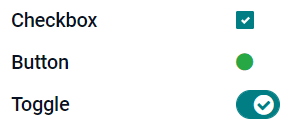
Fältet Checkbox används när ett värde endast ska vara sant eller falskt, vilket anges genom att markera eller avmarkera en kryssruta.
Button: visar en radioknapp. Widgeten fungerar utan att växla till redigeringsläget.
Toggle: visar en växlingsknapp. Widgeten fungerar utan att växla till redigeringsläget.
Example
Urval (urval)
Fältet Selection används när användare ska välja ett enskilt värde från en grupp fördefinierade värden.
Badge: visar värdet inuti en rundad form, liknande en tagg. Värdet kan inte redigeras i användargränssnittet, men ett standardvärde kan anges.
Badges: visar alla valbara värden samtidigt i rektangulära former, organiserade horisontellt.
Prioritet: visar stjärnsymboler istället för värden, som kan användas för att indikera en viktighets- eller tillfredsställelsesnivå, till exempel. Detta har samma effekt som att välja prioritetsfältet, även om fyra prioritetsvärden redan är fördefinierade för det senare.
Radio: visar alla valbara värden samtidigt som radioknappar.
Tips
Som standard är alternativknapparna organiserade vertikalt. Aktivera Visa horisontellt för att byta sätt de visas på.
Statusfält: visar alla valbara värden samtidigt som ett förloppsstreck med pilar.
Tips
Som standard är värdena i statusfältet valbara. Avaktivera Klickbar för att förhindra att värdet redigeras i användargränssnittet.
Example

Prioritet (urval)
Fältet Prioritet används för att visa ett betygssystem med tre stjärnor, vilket kan användas för att ange betydelse eller tillfredsställelsenivå. Denna fälttyp är ett urvalsfält med widgeten Prioritet vald som standard och fyra prioritetsvärden fördefinierade. Följaktligen har widgetarna Bricka, Brickor, Radio och Urval samma effekter som beskrivs under Urval.
Tips
Klicka på Edit Values om du vill ändra antalet tillgängliga stjärnor genom att lägga till eller ta bort värden. Observera att det första värdet är lika med 0 stjärnor (dvs. när inget val görs), så att ha fyra värden resulterar i ett trestjärnigt klassificeringssystem, till exempel.
Example

Fil (binär)
Fältet File används för att ladda upp valfri typ av fil, eller signera ett formulär (Sign widget).
Bild: användare kan ladda upp en bildfil som sedan visas i formulärvyn. Detta har samma effekt som att använda bildfältet.
PDF Viewer: användare kan ladda upp en PDF-fil, som sedan kan läsas från Formulärvyn.
Skriv under: användare kan signera formuläret elektroniskt. Detta har samma effekt som att välja signaturfältet.
Example

Bild (binär)
Fältet Bild används för att ladda upp en bild och visa den i formulärvyn. Denna fälttyp är ett filfält med widgeten Bild vald som standard. Följaktligen har widgetarna Fil, PDF-visare och Skriv under samma effekter som beskrivs under Fil.
Tips
För att ändra visningsstorleken på uppladdade bilder, välj Small, Medium, eller Large under alternativet Size.
Tecken (binär)
Fältet Skriv under används för att signera formuläret elektroniskt. Denna fälttyp är ett filfält med widgeten Skriv under vald som standard. Följaktligen har widgetarna Fil, Bild och PDF-visare samma effekter som beskrivs under Fil.
Tips
För att ge användare alternativet Auto när de behöver rita sin namnteckning, välj ett av de tillgängliga fälten Fyll i automatiskt med (Text, Många till en och Relaterat fält endast på modellen). Namnteckningen genereras automatiskt med data från det valda fältet.
Relationella fält
Relationsfält används för att länka och visa data från poster i en annan modell.
Observera
Widgetar som inte är standard, när sådana finns, presenteras som punktlistor nedan.
Many2One (many2one)
Fältet Many2One används för att länka en annan post (från en annan modell) till den post som redigeras. Postens namn från den andra modellen visas sedan på den post som redigeras.
Example
I modellen Säljorder är fältet Customer ett Many2One-fält som pekar på modellen Contact. Detta gör att många försäljningsorder kan kopplas till en kontakt (kund).

Tips
För att hindra användare från att skapa en ny post i den länkade modellen, kryssa i Inaktivera skapande.
För att förhindra användare från att öppna poster i ett popup-fönster, bocka i Inaktivera öppning.
För att hjälpa användare att bara välja rätt post, klicka på Domän för att skapa ett filter.
Badge: visar värdet inuti en rundad form, liknande en tagg. Värdet kan inte redigeras i användargränssnittet.
Radio: visar alla valbara värden samtidigt som radioknappar.
One2Many (one2many)
Fältet One2Many används för att visa de befintliga relationerna mellan en post i den aktuella modellen och flera poster från en annan modell.
Example
Du kan lägga till ett One2Many-fält på Contact-modellen för att titta på en kunds många försäljningsorder.

Observera
För att använda ett en till många-fält måste de två modellerna redan ha länkats med ett många till en-fält. En till många-relationer existerar inte oberoende: en omvänd sökning av befintliga många till en-relationer utförs.
Linjer (one2many)
Fältet Lines används för att skapa en tabell med rader och kolumner (t.ex. raderna med produkter på en försäljningsorder).
Tips
Om du vill ändra kolumnerna klickar du på fältet Lines och sedan på Edit List View. Om du vill redigera formuläret som visas när en användare klickar på Lägg till en rad, klickar du istället på Redigera formulärvy.
Example

Many2Many (many2many)
Fältet Många till många används för att länka flera handlingar från en annan modell till flera handlingar på den aktuella modellen. Många till många-fält kan använda Avaktivera skapande, Avaktivera öppning, Domän, precis som många till en-fält.
Example
I modellen Task är fältet Assignees ett Many2Many-fält som pekar på modellen Contact. Detta gör att en enskild användare kan tilldelas många uppgifter och många användare kan tilldelas en enskild uppgift.

Checkboxes: användarna kan välja flera värden med hjälp av kryssrutor.
Taggar: användare kan välja flera värden som visas i rundade former, även kallade taggar. Detta har samma effekt som att välja taggfältet.
Etiketter (many2many)
Fältet Taggar används för att visa flera värden från en annan modell som visas i rundade former, även kallade taggar. Denna fälttyp är ett många till många-fält med widgeten Taggar vald som standard. Följaktligen har widgetarna Kryssrutor och Många till många samma effekter som beskrivs under Många till många.
Tips
För att visa taggar med olika bakgrundsfärger, kryssa i Use colors.
Example

Lägg till ett fält i en vy
Med Studio är det möjligt att lägga till:
ett nytt fält i en formulär- eller listvy för en modell
ett befintligt fält, det vill säga ett fält som redan finns på den aktuella modellen, i vilken som helst vy för den modellen
Tips
Lägg till ett nytt fält i en formulär- eller listvy för att spara det till modellen och göra det tillgängligt som ett befintligt fält i andra vyer för samma modell.
Lägg till ett nytt fält
Tips
Aktivera utvecklarläge innan du lägger till ett nytt fält för att se och kunna redigera fältets tekniska namn under konfigurationen.
Följ dessa steg för att lägga till ett nytt fält:
Navigera till relevant formulär- eller listvy och klicka sedan på ikonen (Växla Studio) i det övre högra hörnet. Alternativt kan du, när någon app är öppen, klicka på ikonen (Växla Studio) och sedan navigera till relevant formulär- eller listvy.
I fliken Lägg till, dra relevant fälttyp från avsnittet Nya fält och släpp den på önskad plats. Om det nya fältet är ett relationellt fält, välj relevant ömsesidigt fält, modell eller relaterat fält i popup-fönstret.
I fliken Egenskaper, konfigurera fältets egenskaper:
Ange Etikett som ska visas som fältnamn i användargränssnittet. Detta används också för att generera fältets standardtekniska namn.
Klicka var som helst utanför fältet Etikett för att se Tekniskt namn uppdaterat med det standardtekniska namnet.
Observera
Tekniskt namn för ett nytt fält kan redigeras i Studio under konfigurationsprocessen. Vid alla andra tillfällen kan ett fälts tekniska namn endast ändras via databasens tekniska inställningar.
Det tekniska namnet för ett nytt fält som läggs till med Studio har som standard prefixet
x_studio_.
Välj om du vill en annan Widget via rullgardinsmenyn. Standardwidgeten för fälttypen är vald som standard.
Konfigurera vid behov andra fältegenskaper.
Klicka på Stäng i det övre högra hörnet för att stänga Studio.
Lägg till ett befintligt fält
För att lägga till ett fält som finns i modellen men som inte är närvarande i den aktuella vyn, följ dessa steg:
Navigera till relevant vy och klicka sedan på ikonen (Växla Studio) i det övre högra hörnet. Alternativt, med vilken app som helst öppen, klicka på ikonen (Växla Studio) och navigera sedan till relevant vy.
I fliken Lägg till, i vänstra panelen, klicka på Befintliga fält för att visa en lista över alla modellens fält som för närvarande inte finns i vyn.
Dra det relevanta fältet och släpp det på önskad position.
I fliken Egenskaper, konfigurera relevanta egenskaper för fältet i den aktuella vyn.
Observera
Olika egenskaper kan konfigureras oberoende för olika vyer vid behov, såsom etikett, widget, fältets synlighet för vissa användargrupper, samt huruvida fältet är osynligt, obligatoriskt eller skrivskyddat.
Klicka på Stäng i det övre högra hörnet för att stänga Studio.
Fältegenskaper
En serie allmänna egenskaper kan konfigureras för de flesta kombinationer av fälttyp och widget. Ytterligare egenskaper är tillgängliga beroende på den specifika fälttypen och widgeten som valts. Till exempel har datum och tid`fält som använder widgeten :guilabel:`datum och tid eller datumintervall olika specifika egenskaper som kan konfigureras.
Allmänna egenskaper
Osynlig: Aktivera denna egenskap när det inte är nödvändigt för användare att se ett fält i användargränssnittet. Detta hjälper till att rensa upp användargränssnittet genom att endast visa de väsentliga fälten beroende på en specifik situation.
Obligatorisk: Aktivera denna egenskap om ett fält alltid ska fyllas i av användaren innan det går att fortsätta.
Skrivskyddad: Aktivera denna egenskap om användare inte ska kunna ändra ett fält.
Tips
Egenskapen osynlig gäller även i Studio. För att visa dolda fält i Studio, klicka på en vys flik Vy och aktivera Visa osynliga element.
Egenskaperna osynlig, obligatorisk och skrivskyddad kan aktiveras endast för specifika handlingar genom att klicka på villkorlig och skapa ett filter.
Example
I formulärvyn för modellen Kontakt visas fältet rubrik endast när individuell är valt, eftersom det fältet inte skulle vara användbart för en företagskontakt.
Etikett: Detta är fältets namn i användargränssnittet; etiketten används för att generera fältets tekniska namn.
Hjälpverktygstips: För att förklara syftet med ett fält, lägg till en beskrivning. Texten visas i en verktygstipsruta när du håller muspekaren över frågetecknet bredvid fältets etikett.
Tekniskt namn: För att visa ett fälts tekniska namn i Studio (och, under konfigurationen av ett nytt fält, redigera det om så önskas), aktivera utvecklarläge.
Tips
Om detta fält behöver uppdateras men inte längre är redigerbart via Studio, kan det tekniska namnet ändras via databasens tekniska inställningar.
Widget: För att ändra standardutseende eller funktionalitet för ett fält, välj en av de tillgängliga widgetarna.
Placeholder: To provide an example of how a field should be completed, add placeholder text. The text appears in light gray until a value is entered.
Standardvärde: För att visa ett standardvärde i ett fält när en handling skapas, lägg till ett värde.
Tillåt synlighet för grupper: För att begränsa vilka användare som kan se fältet, välj en eller flera användaråtkomstgrupper.
Förhindra synlighet för grupper: För att förhindra vissa användare från att se fältet, välj en eller flera användaråtkomstgrupper.
Egenskaper för datum- och tidfält
For Date & Time fields that have the Date & Time or Date Range widget set, some specific properties are available:
Tidsintervall: Ange ett värde för att bestämma minutintervallen som visas i tidsväljaren. Ange till exempel 15 för att tillåta kvartintervall. Standardvärdet är 5 minuter.
Varning för framtida datum: Aktivera denna egenskap för att visa en varningsikon om ett framtida datum väljs.
Visa tid: Denna egenskap är aktiverad som standard för Datum & Tid-fält. På ett skrivskyddat fält kan du avaktivera egenskapen för att endast visa datumet. Detta kan till exempel hålla en listvy mindre rörig.
Tidigaste godkända datum: Ange det tidigaste datum som kan väljas i datumväljaren i ISO-format, dvs.
ÅÅÅÅ-MM-DD. Om dagens datum alltid är det tidigaste godkända datumet anger dutoday. I datumväljaren är datum före det tidigaste godkända datumet gråmarkerade.Senaste godkända datum: Ange det senaste datum som kan väljas i datumväljaren i ISO-format, dvs.
ÅÅÅÅ-MM-DD. Om dagens datum alltid är det senaste godkända datumet anger dutoday. I datumväljaren är datum senare än det senaste godkända datumet gråmarkerade.
Ändra egenskaper för ett fält
Följ dessa steg för att ändra egenskaperna för ett fält:
Navigera till relevant vy och klicka sedan på ikonen (Växla Studio) i det övre högra hörnet. Alternativt, med vilken app som helst öppen, klicka på ikonen (Växla Studio) och navigera sedan till relevant vy.
Klicka på det relevanta fältet.
I fliken Egenskaper gör du önskade ändringar av fältegenskaperna.
Tips
Olika egenskaper kan konfigureras oberoende av varandra för olika vyer, såsom Label, Widget, fältets synlighet för vissa användargrupper, samt om fältet är Invisible, Obligatorisk eller Readonly.
Klicka på Stäng i det övre högra hörnet för att stänga Studio.
Observera
Tekniskt namn för ett fält (synligt i Studio med utvecklarläge aktiverat) kan inte ändras i Studio; detta kan göras via databasens tekniska inställningar.
Ändra ett fälts tekniska namn
För att ändra det tekniska namnet för ett fält, aktivera utvecklarläge, följ sedan dessa steg:
Med fältet öppet i Studio, kopiera fältets tekniska namn.
Ta bort fältet från alla vyer i Studio, klicka sedan på Klar för att stänga Studio.
Navigera till .
Klistra in det kopierade tekniska namnet i sökfältet och öppna sedan det relevanta fältet.
Ändra Fältnamn efter behov.
När fältets tekniska namn har uppdaterats kan fältet sedan läggas till (tillbaka) i relevanta vy(er) från listan över befintliga fält.
Viktigt
När du uppdaterar det tekniska namnet för ett fält, se till att behålla åtminstone prefixet x_, vilket krävs för alla anpassade fält; för fält som skapats med Studio, behåll prefixet x_studio_ för att fält ska kunna identifieras enklare.
Ta bort ett fält från en vy
Följ dessa steg för att ta bort ett fält från en vy:
Navigera till relevant vy och klicka sedan på ikonen (Växla Studio) i det övre högra hörnet. Alternativt, med vilken app som helst öppen, klicka på ikonen (Växla Studio) och navigera sedan till relevant vy.
Klicka på det relevanta fältet.
Scrolla till slutet av fliken Egenskaper, klicka sedan på Ta bort från vy.
Klicka på Ok för att bekräfta åtgärden.
Tips
Ett borttaget fält kan enkelt läggas tillbaka till vyn vid ett senare tillfälle, om det behövs.
Om avsikten är att rensa upp vyn är det också möjligt att ändra ett fält och göra det Osynligt i den aktuella vyn.