
订单处理
在 Odoo 电商的业务流程中,线上采购通常包含三个核心环节: 销售、 发货。每个环节都会生成核心单据:订单确认后生成销售订单,发货环节生成出库单,用于管理 拣货、 打包、保障 库存可用量,并处理产品 :ref:`退货与退款 <ecommerce/handling/returns>`事宜。
销售
如需查看所有报价单与订单,进入 ,选中任意单据打开即可。订单顶部的状态栏会显示其当前状态:
小訣竅
備註
上述三个业务环节对客户不可见,客户可通过客户 门户 查看自身订单并查询订单状态。
If the customer pays via wire transfer, the quotation is not automatically confirmed. In this case, the customer receives a notification on the My account page of their customer account to review and pay for the order. After the payment is received, the order must be manually confirmed in the backend.
废弃购物车
An abandoned cart is created when a customer adds products to the cart but does not go through the checkout process or leaves the website before completing it. It is possible to automatically send an email reminder to the customer for these pending orders.
启用废弃购物车提醒:
转到 。
In the eCommerce section, enable Follow up abandoned carts.
Set the time delay after which the reminder email is sent in the Send after field, then click Save.
If needed, click the Customize Abandoned Email Template link to customize the email template.
To view all abandoned carts, go to and remove the Confirmed filter. Open the dropdown menu and, under Filters, select Abandoned.
備註
To receive reminders, customers must have entered their contact details during checkout or be logged in when adding items to the cart. Without the customer details, it remains a quotation with no follow-up.
Abandoned cart reminders are only sent for carts created after the feature is enabled. Existing abandoned carts are not affected.
送貨
備註
The Inventory app must be installed to process deliveries.
Delivery orders are not generated for Service or subscription products.
Once a sales order is confirmed, a delivery order is automatically created. To access it, click the Delivery smart button on the sales order.
The next step is preparing e-commerce orders in the warehouse. Depending on order volume, refill and stock management strategies, or available resources, different stock handling flows for receipts and deliveries can be implemented. These flows may involve manually receiving, picking, and packing products, printing shipping labels, and shipping orders to customers, or handling these processes through dropshipping or consignment flows.
After completing the warehouse operations, return to the delivery order and click Validate once the order has been shipped.
小訣竅
To enable automatic confirmation emails for completed delivery orders (Done status), go to , scroll to the Shipping section, and enable Email Confirmation.
库存管理
To ensure that products ordered by customers are reserved in stock, go to , click the Delivery Orders operation type, and set the Reservation Method field to At Confirmation. When enabled, product quantities are automatically reserved once the order is confirmed, preventing items from becoming unavailable after the order is placed.
備註
If the customer pays by wire transfer, products are not reserved in stock until the payment is received and the order is manually confirmed.
其他資料
退货和退款
Customers can return products through the customer portal by navigating to the Your Orders section, selecting the relevant order, and clicking the Return button. A return document is automatically generated.
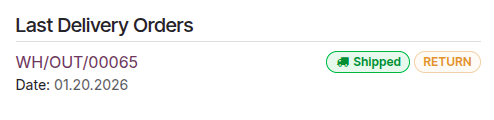
Once the returned items are received, initiate the return and refund process in the backend.
備註
Returning products may not be possible depending on the product type.
To issue refunds, the payment must have been made through a refund-compatible payment provider.
其他資料
Invoicing
The final step of an e-commerce order is generating and sending the customer invoice. Depending on your needs, invoices can be generated manually or automatically.
To automate invoicing:
转到 。
In the eCommerce section, enable Automatic Invoice.
Select the relevant Email Template, then click Save.
If needed, click the icon next to the template name to customize the email template.
備註
Customers can view their invoices under Your Invoices in the portal.
Invoices are only sent automatically if (and when) the payment is registered.
When automatic invoicing is disabled and invoices are created manually, they appear as pro-forma invoices in the customer portal until they are manually sent to the customer.