
Imposte
Le normative fiscali generalmente richiedono alle aziende di calcolare gli importi fiscali sulle vendite, tenere un registro del debito e del credito fiscale accumulato e presentare periodicamente queste informazioni nelle dichiarazioni fiscali.
Panoramica
In generale, la gestione delle imposte in Odoo prevede i seguenti passaggi:
Le imposte vengono aggiunte alle singole righe dei documenti creati tramite le app Vendite, Acquisti, Contabilità e Punto vendita.
Odoo calcola automaticamente gli importi delle imposte sui documenti.
Nei documenti contabili, Odoo genera registrazioni contabili per tenere traccia del debito fiscale e del credito fiscale.
La base totale, il debito fiscale e il credito fiscale per un periodo possono essere visualizzati nel report della dichiarazione fiscale e utilizzati per presentare una dichiarazione fiscale.
Imposte su vendite e acquisti
La maggior parte dei documenti di vendita e acquisto dispone di un campo Imposte in cui è possibile applicare le imposte alle singole righe. Ciò include fatture e fatture fornitore nell’app Contabilità, preventivi di vendita nell’app Vendite e ordini di acquisto nell’app Acquisti.

Nota
Quando si aggiunge un prodotto a una riga di vendita o acquisto, le imposte assegnate al prodotto vengono applicate automaticamente alla riga.
Nell’app Punto vendita, le imposte assegnate ai prodotti vengono applicate direttamente all’ordine e non possono essere modificate se non tramite una posizione fiscale.
Calcolo automatico degli importi delle imposte
L’applicazione di un’imposta a una riga di vendita o di acquisto consente a Odoo di calcolare automaticamente l’importo dell’imposta in base al subtotale della riga di vendita o di acquisto e alla configurazione dell’imposta. I dettagli del calcolo sono spiegati nella documentazione sul calcolo delle imposte.

Generazione automatica di registrazioni contabili fiscali
Applicando un’imposta su una fattura o fattura fornitore, viene generata automaticamente una registrazione contabile di imposta da pagare con l’importo fiscale. Ciò tiene traccia del debito o del credito fiscale associato alla transazione.
Inoltre, l’importo fiscale viene aggiunto all’importo dovuto sulla registrazione contabile dei crediti o dei debiti.
Infine, le Griglie fiscali vengono aggiunte sia alla registrazione contabile dell’IVA a debito creata automaticamente sia alla riga della fattura su cui viene applicata l’imposta. Questi tag vengono utilizzati per recuperare le registrazioni contabili corrispondenti alla base imponibile e all’importo dell’imposta nel report Dichiarazione IVA.

Nota
Se Base di cassa è abilitata, durante la riconciliazione della fattura o della fattura fornitore con il pagamento, viene creata una registrazione contabile aggiuntiva per rappresentare la creazione del debito o del credito fiscale in quel momento.
Presentazione delle dichiarazioni fiscali
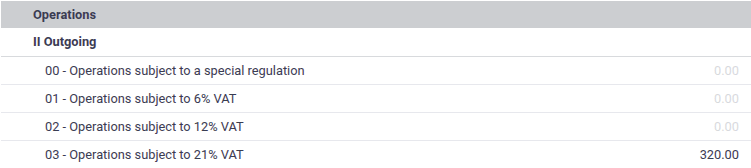
Il report Dichiarazione fiscale aggrega gli importi base e le imposte da fatture e fatture fornitore in un determinato periodo e li presenta in un formato adattato alla localizzazione fiscale.
Gli importi presentati nel report di dichiarazione fiscale possono essere utilizzati per completare le dichiarazioni fiscali che devono essere periodicamente presentate al governo. Nella maggior parte dei casi, esiste una corrispondenza uno a uno tra le righe della dichiarazione fiscale e la dichiarazione fiscale ufficiale, consentendo di copiare semplicemente gli importi da una all’altra.

Configurazione fiscale di base
Seguire questi passaggi di base per configurare le imposte:
Abilitare tutte le opzioni a livello aziendale pertinenti.
Attivare tutte le imposte preconfigurate necessarie.
Assegnare le imposte ai propri prodotti.
Opzioni a livello aziendale
Per accedere a queste opzioni di configurazione, andare a e scorrere fino a Imposte.
Imposte predefinite
L”Imposta di vendita e l”Imposta d’acquisto predefinite vengono impostate automaticamente sui prodotti durante la creazione di nuovi prodotti.
Se è abilitata la modalità Studi commercialisti, l’imposta di vendita predefinita viene impostata automaticamente sulle nuove righe di fattura e l’imposta d’acquisto predefinita viene impostata automaticamente sulle nuove righe di fattura fornitore.
Prezzi può essere modificato in IVA inclusa per trattare tutte le imposte come IVA inclusa per impostazione predefinita. Questo sarebbe appropriato se tutti i prezzi di un’azienda includono l’IVA. Se solo alcuni dei prezzi di un’azienda includono l’IVA, le singole imposte possono essere impostate come IVA inclusa.
Vendite a distanza intracomunitarie nell’UE
Attivare questa opzione se si ha sede nell’UE e si vende a consumatori in altri paesi dell’UE per applicare le aliquote IVA locali.
Vedi anche
Contabilità di cassa
Attivare questa opzione se le imposte devono essere contabilizzate per cassa anziché per competenza. Alcuni paesi impongono la contabilità di cassa; in tal caso, questa opzione sarà attivata per impostazione predefinita dal pacchetto di localizzazione fiscale.
Vedi anche
Attivare imposte preconfigurate
L’elenco delle imposte è accessibile andando a .
In genere, le imposte inattive vengono create per la maggior parte delle aliquote fiscali di vendita dal pacchetto di localizzazione fiscale, ma solo l’aliquota fiscale principale è attiva per impostazione predefinita. Per attivare un’imposta inattiva, fare clic sull’interruttore nella colonna Attiva.
Assegnare imposte sui prodotti
Per configurare le imposte utilizzate per ogni prodotto, andare su , selezionare il prodotto da configurare e compilare i campi Imposte di vendita e Imposte di acquisto. Queste imposte vengono applicate automaticamente quando si aggiunge il prodotto a una fattura, fattura fornitore, ordine di vendita, ordine di acquisto o ordine del punto vendita.
Suggerimento
Utilizzare l’impostazione aziendale Imposte predefinite per compilare automaticamente questi campi sui nuovi prodotti.
Configurazione avanzata delle imposte
I seguenti aspetti di un’imposta possono essere personalizzati:
Come l’imposta appare nel backend
Come l’imposta appare ai clienti
I dettagli del calcolo dell’imposta
Come vengono create le voci contabili dell’imposta da pagare
Posizioni di bilancio (come sostituire un’imposta con un’altra in determinate condizioni)
Per aprire la configurazione di un’imposta, andare su , quindi fare clic sul nome dell’imposta.
Configurare aspetto e disponibilità nel backend
Le seguenti opzioni determinano come un’imposta viene visualizzata agli utenti nel backend di Odoo.
Nome imposta
Il Nome imposta appare per gli utenti del backend nel campo Imposte negli ordini di vendita, nelle fatture, nei moduli prodotto, ecc.
Tipo di imposta
Il Tipo di imposta determina dove l’imposta è disponibile per essere selezionata.
Vendite: fatture cliente, imposte cliente prodotto, ecc.
Acquisti: fatture fornitore, imposte fornitore prodotto, ecc.
Nessuno
Suggerimento
Utilizzare Nessuno per le imposte che si desidera includere in un Gruppo di imposte ma che non si desidera elencare insieme ad altre imposte di vendita o di acquisto.
Descrizione
La Descrizione può essere modificata ai fini della documentazione interna.
Configurare come l’imposta appare ai clienti
Etichetta su fatture
L”Etichetta sulle fatture appare sulle righe delle fatture nei PDF delle fatture e sul portale cliente.

Gruppo imposte
Il Gruppo imposte viene mostrato nella sezione totali della fattura, nei PDF delle fatture e sul portale cliente. Più imposte che appartengono allo stesso gruppo imposte vengono aggregate insieme in un unico importo fiscale.

Configurare come vengono create le registrazioni contabili delle imposte
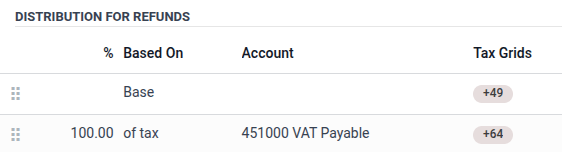
Le sezioni Distribuzione per fatture e Distribuzione per note di credito controllano la generazione delle registrazioni contabili dell’IVA a debito rispettivamente nelle fatture e nelle note di credito. Determinano inoltre quali griglie fiscali vengono impostate sulle righe delle fatture quando questa imposta viene applicata.
Ciascuna di queste sezioni dovrebbe contenere una riga Base, una o più righe % di imposta che ammontano al 100% (ad esempio una riga al 100%, o due righe al 50%), e facoltativamente, una o più righe % di imposta che ammontano a -100,00%.
La riga Base può avere una o più Griglie fiscali impostate, che vengono aggiunte alla riga di fattura su cui viene applicata l’imposta.
Le righe % di imposta controllano la creazione delle registrazioni contabili relative alle imposte dovute. L’importo dell’imposta viene distribuito in base alle percentuali su queste righe, e ciascuna riga viene quindi utilizzata come modello per creare una registrazione contabile relativa all’imposta dovuta con gli stessi Conto e Griglie fiscali. Se il Conto non è specificato, viene utilizzato per impostazione predefinita il conto della riga di fattura originale su cui viene applicata l’imposta.
I casi tipici includono:
una riga 100% di imposta: questo è il caso più comune in cui l’importo dell’imposta deve apparire su una singola registrazione contabile relativa all’imposta dovuta.
una riga 100% di imposta e una riga -100% di imposta: questo è appropriato se l’imposta genera contemporaneamente sia un debito fiscale che un credito fiscale che si annullano a vicenda (ad esempio IVA intracomunitaria con reverse charge UE).
una riga 50% di imposta che specifica un conto imposte dovute e un’altra riga 50% di imposta che non specifica un conto: questo è appropriato per l’IVA sugli acquisti parzialmente deducibile, dove parte dell’imposta deve essere considerata una spesa piuttosto che un’attività di credito fiscale che può compensare la passività fiscale.

Imposte aggiuntive
Con “Tasse aggiuntive” ci si riferisce a tasse extra rispetto a quelle standard o di base imposte dai governi. Queste tasse aggiuntive possono essere tasse di lusso, tasse ambientali, tasse di importazione o dazi di esportazione, ecc.
Nota
Il metodo di calcolo di queste imposte varia da Paese a Paese. Ti consigliamo di consultare le normative del tuo Paese per capire come calcolarle per la tua attività.
Per calcolare un’imposta aggiuntiva in Odoo, creare un’imposta, inserire un nome per l’imposta, selezionare un Calcolo imposta, impostare un Importo, e nella scheda Opzioni avanzate, abilitare Influenza la base delle imposte successive. Quindi, trascinare e rilasciare le imposte nell”ordine in cui devono essere calcolate.
Example
In Belgio, la formula per calcolare una tassa ambientale è:
(prezzo del prodotto + imposta ambientale) x imposta sulle vendite. Pertanto, la nostra imposta ambientale deve venire prima dell’imposta sulle vendite nella sequenza di calcolo.Nel nostro caso, abbiamo creato una tassa ambientale del 5% (Tassa ambientale) e l’abbiamo anteposta all’imposta base belga del 21%.

Vedi anche