
Pengurutan dokumen AI
Otomasi Dokumen AI Odoo memungkinkan klasifikasi, perutean, dan pemrosesan dokumen secara otomatis menggunakan kecerdasan buatan. Ini mengurangi penanganan manual dokumen seperti faktur, kontrak, NDA, dan file asuransi dengan secara otomatis mengurutkannya ke dalam folder, mengekstrak informasi kunci, dan memicu tindakan bisnis.
Fitur ini dirancang untuk alur kerja dokumen berulang dengan volume tinggi di mana kecepatan, akurasi, dan ketertelusuran sangat penting, sambil tetap memungkinkan intervensi manusia bila diperlukan.
Konfigurasi
Untuk menggunakan otomasi dokumen AI, pastikan persyaratan berikut terpenuhi:
Aplikasi Documents diinstal, dan izin yang benar diterapkan.
Aplikasi yang relevan diinstal. Ini dapat mencakup Accounting, Purchase, Sales, dll. Aplikasi yang diinstal memengaruhi prompt yang diterapkan pada dokumen.
Catatan
Aplikasi AI tidak perlu diinstal untuk memanfaatkan otomasi dokumentasi. Namun, jenis tindakan otomasi AI yang tersedia bergantung pada aplikasi lain yang diinstal dalam database. Misalnya, untuk membuat faktur, aplikasi Accounting harus diinstal.
Ikhtisar aplikasi Documents
Aplikasi Documents berfungsi sebagai sistem manajemen dokumen terpusat yang mirip dengan drive bersama. Aplikasi ini diatur ke dalam ruang kerja berikut setidaknya, meskipun ruang kerja tambahan dapat dibuat:
All: menampilkan semua folder dan file yang dapat diakses user.
Company: berisi folder dan file yang dibagikan di seluruh perusahaan. Akses ditentukan oleh hak akses yang ditentukan untuk folder dan file.
My Drive: ruang kerja pribadi user untuk mengatur dan mengakses file dan folder yang mereka miliki atau telah diunggah.
Dibagikan dengan saya: mencakup file yang telah dibagikan dengan user, tetapi bukan bagian dari folder induk mana pun yang mereka akses.
Dokumen biasanya mengikuti alur kerja dari Inbox ke folder terstruktur, di mana otomasi AI dan tindakan bisnis diterapkan.
Ikhtisar pengurutan otomatis AI
Pengurutan Otomatis AI beroperasi pada tingkat folder. Setiap folder dalam aplikasi Documents dapat berisi logika otomasi sendiri, memungkinkan Anda merancang alur dokumen yang mencerminkan proses internal Anda. Alih-alih menerapkan aturan global tunggal, otomasi disusun secara progresif: dokumen memasuki folder, AI mengevaluasinya sesuai dengan prompt folder, lalu melakukan tindakan yang sesuai.

Mengonfigurasi prompt
Untuk mengonfigurasi prompt untuk folder, navigasikan ke dan pilih folder dari pohon di sebelah kiri. Kemudian, klik ikon Actions di bagian atas halaman. Gunakan menu tarik-turun untuk memilih AI Auto-sort.
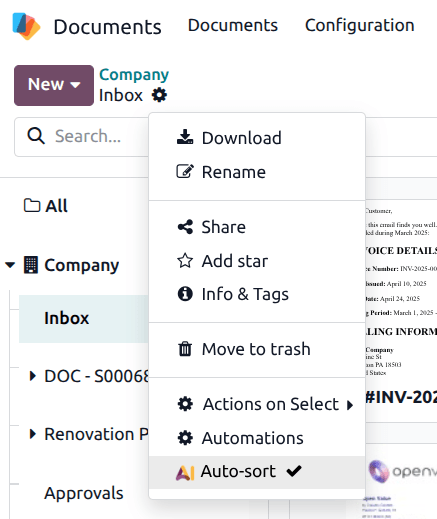
Pada pop-up What do you want the AI to do?, buat prompt yang menjelaskan bagaimana dokumen harus diinterpretasikan dan apa yang harus terjadi selanjutnya.
Catatan
Ketik / untuk menggunakan Field Selector dan Records Selector untuk menyisipkan field atau record guna meningkatkan prompt.
Di bawah prompt, klik field What actions can the AI take?, dan pilih satu atau lebih tindakan dari menu drop-down. Tindakan yang tersedia akan bervariasi berdasarkan aplikasi yang diinstal.
Berdasarkan instruksi ini, AI dapat memindahkan dokumen ke folder lain, menambahkan tag, memicu aktivitas, atau membuat catatan bisnis seperti invoice atau tagihan vendor. Ini membuat setiap folder menjadi lokasi penyimpanan sekaligus titik keputusan dalam alur kerja.
Saat mengonfigurasi prompt utama, folder dapat menyertakan instruksi untuk menangani pengecualian atau langkah validasi sebelum logika utama dijalankan. Misalnya, folder dapat terlebih dahulu memverifikasi apakah nilai yang diperlukan ada dalam dokumen sebelum melanjutkan dengan otomasi.
Example
Seorang user ingin mengidentifikasi PDF yang berisi beberapa halaman, dan perlu dipecah secara manual. Mereka menambahkan instruksi berikut di awal prompt auto-sort Inbox mereka.
First, check the file to see if it contains a single document or if several documents are
collated together. For this, use this field: Is considered multipage. If it is true, add the tag
"To Split" and stop there. This way, we'll know we first need to manually split it into different
files. If it is false, continue with the normal process
Is considered multipage dipilih melalui Field Selector. Di bawah field What actions can the AI take?, AI: Add Tags dipilih.
Tindakan ini tidak melakukan pemisahan dokumen, tetapi menambahkan tag yang menunjukkan dokumen mana yang perlu dipecah. Menambahkan langkah ini di awal prompt memastikan ini adalah tindakan pertama AI.
Lihat juga