
Certifieringar
När jobben kräver specifika kunskaper är det nödvändigt att följa upp medarbetarnas certifieringar för att säkerställa att de har de kunskaper och certifieringar som krävs.
När jobb kräver specifik kunskap, spåra anställdas certifieringar (t.ex. kurser, tester, seminarier) för att verifiera nödvändiga färdigheter. Odoo accepterar alla typer av certifieringar utan begränsningar.
Viktigt
För att lägga till certifieringar till en anställdprofil, och för att komma åt rapporten Anställdas certifieringar, måste appen Enkäter vara installerad.
Visa certifieringar
Om du vill se en fullständig lista över alla anställdas certifieringar går du till :menyval:`Applikationen Anställda --> Rapportering --> Certifieringar`.
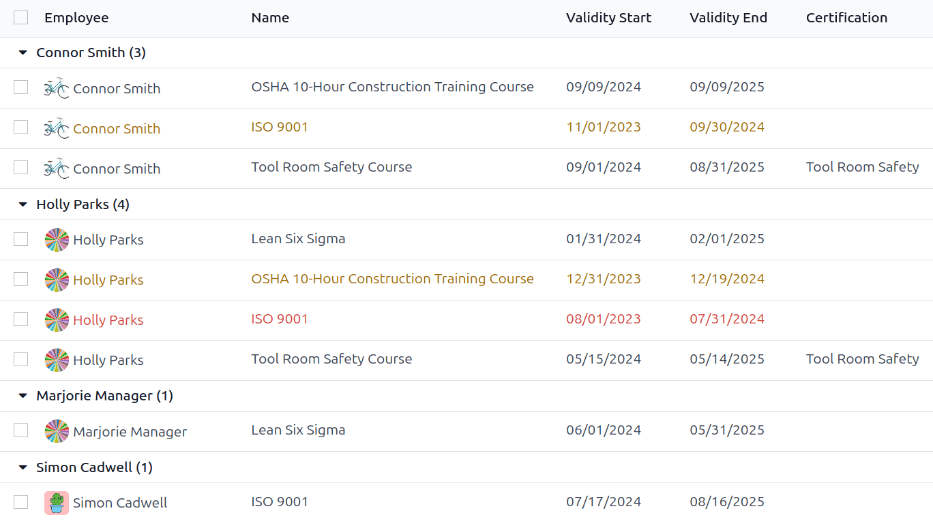
Alla certifieringar visas i en listvy, grupperade efter anställd. Varje certifieringspost visar följande:
Employee: den anställdes namn, tillsammans med avatarbilden.
Namn: titeln på certifieringen.
Validity Start: när den anställde fick certifieringen.
Validity End: när certifieringen upphör att gälla.
Certification: motsvarande kurs i appen Surveys som slutfördes av den anställde, om tillämpligt.
Posterna är också färgkodade. Aktuella certifieringar som fortfarande är giltiga visas i svart, utgångna certifieringar visas i rött och certifieringar som kommer att löpa ut inom de närmaste 90 dagarna visas i orange.
Viktigt
Endast certifieringshandlingar med Visningstyp inställd på Certifiering på deras certifieringsformulär visas i rapporten Anställdas certifieringar. Alla andra certifieringar visas i CV-sektionen av anställdformuläret.
Visa certifieringar efter utgångsstatus
När du hanterar ett stort antal anställda med olika certifieringar kan det vara svårt att avgöra vilka anställda som behöver hålla sina certifieringar aktuella i standardlistvyn. I det här scenariot är det fördelaktigt att visa certifieringarna efter utgångsstatus.
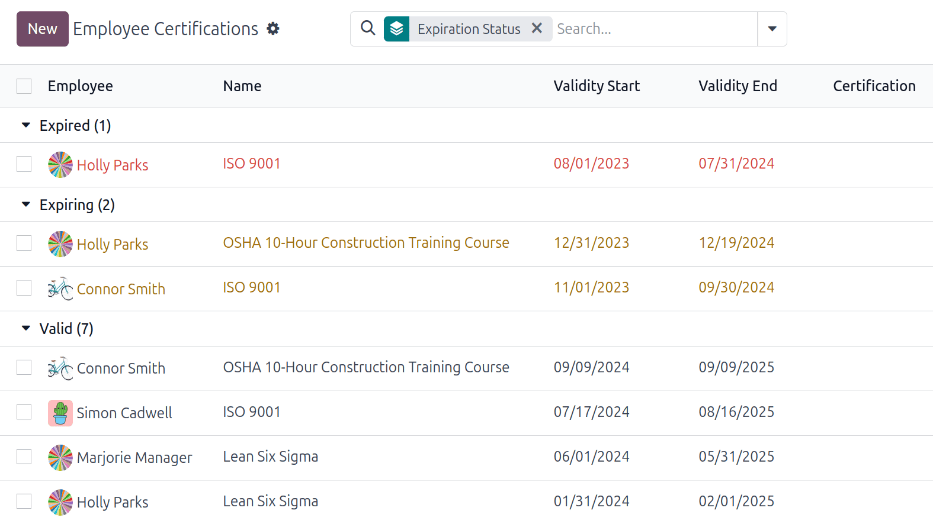
För att göra detta, navigera till . Klicka sedan på (Växla sökpanel) ikonen i sökfältet, klicka sedan på Lägg till anpassad grupp , vilket visar en rullgardinsmeny. Klicka på Utgångsstatus, klicka sedan bort från rullgardinsmenyn för att stänga den.
När du har gjort det är alla certifieringar organiserade efter status, med början med Expired-certifieringar, sedan certifieringar som är Expiring snart (inom de närmaste 90 dagarna) och slutligen certifieringar som fortfarande är Valid.
Filtrera certifieringar efter utgångsstatus för att identifiera certifieringar som snart går ut, och identifiera anställda som måste förnya.
Logga en certifiering
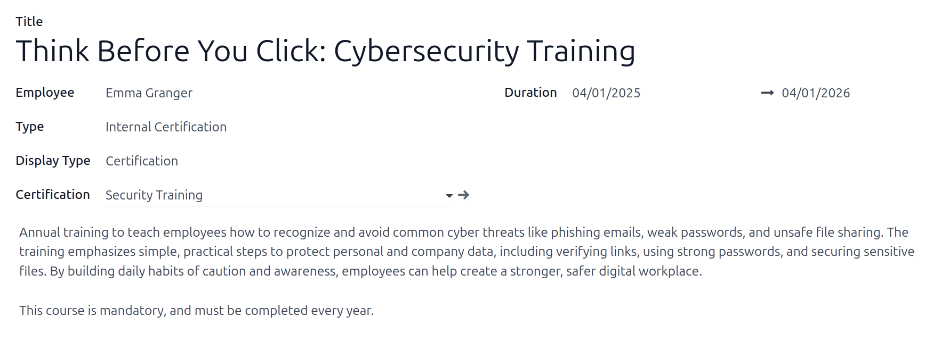
För att registrera en certifiering för en anställd, navigera till . Klicka på Ny så laddas ett tomt certifieringsformulär. Ange följande information i formuläret:
Titel: Ange en kort beskrivning av certifieringen i detta fält.
Medarbetare: Använd rullgardinsmenyn för att välja den medarbetare som har fått certifieringen.
Typ: Använd rullgardinsmenyn och välj den typ av certifiering som erhållits. Detta fält bestämmer var på den anställdes CV certifieringen visas. För att skapa en ny Typ, ange typen i fältet och klicka sedan på Skapa [typ].
Standardalternativen är:
Erfarenhet: Välj detta alternativ för att få certifieringen att visas i sektionen Erfarenhet under fliken CV på anställdformuläret. Erfarenhetsposter är vanligtvis tidigare jobb eller praktikplatser.
Utbildning: Välj detta alternativ om certifieringen ska visas i avsnittet Education på fliken Resume i employee form.
Sociala medier: Välj detta alternativ för att få certifieringen att visas i sektionen Sociala medier under fliken CV på anställdformuläret. Sociala medieposter relaterar vanligtvis till certifieringar som rör digital marknadsföring, hantering av sociala medier och specifika utbildningar från sociala medieplattformar.
Intern certifiering: Välj detta alternativ för att få certifieringen att visas i sektionen Intern certifiering under fliken CV på anställdformuläret. Interna certifieringsposter är knutna till kurser, utbildningar eller program som skapats av företaget, som när de är slutförda har en certifiering kopplad till sig.
Slutförd intern utbildning: Välj detta alternativ för att få certifieringen att visas i sektionen Slutförd intern utbildning under fliken CV på anställdformuläret. Slutförda interna utbildningsposter är vanligtvis kopplade till utbildningar som skapats av företaget, för företagsspecifika processer. Dessa resulterar inte i några certifieringar, men loggas på anställdprofilen för att indikera slutförd utbildning.
Display Type: Välj hur certifieringen ska synas i det här fältet. Standardalternativen är:
Klassisk: Välj det här alternativet om certifieringen ska visas i avsnittet CV i formuläret för den anställde och inte visas i rapporten Certifieringar för anställda.
Certifiering: välj detta alternativ för att få certifieringen att visas i sektionen CV på anställdformuläret, och visas i rapporten Anställdas certifieringar. När detta är valt visas ett Certifiering fält under fältet Skärmtyp. Använd rullgardinsmenyn och välj motsvarande Enkäter-appcertifiering som den anställde tog. Detta fält visas endast om appen Enkäter är installerad.
Kurs: Välj detta alternativ för att få certifieringen att visas i sektionen CV på anställdformuläret, och inte visas i rapporten Anställdas certifieringar. När detta alternativ är valt visas ett Kurs fält under fältet Skärmtyp. Använd rullgardinsmenyn och välj motsvarande eLearning-kurs som den anställde tog. Detta fält visas endast om appen eLearning är installerad.
Beskrivning: Ange en beskrivning av certifieringen i detta fält.
Duration: Klicka i det första fältet så visas ett popover-fönster med en kalender. Klicka på start- och slutdatum för certifieringens giltighetsperiod. När rätt datum har valts klickar du på Apply, och båda fälten fylls i.
Observera
När en certifiering har loggats för en anställd kan en ny certifiering av samma typ (dvs. Utbildning eller Intern certifiering) läggas till direkt från anställdformuläret, istället för från instrumentpanelen Anställdas certifieringar.
In the main Employees app dashboard, click on an employee profile to open their employee form. In the RESUME tab, click the ADD button at the end of the corresponding certification line.
This ADD button only appears on employee profiles that already have a certification.