
Indonesien
Moduler
The following modules related to the Indonesian localization are available:
Namn |
Tekniskt namn |
Beskrivning |
|---|---|---|
Indonesian - Accounting |
|
This module includes the default fiscal localization package. |
Indonesia E-faktur |
|
This module includes the features required to export invoices as e-Faktur. |
Indonesia E-faktur (Coretax) |
|
This module facilitates the generation of XML files for the Coretax system. |
Konfiguration
Företag
Open the Settings app, go to the Companies section, and click Update Info. Ensure the NPWP field contains the Tax Identification Number, as an e-Faktur cannot be generated from an invoice otherwise.
Kontaktpersoner
To configure a partner for e-Faktur, go to their contact form and fill in the following Indonesian-specific fields:
Is PKP: Check this box to allow e-Faktur generation for the partner.
NPWP: Enter the partner’s Tax Identification Number.
NIK: If the partner does not have an NPWP, enter the NIK in the Accounting tab under Indonesian taxes.
Produkter
To set a product’s E-Faktur product code, go to and access the desired product form. In the Indonesian Localization section, select a code in the E-Faktur Product code field. By default, the code is set to 000000 - Barang.

Observera
E-Faktur product codes are pre-generated by Odoo and cannot be edited. Select a code from the available options.
E-Faktur UoM Code
Tips
Go to to make sure the Units of Measure option has been enabled.
To configure the E-Faktur UoM code, go to . Open a category and select the appropriate E-Faktur UoM Code from the options.

Bokföring
E-fakturering
Generate an E-Faktur XML
An e-Faktur can be created for an invoice if the customer’s country is Indonesia and the Is PKP checkbox is enabled on their contact form.
To generate an e-Faktur XML:
Go to and create an invoice.
In the Other Info tab, under the Electronic Tax section, select a Kode Transaksi code.
Observera
The Kode Transaksi codes are pre-generated by Odoo and cannot be edited.
After confirming the invoice, click the (Actions) icon and select Download e-faktur.
The downloaded XML file can then be uploaded to the Coretax system. After the file is generated, the e-Faktur Document (Coretax) field in the invoice’s Electronic Tax section is populated automatically.

Observera
To create a batch XML file for several invoices, select them in the invoice list view and choose Download e-faktur from the Actions menu.
Viktigt
The tax invoice number is generated by the Coretax system, not by Odoo.
Once an e-Faktur XML file has been downloaded, it cannot be changed. Any subsequent download will retrieve the original file.
QRIS QR-kod på fakturor
QRIS är ett digitalt betalningssystem som gör det möjligt för kunder att göra betalningar genom att skanna QR-koden från sin föredragna e-plånbok.
Viktigt
Enligt QRIS API-dokumentation <https://qris.online/api-doc/create-invoice.php>`_ upphör QRIS att gälla efter 30 minuter. På grund av denna begränsning ingår inte QR-koden i rapporter som skickas till kunder och är endast tillgänglig på kundportalen.
Aktivera QR-koder
Gå till . Under avsnittet Customer Payments, aktivera funktionen QR Codes.
Konfiguration av QRIS-bankkonto
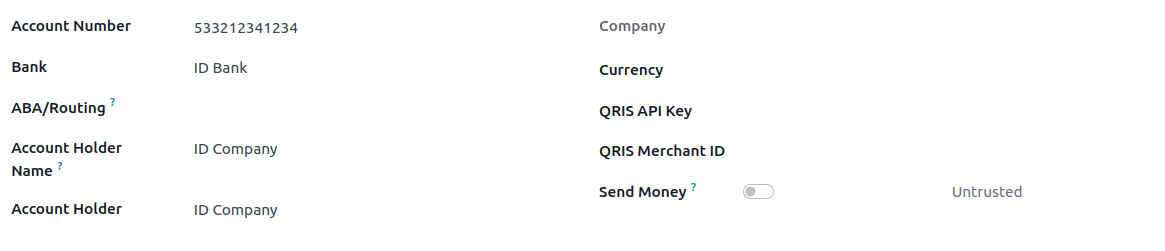
Gå till och välj det bankkonto som du vill aktivera QRIS för. Ställ in QRIS API Key och QRIS Merchant ID baserat på den information som tillhandahålls av QRIS.
Viktigt
Kontoinnehavarens land måste vara inställt på ”Indonesien” i kontaktformuläret.
Se även
../redovisning/bank
Konfiguration av bankjournal
Gå till , öppna bankjournalen och fyll sedan i Account Number och Bank under fliken Journal Entries.

Utfärda fakturor med QRIS QR-koder
When creating a new invoice, open the Other Info tab and set the Payment QR-code option to QRIS.

Se till att Recipient Bank är den du konfigurerade, eftersom Odoo använder detta fält för att generera QRIS QR-koden.