
Avancerade ämnen
Denna sektion täcker avancerade funktioner i Odoo.sh relaterade till containrar, Git-undermoduler och schemalagda åtgärder.
Behållare
Varje bygge är isolerat i en egen container (Linux-namnrymdscontainer). Basen är ett Ubuntu-baserat system där alla Odoos obligatoriska beroenden, såväl som vanliga och användbara paket, är installerade.
Om ditt projekt kräver ytterligare Python-beroenden eller nyare tidigare utgåvor kan du definiera en requirements.txt-fil i roten på dina grenar som listar dem. Plattformen ser till att dessa beroenden installeras i dina containrar.
Se även
För ett konkret exempel, checka ut Odoo Communitys requirements.txt-fil.
Observera
Även requirements.txt-filerna för undermoduler beaktas. Plattformen letar efter sådana filer i den överordnade mappen för varje mapp som innehåller en Odoo-modul.
Struktur för katalog
Eftersom containrarna är Ubuntu-baserade följer deras registerstruktur Filesystem Hierarchy Standard.
De register som är relevanta för Odoo.sh är följande:
.
├── home
│    └── odoo
│         ├── backup.daily
│         ├── data
│         │    ├── filestore           Database attachments, as well as the files of binary fields
│         │    └── sessions            Visitors and users sessions
│         ├── logs
│         │    ├── install.log         Database installation logs
│         │    ├── odoo.log            Running server logs
│         │    ├── update.log          Database updates logs
│         │    └── pip.log             Python packages installation logs
│         └── src
│              ├── odoo                Odoo Community source code
│              │    └── odoo-bin       Odoo server executable
│              ├── enterprise          Odoo Enterprise source code
│              ├── themes              Odoo Themes source code
│              └── user                Your repository branch source code
└── usr
     ├── lib
     │    └── pythonX.XX
     │         └── dist-packages       Python X.XX standard libraries
     ├── local
     │    └── lib
     │         └── pythonX.XX
     │              └── dist-packages  Python X.XX third-party libraries
     └── usr
          └── bin
               └── pythonX.X           Python X.XX executable
Databasskal
När du ansluter till en container via skalet kan du komma åt databasen med kommandot psql.
odoo@odoo-master-1.odoo.sh:~$ psql
psql (16.9)
Type "help" for help.

odoo-master-1=>
Varning
Använd alltid transaktioner (t.ex. BEGIN (…) COMMIT / ROLLBACK) när en SQL-sats leder till ändringar (t.ex. UPDATE, DELETE, ALTER osv.), särskilt för din produktionsdatabas. Transaktionsmekanismen är ditt skyddsnät vid eventuella misstag. Du behöver bara rulla tillbaka dina ändringar för att återställa databasen till dess tidigare tillstånd.
Glöm inte att verkställa eller rulla tillbaka transaktioner. Öppna transaktioner kan låsa poster i dina tabeller, och en databas i drift kan vänta på att de ska frigöras, vilket kan leda till att servern hänger sig på obestämd tid.
Använd dessutom dina staging-databaser för att testa dina satser först. Det ger dig ett extra skyddsnät.
Example
Du glömde att ange ditt WHERE-villkor. I ett sådant fall kan du göra en rollback för att ångra den oönskade ändringen:
odoo-master-1=> BEGIN;
BEGIN
odoo-master-1=> UPDATE res_users SET password = '***';
UPDATE 457
odoo-master-1=> ROLLBACK;
ROLLBACK
Skriv sedan om satsen och verkställ ändringen:
odoo-master-1=> BEGIN;
BEGIN
odoo-master-1=> UPDATE res_users SET password = '***' WHERE id = 1;
UPDATE 1
odoo-master-1=> COMMIT;
COMMIT
Kör en Odoo-server
Du kan starta en Odoo-serverinstans från ett containerskal. Du kommer inte att kunna nå den utifrån med en webbläsare, men du kan till exempel:
Använd Odoo-skalet:
odoo-bin shell
>>> partner = env['res.partner'].search([('email', '=', 'asusteK@yourcompany.example.com')], limit=1)
>>> partner.name
'ASUSTeK'
>>> partner.name = 'Odoo'
>>> env['res.partner'].search([('email', '=', 'asusteK@yourcompany.example.com')], limit=1).name
'Odoo'
Installera en modul:
odoo-bin -i sale --without-demo=all --stop-after-initTips
Argumentet
--without-demo=allförhindrar att demodata laddas för alla moduler.Argumentet
--stop-after-initstänger omedelbart av serverinstansen när operationen är slutförd.
Uppgradera en modul:
odoo-bin -u sale --stop-after-init
Kör testerna för en modul:
odoo-bin -i sale --test-enable --log-level=test --stop-after-init
Se även
För att hitta sökvägen till addons som Odoo.sh använder för att köra din server, leta efter ”odoo: addons paths” i loggarna (~/logs/odoo.log).
2025-02-19 10:51:39,267 4 INFO ? odoo: Odoo version 18.0
2025-02-19 10:51:39,268 4 INFO ? odoo: Using configuration file at /home/odoo/.config/odoo/odoo.conf
2025-02-19 10:51:39,268 4 INFO ? odoo: addons paths: ['/home/odoo/data/addons/18.0', '/home/odoo/src/user', '/home/odoo/src/enterprise', '/home/odoo/src/themes', '/home/odoo/src/odoo/addons', '/home/odoo/src/odoo/odoo/addons']
Varning
Operationer du utför på en Odoo-serverinstans är inte isolerade; ändringar kommer att återspeglas i databasen. Kom ihåg att alltid utföra tester i dina staging-databaser.
Felsökning i Odoo.sh
Observera
Felsökning av en Odoo.sh-build skiljer sig egentligen inte från felsökning av en annan Python-app. Målet med denna sektion är därför att täcka de specifika egenskaperna och begränsningarna hos Odoo.sh-plattformen, och den förutsätter att du redan vet hur man använder en felsökare.
Du kan använda pdb, pudb eller ipdb för att felsöka kod på Odoo.sh. Eftersom servern körs utanför ett skal kan du inte starta felsökaren direkt från din Odoo-backend, eftersom det kräver ett skal för att fungera.
pdb installeras som standard i alla behållare.
Tips
För att använda pudb eller ipdb är det nödvändigt att installera dem antingen:
permanent genom att lägga till
pudbelleripdbi projektetsrequirements.txt-fil, ellertillfälligt (endast i det aktuella bygget) genom att köra relevant kommando:
pip install pudb --user
pip install ipdb --user
För att utlösa felsökaren, lägg till detta i koden du vill felsöka:
import sys
if sys.__stdin__.isatty():
    import pdb; pdb.set_trace()
Observera
Villkoret
sys.__stdin__.isatty()är en lösning för att upptäcka om du kör Odoo från ett skal.Spara sedan filen och kör Odoo-skalet:
odoo-bin shell
Använd Odoo-skalet för att utlösa koden du vill felsöka.

Undermoduler
Git submodules låter dig länka externa arkiv direkt in i ditt projekt utan att kopiera och klistra in kod, vilket effektiviserar driftsättningen genom att klona beroenden tillsammans med din huvudkodbas. Du behåller exakt versionskontroll genom att välja specifika grenar och låsa fast specifika commit-revisioner att uppdatera när du väljer.
På Odoo.sh identifierar plattformen automatiskt undermoduler och lägger till dem i din tilläggssökväg för databasinstallation, förutsatt att du konfigurerar en distributionsnyckel i dina inställningar för projekt och repository när du integrerar privata repositories.
Lägga till en undermodul
Observera
För närvarande är det inte möjligt att lägga till privata repositories med Odoo.sh. Du kan dock göra det med Git.
Från Filialer-vyn i ditt Odoo.sh-projekt väljer du den filial där du vill lägga till en undermodul.
I det övre högra hörnet klickar du på Undermodul, sedan på Kör på Odoo.sh.
Fyll i följande i dialogrutan:
URL till repository: SSH-URL:en till repositoryn
Tips
På GitHub klickar du på Clone, väljer SSH och kopierar URL:en.
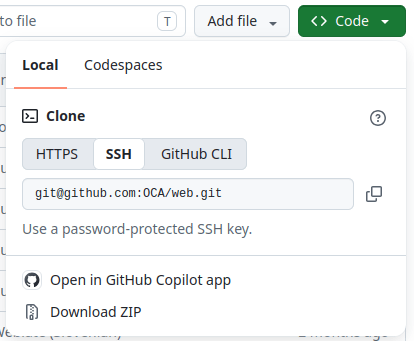
Filial: den specifika filial som ska användas
Sökväg: mappen som undermodulen ska läggas till i på din filial

I en terminal, i mappen där ditt Git-arkiv är klonat, checkar du ut den gren där du vill lägga till en undermodul:
git checkout <branch>
Lägg till undermodulen:
git submodule add -b <branch> <git@yourprovider.com>:<username/repository.git> <path>
<git@yourprovider.com>:<username/repository.git>: SSH-URL:en till repositoryn som du vill lägga till som en undermodul
<branch>: den filial du vill använda i ovanstående repository
<path>: mappen där du vill lägga till denna undermodul
Commit:a och push:a ändringarna:
git commit -a && git push -u <remote> <branch><remote>: repositoryn som du vill push:a dina ändringar till. I en standard Git-installation är detta origin.
<branch>: filialen som du vill push:a dina ändringar till. Troligtvis den filial du checkade ut i det första steget.
Tips
När du lägger till en repository som innehåller många moduler kan det vara bra att ignorera vissa av dem om de installeras automatiskt. Gör detta genom att lägga till . som prefix på din undermodulmapp (t.ex. .folder). Plattformen kommer att ignorera denna mapp, och du kan själv välja ut modulerna genom att skapa symboliska länkar till dem från en annan mapp.
Schemalagda åtgärder
På Odoo.sh-plattformen är schemalagda åtgärder implementerade något annorlunda jämfört med en vanlig Odoo-server och körs enligt bästa förmåga. Detta beror på att det kan finnas flera kunder på samma server, och varje kund garanteras en rättvis andel av serverns resurser. Därför kan en exakt körtid för schemalagda åtgärder inte garanteras.
Viktigt
Förvänta dig inte att någon schemalagd åtgärd körs oftare än var femte minut.
Eftersom körtiden för schemalagda åtgärder är begränsad, rekommenderas att se till att dina schemalagda åtgärder:
Arbetar med små batcher av poster.
Checkar in sitt arbete efter att ha bearbetat varje batch, så att de inte behöver börja om från början om de avbryts av tidsgränsen.
Är idempotenta, dvs. de får inte orsaka sidoeffekter om de startas oftare än förväntat.
Byte av IP-adress
**När IP-adressen för en produktionsinstans ändras görs dessutom en HTTP GET-begäran till sökvägen /_odoo.sh/ip-change med den nya IP-adressen inkluderad som en parameter för frågesträngen (new), tillsammans med den tidigare IP-adressen som en ytterligare parameter (old).
Denna mekanism gör det möjligt att utlösa anpassade åtgärder som svar på ändringen av IP-adress (t.ex. skicka ett e-postmeddelande, kontakta ett brandväggs-API, konfigurera databasobjekt osv.).
Av säkerhetsskäl är rutten /_odoo.sh/ip-change endast tillgänglig internt av plattformen själv och returnerar ett 403-svar om den nås på något annat sätt.
Här är ett exempel på en pseudo-implementering:
class IPChangeController(http.Controller):

    @http.route('/_odoo.sh/ip-change', auth='public')
    def ip_change(self, old=None, new=None):
        _logger.info("IP address changed from %s to %s", old, new)
        # Then perform whatever action is required for your use case, e.g., update an
        # ir.config_parameter, send an email, contact an external firewall service's API, ...
        return 'ok'