
Mexiko
Moduler
Följande moduler installeras automatiskt med den mexikanska lokaliseringen:
Namn |
Tekniskt namn |
Beskrivning |
|---|---|---|
Mexiko - Redovisning |
|
Standard skattelokaliseringspaketet lägger till bokföringsegenskaper för den mexikanska lokaliseringen, såsom: de vanligaste skatterna och kontoplanen – baserad på SAT:s kontogruppskod. |
EDI för Mexiko |
|
Inkluderar alla tekniska och funktionella krav för att generera och validera elektroniska dokument – baserat på den tekniska dokumentationen som publicerats av SAT. Detta gör att du kan skicka fakturor (med eller utan tillägg) och betalningskomplement till staten. |
Odoo mexikanska lokaliseringsrapporter |
|
Anpassar rapporter för Mexikos elektroniska bokföring: kontoplan, råbalans och DIOT. |
Mexiko - Månad 13 Råbalans |
|
Nödvändigt för att skapa utgående saldo (även känt som månad 13-transport). |
Odoo Mexican XML Polizas Export |
|
Möjliggör export av XML-filer med verifikationer för obligatorisk revision. |
Följande moduler är valfria. Det rekommenderas att installera dem endast om de uppfyller ett specifikt krav för verksamheten.
Namn |
Tekniskt namn |
Beskrivning |
|---|---|---|
EDI för Mexiko (avancerade funktioner) |
|
Lägger till det utrikeshandelskomplement till fakturor (ett juridiskt krav för försäljning av produkter till utländska länder). |
Mexiko - Elektronisk leveransguide |
|
Låter dig skapa en Carta Porte: Ett konossement som bevisar för regeringen att du skickar varor mellan A och B med ett signerat elektroniskt dokument. |
Odoo Mexico-lokalisering för lager/landning |
|
Gör det möjligt att hantera tullnummer relaterade till landningskostnader i elektroniska dokument. |
CFDI 4.0-fält för försäljningsorder |
|
Lägger till extra fält i modulen Försäljning för att uppfylla mexikansk digital fakturering |
Mexikansk lokalisering för kassan |
|
Lägger till extra fält i modulen Kassa för att uppfylla mexikansk digital fakturering |
Mexikansk lokalisering för webbshop |
|
Lägger till extra fält i modulen Webbshop för att uppfylla mexikanska krav för elektronisk fakturering |
Anställda - Mexiko |
|
Lägger till extra fält i modulen Anställda för att uppfylla lokal information för anställda. |
Mexiko - Löner med bokföring |
|
Lägger till nödvändiga regler och parametrar för att hantera lokal löneberäkning med appen Löner. |
Videohandledningar
Videor om den mexikanska lokaliseringen finns också tillgängliga. Grundläggande arbetsflöden och de flesta ämnen som behandlas på denna sida finns även i videoformat, kolla in följande:
Översikt över lokalisering
Odoo:s mexikanska lokaliseringsmoduler möjliggör signering av elektroniska fakturor, enligt specifikationerna från SAT för version 4.0 av CFDI, ett lagkrav sedan 1 januari 2022. Dessa moduler lägger också till relevanta bokföringsrapporter inklusive DIOT, aktiverar utrikeshandel och möjliggör skapandet av leveransguider.
Observera
För att elektroniskt signera dokument i Odoo måste applikationen Underskrifter vara installerad.
Krav och önskemål
Det är nödvändigt att uppfylla följande krav innan du konfigurerar de mexikanska lokaliseringsmodulerna i Odoo:
Vara registrerad i SAT med ett giltigt RFC.
Ha ett Certificado de Sello Digital / Digital Seal Certificate (CSD).
Välj en PAC. För närvarande fungerar Odoo med följande PACs: Solución Factible, Quadrum och SW Sapien - Smarter Web.
Företag
Efter att ha installerat rätt moduler är nästa steg att verifiera att företaget är konfigurerat med korrekt data. Gå till och välj företaget som ska konfigureras.
Ange den fullständiga Adressen i formuläret, inklusive: Postnummer, Stat, Land och RFC (Skattenummer).
Enligt kraven för CFDI 4.0 måste namnet på huvudkontakten för företaget matcha företagsnamnet som är registrerat i SAT, utan förkortning för juridisk form. Detsamma gäller för Postnumret.
Viktigt
Ur juridisk synvinkel måste mexikanska företag använda den lokala valutan (MXN). För att använda en annan valuta, låt MXN vara standardvalutan och använd en prislista istället.
Gå sedan till och scrolla till sektionen MX Elektronisk fakturering. Under Service Tax Administration (SAT), välj den Skattemyndighetsregim som gäller för företaget från rullgardinsmenyn och klicka på Spara.
Tips
För att testa den mexikanska lokaliseringen, konfigurera företaget med en verklig adress inom Mexiko (inklusive alla fält). Lägg till EKU9003173C9 som Skattenummer och ESCUELA KEMPER URGATE som Företagsnamn. För Skattemyndighetsregim, använd General de Ley Personas Morales.
Kontaktpersoner
Observera
Installera appen Kontakter för att få åtkomst till kontakthandlingar.
För att skapa en kontakt som kan faktureras, gå till . Ange sedan kontaktnamnet, fullständig Adress inklusive Postnummer, Stat, Land och RFC (Skattenummer).
Viktigt
Liksom för ditt eget företag måste alla kontakter ha sitt korrekta företagsnamn registrerat i SAT. Detta gäller även för Skatteregim, som måste läggas till i fliken Försäljning & Inköp.
Varning
Att ha ett RFC (Skattenummer) inställt men ingen Land konfigurerad kan resultera i felaktiga fakturor.
Skatter
För att korrekt signera fakturor, ställ in fälten Factor Type och Tax Object på försäljningsmomsar.
Typ av faktor
Både fälten SAT-skattetyp och Faktortyp är förinstallerade i standardskatterna. Om nya skatter skapas måste dessa fält anges. Gå till , fyll sedan i båda fälten i fliken Avancerade optioner för alla skatteposter, med Skattetyp inställd som Försäljning.
Odoo stöder fyra grupper av SAT-skattetyper: IVA, ISR, IEPS och Lokal.
Tips
Mexiko hanterar två olika typer av 0% moms för att tillgodose två scenarier:
För 0% moms, ställ in Faktortyp som Tasa
För Moms Befriad, ange Faktortyp som Exento
Skatteobjekt
Ett krav i CFDI 4.0 är att den resulterande XML-filen hanterar nedbrytningen av operationens skatter i enlighet med förordningen. Det finns tre olika möjliga värden som läggs till i XML-filen:
01: Ej momspliktig: Detta värde läggs till automatiskt om fakturaraden inte innehåller några skatter.02: Momspliktig: Detta är standardkonfigurationen för alla fakturarader som innehåller skatter.03: Momspliktig och inte tvingad till nedbrytning: Detta värde kan aktiveras på begäran för vissa kunder för att ersätta värdet02.
För att använda värdet 03 för en kontakt, navigera till kontaktens flik Försäljning & Inköp och aktivera kryssrutan Ingen skattenedbrytning under sektionen Skatteinformation.
Viktigt
Värdet No Tax Breakdown gäller endast för specifika skattesystem och/eller skatter. Rådfråga din revisor först för att se om det behövs för ditt företag innan du gör någon ändring.
Andra skattekonfigurationer
Den mexikanska lokaliseringen använder kontantmetodens skatter. När en betalning registreras utför Odoo flytten av skatter från kontantmetodens övergångskonto till kontot som angetts på fliken Definition i skatteposten som satts på faktura- eller fakturaraden. För denna flytt används ett skattebasnekonto: (899.01.99 Base Imponible de Impuestos en Base a Flujo de Efectivo) i verifikationen vid omklassificering av skatter. Radera inte detta konto.
Produkter
För att konfigurera produkter, gå till , välj sedan en produkt att konfigurera eller Skapa en ny. I fliken Bokföring, i fältet UNSPSC produktkategori, välj kategorin som representerar produkten. Processen kan göras manuellt eller genom en bulkimport.
Observera
Alla produkter måste ha en SAT-kod associerad med sig för att undvika valideringsfel.
Elektronisk fakturering
PAC-legitimation
Efter att ha behandlat din Private Key (CSD) med SAT måste du registrera dig direkt hos den PAC du valt innan du börjar skapa fakturor från Odoo.
När du har skapat ditt konto hos någon av dessa leverantörer, gå till och navigera till sektionen MX Digital fakturering. Under sektionen Auktoriserad certifieringsleverantör (PAC), ange namnet på din PAC med dina uppgifter (PAC-användarnamn och PAC-lösenord).

Tips
För att testa den digitala faktureringen utan uppgifter, aktivera kryssrutan MX PAC-testmiljö och välj Solucion Factible som PAC. Det är inte obligatoriskt att lägga till ett användarnamn eller lösenord för en testmiljö.
.cer- och .key-certifikat
Företagets digitala certifikat måste laddas upp i sektionen Certifiering. För att göra detta, navigera till .
Under Hantera dina certifikat, klicka på länken Nycklar för att komma åt listvyn Nycklar. Klicka på Skapa, ladda upp den digitala Nyckelfilen (.key-filen), lägg till ett Namn till nyckeln och ange Privat nyckellösenord.
Från , välj Certifiering för att komma åt listvyn Certifikat. Klicka på Skapa, ladda upp det digitala Certifikatet (.cer-filen), lägg till ett Namn till certifikatet och välj den Privata nyckel som skapades i föregående steg från rullgardinsmenyn.
Observera
Fälten Certifikatlösenord och Offentlig nyckel på Certifikat-handlingar är valfria.
Tips
För att testa den digitala faktureringen tillhandahålls följande SAT-testcertifikat:
Lösenord:
12345678a
Bokföring
Elektronisk fakturering
Faktureringsprocessen i Odoo baseras på Annex 20 version 4.0 av elektronisk fakturering av SAT.
Kundfakturor
För att börja fakturera från Odoo måste en kundfaktura skapas med hjälp av standardflödet för fakturering.
Medan dokumentet är i utkastläge kan ändringar göras i det (rätt Betalningssätt eller Användning som kunden kan kräva kan till exempel läggas till).
Efter att ha klickat på Bekräfta i kundfakturan, klicka på knappen Skicka för att behandla fakturan hos myndigheten. Se till att kryssrutan CFDI är markerad.
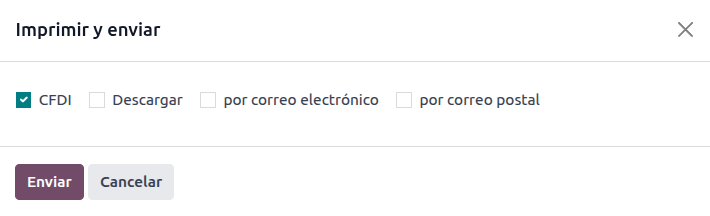
Efter att ha mottagit det signerade dokumentet tillbaka från myndigheten visas fältet Fiscal Folio på dokumentet, och XML-filen visas både i fliken CFDI och bifogad i händelseflödet.
Om en e-postadress är konfigurerad i kundens kontaktpost, skickas både XML- och PDF-filerna tillsammans genom att markera kryssrutorna via e-post och CFDI.
För att ladda ner PDF-filen lokalt, klicka på knappen Skriv ut.
Tips
När du klickar på Uppdatera SAT, bekräftar fältet SAT-status på fakturan om XML-filen är Validerad i SAT.
I en testmiljö kommer meddelandet Hittades inte alltid att visas.
Kreditnotor
En faktura är en dokumenttyp ”I” (Ingreso), medan en kreditfaktura är en dokumenttyp ”E” (Egreso).
Det enda tillägget till standardflöde för kreditfakturor är att det, som ett krav i SAT, måste finnas en relation mellan en kreditfaktura och en faktura genom skattefolion.
På grund av detta krav lägger fältet CFDI Origin till denna relation med en 01|, följt av den ursprungliga fakturans skattefolio.
Tips
För att fältet CFDI Origin ska läggas till automatiskt, använd knappen Add Credit Note från fakturan, istället för att skapa det manuellt.
Betalningar
Betalningspolicy
Ett tillägg i den mexikanska lokaliseringen är fältet Betalningspolicy. Enligt SAT-dokumentationen finns det två typer av betalningar:
PUE (Pago en una Sola Exhibición/Betalning i en enda omgång)
PPD (Pago en Parcialidades o Diferido/Betalning i delbetalningar eller uppskjuten)
Skillnaden ligger i fakturans Förfallodatum eller Betalningsvillkor och avbetalningsplaner.
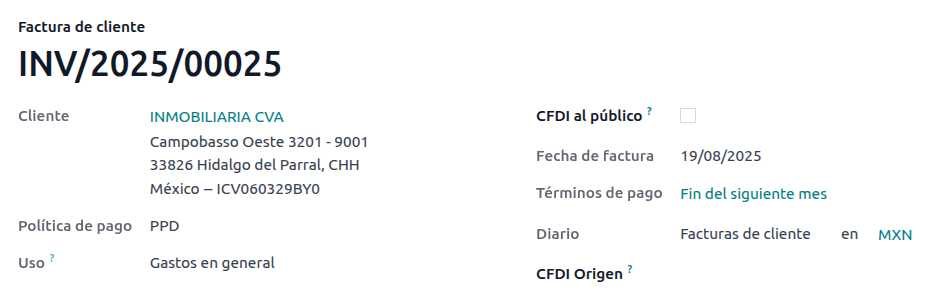
För att konfigurera PUE fakturor, navigera till och välj antingen en faktura med Förfallodatum inom samma månad eller välj Betalningsvillkor som inte innebär att förfallomånaden ändras (dvs. Omedelbar betalning, eller 15 dagar eller 21 dagar, så länge de infaller inom innevarande månad).

För att konfigurera PPD-fakturor, gå till :menuselection:Accounting --> Customers --> Invoices och välj en faktura med Due Date` efter den första dagen i nästa månad. Detta gäller även om din Payment Term har förfallodag i nästa månad.
Betalningsflöde
I båda fallen är betalningsprocessen i Odoo densamma, den huvudsakliga skillnaden är att betalningar relaterade till PPD-fakturor enligt lag måste skickas till myndigheten som dokumenttyp ”P” (Pago).
Om en betalning är relaterad till en PUE-faktura kan den registreras genom betalningspopupen och associeras med motsvarande faktura. För att göra detta, navigera till och välj en faktura. Klicka sedan på knappen Betala för att öppna betalningspopupen, ställ in Betalningssätt och eventuella andra fält, och klicka på Skapa betalning.
Se även
../redovisning/bank/avstämning
Även om denna process är densamma för PPD-fakturor innebär tillägget att skapa ett elektroniskt dokument att vissa ytterligare krav behövs för att korrekt skicka dokumentet till SAT.
Ur ett juridiskt perspektiv måste PPD-fakturor inkludera det specifika Betalningssätt som betalningen mottogs med. På grund av detta kan inte fältet Betalningssätt ställas in som Att definiera, därför blir fältet osynligt när det väljs.
Observera
Om ett bankkontonummer krävs, lägg till det i fliken Bokföring i en kunds kontaktpost.
De exakta konfigurationerna finns i Anexo 20 of the SAT. Vanligtvis behöver :guilabel:
Bank Accountvara 10 eller 18 siffror för överföringar, 16 för kredit- eller betalkort.
Om en helt avstämd betalning är relaterad till en faktura med en Fiscal Folio, visas Uppdatera betalningar. Klicka på knappen Uppdatera betalningar för att automatiskt skicka XML-filen för betalningstillägget till myndigheten och visa den i fliken CFDI i både fakturan och betalningen.
Tips
Även om det är en dålig skattemässig praxis kan PUE-betalningarna också skickas till myndigheten, men det krävs att du klickar på Tvinga CFDI i fliken CFDI för detta.
I likhet med en faktura eller kreditfaktura kan PDF:en och XML:en skickas till slutkunden. För att göra detta, klicka på ikonen (kugghjul) för att öppna åtgärdsmenyn och välj Skicka inleverans via e-post.
Annullering av fakturor
Det är möjligt att avbryta EDI-dokument som skickas till SAT. Enligt Reforma Fiscal 2022, sedan den 1 januari 2022, finns det två krav för detta:
Alla annulleringsförfrågningar kräver en annulleringsorsak.
Efter 24 timmar från fakturans skapande måste kunden tillfrågas om att godkänna annulleringen. Om inget svar kommer inom 72 timmar behandlas annulleringen automatiskt.
Fakturaannulleringar kan göras av någon av följande anledningar:
01 - Faktura emitterad med fel (med relaterat dokument)
02 - Faktura emitterad med fel (ingen ersättning)
03 - Processen utfördes inte
04 - Nominativ process relaterad till den globala fakturan
För att inleda en annullering, gå till , välj den bokförda fakturan att annullera och klicka på Begär annullering. Referera sedan till avsnitten Annulleringsorsak 01 eller Důvody zrušení 02, 03 a 04, beroende på annulleringsorsaken.
Tips
Alternativt kan du begära en annullering från fliken CFDI genom att klicka på Avbryt på radobjektet.
Observera
Om en annullering begärs under en låst period kommer CFDI:n att annulleras men inte verifikationen.
Om kunden avvisar annulleringen tas fakturaannulleringens radobjekt bort från fliken CFDI.
Annulleringsorsak 01
I popup-fönstret Begär CFDI-annullering, välj 01 - Faktura emitterad med fel (med relaterat dokument) från fältet Orsak och klicka på Skapa ersättningsfaktura för att skapa ett nytt fakturautkast. Detta nya fakturautkast ersätter den tidigare fakturan tillsammans med tillhörande CFDI.
Bekräfta utkastet och skicka fakturan.
Återvänd till den ursprungliga fakturan (dvs. den faktura från vilken du först begärde annulleringen). Observera att fältet Ersatt av visas med en hänvisning till den nya ersättningsfakturan.
Klicka på Begär annullering. I popup-fönstret Begär CFDI-annullering är alternativet 01 - Faktura emitterad med fel (med relaterat dokument) automatiskt valt i fältet Orsak.
Klicka på Bekräfta.
Zrušení faktury je poté vygenerováno s položkou důvodu na kartě CFDI.

Observera
Při použití důvodu zrušení 01 - Faktura emitovaná s chybami (s příslušným dokladem) se v poli Fiskální folio objeví prefix 04|. Jedná se o interní prefix používaný systémem Odoo k dokončení zrušení a neznamená, že důvodem zrušení byl 04 - Nominativní proces související s globální fakturou.
Důvody zrušení 02, 03 a 04
V dialogovém okně Žádost o zrušení CFDI vyberte požadovaný Důvod zrušení a Bekräfta zrušení.
Po provedení tohoto kroku je vygenerováno zrušení faktury s položkou důvodu na kartě CFDI.
Observera
Pokud se SAT-status vrátí zpět na Validerad, může to být způsobeno jedním z těchto tří důvodů:
Fakturan är märkt som No Cancelable på SAT:s hemsida. på grund av att den har ett giltigt relaterat dokument: Antingen en annan faktura länkad med fältet CFDI-ursprung eller ett betalningstillägg. Om så är fallet måste du först annullera alla andra relaterade dokument.
Žádost o zrušení je stále zpracovávána systémem SAT. Pokud ano, počkejte několik minut a zkuste to znovu.
Konečný zákazník musí žádost o zrušení odmítnout nebo přijmout ve svém Buzón Tributario. To může trvat až 72 hodin a v případě, že žádost o zrušení bude odmítnuta, budete muset proces opakovat znovu.
U důvodů zrušení 02, 03 a 04 je tlačítko Vytvořit náhradní fakturu nahrazeno tlačítkem Bekräfta, které okamžitě vyžádá zrušení.
Aktuální Stat i Důvod zrušení lze nalézt na kartě CFDI.

Annullering av betalning
Pro zrušení doplňků plateb přejděte na kartu CFDI příslušné faktury a klikněte na Avbryt na řádku doplňku platby.
Stejně jako u faktur přejděte na platbu a klikněte na Uppgradering SAT, abyste změnili SAT-status a Stat na Annullerad.
Observera
Precis som med fakturor kan du när du skapar ett nytt betalningstillägg lägga till relationen till det ursprungliga dokumentet genom att lägga till 04| plus den skattemässiga folion i fältet CFDI-ursprung. Denna åtgärd annullerar fakturan och markerar Orsak som 01 - Faktura utfärdad med fel (med relaterat dokument).
Särskilda användningsfall för fakturering
Multicurrency
Huvudvalutan i Mexiko är MXN. Detta är obligatoriskt för alla mexikanska företag, men det är möjligt att skicka och ta emot fakturor (och betalningar) i olika valutor. För att aktivera användning av multivaluta, navigera till och ställ in [MX] Bank of Mexico som Tjänst i avsnittet Automatiska valutakurser. Ställ sedan in fältet Intervall till den frekvens du önskar uppdatera växelkurserna.
På så sätt kommer XML-filen för dokumentet att ha rätt växelkurs och det totala beloppet, både i den utländska valutan och i MXN.
Det rekommenderas starkt att använda separata bankkonton för varje valuta.
Observera
De enda valutor som automatiskt uppdaterar sin växelkurs dagligen är: USD, EUR, GBP, JPY och CNY.
Rabatter
Enligt lag kan elektroniska dokument som skickas till myndigheter inte ha negativa rader, då detta kan utlösa fel. När du använder Presentkort eller Lojalitetsprogram kommer därför de efterföljande negativa raderna att översättas i XML:en som om de vore vanliga Rabatter.
För att ställa in detta, navigera till och skapa en produkt Rabatter, se till att den har en giltig Skatt (vanligtvis IVA på 16%).
Efter detta, skapa och signera fakturan via CFDI och lägg till produkten Discounts längst ner. I XML:en ska rabatten subtraheras från den första tillgängliga fakturaraden, Odoo kommer att försöka subtrahera från varje rad det totala beloppet i ordning tills hela rabatten har tillämpats.
Tips
En Rabatt och UNSPSC produktkategori för varje produktvariant relaterad till Presentkort eller Lojalitetsprogram måste skapas.
Handpenning
En vanlig praxis i Mexiko är användningen av delbetalningar. Dess användning består främst av fall där du får en betalning för en vara eller tjänst där antingen produkten eller priset (eller båda) inte har fastställts vid tidpunkten.
SAT tillåter två olika sätt att hantera denna process: båda involverar att länka alla fakturor till varandra med fältet CFDI-ursprung.
Observera
För denna process måste appen Försäljning vara installerad.
Konfiguration
Navigera först till för att skapa en produkt Anticipo och konfigurera den. Produkttyp måste vara Tjänst, och använd UNSPSC-kategori 84111506 Servicios de facturación.
Gå sedan till :menuselection:` Sales --> Inställningar --> Fakturering --> Förskottsbetalningar och lägg till produkten Anticipo som standard.
Metod A
Denna metod består av att skapa en delbetalningsfaktura, skapa en faktura för totalbeloppet och slutligen skapa en kreditfaktura för delbetalningens totalbelopp.
Skapa först en försäljningsorder med totalbeloppet och skapa en delbetalning från den (antingen med procentandel eller fast belopp). Underteckna sedan dokumentet via CFDI och registrera betalningen.
När det är dags för kunden att få slutfakturan, skapa den igen från samma försäljningsorder. I popup-fönstret Skapa faktura, välj Vanlig faktura. Se till att radera raden som innehåller produkten Anticipo.
Tips
När du använder delbetalningar med den mexikanska lokaliseringen, se till att Faktureringspolicy för produkterna är Beställda mängder. Annars kommer en kreditfaktura att skapas.
Kopiera sedan Skattefolio från delbetalningsfakturan och klistra in den i CDFI-ursprung för slutfakturan, lägg till prefixet 07| före värdet och signera dokumentet via CFDI.
Skapa slutligen en kreditfaktura för den första fakturan. Kopiera Skattefolio från slutfakturan och klistra in den i CFDI-ursprung för kreditfakturan, lägg till prefixet 07|. Signera sedan dokumentet via CFDI.
Med detta är alla elektroniska dokument länkade till varandra. Det sista steget är att helt betala den nya fakturan. Längst ner på den nya fakturan kan du hitta kreditfakturan i Utestående krediter - lägg till den som betalning. Registrera slutligen det återstående beloppet med popup-fönstret Betala.
I försäljningsordern bör alla tre dokumenten visas som ”Under betalning”.
Metod B
Ett annat, enklare sätt att uppfylla SAT-kraven innebär att endast skapa delbetalningsfakturan och en andra faktura för resten. Denna metod bygger på att negativa rader behandlas som rabatter.
För detta, följ samma process som Metod A, fram till skapandet av slutfakturan. Radera inte raden som innehåller Anticipo utan döp istället om de andra produkternas Beskrivning till att inkludera texten CFDI por remanente de un anticipo. Glöm inte att lägga till Fiscal Folio från delbetalningsfakturan i CDFI-ursprung på slutfakturan, lägg till prefixet 07|.
Signera slutligen slutfakturan via CFDI.
XML-läsare
I vissa fall, som när du skapar fakturor i en annan mjukvara eller direkt i SAT, kanske du vill ladda upp fakturorna i Odoo. XML-läsaren låter dig hämta data från en XML-fil. För att göra detta, navigera till och klicka i listvyn på knappen Ladda upp för att välja valfritt antal XML-filer, så skapas utkastfakturor automatiskt. Detta kan också fungera genom att dra filerna från din dator och släppa dem i vyn.
Utkastet till fakturor kommer att hämta kundinformationen (om den inte finns kommer nya att skapas), produktserierna (endast om produkter med samma namn redan finns) och kommer att beräkna alla skatter och ytterligare fält exklusiva för den mexikanska lokaliseringen. Importinformationen kommer att visas i händelseflödet.
Varning
Beroende på var fakturan skapades kan XML-filer ha olika värden från det totala beräknade i Odoo. Dubbelkolla alltid alla dokument som laddas upp på detta sätt.
Kundfakturor som skapas på detta sätt kommer att kunna skapa betalningstillägg och avbrytas när som helst. Om du använder knappen Skriv ut kommer PDF-dokumentet att ha all motsvarande information.
Detta kan göras för leverantörsfakturor också.
Tips
För att hämta Skattefolio, dra och släpp XML-filer för redan skapade utkastfakturor.
CFDI till allmänheten
Den mexikanska regeringen kräver att alla varor eller tjänster som säljs måste backas upp av en faktura. Om kunden inte kräver en faktura eller inte har något RFC, måste en CFDI to Public skapas, även känd som en ”nominativ” faktura.
En kontakt måste skapas och den måste ha ett specifikt namn. Om kryssrutan CFDI till offentlig i antingen en försäljningsorder eller en faktura är markerad, kommer den slutliga XML:en att åsidosätta data i fakturakontakten och lägga till följande egenskaper:
RFC: XAXX010101000 om det är en nationell kund eller XEXX010101000 om det är en utländsk kund
Postnummer: Samma kod som företaget
Användning: S01 - Utan skattemässiga effekter

Viktigt
Om ditt kontakts Land är tomt, betraktas den slutliga fakturan som en CFDI till allmänheten för nationella kunder. En icke-blockerande påminnelse kommer att visas innan dokumentet signeras.
Om slutkunden inte delar några detaljer, skapa en generisk kund. Namnet kan inte vara PUBLICO EN GENERAL eller så kommer ett fel att utlösas (det kan till exempel vara CLIENTE FINAL).
Global faktura
Om kunden vid slutet av en viss tidsperiod (som kan variera från dagligen till var annan månad, beroende på ditt företags juridiska behov och preferenser) fortfarande har försäljningar som inte markerats som vanliga fakturor eller individuella CFDI to Public-fakturor, tillåter SAT skapandet av en enda faktura som kan innehålla alla transaktioner, känd som en global faktura.
Observera
För denna process måste appen Försäljning vara installerad.
Försäljningsflöde
Först är det nödvändigt att skapa en speciell Journal skapad i i syfte att hålla en separat nummerserie.
Se sedan till att alla försäljningsorder som behöver signeras har följande konfigurationer:
CFDI till offentlig kryssruta aktiverad
Fakturastatus markerad som Att fakturera
Gå sedan till , välj alla relevanta försäljningsorder och tryck på Skapa fakturor. Se till att avaktivera kryssrutan Konsoliderad fakturering och klicka på Skapa fakturautkast.
Odoo kommer att omdirigera till en lista över fakturor. Välj alla och i rullgardinsmenyn Åtgärder välj Posta inlägg. Välj alla postade fakturor igen och gå tillbaka till rullgardinsmenyn Åtgärder för att välja Skapa global faktura.
I guiden, välj den Periodicitet som anges av en professionell revisor och tryck på Skapa. Alla fakturor ska signeras under samma XML-fil, med samma Fiscal Folio.
Tips
Klicka på Visa under fliken CFDI för att visa en lista med alla relaterade fakturor.
Klicka på Avbryt under fliken CFDI för att avbryta den globala fakturan i både SAT och Odoo.
Observera
Globala fakturor som skapas på detta sätt kommer inte att ha någon PDF i sig eftersom deras information redan finns i Odoo och inte ska ses av en kund.
Elektronisk bokföring (rapportering)
För Mexiko avser ”Elektronisk bokföring <https://www.sat.gob.mx/aplicacion/42150/envia-tu-contabilidad-electronica>`_” skyldigheten att föra bokföring och verifikat på elektronisk väg och att månadsvis föra in bokföringsinformation via webbplatsen SAT.
Den består av tre XML-huvudfiler:
Den uppdaterade listan över kontoplanen som för närvarande används
En månatlig råbalans, plus en rapport över utgående saldo, även känd som: Råbalans månad 13
En export av verifikationerna i huvudboken (valfritt förutom vid obligatorisk revision)
De resulterande XML-filerna följer kraven i Anexo Técnico de Contabilidad Electrónica 1.3.
Utöver detta är det möjligt att skapa DIOT: en rapport över leverantörers verifikationer som involverar IVA-skatter och som kan exporteras i en TXT-fil.
Observera
För att använda dessa rapporter måste följande moduler vara installerade:
Odoo Mexican Localization Reports
l10n_mx_reportsMexico - Month 13 Trial Balance
l10n_mx_reports_closingOdoo Mexican XML Polizas Export
l10n_mx_xml_polizas
Rapporterna kontoplan och Råbalans månad 13 finns under . Rapporten DIOT finns under .
Viktigt
De specifika egenskaperna och skyldigheterna för de rapporter som du skickar kan ändras beroende på ditt skattesystem. Kontakta alltid din revisor innan du skickar några dokument till myndigheterna.
Kontoplan
Kontoplanen i Mexiko följer ett specifikt mönster baserat på SAT:s Código agrupador de cuentas.
Det är möjligt att skapa vilket konto som helst, så länge det respekterar SAT:s kodningsgrupp: mönstret är NNN.YY.ZZ eller NNN.YY.ZZZ.
Example
Några exempel är ”102.01.99” eller ”401.01.001”.
När ett nytt konto skapas i , med SAT kodningsgruppsmönstret, visas rätt gruppkod i Taggar, och kontot visas i COA-rapporten.
När alla konton är skapade, se till att rätt Taggar läggs till eftersom dessa markerar kontots karaktär.
Observera
Det är inte tillrådligt att använda något mönster som avslutar en sektion med en 0 (som 100.01.01, 301.00.003 eller 604.77.00). Detta utlöser fel i rapporten. Som standard markerar Odoo kontona som gula om numreringen kommer att orsaka problem senare, detta är för att förhindra att rapporter ger felaktig data.
När allt är installerat, gå till , och klicka på knappen COA SAT (XML) för att skapa en XML-fil som innehåller alla konton. Denna XML-fil är klar att laddas upp till SAT-hemsidan.
Trialbalans
I kontrollbalansräkningen rapporteras det ursprungliga saldot, krediten och det totala saldot för dina konton, förutsatt att du har lagt till rätt kodningsgrupp.
För att skapa en XML-fil av råbalansen, gå till , välj datum och klicka på (åtgärdsmeny), välj sedan SAT (XML).

Observera
Odoo genererar inte Supplementary Verification Scale.
Månad 13
En ytterligare rapport är Månad 13: en avslutande balansräkning som visar eventuella korrigeringar eller rörelser som gjorts i bokföringen för att avsluta året.
För att skapa detta XML-dokument, navigera till , och skapa ett nytt dokument. Här lägger du till alla belopp att modifiera och balanserar debet och/eller kredit för var och en.
När detta är klart, gå till fliken Övrig info och kryssa för fältet Månad 13 avslutning. Om det behövs, gå till och välj datum Månad 13, där det är möjligt att se det totala beloppet för året, plus alla tillägg från verifikationen. För att skapa XML-filen, klicka på (åtgärdsmeny), välj sedan SAT (XML).
Huvudbok
Enligt lag måste alla transaktioner i Mexiko registreras digitalt. Eftersom Odoo automatiskt skapar alla underliggande verifikationer för alla fakturor och betalningar, uppfyller export av huvudboken SAT:s revisioner och/eller momsåterbetalningar.
Tips
Rapporten kan filtreras efter period eller journal, beroende på behov.
För att skapa XML:en, gå till , klicka på (åtgärdsmeny), klicka sedan på XML (Polizas). Välj sedan bland fyra Export-typer:
Skatterevision
Revisionsintyg
Retur av varor
Kompensation
För Momsrevision eller Revisionscertifiering, lägg till Ordernummer som tillhandahålls av SAT. För Återlämnande av varor eller Kompensation, lägg till Processnummer, som också tillhandahålls av SAT.
Observera
För att se denna rapport utan att skicka den, använd ABC6987654/99 för Ordernummer eller AB123451234512 för Processnummer.
DIOT-rapport
DIOT (Declaración Informativa de Operaciones con Terceros / Informativ deklaration av processer med tredje part) är en ytterligare skyldighet gentemot SAT, där det aktuella läget för krediterbara och icke-krediterbara betalningar, innehållningar, importskatter och återbetalningar av moms från dina leverantörsfakturor tillhandahålls till SAT.
Observera
Sedan juli 2025 är den nya 2025-versionen av rapporten tillgänglig.
Till skillnad från andra rapporter laddas DIOT upp till en mjukvara som tillhandahålls av SAT som innehåller A-29-formuläret. I Odoo kan du ladda ner handlingarna från dina transaktioner som en TXT-fil som kan laddas upp till formuläret, vilket undviker direkt inmatning av dessa data.
Transaktionsfilen innehåller det totala beloppet för dina betalningar som registrerats i leverantörsfakturor, uppdelat på motsvarande typer av IVA. Uppgifterna VAT och Country är obligatoriska för alla leverantörer.
För att ladda ner DIOT-rapporten som en TXT-fil, gå till . Välj önskad månad, klicka på (åtgärdsmeny), och välj DIOT (TXT).

Viktigt
Det krävs att fylla i fältet Process i fliken Bokföring för varje leverantör för att förhindra valideringsfel. Se till att utländska kunder har sitt Land inställt.

Att välja 87 - Globala processer kommer att göra att den slutliga TXT-filen sammanfogar alla leverantörer som är en del av de globala processerna under ett generiskt momsnummer: XAXX010101000.
Extern handel
Externhandeln är ett komplement till en vanlig faktura som lägger till vissa värden i både XML och PDF, till fakturor med en utländsk kund enligt SAT regelverk, t.ex:
Mottagarens och avsändarens specifika adress
Tillägg av en Tariff Fraction som identifierar typen av produkt
De korrekta Incoterms (internationella handelsvillkoren)
Och mer, såsom ursprungsintyg och speciella måttenheter
Detta gör det möjligt att korrekt identifiera exportörer och importörer och dessutom utöka beskrivningen av de varor som säljs.
Sedan den 1 januari 2018 är utrikeshandel ett krav för skattebetalare som utför exportprocesser av typ A1. Medan nuvarande CFDI är 4.0, är utrikeshandeln för närvarande på version 2.0.
Observera
För att använda denna funktion måste modulen EDI för Mexiko (Avancerade funktioner) l10n_mx_edi_extended installeras.
Viktigt
Innan du installerar måste du se till att ditt företag behöver använda den här funktionen. Rådfråga din revisor först, om det behövs, innan du installerar några moduler.
Konfiguration
Kontaktpersoner
För att konfigurera din företagskontakt för utrikeshandel, navigera till , ta bort standardfiltret Kundfakturor och välj ditt Företag-namn. Medan CFDI 4.0-kraven kräver att en giltig Postnummer läggs till i företagskontaktposten, lägger utrikeshandelstillskottet till kravet att Stad och Stat också måste vara giltiga. Alla tre fälten måste överensstämma med den officiella SAT-katalogen för Carta Porte, annars kommer det att ge ett fel.
Varning
Lägg till Stad och Stat i företagets kontaktpost, inte i själva företagsposten.
I kontaktposten kan de valfria fälten Lokalitet och Koloni-kod också fyllas i. Dessa två fält måste också överensstämma med data i SAT.
För att konfigurera kontaktuppgifterna för en utländsk mottagande kund, navigera till :menyselection:Accounting --> Customers --> Customers och välj den utländska kundens kontakt. Kontakten måste ha följande fält ifyllda för att undvika fel:
Hela företagets Address, inklusive en giltig ZIP-kod och det utländska Country.
Det utländska RFC (skatteregistreringsnummer), i korrekt format (till exempel: Colombia
123456789-1)I fliken Försäljning & Inköp, för att aktivera kryssrutan Kräver utrikeshandel?.
Viktigt
Aktivera inte alternativet Ingen skattenedbrytning för kunder inom extern handel. Att välja detta alternativ döljer obligatoriska fält som krävs för konfiguration av kontakter inom extern handel.
Observera
I de resulterande XML- och PDF-filerna ersätts VAT automatiskt med den generiska momsen för transaktioner i utlandet: XEXX010101000.
Produkter
Alla produkter som är involverade i utrikeshandel har fyra ytterligare fält som krävs, varav två är exklusiva för utrikeshandel.
Referens för produkten måste ställas in i fliken Allmän information.
Vikt för produkten i fliken Lager måste vara mer än
0.Den korrekta Tullfraktion för produkten måste ställas in i fliken Bokföring för utrikeshandel.
UMT Aduana i fliken Bokföring måste ställas in och motsvara Tullfraktion för utrikeshandel.

Tips
Om UoM-koden för Tariff Fraction är
01, är den korrekta UMT Aduanakg.Om UoM-koden för Tariff Fraction är
06, är den korrekta UMT AduanaUnits.
Faktureringsflöde
Innan du skapar en faktura är det viktigt att ta hänsyn till att utrikeshandelsfakturor kräver konvertering av produktpriser till en utländsk valuta såsom USD. Därför måste multivaluta aktiveras med den utländska valutan aktiverad i sektionen Valutor. Den korrekta Tjänst att köra är [MX] Bank of Mexico. För att konvertera produktpriser, skapa en prislista i den utländska valutan.
Sedan, med rätt växelkurs inställd i , ställ in fälten Incoterm och det valfria Certificate Source i fakturans flik Other Info.
Slutligen, bekräfta fakturan med samma process som en vanlig faktura och klicka på knappen Skicka för att signera den via CFDI.
Kassasystem
Kassasystemet-anpassningen av den mexikanska lokaliseringen möjliggör skapandet av fakturor som uppfyller SAT-kraven direkt i kassasessionen, med den extra fördelen att skapa inleveranskvitton som möjliggör självfakturering i en speciell portal samt skapandet av globala fakturor.
Flöde för kassasystem
Förutom den standardmässiga konfigurationen av kassasystemet, är det enda kravet för den mexikanska lokaliseringen det ytterligare faktum att varje betalningsmetod måste konfigureras med ett korrekt Betalningssätt.
Tips
Som standard skapar Odoo förkonfigurerade betalningsmetoder för kontant, kreditkort och bankkort.
När du säljer i kassasystemet, klicka på knappen Kund för att antingen skapa eller välja en kund. Här är det möjligt att granska kundens faktureringsinformation (såsom RFC eller Fiscal Regime) och till och med ändra den direkt i sessionen.
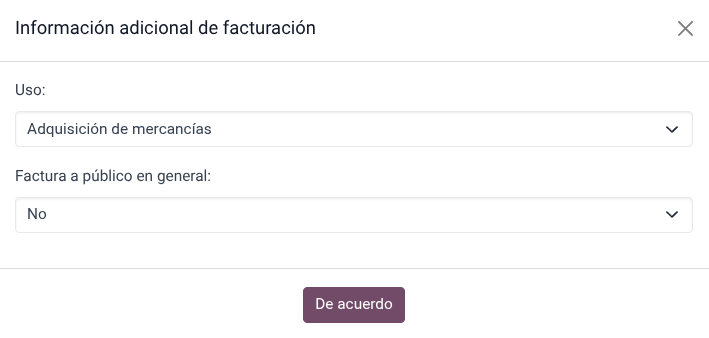
Efter att ha valt en kund, markera kryssrutan Faktura. Detta öppnar en meny för att välja Usage och för att definiera om det är en faktura till allmänheten. Klicka på bekräfta, välj betalningsmetod och klicka sedan på validera för att slutföra beställningen. PDF:en laddas sedan ner och det är möjligt att skicka fakturan via e-post till slutkunden tillsammans med inleveransen.
Tips
För att skapa fakturor från beställningar, gå till menyn Beställningar, välj beställningen, klicka på Load Order och markera kryssrutan Faktura. Detta öppnar samma meny för Usage och CFDI to Public.
För att signera en kreditfaktura automatiskt, markera kryssrutan Faktura när du behandlar en återbetalning.
Observera
Kreditfakturor för returnerade produkter kommer att innehålla relationstypen 03 - Devolución de mercancía sobre facturas o traslados previos.
Viktigt
I den mexikanska lokaliseringen kan positiva och negativa rader i en kassasystem-session inte blandas.
Om ett SAT-valideringsfel uppstår får kunden en Proformafaktura istället.
Portal för egenskapad fakturering
Om slutkunden inte är säker på om de vill få sin faktura genererad vid exakt tidpunkten för försäljningen, är det möjligt att ge dem möjligheten att skapa en inleverans med antingen en QR-kod eller en URL. För att göra detta, följ dessa steg:
Gå till .
Välj Kassa.
Scrolla till sektionen Bills & Receipts.
Aktivera Self-service invoicing.
Ställ in fältet Print till QR code, URL eller QR code + URL.
Kunder som skannar denna QR-kod eller följer URL:en kommer att få tillgång till en meny där de kan lägga till sin skatteinformation, inklusive Usage och Fiscal Regime när de anger den femställiga koden som också tillhandahålls på inleveransen.
Se även
Global faktura
Precis som med vanliga försäljningsorder kan globala fakturor också skapas från en kassasession.
För detta, se till att inte välja en kund eller fakturaalternativet i betalningsmenyn och gå till . Där, välj alla beställningar att fakturera, klicka på Åtgärder och välj Create Global Invoice.
Precis som med försäljningsorder välj korrekt periodicitet och tryck på Skapa.
Detta bifogar en XML-fil till var och en av de valda orderna. XML-filerna kan laddas ner genom att gå till fliken CFDI. Om det behövs är det möjligt att avbryta fakturan från samma flik.
Om så småningom någon av orderna som ingår i den globala fakturan behöver adresseras till en kund, är det fortfarande möjligt att skicka en faktura genom att öppna en ny kassasession, klicka på (rullgardinsmeny), och sedan klicka på Beställningar. Ändra filtret Alla aktiva ordrar till Betald, välj ordern och klicka på knappen Faktura.
Observera
Globala fakturor kan, precis som vanliga fakturor, endast grupperas efter fysisk adress. Detta bestäms av adressen som är inställd på kassasystemets fakturajournaler, så när man försöker fakturera två adresser kommer en varning att dyka upp för att varna användaren om felet.
E-handel
Webbshop-anpassningen av den mexikanska lokaliseringen tillhandahåller ett extra steg för att skapa fakturor som uppfyller SAT-kraven på webbshop genom att hämta kunduppgifter efter kassan och till och med möjliggöra signering av automatiska fakturor efter att betalningen behandlats, samt skicka filer till kunder via e-post och ge dem tillgång till att hämta sina PDF- och XML-filer från sin egen kundportal.
Webbshopsflöde
Under den regelbundna utcheckningsprocessen visas ett nytt steg faktureringsinformation, där det är möjligt att begära en faktura eller inte. Om Nej väljs skapas en CFDI till offentlig. Om Ja väljs är RFC, skatteregim och användning obligatoriska för att få all information i försäljningsordern, där dess status kommer att ändras till att fakturera.
Viktigt
Se till att lägga till en UNSPSC-kod till fraktprodukten.
Om du aktiverar Automatisk fakturering i , kommer det elektroniska dokumentet att signeras automatiskt.
Prenumerationer
Vid hantering av prenumerationer används alla försäljningsfält för att skapa återkommande fakturor. Dessa signeras automatiskt och skickas via e-post med PDF och XML bifogade utan ytterligare manuella åtgärder.
Inventering
Tullnummer
En tulldeklaration (Pedimento Aduanero) är ett skattedokument som intygar att alla avgifter till skattemyndigheten (SAT) har betalats för, inklusive import/export av varor.
Enligt Annex 20 av CFDI 4.0, i dokument där de fakturerade varorna kommer från en förstagåndsimportoperation, måste fältet Tullnummer läggas till på alla rader för produkter som är involverade i operationen.
Observera
För att göra detta måste modulen Odoo Mexico Localization for Stock/Landing l10n_mx_edi_landing installeras, utöver apparna Lager, Inköp och Försäljning.
Viktigt
Förväxla inte denna funktion med externhandel. Tullnumren är direkt relaterade till import av varor, medan externhandelskomplementet är relaterat till export. Rådgör först med din revisor om denna funktion behövs innan du gör några ändringar.
Konfiguration
För att spåra det korrekta tullnumret för en specifik faktura använder Odoo hemtagningskostnader. Gå till , och i sektionen Värdering, se till att Hemtagningskostnader är aktiverat.
Börja med att skapa en produkt av tjänstetyp som kallas Pedimento. I fliken Inköp, aktivera Är en hemtagningskostnad, och välj en Standarddelningsmetod.
Konfigurera sedan produkterna av varutyp som innehåller tullnumren. För att göra detta, skapa produkterna och se till att Produktkategori har följande konfiguration:
Kostnadsberäkningsmetod: Antingen FIFO eller AVCO
Inventarievärdering: Automatiserad
Lagervärderingskonto: 115.01.01 Lager
Stock Journal: Inventory Valuation
Lagerutgångskonto: 115.05.01 Varor på väg
Lagerutgångskonto: 115.05.01 Varor på väg
Observera
Att ställa in Lagervärdering till Automatiserad kräver att funktionen först aktiveras. Gå till och aktivera Automatisk bokföring i sektionen Lagervärdering.


Inköps- och försäljningsflöde
Efter att ha konfigurerat produkten, följ det vanliga inköpsflödet.
Skapa en inköpsorder från . Bekräfta sedan ordern för att visa en smart knapp Inleverans. Klicka på den smarta knappen Inleverans och validera inleveransen.
Gå till och skapa en ny post. I Överföra, lägg till inleveransen som just validerats, lägg till Tullnummer och i fliken Tilläggskostnader, lägg till produkten Pedimento.
Valfritt kan man lägga till ett kostnadsbelopp. Efter detta, Validera hemtagningskostnaden. När den är Bokförd har alla produkter relaterade till den inleveransen tilldelats tullnumret.
Varning
Fältet Pedimento-nummer kan inte redigeras när det väl är angivet, så var försiktig när du associerar rätt nummer med överföringen/överföringarna.

Skapa sedan en försäljningsorder och bekräfta den. Klicka på den smarta knappen Leverans som visas och Validera leveransordern.
Slutligen, skapa en faktura från försäljningsordern och bekräfta den. Fakturaraden relaterad till produkten har ett tullnummer på sig. Detta nummer matchar tullnumret som lades till i hemtagningskostnadsposten som skapades tidigare.

Leveransguide
En Carta Porte är ett konossement: ett dokument som anger typ, kvantitet och destination för varor som transporteras.
Den 17 juli 2024 implementerades version 3.1 av denna CFDI för alla transportföretag, mellanhand och godsägare. Odoo kan skapa en dokumenttyp ”T” (Traslado), som till skillnad från andra dokument skapas i en leveransorder istället för en faktura eller betalning.
Odoo kan skapa XML- och PDF-filer med (eller utan) marktransport, och kan bearbeta material som behandlas som Dangerous Hazards.
Observera
För att använda denna funktion måste modulen Mexiko - Elektronisk leveransguide l10n_mx_edi_stock vara installerad.
Dessutom krävs att apparna Lager och Försäljning är installerade.
Viktigt
Odoo stöder inte dokumenttyp ”I” (Ingreso) av typen Carta Porte, luft- eller sjötransport. Kontakta din revisor först om denna funktion behövs innan du gör några ändringar.
Konfiguration
Odoo hanterar två olika typer av CFDI typ ”T”. Båda kan skapas från antingen inkommande försändelser eller leveransorder.
Inga federala motorvägar används när Avstånd till destination är mindre än 30 km.
Federal transport används när Avstånd till destination överstiger 30 km.
Utöver standardkraven för vanlig fakturering (kundens RFC, UNSPSC-koden, osv.), behövs ingen extern konfiguration om du använder No Federal Highways.
För Federal transport måste flera konfigurationer läggas till i kontakter, fordonsinställningar och produkter. Dessa konfigurationer inkluderas sedan i XML- och PDF-filerna.
Kontakter och fordon
Precis som funktionen för utrikeshandel måste Adressen i både företaget och slutkunden vara komplett. Postnumret, staden och staten måste överensstämma med den officiella SAT-katalogen för Carta Porte.
Tips
Fältet Locality är valfritt för båda adresserna.
Viktigt
Ursprungsadressen som används för leveransguiden anges i . Även om denna är inställd som företagets adress som standard, kan du ändra den till din korrekta lageradress.
Ett annat tillägg till denna funktion är menyn Fordonskonfigurationer som finns under . Denna meny låter dig lägga till all information relaterad till det fordon som används för leveransordern.
Alla fält är obligatoriska för att skapa en korrekt leveransguide.
Tips
Fälten Fordonsregistreringsnummer och Registreringsskylt måste innehålla mellan 5 och 7 tecken.
I sektionen Mellanhänder, lägg till fordonsföraren. De enda obligatoriska fälten för denna kontakt är Moms och Förarens licens.

Produkter
I likhet med vanlig fakturering måste alla produkter ha en UNSPSC-kategori. Utöver detta finns det två extra konfigurationer för produkter som är involverade i leveransguider:
För att lagerrörelser ska kunna skapas måste Produkttyp vara inställd som Lagringsbar produkt.
I fliken Lager måste fältet Vikt vara mer än
0.
Varning
Att skapa en leveransguide för en produkt med värdet 0 kommer att utlösa ett fel. Eftersom Vikten redan har lagrats i leveransordern, behöver du returnera produkterna och skapa leveransordern (och leveransguiden) igen med korrekta belopp.
Försäljnings- och lagerflöde
För att skapa en leveransguide, skapa och bekräfta först en försäljningsorder från . Klicka på den smarta knappen Leverans som genereras och Validera överföringen.
Efter att statusen har ställts in på Klar, kan du redigera överföringen och välja Transporttyp i fliken Övrig information.
Om du använder Inga federala motorvägar Transporttyp, spara överföringen och klicka sedan på Skapa leveransguide. Den resulterande XML-filen finns i händelseflödet.
Observera
Utöver UNSPSC på alla produkter kräver leveransguider som använder No Federal Highways ingen speciell konfiguration för att skickas till myndigheten.
Om du använder Federal Transport som Transporttyp, visas fliken MX EDI. Där anger du ett värde i Avstånd till destination (KM) större än 0 och väljer Fordonskonfiguration som används för denna leverans.
Slutligen, lägg till en Bruttovikt för fordon och klicka på Skapa leveransguide.
Tips
Leveransguider kan också skapas från Inleveranser, antingen från lagerappen eller genom standardflödet i inköpsappen.
Farliga faror
Vissa värden i UNSPSC Category betraktas i den officiella SAT-katalogen som farliga faror. Dessa kategorier kräver ytterligare överväganden när man skapar en leveransguide med Federal Transport.
Först, välj produkten från . Sedan, i fliken Bokföring, fyll i fälten Farligt gods beteckningskod och Farlig godsförpackning med rätt kod från SAT katalogen.

Viktigt
Det finns en möjlighet att en UNSPSC-kategori kan vara farlig eller inte (till exempel 01010101). Om den inte är farlig, ange 0 i fältet Farligt gods beteckningskod.
I , fyll i Miljöförsäkringsgivare och Miljöförsäkring ordentligt. Efter detta, fortsätt med den vanliga processen för att skapa en leveransguide.
Import och export
Om din Carta Porte är för internationella transporter (för export), behöver vissa ytterligare fält tas i beaktande.
Först, se till att alla relevanta produkter har följande konfiguration:
UNSPSC-kategori kan inte vara 01010101 Finns inte i katalogen.
Tariff Fraction och UMT Aduana måste anges, liknande utrikeshandelsflödet.
Materialtyp måste anges.
När du sedan skapar en leveransguide från en leverans eller inleverans, fyll i följande fält:
Tullregimer
Tulldokumenttyp
Tulldokumentidentifiering
När du sedan skapar en Leveransguide för en inleverans där Tulldokumenttyp är Pedimento, visas två nya fält: Pedimento-nummer och Importör.
Tips
Fältet Pedimento Number ska följa mönstret xx xx xxxx xxxxxxx. Till exempel, 15 48 3009 0001235.