
Certyfikacje
Gdy stanowiska wymagają określonej wiedzy, konieczne jest śledzenie certyfikatów pracowników, aby zapewnić posiadanie niezbędnej wiedzy i certyfikatów.
Gdy stanowiska wymagają określonej wiedzy, śledź certyfikaty pracowników (np. szkolenia, testy, seminaria), aby zweryfikować wymagane umiejętności. Odoo akceptuje dowolny rodzaj certyfikatu bez ograniczeń.
Ważne
Aby dodać certyfikaty do profilu pracownika i uzyskać dostęp do raportu Certyfikaty pracowników, aplikacja Ankiety musi być zainstalowana.
Wyświetl certyfikaty
Aby wyświetlić pełną listę wszystkich certyfikatów pracowników, przejdź do .
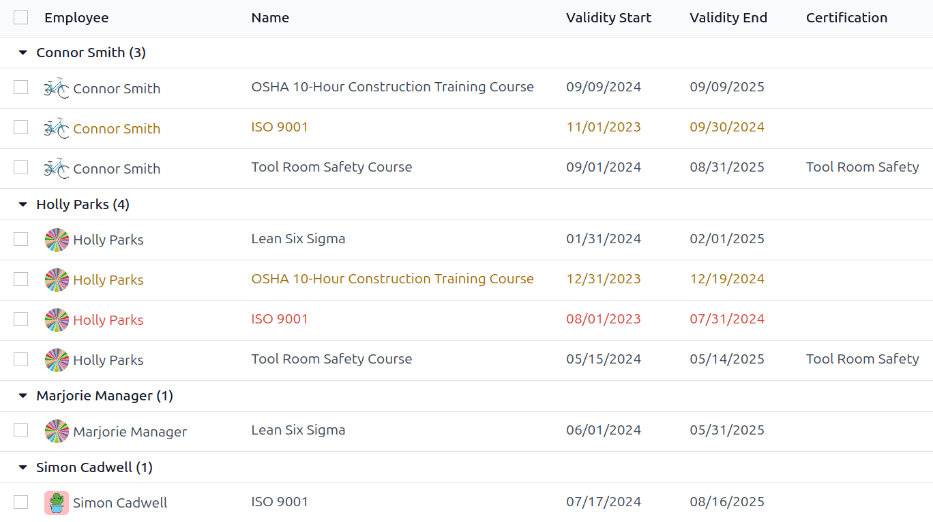
Wszystkie certyfikaty pojawiają się w widoku listy, pogrupowane według pracownika. Każdy wpis certyfikatu wyświetla następujące informacje:
Pracownik: imię i nazwisko pracownika wraz z jego zdjęciem awatara.
Nazwa: tytuł certyfikatu.
Validity Start: when the employee received the certification.
Validity End: when the certification expires.
Certification: the corresponding course in the Surveys app that was completed by the employee, if applicable.
The entries are also color-coded. Current certifications that are still valid appear in black, expired certifications appear in red, and certifications that are going to expire within the next 90 days appear in orange.
Ważne
Tylko rekordy certyfikatów z Typem wyświetlania ustawionym na Certyfikat w ich formularzu certyfikatu pojawiają się w raporcie Certyfikaty pracowników. Wszystkie inne certyfikaty pojawiają się w sekcji CV formularza pracownika.
Wyświetl certyfikaty według statusu ważności
Przy zarządzaniu dużą liczbą pracowników z różnymi certyfikatami może być trudno określić, którzy pracownicy muszą utrzymywać niezbędne certyfikaty aktualne w domyślnym widoku listy. W tym scenariuszu korzystne jest wyświetlanie certyfikatów według statusu ważności.
To do so, navigate to . Next, click the (Toggle Search Panel) icon in the search bar, then click Add Custom Group , revealing a drop-down menu. Click Expiration Status, then click away from the drop-down menu to close it.
After doing so, all the certifications are organized by status, starting with Expired certifications, then certifications that are Expiring soon (within the next 90 days), and lastly, certifications that are still Valid.
Filter certifications by expiration status to identify certifications expiring soon, and identify employees who must renew.

Zarejestruj certyfikat
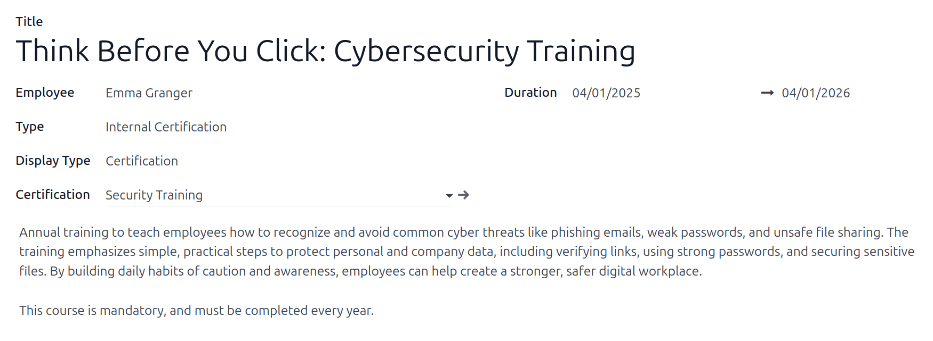
Aby zarejestrować certyfikat dla pracownika, przejdź do . Kliknij Nowy, a załaduje się pusty formularz certyfikatu. Wprowadź następujące informacje w formularzu:
Title: Enter a short description for the certification in this field.
Employee: Using the drop-down menu, select the employee who received the certification.
Type: Using the drop-down menu, select the type of certification received. This field determines where on the employee’s resume the certification appears. To create a new Type, enter the type in the field, then click Create [type].
The default options are:
Experience: Select this option to have the certification appear in the Experience section of the Resume tab on the employee form. Experience entries are typically previous jobs or internships.
Education: Select this option to have the certification appear in the Education section of the Resume tab on the employee form.
Social Media: Select this option to have the certification appear in the Social Media section of the Resume tab on the employee form. Social Media entries typically relate to certifications relating to digital marketing, social media management, and specific trainings from social media platforms.
Internal Certification: Select this option to have the certification appear in the Internal Certification section of the Resume tab on the employee form. Internal certifications entries are tied to courses, training, or programs created by the company, that once completed, have a certification associated with it.
Completed Internal Training: Select this option to have the certification appear in the Completed Internal Training section of the Resume tab on the employee form. Completed internal training entries are typically associated with trainings created by the company, for company-specific processes. These do not result in any certifications, but are logged on the employee profile to indicate completed training.
Display Type: Select the visibility of the certification in this field. The default options are:
Classic: Select this option to have the certification appear in the Resume section of the employee form, and not appear on the Employee Certifications report.
Certification: select this option to have the certification appear in the Resume section of the employee form, and appear on the Employee Certifications report. Once this is selected, a Certification field appears beneath the Display Type field. Using the drop-down menu, select the corresponding Surveys app certification the employee took. This field only appears if the Surveys app is installed.
Course: Select this option to have the certification appear in the Resume section of the employee form, and not appear on the Employee Certifications report. Once this option is selected, a Course field appears beneath the Display Type field. Using the drop-down menu, select the corresponding eLearning course the employee took. This field only appears if the eLearning app is installed.
Opis: W tym polu należy wprowadzić opis certyfikatu.
Czas trwania: Kliknij pierwsze pole, a pojawi się wyskakujące okienko kalendarza. Kliknij daty rozpoczęcia i zakończenia okresu ważności certyfikatu. Gdy wybrane zostaną prawidłowe daty, kliknij Zastosuj, a oba pola zostaną wypełnione.
Informacja
Gdy certyfikat zostanie zarejestrowany dla pracownika, nowy certyfikat tego samego typu (tj. Wykształcenie lub Certyfikat wewnętrzny) można dodać bezpośrednio z formularza pracownika, zamiast z konsoli Certyfikaty pracowników.
W głównej konsoli aplikacji Pracownicy kliknij profil pracownika, aby otworzyć jego formularz. Na karcie ŻYCIORYS kliknij przycisk DODAJ na końcu odpowiedniej linii certyfikacji.
Przycisk DODAJ pojawia się wyłącznie w profilach pracowników, którzy już posiadają certyfikat.