
الشهادات
When jobs require specific knowledge, it is necessary to track employee certifications to ensure the necessary knowledge and certifications are in place.
عندما تتطلب الوظائف معرفة محددة، تتبع شهادات الموظفين (مثل الدورات والاختبارات والندوات) للتحقق من المهارات المطلوبة. يقبل Odoo أي نوع من الشهادات دون قيود.
مهم
To add certifications to an employee profile, and to access the Employee Certifications report, the Surveys app must be installed.
عرض الشهادات
To view a full list of all employee certifications, navigate to .
تظهر جميع الشهادات في عرض قائمة، مجمعة حسب الموظف. يعرض كل إدخال شهادة ما يلي:
Employee: the employee's name, along with their avatar image.
Name: the title of the certification.
Validity Start: when the employee received the certification.
Validity End: when the certification expires.
Certification: the corresponding course in the Surveys app that was completed by the employee, if applicable.
The entries are also color-coded. Current certifications that are still valid appear in black, expired certifications appear in red, and certifications that are going to expire within the next 90 days appear in orange.

مهم
تظهر فقط سجلات الشهادات التي تم تعيين نوع العرض فيها على شهادة في نموذج الشهادة الخاص بها في تقرير شهادات الموظفين. تظهر جميع الشهادات الأخرى في قسم السيرة الذاتية من نموذج الموظف.
عرض الشهادات حسب حالة انتهاء الصلاحية
عند إدارة عدد كبير من الموظفين الذين لديهم مجموعة متنوعة من الشهادات، قد يكون من الصعب تحديد الموظفين الذين يحتاجون إلى إبقاء الشهادات الضرورية سارية في عرض القائمة الافتراضي. في هذا السيناريو، من المفيد عرض الشهادات حسب حالة انتهاء الصلاحية.
To do so, navigate to . Next, click the (Toggle Search Panel) icon in the search bar, then click Add Custom Group , revealing a drop-down menu. Click Expiration Status, then click away from the drop-down menu to close it.
After doing so, all the certifications are organized by status, starting with Expired certifications, then certifications that are Expiring soon (within the next 90 days), and lastly, certifications that are still Valid.
Filter certifications by expiration status to identify certifications expiring soon, and identify employees who must renew.

تسجيل شهادة
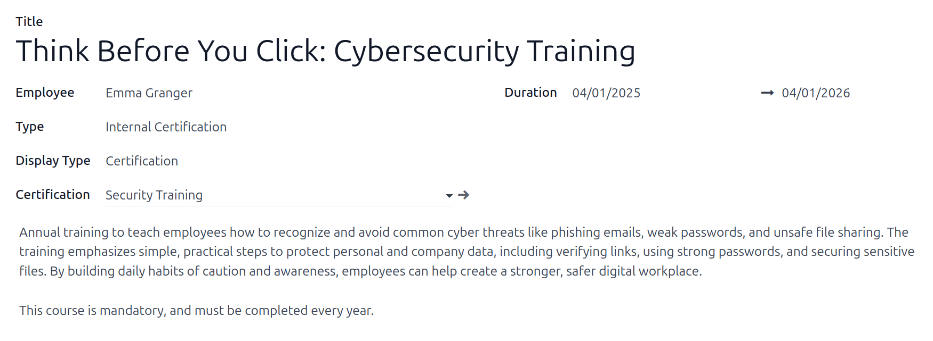
لتسجيل شهادة لموظف، انتقل إلى . انقر فوق جديد، ويتم تحميل نموذج شهادة فارغ. أدخل المعلومات التالية في النموذج:
Title: Enter a short description for the certification in this field.
Employee: Using the drop-down menu, select the employee who received the certification.
Type: Using the drop-down menu, select the type of certification received. This field determines where on the employee's resume the certification appears. To create a new Type, enter the type in the field, then click Create [type].
The default options are:
Experience: Select this option to have the certification appear in the Experience section of the Resume tab on the employee form. Experience entries are typically previous jobs or internships.
Education: Select this option to have the certification appear in the Education section of the Resume tab on the employee form.
Social Media: Select this option to have the certification appear in the Social Media section of the Resume tab on the employee form. Social Media entries typically relate to certifications relating to digital marketing, social media management, and specific trainings from social media platforms.
Internal Certification: Select this option to have the certification appear in the Internal Certification section of the Resume tab on the employee form. Internal certifications entries are tied to courses, training, or programs created by the company, that once completed, have a certification associated with it.
Completed Internal Training: Select this option to have the certification appear in the Completed Internal Training section of the Resume tab on the employee form. Completed internal training entries are typically associated with trainings created by the company, for company-specific processes. These do not result in any certifications, but are logged on the employee profile to indicate completed training.
Display Type: Select the visibility of the certification in this field. The default options are:
Classic: Select this option to have the certification appear in the Resume section of the employee form, and not appear on the Employee Certifications report.
Certification: select this option to have the certification appear in the Resume section of the employee form, and appear on the Employee Certifications report. Once this is selected, a Certification field appears beneath the Display Type field. Using the drop-down menu, select the corresponding Surveys app certification the employee took. This field only appears if the Surveys app is installed.
Course: Select this option to have the certification appear in the Resume section of the employee form, and not appear on the Employee Certifications report. Once this option is selected, a Course field appears beneath the Display Type field. Using the drop-down menu, select the corresponding eLearning course the employee took. This field only appears if the eLearning app is installed.
الوصف: أدخل وصفًا للشهادة في هذا الحقل.
المدة: انقر في الحقل الأول، وستظهر نافذة منبثقة للتقويم. انقر على تاريخي البدء والانتهاء لفترة صلاحية الشهادة. عند تحديد التواريخ الصحيحة، انقر تطبيق، وسيتم ملء الحقلين.
ملاحظة
بمجرد تسجيل شهادة لموظف، يمكن إضافة شهادة جديدة من نفس النوع (أي التعليم أو الشهادة الداخلية) مباشرة من نموذج الموظف، بدلاً من لوحة بيانات شهادات الموظفين.
في لوحة بيانات تطبيق الموظفون الرئيسية، انقر على ملف تعريف موظف لفتح نموذج الموظف الخاص به. في علامة التبويب السيرة الذاتية، انقر على زر إضافة في نهاية سطر الشهادة المقابل.
يظهر زر إضافة هذا فقط في ملفات تعريف الموظفين الذين لديهم شهادة بالفعل.