
Ein Modul erstellen
Bevor Sie Ihr erstes Modul erstellen, müssen Sie ein Odoo.sh-Projekt erstellen und die URL Ihres GitHub-Repositorys kennen.
Glossar
~/srcist das Verzeichnis, in dem sich die Git-Repositorys befinden, die mit Ihren Odoo-Projekten zusammenhängen.odooist der GitHub-Benutzer.odoo-addonsist das GitHub-Repository.feature-1ist der Name eines Entwicklungszweigs.mainist der Name des Produktionszweigs.my_moduleist der Name des Moduls.
Ersetzen Sie diese nach Bedarf.
Den Entwicklungszweig erstellen
In der Branches-Ansicht:
Klicken Sie im Branches-Navigationspanel auf die Schaltfläche + (Neuer Entwicklungsbranch) neben Development.
Wählen Sie unter Fork den Branch
mainaus.Geben Sie unter To
feature-1ein.

Sobald der Build fertig ist, können Sie auf den Editor und den Code Ihres Entwicklungsbranchs im Ordner ~/src/user zugreifen.
Klonen Sie Ihr GitHub-Repository auf Ihren Computer, indem Sie die folgenden Befehle ausführen:
mkdir ~/src
cd ~/src
git clone https://github.com/odoo/odoo-addons.git
cd ~/src/odoo-addons
Erstellen Sie einen neuen Branch, indem Sie Folgendes ausführen:
git checkout -b feature-1 main
Die Modulstruktur erstellen
Scaffolding
Auch wenn es nicht erforderlich ist, erspart Scaffolding die mühsame Einrichtung der grundlegenden Odoo-Modulstruktur. Sie können ein neues Modul mit der ausführbaren Datei odoo-bin erstellen.
Führen Sie im Editor-Terminal Folgendes aus:
odoo-bin scaffold my_module ~/src/user/
Führen Sie mit installiertem Odoo auf Ihrem Computer Folgendes aus:
./odoo-bin scaffold my_module ~/src/odoo-addons/
Tipp
Wenn Sie Odoo nicht auf Ihrem Computer installieren möchten, können Sie auch diese Modulstrukturvorlage herunterladen. Ersetzen Sie jedes Vorkommen von my_module durch den Namen Ihrer Wahl.
Die folgende Struktur wird generiert:
my_module
├── __init__.py
├── __manifest__.py
├── controllers
│   ├── __init__.py
│   └── controllers.py
├── demo
│   └── demo.xml
├── models
│   ├── __init__.py
│   └── models.py
├── security
│   ├── ir.model.access.csv
│   └── models.py
└── views
    ├── templates.xml
    └── views.xml
Warnung
Verwenden Sie beim Benennen Ihres Moduls nur alphanumerische Zeichen (a-z, 0-9) oder Unterstriche (_), da sein Name für Python-Klassen verwendet wird und Klassennamen mit anderen Sonderzeichen als Unterstrichen in Python nicht gültig sind.
Kommentieren Sie die folgenden Dateien aus:
models/models.pyein Beispiel für ein Modell mit seinen Feldernviews/views.xmleine Baum- und eine Formularansicht mit den Menüs, die sie öffnendemo/demo.xmlDemodatensätze für das Beispielmodellcontrollers/controllers.pyein Beispiel für einen Controller, der einige Routen implementiertviews/templates.xmlzwei QWeb-Beispielansichten, die von den Controller-Routen verwendet werden__manifest__.pydas Manifest Ihres Moduls, einschließlich Titel, Beschreibung und zu ladenden Datendateien. Kommentieren Sie die Datendatei für die Zugriffskontrollliste aus:# 'security/ir.model.access.csv',
Manuell
Um Ihre Modulstruktur manuell zu erstellen, folgen Sie dem Server framework 101-Tutorial, um die Struktur eines Moduls und den Inhalt jeder Datei zu verstehen.
Auf den Entwicklungszweig pushen
Stellen Sie die zu committenden Änderungen bereit, indem Sie Folgendes ausführen:
git add my_module
Committen Sie Ihre Änderungen, indem Sie Folgendes ausführen:
git commit -m "My first module"Pushen Sie Ihre Änderungen in Ihr Remote-Repository, indem Sie Folgendes ausführen:
Führen Sie im Editor-Terminal Folgendes aus:
git push https HEAD:feature-1
Führen Sie aus:
git push -u origin feature-1
Es ist nur beim ersten Pushen erforderlich,
-u origin feature-1anzugeben. Danach führen Sie aus:git push
Das Modul testen
Der Zweig sollte im Abschnitt Entwicklung des Navigationspanels Zweigansicht erscheinen.
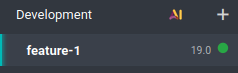
Klicken Sie auf den Zweignamen, um dessen Verlauf einschließlich der gerade gepushten Änderungen anzuzeigen. Sobald die Datenbank bereit ist, klicken Sie auf Verbinden, um darauf zuzugreifen.

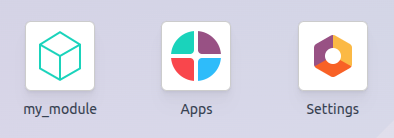
Wenn Ihr Odoo.sh-Projekt so konfiguriert ist, dass das Modul automatisch installiert wird, erscheint es direkt im Dashboard der Datenbank. Andernfalls steht es unter der App Apps zur Installation zur Verfügung.
Mit den Produktionsdaten testen
Bemerkung
Für diesen Schritt ist eine Produktionsdatenbank erforderlich. Wenn Sie noch keine haben, erstellen Sie eine.
Sobald Sie das Modul in einem Entwicklungsbuild mit den Demodaten getestet haben und glauben, dass es bereit ist, können Sie es mit den Produktionsdaten in einem Staging-Branch testen.
Sie können:
Ihren Entwicklungs-Branch in einen Staging-Branch konvertieren, indem Sie ihn per Drag-and-Drop in den Abschnitt Staging ziehen.
Ihn in einen vorhandenen Staging-Branch mergen, indem Sie ihn per Drag-and-Drop auf diesen Branch ziehen.
Den Befehl
git mergeverwenden, um Ihre Branches zu mergen.
Dadurch wird ein neuer Staging-Build erstellt, der die Produktionsdatenbank dupliziert und auf einem Server ausführt, der mit den neuesten Änderungen Ihres Branches aktualisiert wurde.
Sobald die Datenbank bereit ist, klicken Sie auf Verbinden, um darauf zuzugreifen.
Installieren Sie das Modul
Installieren Sie das Modul über die App Apps. Da das Modul möglicherweise nicht direkt in der Liste der Apps angezeigt wird, aktualisieren Sie die Liste der Apps, indem Sie den Entwicklermodus aktivieren und auf klicken.
Bemerkung
Das Modul wird nicht automatisch installiert, da der Zweck des Staging-Builds darin besteht, das Verhalten Ihrer Änderungen so zu testen, wie sie in der Produktionsdatenbank wären, sodass Sie nicht möchten, dass ein Modul automatisch installiert wird.
In Produktion einsetzen
Sobald Sie das Modul in einem Staging-Branch mit den Produktionsdaten getestet haben und glauben, dass es für die Produktion bereit ist, können Sie Ihren Branch in den Produktions-Branch mergen, indem Sie:
Den Staging-Branch per Drag-and-Drop auf den Produktions-Branch ziehen.
Den Befehl
git mergeverwenden, um Ihre Branches zu mergen.
Dadurch werden die neuesten Änderungen aus dem Staging-Branch in den Produktions-Branch gemergt und der Produktionsserver damit aktualisiert.
Sobald die Datenbank bereit ist, klicken Sie auf Verbinden, um darauf zuzugreifen.
Installieren Sie das Modul
Installieren Sie das Modul über die App Apps. Da das Modul möglicherweise nicht direkt in der Liste der Apps angezeigt wird, aktualisieren Sie die Liste der Apps, indem Sie den Entwicklermodus aktivieren und auf klicken.
Eine Änderung hinzufügen
Dieser Abschnitt erklärt, wie Sie eine Änderung in Ihrem Modul hinzufügen, indem Sie ein neues Feld in einem Modell hinzufügen und es bereitstellen.
Öffnen Sie im Editor oder von Ihrem Computer aus den Modulordner
~/src/odoo-addons/my_moduleund öffnen Sie dann die Dateimodels/models.py, um sie zu bearbeiten. Nach dem Beschreibungsfeld:description = fields.Text()
Fügen Sie ein Datetime-Feld hinzu:
start_datetime = fields.Datetime('Start time', default=lambda self: fields.Datetime.now())
Öffnen Sie die Datei
views/views.xmlund fügen Sie nach:<field name="value2"/>
hinzu:
<field name="start_datetime"/>
Diese Änderungen verändern die Datenbankstruktur, indem sie eine Spalte zu einer Tabelle hinzufügen und eine Ansicht modifizieren. Um auf eine bestehende Datenbank angewendet zu werden, wie etwa Ihre Produktionsdatenbank, erfordern diese Änderungen eine Aktualisierung des Moduls. Wenn Sie möchten, dass die Aktualisierung automatisch von der Odoo.sh-Plattform durchgeführt wird, wenn Sie Ihre Änderungen pushen, erhöhen Sie die Modulversion in ihrem Manifest, indem Sie
__manifest__.pyöffnen und ersetzen:'version': '0.1',
mit:
'version': '0.2',
Die Plattform erkennt eine Versionsänderung und löst die Modulaktualisierung bei der Bereitstellung der neuen Revision aus.
Als Nächstes pushen Sie die Änderungen.
Sobald Sie Ihre Änderungen getestet haben, können Sie sie in den Produktionszweig zusammenführen, beispielsweise indem Sie den Zweig per Drag-and-Drop auf den Produktionszweig in der Odoo.sh-Oberfläche ziehen. Da Sie die Modulversion im Manifest erhöht haben, wird die Plattform das Modul automatisch aktualisieren und Ihr neues Feld wird sofort verfügbar sein. Andernfalls können Sie das Modul manuell in der App-Liste aktualisieren.
Eine externe Python-Bibliothek verwenden
Wenn Sie eine externe Python-Bibliothek verwenden möchten, die nicht standardmäßig installiert ist, können Sie eine Datei requirements.txt definieren, die die externen Bibliotheken auflistet, von denen Ihre Module abhängen. Die Plattform verwendet diese Datei, um automatisch die Python-Bibliotheken zu installieren, die Ihr Projekt benötigt.
Bemerkung
Es ist nicht möglich, Systempakete auf Odoo.sh-Datenbanken zu installieren oder zu aktualisieren (z. B. apt-Pakete). Unter bestimmten Bedingungen können jedoch Pakete zur Installation in Betracht gezogen werden. Dies gilt auch für Python-Module, die Systempakete zur Kompilierung benötigen, und für Odoo-Module von Drittanbietern.
PostgreSQL-Erweiterungen werden auf Odoo.sh nicht unterstützt, daher ist es nicht möglich, Erweiterungen (wie PostGIS, ltree, …) in Odoo.sh-Datenbanken zu installieren.
Um beispielsweise die Unidecode-Bibliothek in Ihrem Modul zu verwenden:
Erstellen Sie eine Datei
requirements.txtim Stammordner Ihres Repositorys:Erstellen und öffnen Sie im Odoo.sh-Editor die Datei
~/src/user/requirements.txt.Erstellen und öffnen Sie auf Ihrem Computer die Datei
~/src/odoo-addons/requirements.txt.
Fügen Sie der Datei hinzu:
unidecode
Sie können die Bibliothek jetzt in Ihrem Modul verwenden, beispielsweise um Akzente von Zeichen im Namensfeld Ihres Modells zu entfernen. Öffnen Sie dazu die Datei
models/models.pyund vor:from odoo import models, fields, api
hinzu:
from unidecode import unidecode
Danach:
start_datetime = fields.Datetime('Start time', default=lambda self: fields.Datetime.now())
hinzu:
@api.model
def create(self, values):
    if 'name' in values:
        values['name'] = unidecode(values['name'])
    return super(my_module, self).create(values)

def write(self, values):
    if 'name' in values:
        values['name'] = unidecode(values['name'])
    return super(my_module, self).write(values)
Erhöhen Sie die Modulversion, um die Python-Abhängigkeit zu installieren, indem Sie das Modul-Manifest
__manifest__.pybearbeiten.Dann pushen Sie die Änderungen.
Tipp
Stagen Sie die Datei
requirements.txt, indem Siegit add requirements.txtausführen.