
México
Módulos
Los siguientes módulos se instalan automáticamente con la localización mexicana:
Nombre |
Nombre técnico |
Descripción |
|---|---|---|
México - Contabilidad |
|
El paquete de localización fiscal predeterminado añade características contables para la localización mexicana, como: los impuestos más comunes y el plan de cuentas, basado en el código agrupador de cuentas del SAT. |
EDI para México |
|
Incluye todos los requisitos técnicos y funcionales para generar y validar documentos electrónicos —basados en la documentación técnica publicada por el SAT. Esto te permite enviar facturas (con o sin adendas) y complementos de pago al gobierno. |
Informes de la localización mexicana de Odoo |
|
Adapta informes para la contabilidad electrónica de México: plan de cuentas, balanza de comprobación y DIOT. |
México - Balanza de comprobación mes 13 |
|
Necesario para crear el asiento de cierre (también conocido como movimiento del mes 13). |
Exportación en XML de pólizas mexicanas de Odoo |
|
Permite la exportación de archivos XML de asientos contables para una auditoría obligatoria. |
Los siguientes módulos son opcionales. Se recomienda instalarlos solo si se cumple un requisito específico para el negocio.
Nombre |
Nombre técnico |
Descripción |
|---|---|---|
EDI para México (funciones avanzadas) |
|
Añade el complemento de comercio exterior a las facturas (un requisito legal para vender productos a países extranjeros). |
México - Guía electrónica de entrega |
|
Le permite crear una Carta Porte: es un conocimiento de embarque que le prueba al gobierno que está enviando bienes entre A&B con un documento electrónico firmado. |
Localización mexicana de Odoo para las existencias y el embarque |
|
Permite gestionar los números de identificación comercial (NICO) relacionados con los costes de embarque en documentos electrónicos. |
Campos CFDI 4.0 para órdenes de venta |
|
Agrega campos adicionales al módulo de Ventas para cumplir con la Facturación Electrónica Mexicana |
Localización Mexicana para el Punto de Venta |
|
Agrega campos adicionales al módulo de Punto de venta para cumplir con la Facturación Electrónica Mexicana |
Localización Mexicana para Comercio Electrónico |
|
Agrega campos adicionales al módulo de Comercio electrónico para cumplir con los requisitos de facturación electrónica mexicana |
Empleados - México |
|
Añade campos adicionales a la aplicación Empleados para cumplir con la información local de los empleados. |
México - Nómina con contabilidad |
|
Añade las reglas y parámetros necesarios para gestionar el cálculo de nómina local con la aplicación Nómina. |
Tutoriales en video
También hay videos disponibles sobre la localización mexicana. Los flujos de trabajo básicos y la mayoría de los temas cubiertos en esta página también están disponibles en formato de video, consulta lo siguiente:
Descripción general de la localización
Los módulos de localización mexicana de Odoo permiten la firma de facturas electrónicas, de acuerdo con las especificaciones del SAT para la versión 4.0 del CFDI, un requisito legal desde el 1 de enero de 2022. Estos módulos también agregan informes contables relevantes, incluyendo la DIOT, habilitan el comercio exterior y permiten la creación de guías de entrega.
Nota
Para firmar electrónicamente cualquier documento en Odoo, debe estar instalada la aplicación Firma electrónica.
Requerimientos
Es necesario que cumpla los siguientes requisitos antes de configurar los módulos de localización mexicana en Odoo:
Estar registrado en el SAT con un RFC válido.
Tener un Certificado de Sello Digital (CSD).
Elegir un PAC. Actualmente, Odoo trabaja con los siguientes PACs: Solución Factible, Quadrum y SW Sapien - Smarter Web.
Empresa
Después de instalar los módulos correctos, el siguiente paso es verificar que la empresa esté configurada con los datos correctos. Para hacerlo, ve a y selecciona la compañía a configurar.
Ingresa la Dirección completa en el formulario resultante, incluyendo: código Postal, Estado, País y RFC (número de Identificación fiscal).
Según los requisitos del CFDI 4.0, el nombre del contacto principal de la empresa debe coincidir con la razón social registrada en el SAT, sin la abreviatura de la entidad legal. Lo mismo aplica para el código Postal.
Importante
Desde un punto de vista legal, las empresas mexicanas deben usar la moneda local (MXN). Para usar otra moneda, deja MXN como la moneda predeterminada y usa una lista de precios en su lugar.
A continuación, ve a y desplázate a la sección Facturación electrónica MX. Bajo Servicio de Administración Tributaria (SAT), selecciona el Régimen fiscal que aplique a la empresa desde la lista desplegable y haz clic en Guardar.
Truco
Para probar la localización mexicana, configura la empresa con una dirección real dentro de México (incluyendo todos los campos). Añade EKU9003173C9 como Tax ID y ESCUELA KEMPER URGATE como Company Name. Para el Fiscal Regime, usa General de Ley Personas Morales.
Contactos
Nota
Instala la aplicación Contactos para acceder a los registros de contactos.
Para crear un contacto que se pueda facturar, ve a . A continuación, introduce el nombre del contacto, la Dirección completa incluyendo el código ZIP, el Estado, el País y el RFC (ID fiscal).
Importante
Al igual que con tu propia empresa, todos los contactos deben tener su razón social correcta registrada en el SAT. Esto también se aplica al Régimen fiscal, que debe añadirse en la pestaña Ventas y compras.
Advertencia
Tener un RFC (Tax ID) configurado pero sin un Country establecido puede resultar en facturas incorrectas.
Impuestos
Para firmar facturas correctamente, configura los campos Factor Type y Tax Object en los impuestos de ventas.
Tipo factor
Tanto el campo Tipo de impuesto SAT como el de Tipo de factor están precargados en los impuestos predeterminados. Si se crean nuevos impuestos, estos campos deben establecerse. Para hacerlo, ve a , y luego completa ambos campos en la pestaña Opciones avanzadas para todos los registros de impuestos, con el Tipo de impuesto establecido como Ventas.
Odoo admite cuatro grupos de Tipos de impuestos SAT: IVA, ISR, IEPS y Local.
Truco
México trabaja con dos tipos diferentes de IVA 0% para amoldarse a dos escenarios:
Para IVA del 0 %, establece el Tipo de factor como Tasa
Para IVA exento, establece el Tipo de factor como Exento
Objeto de impuestos
Un requisito del CFDI 4.0 es que el archivo XML resultante maneje el desglose de impuestos de la operación de acuerdo con la normativa. Hay tres valores posibles diferentes que se añaden en el archivo XML:
01: Not subject to tax: This value is added automatically if the invoice line doesn’t contain any taxes.02: Subject to tax: This is the default configuration of any invoice line that contains taxes.03: Subject to tax and not forced to break down: This value can be triggered on demand for certain customers to replace the value02.
To use the 03 value for a contact, navigate to the contact’s Sales & Purchase tab, and
activate the No Tax Breakdown checkbox under the Fiscal Information section.
Importante
El valor Sin desglose de impuestos aplica solo a algunos regímenes fiscales o impuestos específicos. Le recomendamos que consulte a su contador antes de hacer cualquier modificación, así sabrá si es necesario para su negocio.
Otras configuraciones fiscales
La localización mexicana utiliza impuestos en base a efectivo. Al registrar un pago, Odoo realiza el movimiento de impuestos desde la Cuenta de transición de base de efectivo a la cuenta establecida en la pestaña Definición del registro de impuesto configurado en la línea de factura o recibo. Para dicho movimiento, se utiliza una cuenta base de impuesto: (899.01.99 Base Imponible de Impuestos en Base a Flujo de Efectivo) en el asiento contable al reclasificar impuestos. No elimines esta cuenta.
Productos
To configure products, go to , then select a product to configure, or Create a new one. In the Accounting tab, in the UNSPSC Product Category field, select the category that represents the product. The process can be done manually, or through a bulk import.
Nota
Todos los productos necesitan tener un código SAT asociado para evitar errores de validación.
Facturación electrónica
Credenciales del proveedor autorizado de certificación
Después de procesar tu Clave privada (CSD) con el SAT, debes registrarte directamente con el PAC de tu elección antes de empezar a crear facturas desde Odoo.
Una vez que hayas creado tu cuenta con cualquiera de estos proveedores, ve a y navega a la sección Facturación electrónica MX. En la sección Proveedor autorizado de certificación (PAC), introduce el nombre de tu PAC con tus credenciales (Nombre de usuario PAC y Contraseña PAC).

Truco
Para probar la facturación electrónica sin credenciales, activa la casilla Entorno de prueba PAC MX, y selecciona Solucion Factible como el PAC. No se requiere añadir un nombre de usuario o contraseña para un entorno de prueba.
Certificados .cer y .key
Los certificados digitales de la empresa deben cargarse en la sección Certificados. Para ello, navega a .
En Gestiona tus certificados, haz clic en el enlace Claves para acceder a la vista de lista de Claves. Haz clic en Crear, carga el archivo digital de Clave (archivo .key), añade un Nombre a la clave e introduce la Contraseña de clave privada.
Desde , selecciona Certificados para acceder a la vista de lista de Certificado. Haz clic en Crear, carga el Certificado digital (archivo .cer), añade un Nombre al certificado y selecciona la Clave privada creada en el paso anterior del menú desplegable.
Nota
Los campos Contraseña del certificado y Clave pública en los registros de Certificado son opcionales.
Truco
Para probar la facturación electrónica, se proporcionan los siguientes certificados de prueba SAT:
Contraseña:
12345678a
Contabilidad
Facturación electrónica
El proceso de facturación en Odoo está basado en la versión 4.0 del Anexo 20 de la facturación electrónica del SAT.
Facturas de cliente
Es necesario que cree una factura de cliente con el flujo de facturación estándar para comenzar a facturar desde Odoo.
Puede realizar cualquier modificación necesaria si el documento se encuentra en modo borrador. Por ejemplo, puede agregar la forma de pago adecuada o el uso correspondiente que el cliente podría necesitar.
Después de hacer clic en Confirmar en la factura de cliente, haz clic en el botón Enviar para procesar la factura con el gobierno. Asegúrate de que la casilla CFDI esté marcada.
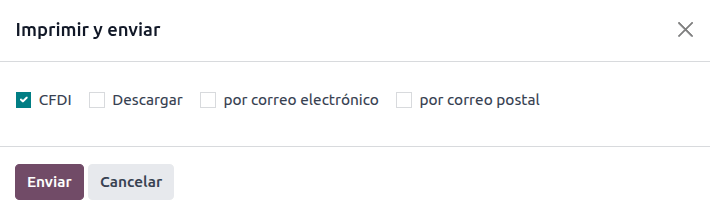
Después de recibir el documento firmado del gobierno, el campo Folio fiscal aparece en el documento y el archivo XML aparece tanto en la pestaña CFDI como adjunto en el chatter.
Si se configura una dirección de correo electrónico en el registro de contacto del cliente, al marcar las casillas por correo electrónico y CFDI se envían juntos los archivos XML y PDF.
Para descargar el archivo PDF localmente, haz clic en el botón Imprimir.
Truco
Al hacer clic en Actualizar SAT, el campo Estado SAT en la factura confirmará si el archivo XML está Validado en el SAT.
En un entorno de prueba, siempre aparecerá el mensaje No encontrado.
Notas de crédito
El tipo de documento de una factura es «I» (Ingreso), el de una nota de crédito es «E» (Egreso).
Lo único que cambia para el flujo estándar de las notas de crédito es que, como requisito del SAT, debe haber una relación entre una nota de crédito y una factura mediante el folio fiscal.
Debido a este requisito, el campo Origen del CFDI agrega esta relación mediante 01|, seguido del folio fiscal de la factura original.
Truco
Utilice el botón Agregar nota de crédito que se encuentra en la factura en lugar de crearla de forma manual, así el campo Origen del CFDI se agregará en automático.
Pagos
Política de pago
Una adición de la localización mexicana es el campo Política de pago. Según la documentación del SAT, existen dos tipos de pagos:
PUE (Pago en una Sola Exhibición)
PPD (Pago en Parcialidades o Diferido)
The difference lies in the Due Date or Términos de pago y planes de pago a plazos of the invoice.
To configure PUE invoices, navigate to , and either select an invoice Due Date within the same month, or choose Payment terms that do not imply changing the due month (i.e., Immediate Payment, or 15 Days or 21 Days, as long as they fall within the current month).

Vaya a para configurar facturas para configurar facturas PPD. Allí, elija una factura con la fecha de vencimiento después del primer día del siguiente mes. Esto también aplica si sus condiciones de pago vencen el siguiente mes.
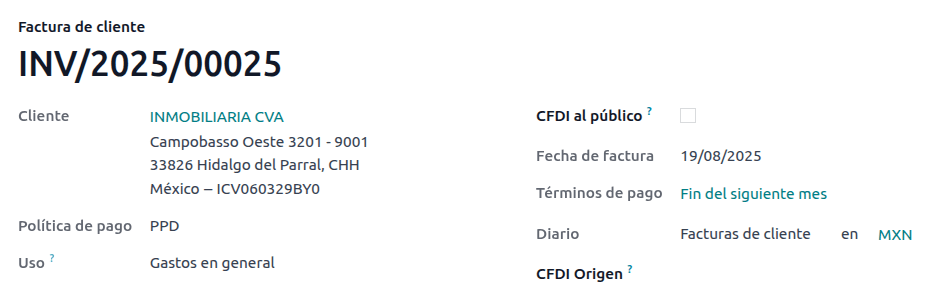
Flujo de pago
En ambos casos, el proceso de pago en Odoo es el mismo. La principal diferencia es que los pagos relacionados con facturas PPD, por ley, deben enviarse al gobierno como un tipo de documento «P» (Pago).
Si un pago está relacionado con una factura PUE, puede registrarse a través de la ventana emergente de pago y asociarse con la factura correspondiente. Para hacerlo, navega a y selecciona una factura. Luego, haz clic en el botón Pagar para abrir la ventana emergente de pago, establece la Forma de pago y cualquier otro campo, y haz clic en Crear pago.
Ver también
Si bien este proceso es el mismo para las facturas PPD, la adición de crear un documento electrónico significa que se necesitan algunos requisitos adicionales para enviar correctamente el documento al SAT.
Desde una perspectiva legal, las facturas PPD deben incluir la Forma de pago específica con la que se recibió el pago. Debido a esto, el campo Forma de pago no puede establecerse como Por definir, por lo que el campo se volverá invisible al seleccionarlo.
Nota
Si se requiere un número de cuenta bancaria, añádelo en la pestaña Contabilidad del registro de contacto del cliente.
Las forma de configuración exacta se encuentra en el Anexo 20 del SAT. Por lo general, la cuenta bancaria debe tener 10 o 18 dígitos para las transferencias y 16 para las tarjetas de crédito o débito.
Si un pago totalmente conciliado está relacionado con una factura que tiene un Folio fiscal, aparece Actualizar pagos. Haz clic en el botón Actualizar pagos para enviar automáticamente el archivo XML del complemento de pago al gobierno y mostrarlo en la pestaña CFDI tanto en la factura como en el pago.
Truco
Aunque es una mala práctica fiscal, los pagos PUE también pueden enviarse al gobierno. Sin embargo, es necesario hacer clic en Forzar CFDI en la pestaña CFDI para esto.
Similar to an invoice or credit note, the PDF and XML can be sent to the final customer. To do so, click the (gear) icon to open the actions drop-down menu and select Send receipt by email.
Cancelar facturas
Es posible cancelar los documentos EDI que envió al SAT. Según la Reforma Fiscal 2022, desde el 1 de enero de 2022 existen dos requisitos para ello:
Todas las solicitudes de cancelación requieren un motivo de cancelación.
Después de 24 horas desde la creación de la factura, se debe solicitar al cliente que apruebe la cancelación. Si no hay respuesta en 72 horas, la cancelación se procesa automáticamente.
Las cancelaciones de facturas se pueden realizar por uno de los siguientes motivos:
01 - Factura emitida con errores (con documento relacionado)
02 - Factura emitida con errores (sin reemplazo)
03 - La operación no se llevó a cabo
04 - Operación nominativa relacionada con la factura global
Para iniciar una cancelación, ve a , selecciona la factura publicada a cancelar y haz clic en Solicitar cancelación. Luego, consulta las secciones Motivo de cancelación 01 o Motivos de cancelación 02, 03 y 04, según el motivo de cancelación.
Truco
Alternativamente, solicita una cancelación desde la pestaña CFDI haciendo clic en Cancelar en la línea del elemento.
Nota
Si se solicita una cancelación en un período bloqueado, el CFDI se cancelará pero no el asiento contable.
Si el cliente rechaza la cancelación, la línea de cancelación de la factura se elimina de la pestaña CFDI.
Motivo de cancelación 01
En la ventana emergente Solicitar cancelación de CFDI, selecciona 01 - Factura emitida con errores (con documento relacionado) del campo Motivo y haz clic en Crear factura de reemplazo para crear un nuevo borrador de factura. Este nuevo borrador de factura reemplaza la factura anterior, junto con el CFDI relacionado.
Confirma el borrador y envía la factura.
Regresa a la factura inicial (es decir, la factura desde la cual solicitaste la cancelación por primera vez). Observa que aparece el campo Sustituido por con una referencia a la nueva factura de reemplazo.
Haz clic en Solicitar cancelación. En la ventana emergente Solicitar cancelación de CFDI, la opción 01 - Factura emitida con errores (con documento relacionado) se selecciona automáticamente en el campo Motivo.
Haz clic en Confirmar.
La cancelación de la factura se genera entonces con una línea de motivo en la pestaña CFDI.

Nota
Al usar el motivo de cancelación 01 - Factura emitida con errores (con documento relacionado), aparece el prefijo 04| en el campo Folio fiscal. Este es un prefijo interno utilizado por Odoo para completar la cancelación y no significa que el motivo de cancelación fue 04 - Operación nominativa relacionada con la factura global.
Motivos de cancelación 02, 03 y 04
En la ventana emergente Solicitar cancelación de CFDI, selecciona el Motivo de cancelación deseado y Confirma la cancelación.
Al hacerlo, la cancelación de la factura se genera con una línea de motivo en la pestaña CFDI.
Nota
Si el Estado SAT vuelve a Validado, podría deberse a una de estas tres razones:
The invoice is labeled as No Cancelable in the SAT Website. due to the fact that it has a valid related document: Either another invoice linked with the CFDI Origin field or a Payment Complemement. If so, you need to cancel any other related document first.
La solicitud de cancelación aún está siendo procesada por el SAT. Si es así, espera unos minutos e inténtalo de nuevo.
El cliente final necesita rechazar o aceptar la solicitud de cancelación en su Buzón Tributario. Esto puede tardar hasta 72 horas y, en caso de que la solicitud de cancelación sea rechazada, necesitarás repetir el proceso nuevamente.
Para los motivos de cancelación 02, 03 y 04, el botón Crear factura de reemplazo se reemplaza por un botón Confirmar que solicita la cancelación inmediatamente.
Tanto el Estado actual como el Motivo de cancelación se pueden encontrar en la pestaña CFDI.

Cancelaciones de pago
Para cancelar complementos de pago, ve a la pestaña CFDI de la factura relacionada y haz clic en Cancelar en la línea del complemento de pago.
Al igual que con las facturas, ve al pago y haz clic en Actualizar SAT para cambiar el Estado SAT y el Estado a Cancelado.
Nota
Just like invoices, when creating a new payment complement, you can add the relation of the
original document, by adding a 04| plus the fiscal folio in the CFDI Origin field.
This action cancels the invoice and marks the Reason as 01 - Invoice
issued with errors (with related document).
Facturación de casos de uso especial
Multidivisa
La moneda principal en México es MXN. Si bien esto es obligatorio para todas las empresas mexicanas, es posible enviar y recibir facturas (y pagos) en diferentes monedas. Para habilitar el uso de multimoneda, ve a y establece [MX] Banco de México como el servicio en la sección tasas de cambio automáticas. Luego, establece el campo intervalo a la frecuencia con la que deseas actualizar los tipos de cambio.
De esta manera, en el archivo XML del documento aparecerá el tipo de cambio correcto y el importe total tanto en la divisa extranjera como en MXN.
Se recomienda encarecidamente usar cuentas bancarias separadas para cada moneda.
Nota
Las únicas monedas que actualizan automáticamente su tipo de cambio diariamente son: USD, EUR, GBP, JPY y CNY.
Descuentos
Por ley, los documentos electrónicos enviados al gobierno no pueden tener líneas negativas, ya que esto puede generar errores. Por lo tanto, al usar tarjetas de regalo o programas de fidelización, las líneas negativas subsecuentes se traducirán en el XML como si fueran descuentos regulares.
Para configurar esto, navega a y crea un producto Descuentos, asegúrate de que tenga un Impuesto válido (generalmente IVA al 16%).
After this, create and sign the invoice via CFDI, and add the Discounts product at the bottom. In the XML
the discount should be subtracted from the first invoice line available, Odoo will try to subtract
from each line the total amount in order until all the discount has been applied.
Truco
Se debe crear un Descuento y una Categoría de producto UNSPSC para cada variante de producto relacionada con Tarjetas de regalo o Programas de fidelización.
Anticipos
A common practice in Mexico is the usage of down payments. It’s usage primarily consists of cases where you receive a payment for a good or service where either the product or the price (or both) hasn’t been determinated at the moment.
The SAT allows two diferent ways to handle this process: both of them involve linking all invoices to each other with the CFDI Origin field.
Nota
Para este proceso, debe estar instalada la aplicación Ventas.
Configuración
Primero, navega a para crear un producto Anticipo y configurarlo. El Tipo de producto debe ser Servicio, y usa la Categoría UNSPSC 84111506 Servicios de facturación.
Después, vaya a y agregue Anticipo como producto predeterminado.
Método A
Este método consiste en crear una factura de anticipo, crear una factura por el importe total y, finalmente, crear una nota de crédito por el total del anticipo.
Primero, crea un pedido de venta con el importe total y crea un anticipo a partir de él (usando un porcentaje o un importe fijo). Luego, firma el documento mediante CFDI y registra el pago.
Cuando llegue el momento de que el cliente reciba la factura final, créala nuevamente desde el mismo pedido de venta. En la ventana emergente Crear factura, selecciona Factura regular. Asegúrate de eliminar la línea que contiene el producto Anticipo.
Truco
Al usar anticipos con la localización mexicana, asegúrate de que la Política de facturación de los productos sea Cantidades pedidas. De lo contrario, se creará una nota de crédito de cliente.
Then, copy the Fiscal Folio from the down payment invoice, and paste it into the
CDFI Origin of the final invoice, adding the prefix 07| before the value and sign
the document via CFDI.
Finally, create a credit note for the first invoice. Copy the Fiscal Folio from the
final invoice, and paste it in the CFDI Origin of the credit note, adding the prefix
07|. Then, sign the document via CFDI.
Con esto, todos los documentos electrónicos están vinculados entre sí. El último paso es pagar completamente la nueva factura. En la parte inferior de la nueva factura, puedes encontrar la nota de crédito en Créditos pendientes - añádela como pago. Finalmente, registra el importe restante con la ventana emergente Pagar.
En el pedido de venta, los tres documentos deberían aparecer como «En pago».
Método B
Otra forma más sencilla de cumplir con los requisitos del SAT implica crear solo la factura de anticipo y una segunda factura por el remanente. Este método implica el hecho de que las líneas negativas se tratan como descuentos.
Para esto, sigue el mismo proceso que el Método A, hasta la creación de la factura final. No elimines la línea que contiene el Anticipo y, en su lugar, renombra la Descripción de los otros productos para incluir el texto CFDI por remanente de un anticipo. No olvides añadir el Folio fiscal de la factura de anticipo en el Origen CDFI de la factura final, añadiendo el prefijo 07|.
Finally, sign the final invoice via CFDI.
Lector XML
En ciertas ocasiones, como cuando creas facturas en otro software o directamente en el SAT, querrás subir las facturas en Odoo. El lector XML te permite recuperar los datos de un archivo XML. Para hacer esto, ve a y, en la vista de lista, haz clic en el botón Subir para seleccionar cualquier número de archivos XML, y se crearán automáticamente facturas en borrador. Esto también puede funcionar arrastrando los archivos desde tu ordenador y soltándolos en la vista.
Las facturas en borrador recuperarán la Información del cliente (si no existe, se crearán nuevos), las Líneas de producto (solo si ya existen productos con el mismo nombre) y calcularán todos los impuestos y campos adicionales exclusivos de la localización mexicana. La información de importación aparecerá en el chatter.
Advertencia
Dependiendo de dónde se creó la factura, los archivos XML podrían tener valores diferentes del total calculado en Odoo. Siempre verifica dos veces cualquier documento subido de esta manera.
Las Facturas de cliente creadas de esta manera podrán crear complementos de pago y ser canceladas en cualquier momento. Si usas el botón Imprimir, el documento PDF tendrá toda la información correspondiente.
Esto también se puede hacer para las Facturas de proveedor.
Truco
To retrieve the Fiscal Folio, drag and drop XML files for already created draft invoices.
CFDI al público
El gobierno mexicano requiere que cualquier bien o servicio que se venda debe estar respaldado por una factura. Si el cliente no requiere una factura o no tiene RFC, se debe crear un CFDI al Público también conocido como factura «nominativa».
A contact must be created and it must have a particular name. If the CFDI to Public checkbox in either a sales order or an invoice is checked, the final XML will override the data in the invoice contact and will add the following characteristics:
RFC: XAXX010101000 si es un cliente nacional o XEXX010101000 si es un cliente extranjero
Código postal: El mismo código de la empresa
Uso: S01 - Sin Efectos Fiscales

Importante
If your contact Country is empty, the final invoice is considered as a CFDI to Public for national customers. A non-blocking warning will be displayed before signing the document.
Si el cliente final no comparte ningún detalle, crea un Cliente genérico. El nombre no puede ser PUBLICO EN GENERAL o se activará un error (puede ser, por ejemplo, CLIENTE FINAL).
Factura global
Si al final de cierto período de tiempo (que puede variar de diario a bimestral, dependiendo de las necesidades legales y preferencias de tu empresa) y el cliente todavía tiene ventas que no fueron marcadas como facturas regulares o facturas individuales de CFDI al Público, el SAT permite la creación de una sola factura que puede contener todas las operaciones, conocida como factura global.
Nota
Para este proceso, debe estar instalada la aplicación Ventas.
Ver también
Flujo de ventas
Primero, es necesario crear un Diario especial en con el propósito de mantener una secuencia separada.
Luego, asegúrate de que todos los pedidos de venta que necesiten ser firmados tengan las siguientes configuraciones:
casilla CFDI al público activada
Estado de facturación marcado como A facturar
Después de esto, ve a , selecciona todos los pedidos de venta relevantes y pulsa Crear facturas. Asegúrate de desactivar la casilla Facturación consolidada y haz clic en Crear factura borrador.
Odoo te redirigirá a una lista de facturas. Selecciónalas todas y en el menú desplegable Acciones selecciona Publicar asientos. Selecciona de nuevo todas las facturas publicadas y vuelve al menú desplegable Acciones para seleccionar Crear factura global.
En el asistente, selecciona la Periodicidad indicada por un contador profesional y pulsa Crear. Todas las facturas deben ser firmadas bajo el mismo archivo XML, con el mismo Folio fiscal.
Truco
Haz clic en Mostrar en la pestaña CFDI para mostrar una lista con todas las facturas relacionadas.
Haz clic en Cancelar en la pestaña CFDI para cancelar la factura global tanto en el SAT como en Odoo.
Nota
Las facturas globales creadas de esta manera no tendrán un PDF ya que su información ya está dentro de Odoo y no debe ser vista por un cliente.
Contabilidad electrónica (reportes)
En Mexico, la contabilidad electrónica se refiere a la obligación de llevar los registros y asientos contables a través de medios electrónicos y de ingresar mensualmente la información contable en el sitio web del SAT.
Consta de tres archivos XML principales:
La lista actualizada del plan de cuentas que está actualmente en uso
Una balanza de comprobación mensual, más un reporte de asiento de cierre, también conocido como: Balanza de comprobación Mes 13
Una exportación de los asientos contables en el libro mayor (opcional excepto en caso de una auditoría obligatoria)
El archivo XML que se genera cumple con los requisitos del Anexo Técnico de Contabilidad Electrónica 1.3.
Además de esto, es posible generar el DIOT: un reporte de los asientos contables de proveedores que involucran impuestos IVA que puede ser exportado en un archivo TXT.
Nota
Para usar estos reportes, los siguientes módulos deben estar instalados:
Odoo Mexican Localization Reports
l10n_mx_reportsMexico - Month 13 Trial Balance
l10n_mx_reports_closingExportación de pólizas XML mexicanas de Odoo
l10n_mx_xml_polizas
Los informes de plan de cuentas y balance de comprobación mes 13 se encuentran en . El informe DIOT se encuentra en .
Importante
Las características y obligaciones específicas de los informes que envíe pueden cambiar de acuerdo a su régimen fiscal. Consulte a su contador antes de enviar cualquier documento al gobierno.
Plan contable
El plan de cuentas en México sigue un patrón específico basado en el SAT’s” Código agrupador de cuentas.
Es posible crear cualquier cuenta, siempre que respete el grupo de codificación del SAT: el patrón es NNN.YY.ZZ o NNN.YY.ZZZ.
Example
Algunos ejemplos son 102.01.99 o 401.01.001.
Cuando se crea una nueva cuenta en , con el patrón de grupo de codificación del SAT, el código de agrupación correcto aparece en Etiquetas, y la cuenta aparece en el informe COA.
Una vez creadas todas las cuentas, asegúrate de añadir las Etiquetas correctas, ya que marcan la naturaleza de la cuenta.
Nota
No se recomienda usar ningún patrón que termine una sección con 0 (como 100.01.01, 301.00.003 o 604.77.00). Esto genera errores en el informe. De forma predeterminada, Odoo marcará las cuentas en amarillo si la numeración causará problemas más adelante, esto es para evitar que los informes proporcionen datos inexactos.
Una vez configurado todo, ve a , y haz clic en el botón COA SAT (XML) para generar un archivo XML que contenga todas las cuentas. Este archivo XML está listo para subirse al sitio web del SAT.
Balance de comprobación
La balanza de comprobación es un informe del balance inicial, el crédito y el balance total de sus cuentas que se genera si agrega correctamente su grupo de codificación.
Para generar un archivo XML del balance de comprobación, ve a , selecciona la fecha y haz clic en (menú de acción), luego selecciona SAT (XML).

Nota
Odoo no genera la Balanza de Comprobación Complementaria.
Mes 13
Un informe adicional es el Mes 13: un balance de cierre que muestra cualquier ajuste o movimiento realizado en la contabilidad para cerrar el año.
Para generar este documento XML, navega a , y crea un nuevo documento. Aquí, añade todos los importes a modificar y balancea el débito y/o crédito de cada uno.
Una vez hecho esto, ve a la pestaña Otra información y marca el campo Cierre mes 13. Si es necesario, ve a y selecciona la fecha Mes 13, donde es posible ver el importe total del año, más todas las adiciones del asiento contable. Para generar el archivo XML, haz clic en (menú de acción), luego selecciona SAT (XML).
Libro mayor
Por ley, todas las transacciones en México deben registrarse digitalmente. Como Odoo crea automáticamente todos los asientos contables subyacentes de todas las facturas y pagos, simplemente exportar el libro mayor cumple con las auditorías del SAT y/o devoluciones de impuestos.
Truco
El informe se puede filtrar por período o por diario, dependiendo de la necesidad.
Para crear el XML, ve a , haz clic en (menú de acción), luego haz clic en XML (Pólizas). Luego, selecciona entre cuatro tipos de Exportación:
Auditoría de impuestos
Certificación de auditoría
Devolución de bienes
Compensación
Para Auditoría fiscal o Certificación de auditoría, añade el Número de orden proporcionado por el SAT. Para Devolución de bienes o Compensación, añade el Número de proceso, también proporcionado por el SAT.
Nota
Para ver este informe sin enviarlo, usa ABC6987654/99 para el Número de orden o AB123451234512 para el Número de proceso.
Informe DIOT
El DIOT (Declaración Informativa de Operaciones con Terceros) es una obligación adicional con el SAT, donde se proporciona al SAT el estado actual de los pagos acreditables y no acreditables, retenciones, impuestos de importación y devoluciones de IVA de tus facturas de proveedor.
Nota
Desde julio de 2025 está disponible la nueva versión 2025 del informe.
A diferencia de otros informes, el DIOT se carga en un software proporcionado por el SAT que contiene el formulario A-29. En Odoo, puedes descargar los registros de tus transacciones como un archivo TXT que puede cargarse en el formulario, evitando la captura directa de estos datos.
El archivo de transacciones contiene el importe total de sus pagos registrados en las facturas de proveedor desglosados en los tipos correspondientes de IVA. Los campos NIIF y País son obligatorios para todos los proveedores.
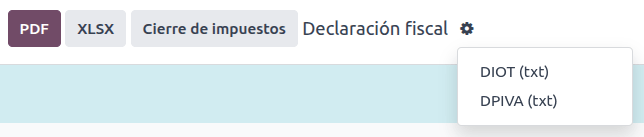
Para descargar el informe DIOT como un archivo TXT, ve a . Selecciona el mes deseado, haz clic en (menú de acción) y selecciona DIOT (TXT).
Importante
Es necesario rellenar el campo Tipo de operación en la pestaña Contabilidad de cada proveedor para evitar errores de validación. Asegúrate de que los clientes extranjeros tengan configurado su País.

Seleccionar 87 - Operaciones globales hará que el archivo TXT final combine todos los proveedores que forman parte de las operaciones globales bajo un RFC genérico: XAXX010101000.
Comercio exterior
La factura de comercio exterior es un complemento para una factura regular que agrega algunos valores al XML y el PDF para las facturas de un cliente extranjero de acuerdo con los reglamentos del SAT. Entre estos valores se encuentran:
La dirección específica del destinatario y el remitente.
La adición de una fracción arancelaria que identifica el tipo de producto.
El Incoterms correcto (Términos de Comercio Internacional)
Y más, como el certificado de origen y las unidades de medida especiales
Esto permite identificar de forma correcta a los exportadores e importadores, además de ampliar la descripción de la mercancía vendida.
Desde el 1 de enero de 2018, el comercio exterior es un requisito para los contribuyentes que realizan operaciones de exportación de tipo A1. Aunque el CFDI actual es 4.0, el comercio exterior está actualmente en la versión 2.0.
Nota
Para usar esta función, debe estar instalado el módulo EDI para México (funciones avanzadas) l10n_mx_edi_extended.
Importante
Asegúrese de que su negocio necesita utilizar esta función antes de instalarlos. Le recomendamos que primero consulte a su contador antes de instalar cualquier modulo.
Configuración
Contactos
Para configurar el contacto de tu empresa para comercio exterior, ve a , elimina el filtro predeterminado Facturas de cliente y selecciona el nombre de tu Empresa. Mientras que los requisitos del CFDI 4.0 requieren agregar un Código postal válido en el registro de contacto de la empresa, el complemento de comercio exterior añade el requisito de que la Ciudad y el Estado también deben ser válidos. Los tres campos deben coincidir con el Catálogo Oficial del SAT para Carta Porte, o producirá un error.
Advertencia
Agrega la Ciudad y el Estado en el registro de contacto de la empresa, no en el registro de la empresa en sí.
En el registro de contacto, los campos opcionales Localidad y Código de colonia también se pueden rellenar. Estos dos campos también deben coincidir con los datos del SAT.
Para configurar los datos de contacto de un cliente receptor extranjero, vaya a y seleccione el contacto del cliente extranjero. Este contacto debe tener los siguientes campos completos para evitar errores:
La dirección completa de la empresa, con un código postal válido y el país extranjero.
El RFC extranjero (número de identificación fiscal), en el formato correcto (por ejemplo: Colombia
123456789-1)En la pestaña Ventas y compra, activar la casilla ¿Necesita comercio exterior?.
Importante
No habilites la opción Sin desglose de impuestos para clientes de Comercio Exterior. Seleccionar esta opción oculta campos obligatorios que son necesarios para la configuración de contactos de comercio exterior.
Nota
En los archivos XML y PDF resultantes, el NIF se sustituye de manera automática por un NIF genérico para transacciones al extranjero: XEXX010101000.
Productos
Todos los productos involucrados en comercio exterior tienen cuatro campos adicionales que son obligatorios, dos de los cuales son exclusivos del comercio exterior.
La Referencia del producto debe configurarse en la pestaña Información general.
El Peso del producto en la pestaña Inventario debe ser mayor que
0.La correcta Fracción Arancelaria del producto debe establecerse en la pestaña Contabilidad para el comercio exterior.
La UMT Aduana en la pestaña Contabilidad debe estar configurada y corresponder a la Fracción Arancelaria para el comercio exterior.

Truco
Si el código de UdM de la fracción arancelaria es
01, la UMT Aduana correcta eskg.Si el código de UdM de la fracción arancelaria es
06, la UMT Aduana correcta esUnidades.
Flujo de facturación
Antes de crear una factura, es importante tener en cuenta que las facturas de comercio exterior requieren convertir los precios de los productos a una moneda extranjera como USD. Por lo tanto, la multimoneda debe estar habilitada con la moneda extranjera activada en la sección Monedas. El Servicio correcto a ejecutar es [MX] Banco de México. Para convertir los precios de los productos, crea una tarifa de precios en la moneda extranjera.
Luego, con el tipo de cambio correcto configurado en , establece el Incoterm y el campo opcional Certificado de Origen en la pestaña Otra Información de la factura.
Finalmente, confirma la factura con el mismo proceso que una factura normal y haz clic en el botón Enviar para firmarla vía CFDI.
Punto de venta
La adaptación del Punto de venta de la localización mexicana permite la creación de facturas que cumplen con los requisitos del SAT directamente en la sesión de TPV, con el beneficio adicional de crear tickets de recibo que permiten la autofacturación en un portal especial y la creación de facturas globales.
Flujo del punto de venta
Además de la configuración estándar del Punto de venta, el único requisito para la localización mexicana es el hecho adicional de que cada método de pago debe configurarse con una Forma de pago correcta.
Truco
Por defecto, Odoo crea métodos de pago preconfigurados para efectivo, tarjeta de crédito y tarjeta de débito.
Al vender en el Punto de Venta, haz clic en el botón Cliente para crear o seleccionar un cliente. Aquí es posible revisar la información de facturación del cliente (como el RFC o el Régimen Fiscal) e incluso modificarla directamente dentro de la sesión.
Después de seleccionar un cliente, marca la casilla Factura. Esto abre un menú para seleccionar el Uso y definir si es una factura al público. Haz clic en confirmar, selecciona el método de pago y luego haz clic en validar para completar el pedido. El PDF se descarga entonces y es posible enviar la factura por correo al cliente final junto con el recibo.
Truco
Para crear facturas desde pedidos, ve al menú Pedidos, selecciona el pedido, haz clic en Cargar Pedido y marca la casilla Factura. Esto abre el mismo menú para el Uso y CFDI al Público.
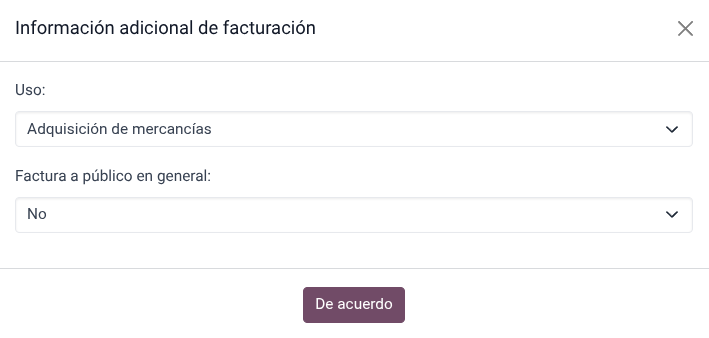
Para firmar una nota de crédito automáticamente, marca la casilla Factura al procesar un reembolso.
Nota
Las notas de crédito para productos devueltos contendrán el tipo de relación 03 - Devolución de mercancía sobre facturas o traslados previos.
Importante
En la localización mexicana, no se pueden mezclar líneas positivas y negativas en una sesión de TPV.
Si ocurre un error de validación del SAT, el cliente recibirá una factura proforma en su lugar.
Portal de autofacturación
Si el cliente final no está seguro de querer que su factura se genere en el momento exacto de la venta, es posible darle la opción de crear un recibo con un código QR o una URL. Para hacerlo, sigue estos pasos:
Ve a .
Selecciona el Punto de Venta.
Desplázate a la sección Facturas y Recibos.
Habilita Autofacturación.
Configura el campo Imprimir como Código QR, URL o Código QR + URL.
Los clientes que escaneen este código QR o sigan la URL accederán a un menú donde podrán agregar su información fiscal, incluyendo el Uso y el Régimen fiscal una vez que ingresen el código de cinco dígitos que también se proporciona en el recibo.
Ver también
Factura global
Al igual que con los pedidos de venta regulares, también se pueden crear facturas globales desde una sesión de TPV.
Para ello, asegúrate de no seleccionar un cliente ni la opción de factura en el menú de pago y ve a . Allí, selecciona todos los pedidos a facturar, haz clic en Acciones y selecciona Crear factura global.
Al igual que con los pedidos de venta, elige la Periodicidad correcta y presiona Crear.
Esto adjunta un archivo XML a cada uno de los pedidos seleccionados. Los archivos XML se pueden descargar yendo a la pestaña CFDI. Si es necesario, es posible cancelar la factura desde la misma pestaña.
Si finalmente alguno de los pedidos que forman parte de la factura global necesita dirigirse a un cliente, aún es posible enviar una factura ingresando a una nueva sesión de TPV, haciendo clic en (menú desplegable), luego haz clic en Pedidos. Cambia el filtro Todos los pedidos activos a Pagado, selecciona el pedido y haz clic en el botón Factura.
Nota
Las facturas globales, al igual que las facturas regulares, solo se pueden agrupar por dirección física. Esto está determinado por la dirección configurada en el diario de facturas del TPV, por lo que al intentar facturar dos direcciones aparecerá una advertencia para informar al usuario del error.
Comercio electrónico
La adaptación del comercio electrónico de la localización mexicana proporciona un paso adicional para crear facturas que cumplan con los requisitos del SAT en Comercio electrónico al recuperar los datos del cliente después del pago e incluso permitir la firma de facturas automáticas después de que se procesa el pago, así como enviar a los clientes los archivos por correo electrónico y concederles acceso para recuperar sus archivos PDF y XML desde su propio portal de cliente.
Flujo de comercio electrónico
Durante el proceso de pago regular, aparece un nuevo paso Información de facturación, donde es posible solicitar una factura o no. Si se selecciona No, se crea un CFDI al público. Si se selecciona Sí, se requieren el RFC, el Régimen fiscal y el Uso para obtener toda la información en el pedido de venta, donde su estado cambiará a Por facturar.
Importante
Asegúrate de agregar un código UNSPSC al producto de envío.
Si habilitas la Facturación automática en , el documento electrónico se firmará automáticamente.
Suscripciones
Al manejar suscripciones, todos los campos de ventas se utilizan para crear las facturas recurrentes. Estas se firman automáticamente y se envían por correo electrónico con el PDF y el XML adjuntos sin acciones manuales adicionales requeridas.
Inventario
Números de pedimento
Una declaración aduanera (Pedimento Aduanero) es un documento fiscal que certifica que todas las contribuciones a la entidad fiscal (el SAT) han sido pagadas, incluyendo la importación/exportación de mercancías.
Según el Anexo 20 del CFDI 4.0, en documentos donde las mercancías facturadas provienen de una operación de importación de primera mano, el campo Número de aduana debe añadirse a todas las líneas de productos involucrados en la operación.
Nota
Para ello, debe instalarse el módulo Odoo Mexico Localization for Stock/Landing l10n_mx_edi_landing, además de las aplicaciones Inventario, Compra y Ventas.
Importante
No debe confundir esta función con comercio externo. Los números de pedimento están directamente relacionados con la importación de bienes, mientras que el comercio externo está relacionado con las exportaciones. Consulte con su contador primero si necesita esta función antes de hacer cualquier modificación.
Configuración
Para rastrear el número de aduana correcto para una factura específica, Odoo utiliza costes en destino. Ve a , y en la sección Valoración, asegúrate de que Costes en destino esté activado.
Comienza creando un producto tipo servicio llamado Pedimento. En la pestaña Compra, activa Es un coste en destino y selecciona un Método de división predeterminado.
Luego, configura los productos tipo mercancías que contengan los números de aduana. Para ello, crea los productos y asegúrate de que la Categoría de producto tenga la siguiente configuración:
Método de coste: debe ser FIFO o AVCO
Valoración del inventario: Automático
Cuenta de valoración de existencias: 115.01.01 Inventario
Diario de las existencias: Valoración del inventario
Cuenta de entrada de existencias: 115.05.01 Mercancías en tránsito
Cuenta de salida de existencias: 115.05.01 Mercancías en tránsito
Nota
Configurar la Valoración de inventario como Automatizada requiere primero activar la función. Ve a , y en la sección Valoración de stock, activa Contabilidad automática.


Flujo de compra y ventas
Después de configurar el producto, sigue el flujo de compra estándar.
Crea un pedido de compra desde . Luego, confirma el pedido para mostrar un botón inteligente Recepción. Haz clic en el botón inteligente Recepción y valida la recepción.
Ve a , y crea un nuevo registro. En Transferencia, añade el albarán que acabas de validar, añade el Número de aduana y en la pestaña Costes adicionales, añade el producto Pedimento.
Opcionalmente, es posible añadir un importe de coste. Después de esto, Valida el coste en destino. Una vez Publicado, todos los productos relacionados con ese albarán tienen el número de aduana asignado.
Advertencia
El campo Número de pedimento no es editable una vez establecido, así que ten cuidado al asociar el número correcto con la(s) transferencia(s).

A continuación, crea un pedido de venta y confírmalo. Haz clic en el botón inteligente Entrega que aparece y Valida la orden de entrega.
Finalmente, crea una factura desde el pedido de venta, y confírmala. La línea de factura relacionada con el producto tiene un número de aduana. Este número coincide con el número de aduana añadido en el registro de coste en destino creado anteriormente.

Guía de entrega
Una Carta Porte es una guía de embarque, es decir, un documento que indica el tipo, cantidad y destino de las mercancías que se transportan.
El 17 de julio de 2024, se implementó la versión 3.1 de este CFDI para todos los proveedores de transporte, intermediarios y propietarios de mercancías. Odoo puede generar un documento tipo «T» (Traslado), que, a diferencia de otros documentos, se crea en una orden de entrega en lugar de una factura o pago.
Odoo puede crear archivos XML y PDF con (o sin) transporte terrestre y puede procesar materiales etiquetados como Peligrosos.
Nota
Para utilizar esta función, debe instalarse el módulo Mexico - Electronic Delivery Guide l10n_mx_edi_stock.
Además, es necesario tener instaladas las aplicaciones Inventario y Ventas.
Importante
Odoo no es compatible con la Carta Porte tipo «I» (Ingreso), transporte marítimo o aéreo. Consulte con su contador primero si necesita esta función antes de hacer cualquier modificación.
Configuración
Odoo gestiona dos tipos diferentes de CFDI tipo «T». Ambos pueden crearse desde recepciones de envío u órdenes de entrega.
Sin carreteras federales se utiliza cuando la Distancia al destino es menor a 30 km.
Transporte federal se utiliza cuando la Distancia al destino supera los 30 km.
Aparte de los requisitos estándar de la facturación normal (el RFC del cliente, el código UNSPSC, etc.), si estás usando No Federal Highways, no se necesita ninguna configuración externa.
Para Transporte Federal, se deben agregar varias configuraciones a contactos, configuraciones de vehículos y productos. Estas configuraciones se incluyen luego en los archivos XML y PDF.
Contactos y vehículos
Al igual que la función de comercio exterior, la Dirección tanto de la empresa como del cliente final debe estar completa. El código Postal, la Ciudad y el Estado deben coincidir con el Catálogo Oficial del SAT para Carta Porte.
Truco
El campo entidad federativa es opcional para ambas direcciones.
Importante
La dirección de origen utilizada para la guía de entrega se establece en . Aunque está configurada como la dirección de la empresa de forma predeterminada, puedes cambiarla a la dirección correcta de tu almacén.
Otra adición a esta función es el menú Configuraciones de vehículos que se encuentra en . Este menú te permite añadir toda la información relacionada con el vehículo utilizado para la orden de entrega.
Es obligatorio que complete todos los campos para crear una guía de entrega completa.
Truco
Los campos Matrícula del vehículo y Placa deben contener entre 5 y 7 caracteres.
En la sección Intermediarios, añade el operador del vehículo. Los únicos campos obligatorios para este contacto son el IVA y la Licencia de operador.

Productos
Como con cualquier otra factura normal, todos los productos deben tener una categoría UNSPSC. Además, hay dos ajustes adicionales para los productos que se incluyen en las guías de entrega:
El Tipo de producto debe estar establecido como Producto almacenable para los movimientos de existencias que se creen.
En la pestaña Inventario, el campo Peso debe ser mayor que
0.
Advertencia
Crear una guía de entrega de un producto con el valor 0 generará un error. Como el Peso ya ha sido almacenado en la orden de entrega, es necesario devolver los productos y crear la orden de entrega (y la guía de entrega) de nuevo con las cantidades correctas.
Flujo de ventas e inventario
Para crear una guía de entrega, primero crea y confirma un pedido de venta desde . Haz clic en el botón inteligente Entrega que se genera, y Valida la transferencia.
Después de que el estado se establece como Hecho, puedes editar la transferencia y seleccionar el Tipo de transporte en la pestaña Información adicional.
Si utilizas el Tipo de transporte Sin carreteras federales, guarda la transferencia y luego haz clic en Generar guía de entrega. El XML resultante se puede encontrar en el chatter.
Nota
Aparte del UNSPSC en todos los productos, las guías de entrega que usan No Federal Highways no requieren ninguna configuración especial para ser enviadas al gobierno.
Si usas el Transporte federal como Tipo de transporte, aparece la pestaña MX EDI. Allí, introduce un valor en Distancia al destino (KM) mayor que 0, y selecciona la Configuración del vehículo utilizada para esta entrega.
Finalmente, añade un Peso bruto del vehículo y haz clic en Generar guía de entrega.
Truco
Las guías de entrega también se pueden crear desde Recepciones, ya sea desde la aplicación Inventario o mediante el flujo estándar de la aplicación Compra.
Materiales peligrosos
Algunos valores dentro de las categorías UNSPSC se consideran peligrosos de acuerdo al catálogo oficial del SAT. Estas categorías necesitan consideraciones adicionales al momento de crear una guía de envío tipo Transporte por carretera federal.
Primero, selecciona el producto desde . Luego, en la pestaña Contabilidad, completa los campos Código de designación de material peligroso y Embalaje peligroso con el código correcto del catálogo SAT.

Importante
Existe la posibilidad de que una Categoría UNSPSC pueda o no ser un peligro peligroso (por ejemplo 01010101). Si no es peligrosa, introduce 0 en el campo Código de designación de material peligroso.
En , completa bien el Asegurador medioambiental y la Póliza de seguro medioambiental. Después de esto, continúa con el proceso normal para crear una guía de entrega.
Importaciones y exportaciones
Si tu Carta Porte es para operaciones internacionales (exportaciones), se deben tener en cuenta algunos campos adicionales.
Primero, asegúrate de que todos los Productos relevantes tengan la siguiente configuración:
Categoría UNSPSC no puede ser 01010101 No existe en el catálogo.
Fracción arancelaria y UMT Aduana deben estar configurados, similar al flujo de comercio exterior.
Tipo de material debe estar configurado.
Luego, al crear una Guía de entrega desde una entrega o recepción, completa los siguientes campos:
Regímenes aduaneros
Tipo de documento aduanero
Identificación de documento aduanero
Luego, al crear una Guía de entrega para una recepción donde el Tipo de documento de aduana es Pedimento, aparecen dos nuevos campos: Número de pedimento e Importador.
Truco
El campo Número de pedimento debe seguir el patrón xx xx xxxx xxxxxxx. Por ejemplo, 15 48 3009 0001235.