
Arbetsgodkännanden och övertid
Odoos Närvaro-app kräver ledningsövervakning för att säkerställa att all loggad närvaro är korrekt, särskilt övertidstimmar och ofullständiga arbetspass.
Ledningsdashboard
Alla närvarohandlingar som kräver godkännande, vanligtvis på grund av överlappande arbetsposter eller icke godkänd ledighet, hanteras från en centraliserad ledningsdashboard. För att komma åt detta, navigera till .
Ledning-dashboarden visar endast närvarohandlingar för aktuella anställda som behöver godkännas, i en standardlistvy. Detta beror på de två standardfiltren i sökfältet, Att godkänna och Aktiva anställda.
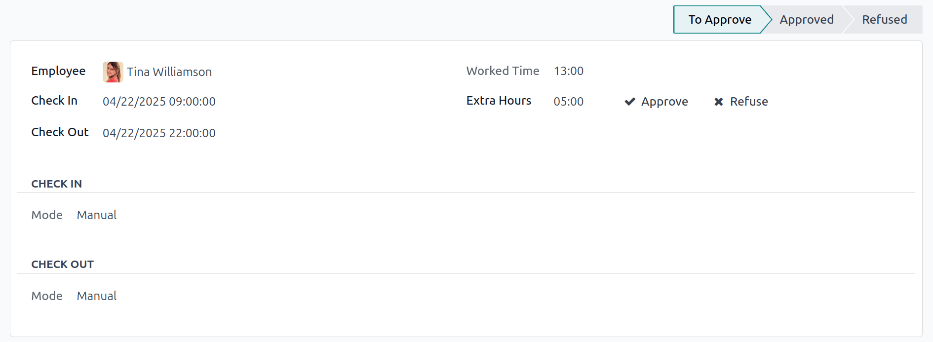
Varje närvarohandling visar följande information:
Anställd: Namnet på den anställde.
Incheckning: Datum och tid då den anställde checkade in.
Checka ut: Datum och tid när den anställda checkade ut.
Worked Time: Antalet arbetade timmar som den anställda loggade.
Worked Extra Hours: Mängden övertid som arbetats.
Extra Hours: Totalt antal godkända extratimmar.

Godkännanden och avvisanden
Närvarohandlingar kan godkännas och avvisas direkt från ledningsdashboarden. Längst till höger på varje handling visas Godkänn- och Avvisa-knappar. Klicka på motsvarande knapp för att antingen godkänna eller avvisa den loggade närvarohandlingen.
Observera
När närvarohandlingar godkänns eller avvisas från Ledning-dashboarden är det inte möjligt att visa detaljerna för närvarohandlingen.
Partiella godkännanden
Det är möjligt att godkänna en del av de loggade Extratimmar och inte hela beloppet. För att godkänna endast en del av övertiden, klicka på en närvarohandling för att visa detaljerna.
Den övre halvan av posten visar specifika in- och utcheckningsuppgifter, inklusive den metod som använts. Informationen för Checka in och Checka ut i den övre halvan av formuläret kan ändras vid behov. Klicka i önskat fält och gör nödvändiga ändringar.
Den nedre halvan av formuläret innehåller fliken Overtime Details. Denna flik listar de övertidsregler som använts för att beräkna extratimmarna, tillsammans med lönesats och status. Extratimmarna som listas i denna flik kan ändras, vilket möjliggör partiellt godkännande av övertid.
Klicka i Extra Hours (encoded)-fältet på raden som ändras. Ange antalet timmar som godkänns i formatet HH:MM, klicka sedan på Avvisa i slutet av raden.
Efter redigering och godkännande av Extra Hours (encoded)-fältet ändras statusen till Approved, och Extra Hours-fältet i den övre halvan av formuläret uppdateras för att visa den godkända övertiden.
Viktigt
När partiell övertid har godkänts är det fortfarande möjligt att neka övertid genom att klicka på -ikonen bredvid Extra Hours-fältet i den övre halvan av formuläret, eller genom att klicka på Avvisa i slutet av övertidsposten i fliken Overtime Details.
Observera
Ibland kan det vara nödvändigt att verifiera en anställds plats vid incheckning. Metoden som den anställde checkade in på arbetet med finns på den individuella handlingen, i fältet Läge.
Läge-fältet kan inte ändras, eftersom det endast loggar metoden som närvaroposten skapades med.
Möjliga optioner är:
Kiosk: Den anställda checkade fysiskt in eller ut med hjälp av en kiosk-enhet. Den anställda var närvarande vid kiosken för att checka in.
Aktivitetsfält: Den anställda checkade in eller ut direkt från databasen. Beroende på den IP-adress som visas på den detaljerade närvaroposten kan den anställdas plats vid incheckningstillfället fastställas.
Manual: Posten skapades manuellt i Attendances-appen. Detta görs vanligtvis av ledningen för att lägga till en saknad post.
Konvertera övertid till ledighet
Vissa företag tillåter konvertering av övertid till ledighet. För att konvertera all eller en del av övertiden till ledighet, navigera till . Klicka på önskad närvaropost för att visa specifika närvarodetaljer.
I fliken Overtime Details justerar du mängden övertid som ska konverteras till ledighet i Extra Hours (encoded)-fältet, om det behövs. Klicka sedan i kryssrutan i kolumnen Compensable as Time Off, vilket indikerar att övertiden ska konverteras till ledighet. Klicka på Avvisa i slutet av raden, och statusen ändras till Approved, och Extra Hours-fältet i den övre halvan av formuläret uppdateras för att återspegla den godkända övertiden.

Skapa närvarohandlingar
Vid behov kan användare med erforderlig åtkomstbehörighet skapa närvarohandlingar manuellt i Närvaro-appen. Några situationer som kräver detta är när anställda glömmer att checka in och ut för arbetspass, eftersom anställda inte kan skapa närvarohandlingar retroaktivt.
För att lägga till en saknad närvaropost, navigera till . Klicka på knappen New i det övre vänstra hörnet för att öppna ett Create-popup-fönster. Ange följande information i formuläret och klicka sedan på Save & Close:
Anställd: Välj den anställda som posten skapas för. Den inloggade användaren fyller i detta fält som standard.
Checka in: Använd kalendern för att välja incheckningsdatum och tid, klicka sedan på Tillämpa. Som standard är aktuellt datum valt och tiden är inställd på
12:00:AM.Checka ut: Använd kalendern för att välja utcheckningsdatum och tid, klicka sedan på Tillämpa. Som standard är följande datum valt och tiden är inställd på
12:00:AM.Arbetstid: Detta fält fylls automatiskt i med skillnaden från den valda Checka in- och Checka ut-tiden. Detta fält kan inte ändras.
Extra timmar: Detta fält är inte redigerbart eftersom övertid måste godkännas. Detta fält visar noll (
00:00) som standard.
