
지원자 불합격 처리하기
채용 과정에서 어느 지점에서든 지원자는 해당 직무에 불합격이 될 수 있습니다.
지원자를 거절하려면 먼저 채용 앱에서 지원자의 카드로 이동합니다. 다음 두 가지 방법 중 하나로 수행할 수 있습니다:
Open the main Job Positions dashboard by navigating to . Next, click on the desired job position card, then click on the individual applicant card from the Applications page.
로 이동합니다. 지원서 목록에서 원하는 지원자의 내역에 있는 아무 곳이나 클릭하면 지원자 카드가 열립니다.
지원자 카드 상단에는 여러 개의 버튼이 있습니다. 불합격 표시된 버튼을 클릭합니다.
불합격 사유
채용 담당자는 불합격 사유 를 통해 지원자가 적합하지 않은 이유를 문서화하고 지원자에게 구체적인 불합격 사유 이메일 템플릿을 지원자에게 보낼 수 있습니다.
Clicking Refuse on an applicant’s form makes the Refuse Reason pop-up window appear.
The default refuse reasons in Odoo, and their corresponding refusal email templates, are:
이메일 서식 |
거절 사유 |
|---|---|
채용: 불합격 |
직무 요건에 부합하지 않음
이미 채용이 완료됨
중복
스팸
|
채용: 더 이상 관심 없음 |
지원자 측 거절: 직무 적합성
지원자 측 거절: 급여
|
Additional refusal reasons can be created, and existing ones can be modified (or deleted).
불합격 사유 생성 또는 수정하기
To view and configure refuse reasons, navigate to . Doing so reveals the Refuse Reasons page, where all the existing refusal reasons are listed.
To create a new refuse reason from the Refuse Reasons page, click the New button. A blank line appears at the bottom of the list, with an empty field present in the Description column.
해당 필드에 새로운 불합격 사유를 입력합니다. ‘오퍼 만료’, ‘지원 철회’ 등 짧고 간결하게 사유를 입력하는 것이 좋습니다.
Then, click in the Email Template field to reveal a drop-down menu. Select the desired email template from the list to be used when the new refuse reason is selected.
If a new email template is desired, type in the name for the new template in the field. Then, click Create and edit…, and a Create Email Template pop-up window appears.
The Template Name field is populated with the name entered in the Email Template column by default, but can be modified if desired. Enter the email Subject in the corresponding field, and add the email content in the Body tab. To include attachments, click the Options tab, and add the attachment using the Attachments button. To assign an Owner for the template, select a user in the drop-down menu. Enter a Template Description in the corresponding field.
Click Save, and Odoo returns to the Refuse Reasons list.
새 불합격 사유 이메일 템플릿 필드에 새 템플릿이 표시됩니다.
참고
Odoo의 사전 설정된 채용 불합격 이메일 템플릿에서는 이메일 본문에 있는 지원자 기록에 개인화된 자리 표시자인 동적 자리 표시자를 사용하여 데이터가 입력됩니다.
For example, if the applicant’s name is used in a dynamic placeholder, the applicant’s name appears anytime that dynamic placeholder appears on the email template.
이메일 템플릿에 대한 자세한 내용은 이메일 서식 문서를 참조하세요.
불합격 이메일 보내기
After clicking the Refuse button on an applicant form, a refuse reason is selected from the Refuse Reason pop-up window.
The applicant’s email address automatically populates the Applicant field. The Subject and email body are populated according to the corresponding email
To send the refusal email to the applicant, click Refuse at the bottom of the Refuse Reason pop-up window. The refusal email is sent to the applicant, and a red Refused banner appears on the applicant’s card in the corner.
팁
If an application should be refused but an email should not be sent (if, for example, the application was spam), click the Send Email toggle to deactivate it, and click Refuse at the bottom of the Refuse Reason pop-up window.

Refuse duplicate applicant
Occasionally, applicants apply multiple times for the same job position. When this occurs, it is possible to refuse all their applications at once, instead of individually.
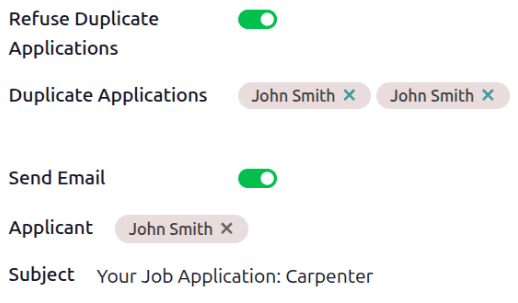
In this situation, a Refuse Duplicate Applications toggle appears on the Refuse Reason pop-up window. Enable the toggle, and a Duplicate Applications field appears beneath it, listing the applicant’s name for each duplicate application in the system.
To refuse all applications for that applicant, click the Refuse button.
The applicant is only sent one email, and all their applications for the job position are marked as Refused.
불합격한 지원자 보기
After refusal, the applicant’s card is hidden by default. However, it is still possible to view applicants who have been refused by job position, or view all refused applicants.
By job position
To view the refused applicants for a specific job position, navigate to , then click the desired job position Kanban card.
On the Applications page, click the (Toggle Search Panel) button in the search bar, then click Refused in the Filters column.
All applicants that have been refused for the job position appear in the stage they were in when they were refused, and all other applicants are hidden.

All refused applicants
To view all refused applicants across all job positions, navigate to . Every applicant record is displayed in a default list view.
Click the (Toggle Search Panel) button in the search bar, then click Refused in the Filters column.
All applicants that have been refused appear, with the text in red. Along with the applicant’s Name, the date they Applied on, the Job Position, Stage they were in when refused, their Matching percentage, any Tags, and the Recruiter responsible for the job position are listed.
