
문서 서명하기
상황에 따라 다음에 서명해야 할 수 있습니다:
단일 문서 또는여러 문서의 봉투(귀하 또는 다른 사람이Odoo 서명을 사용하여 전자 서명을 위해 준비한것), 또는
송신자가전자 서명용으로 준비하지 않은
.pdf문서 하나 이상
Odoo 전자 서명 앱으로 준비된 문서에 서명하기
Odoo서명을 사용하여 준비된문서에는 서명자가 작성해야 할 정보를 나타내는 일련의 필드가 포함되어 있습니다.
참고
색상 배경이 있는 필드는 필수이며, 점선 테두리와 흰색 배경이 있는 필드는 선택 사항입니다.자동 완성되고 읽기 전용으로 설정된 필드는 실선 테두리와 흰색 배경을 가지며, 이러한 필드는 문서가 열리는 즉시 채워집니다.
Example
아래 예시에서이름및서명필드는 필수이며,직책필드는 선택 사항입니다.이메일필드는 자동 완성되어 읽기 전용으로 설정되었습니다.

Odoo서명을 사용하여 준비된 문서에 서명하려면:
각 필드를 클릭하여 요청된 정보를 입력하거나, 순서대로 필드를 안내받으려면시작하려면 클릭화살표를 클릭하고 표시된 필드를 클릭하여 요청된 정보를 입력한 다음 화살표를 사용하여 문서를 진행합니다.
참고
자동 완성으로 설정되었지만 읽기 전용이아닌필드는 클릭하거나 탐색 화살표를 사용하여 필드에 도착할 때 채워지며, 이러한 필드는 여전히 편집할 수 있습니다.
이니셜또는서명필드를 작성할 때이니셜/서명의 시각적 표현을 정의해야 할 수 있습니다.
모든 필수 필드가 완료되면 문서 하단의검증 및 완성된 문서 전송을 클릭합니다.
여러 문서에 서명해야 하는 경우 문서 하단의다음을 클릭하고 다음 문서 및 후속 문서에 대한 요청된 정보를 입력합니다. 모든 문서에 서명한 후검증 및 완료된 문서 전송을 클릭합니다.
문서에 서명한 후:
다른 서명자가 여전히 문서에 서명해야 하는 경우 메시지가 이를 알립니다.다음 서명자를 클릭합니다.
유일한 서명자이거나 마지막 서명자인 경우 문서를 직접다운로드할 수 있습니다.
내부 사용자인 경우 서명 대기 중인 다른 문서 목록이 표시되며, 이후 문서를서명하거나보기할 수 있습니다.
문서 또는 문서 봉투가 완전히 서명되면, 즉 모든 서명자가 서명하면 서명된 문서와완료 인증서가 이메일을 통해 서명자 및 송신자가 정의한 다른 당사자에게 전송됩니다.
필드 자동 입력
Odoo 서명에서 특정 필드 유형은 발신자의 Odoo 데이터베이스에 저장된 서명자에 대한 데이터(예: 이름 또는 이메일 주소)를 사용하여자동 완성되도록 구성할 수 있습니다.
구성에 따라 이러한 필드는 읽기 전용이거나 자동 완성 후에도 편집할 수 있습니다.
서명 및 이니셜 정의
다음과 같은 경우:
**내부 사용자**의 경우, Odoo서명을 처음 사용하여이니셜또는서명필드를 작성할 때 이니셜이나 서명이 표시되는 방식을 정의해야 합니다. 이후 이니셜/서명은 향후 사용을 위해 저장됩니다.
**외부 사용자**의 경우, Odoo서명을 사용하여 준비된 문서 또는 문서 봉투에서 해당 필드를 처음 작성할 때 이니셜이나 서명이 표시되는 방식을 정의해야 합니다.
문서에서 관련 필드를 클릭한 후 이니셜/서명이 표시되는 방식을 정의하려면:
서명 채택창에서 전체 이름을 입력합니다.
다음 중 선택하여 진행합니다:
자동생성된 이니셜/서명을 사용하고(글꼴)드롭다운에서 원하는 글꼴을 선택하거나,
마우스를 사용하여 자신의 이니셜/서명을그리거나
이니셜이나 서명 이미지 파일을 불러옵니다.
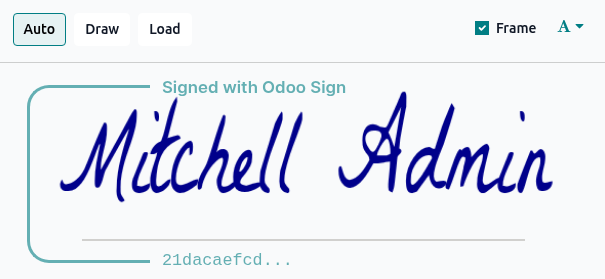
팁
내부 사용자는 작업의 고유한 디지털 서명인서명자 해시의 시작 부분을 포함하는 보안프레임을 유지하거나 끌 수 있습니다.
모두 서명을 클릭하여 현재 문서의 모든 인스턴스에 이니셜/서명을 추가하거나서명을 클릭하여 현재 문서의 현재 인스턴스에만 이니셜/서명을 추가합니다.
동일한 문서 봉투 내에 서명할 문서가 여러 개 있는 경우, 정의된 이니셜/서명은 관련 필드를 클릭하여 직접 추가할 수 있습니다.
서명 요청 거부
참고
서명 요청을 거부할 수 있는 것은 이메일로 전송된 링크를 통해 액세스할 때만 가능합니다. Odoo에서 직접 문서에 액세스할 때는 거부할 수 없습니다.
서명 요청을 거부하려면 오른쪽 상단의 서명자 이름 옆에 있는) 버튼을 클릭한 다음서명 거부를 선택합니다. 거부 사유를 입력한 후거부를 클릭합니다.
그러면 서명 요청이취소됨으로 표시되고 거부 내용이서명 요청의 활동 로그 및 채터에 기록됩니다. 다른 서명자에게 알림이 전송되며 나머지 서명자는 더 이상 문서에 서명할 수 없습니다.
참고
문서 봉투 내의 개별 문서 서명을 거부할 수 없습니다. 서명 거부는 전체 서명 요청을 취소합니다.
준비가 되지 않은 pdf 문서에 서명하기
전자 서명용으로 준비되지 않은 .pdf 문서에 서명하라는 요청을 받으면 일반적으로 문서에 이름, 날짜 및 서명을 추가해야 합니다. 문서가 공유된 방식에 따라 Odoo에서 전자적으로 문서에 서명할 수 있습니다.
전자 서명 앱
레코드의 메시지창
문서 앱
팁
문서 앱을 통해 문서에 서명하려면 문서가 저장된 폴더에 대해서명 작업이 활성화되어 있는지확인하세요.
Odoo에 디지털 인증서를 업로드하려면:
다음 문서를 실행합니다:
서명 앱에서:또는로 이동하고PDF 업로드를 클릭한 다음 관련
.pdf문서를 선택하고열기를 클릭합니다.레코드의 채터 또는 문서 앱에서:
.pdf문서를 클릭하여 연 다음 오른쪽 상단 모서리의서명을 클릭합니다.
관련 필드를 추가한 다음지금 서명을 클릭합니다.
새 서명 요청창에서 서명자로 선택되어 있는지 확인합니다. 선택적으로:
문서의 각 페이지에완료 인증서의 참조를 추가하려면각 페이지에 인증서 추가를 활성화합니다
문서가 완전히 서명되었을 때 한 명 이상의 당사자에게 알림을 보내려면참조필드에 관련 연락처 또는 이메일 주소를 추가합니다
지금 가입하기 를 클릭합니다.
팁
이름, 이메일 등자동 완성 필드만 포함된 문서에 서명할 때다운로드를 클릭하면 필드를 수동으로 완성하지 않고도 완전히 서명된 버전을 즉시 다운로드할 수 있습니다.
서명된 문서 및 완료 인증서는 이메일을 통해 귀하와참조필드에 언급된 연락처에게 전송됩니다. 서명된 문서를 즉시 다운로드하려면다운로드를 클릭하세요.
참고
서명 후 귀하의 서명을 기다리는 다른 문서 목록이 표시됩니다. 그런 다음 문서를서명하거나보기할 수 있습니다.
레코드의 채터에서 문서에 서명한 경우 서명된 문서 및 관련 완료 인증서가 채터에 추가됩니다.
문서에서 서명 옵션 활성화하기
문서 앱의폴더 또는 하위 폴더에 대해서명옵션을 활성화하면 해당 폴더에 저장된 모든 문서를 문서 앱을 떠나지 않고 서명할 수 있습니다.
참고
이 옵션은 특정 폴더에설정된 이메일 별칭덕분에 문서를 문서 폴더로 직접 받는 경우 특히 유용할 수 있습니다. 예: salescontracts@yourcompany.com 별칭으로 전송된 판매 계약.
서명 옵션을 사용하도록 활성화하려면:
문서 앱에서 관련 폴더 또는 하위 폴더를 열고 폴더 이름 옆의(작업)아이콘을 클릭합니다.
을 클릭합니다.