
인도
Indian Payroll Localization provides the complete Indian salary structure, including allowances, deductions, statutory compliance, and employee benefits. It automatically calculates and deducts contributions for both employees and employers, ensuring full compliance with Indian labor and taxation laws.
Before configuring the Indian localization, refer to the general payroll documentation, which includes the basic information for all localizations, as well as all universal settings and fields.
Odoo 앱 및 관련 모듈
Install the following modules to get all the features of the Indian payroll localization:
이름 |
기술적 명칭 |
내용 |
|---|---|---|
인도 - 급여 |
|
Provides the statutory salary structure, allowances, deductions, and compliance rules for Indian payroll. |
India - Payroll with Accounting |
|
Adds accounting entries and mappings for payslips generated with the Indian localization. |
인도 - 휴가 |
|
Adds India-specific leave policies, including sandwich leave and optional holidays. |
일반 환경설정
First, the company must be configured. Navigate to . From the list, select the desired company, and configure the following fields:
회사명: 이 필드에 사업체 이름을 입력합니다.
Address: Complete the full address, including the City, State, Zip Code, and Country.
중요
The state selected in the company’s address is associated as the work address by default for the employee, and the one used to calculate payroll taxes.
GSTIN: Enter a 15-digit tax identification number required for GST-registered businesses in India.
PAN: Enter a 10-character alphanumeric ID issued by the Income Tax Department for tax reporting.
Company ID: Enter the business’s state ID number.
Currency: By default, INR is selected. If not, select INR from the drop-down menu.
UPI Id: Enter a virtual payment address used for receiving digital payments through India’s UPI system.
전화번호: 회사 전화번호를 입력합니다.
이메일: 일반 연락처 정보로 기재할 이메일을 입력합니다.
Next, configure the payroll settings for the Indian payroll localization. Navigate to , and enable the following options that apply to the company:
Employee Provident Fund: Enter your EPF Employer ID (alphanumeric code issued by the EPFO) to enable automatic PF deductions and contributions. Enabling this will activate the Provident Fund (PF) contribution section in employee payroll setting and contract template.
Professional Tax: Enter your state-issued PT registration number (usually numeric/alphanumeric) to allow salary-based professional tax deduction. Enabling this will activate the Professional Tax slab field under the Tax Deductions section in employee payroll setting and contract template.
Employee State Insurance: Enter your ESIC Employer Code/IP Number (10-digit numeric ID provided by ESIC) to process mandatory medical insurance contributions. Enabling this will activate the ESIC (Employee State Insurance) section in employee payroll setting and contract template.
Labour Welfare Fund: Enter your LWF Establishment/Identification Number (state-issued numeric/alphanumeric ID) to deduct and remit statutory welfare fund contributions. Enabling this will activate the Labour Welfare Fund (LWF) section in employee payroll setting and contract template.

임직원 관리
Create the employee record before configuring the salary package in the contract.
Employee contracts serve as the foundation for payroll calculations, with the salary structure covering allowances, deductions, and statutory compliances configured directly within the contract.
개인 탭
Configure the following information in the employee’s Personal Information section:
UAN: A 12-digit unique identifier issued by the EPFO for each employee; it links all PF accounts across different employers and is used for tracking PF contributions, withdrawals, and transfers.
ESIC Number: A 17-digit unique Insurance Number assigned to an employee under the Employee State Insurance Corporation; used to provide access to medical benefits, insurance coverage, and compliance under the ESI scheme.
PAN: A 10-character alphanumeric identifier issued by the Income Tax Department; used for income-tax reporting, verifying employee identity, and ensuring correct TDS processing.
LWF Account Number: A state-specific employee Labour Welfare Fund ID; used to record employee-level contributions toward the Labour Welfare Fund, enabling welfare-related statutory compliance.
급여 탭
관련 법규 이행
적립기금(PF) 부담금
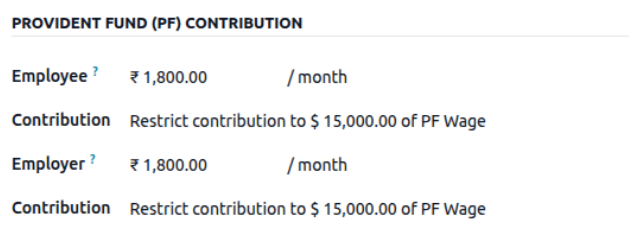
The EPF is a retirement benefit scheme for employees, where both the employer and employee contribute a fixed percentage of the employee’s salary each month.
- The Provident Fund (PF) configuration option in Indian Payroll allows you to choose whether to:
Cap Basic at ₹15,000 (as per EPF statutory rule), or
Calculate PF on the actual Basic (prorated wage) without cap.
더 보기:
More information about Employees’ Provident Fund Organisation (EPFO)
세금 공제
Tax Deductions allow companies to define statutory and employer-specific tax deductions, such as Professional Tax and TDS, which are automatically applied during payslip computation.
Tax deductions are statutory or company-defined amounts subtracted from an employee’s salary to comply with income tax and state tax regulations.
The Professional Tax is a state-level tax levied on employees’ income.
The system reads the employee’s income and state from the contract and automatically applies the correct PT slab rate when generating payslips.
더 보기:
More information about Professional Tax

근로자 국가 보험 (ESIC)
The ESIC is a social security scheme that provides medical and cash benefits to employees and their families.
Both employer and employee contributions are automatically calculated as a percentage of the wage.
더 보기:
More information about Employees’ State Insurance Corporation (ESIC)

근로복지기금(LWF)
The Labour Welfare Fund (LWF) is a statutory compliance aimed at the welfare of workers, managed by state-specific Labour Welfare Boards.
Fixed contributions for both employer and employee can be defined.
더 보기:
More information about Labour Welfare Fund (LWF)

급여 혜택
Salary benefits such as phone and internet subscriptions, meal vouchers, company transport, and medical insurance can be configured in employee contracts as allowances or benefits, and they will be automatically reflected in the employee’s payslip.
Configure the Benefits and Insurance Benefits sections on the contract, then set the monthly contribution amounts for each benefit. Typical examples include:
Benefits: Phone subscription, internet subscription, meal vouchers, company transport, and similar allowances.
Insurance Benefits: Medical insurance, insured spouse, insured first child, insured second child, etc.

기타 공제
Other Deductions include statutory items such as Gratuity.
Gratuity is a statutory employer contribution calculated as a percentage of the employee’s wage, accrued monthly as part of end-of-service benefits.

Configure salary from contract template
Configure the Employee Salary page to automatically load and display details based on the default contract template.
When creating a new employee, load the default contract template in the Employee Payroll tab to configure a predefined salary package automatically.

The contract template defines the salary structure and includes all applicable salary components, statutory compliances, and benefits.
To configure the contract template go to , create or open an existing contract template, then In the contract template, configure the salary package for the applicant/employee, including the Salary components, Statutory compliances, Benefits and Insurance Benefits described above.

휴가 환경설정
The Indian Localization for Time Off includes specific leave management features designed for Indian organizations, such as Sandwich Leave and Optional Holidays.
Install the India - Time Off application to enable these policies.
더 보기:
샌드위치 휴가
A sandwich Leave is a time off policy where weekends and public holidays falling between two applied leave days are also counted as time off. To enable this on a time off type navigate to , and click the desired time off type to enable this feature on. Tick the checkbox next to Sandwich Leave in the Configuration section of the Time Off Type form.
Example
An employee applies for leave on Friday November 28th and Monday December 1st. Both Saturday November 29th and Sunday November 30th (the weekend) are also counted as time off, making the total time off requested four days not two days.
선택적 휴일
Optional Holidays, also called Flexible Holidays are special holidays assigned to specific calendar dates, such as regional or religious holidays. Employees may apply for leave only on these defined dates.
If an employee attempts to request leave on any other date, a validation error will be raised.
To enable this on a time off type navigate to , and create a new time off type or open an existing one, Tick the checkbox next to Limited to Optional Holiday in the Configuration section of the Time Off Type form. Then, go to . Create new optional holidays by assigning them to specific calendar dates The optional holiday can be seen on the dashboard
Employees can request these leave types, but only on the configured optional (flexible) holiday dates.
급여 환경설정
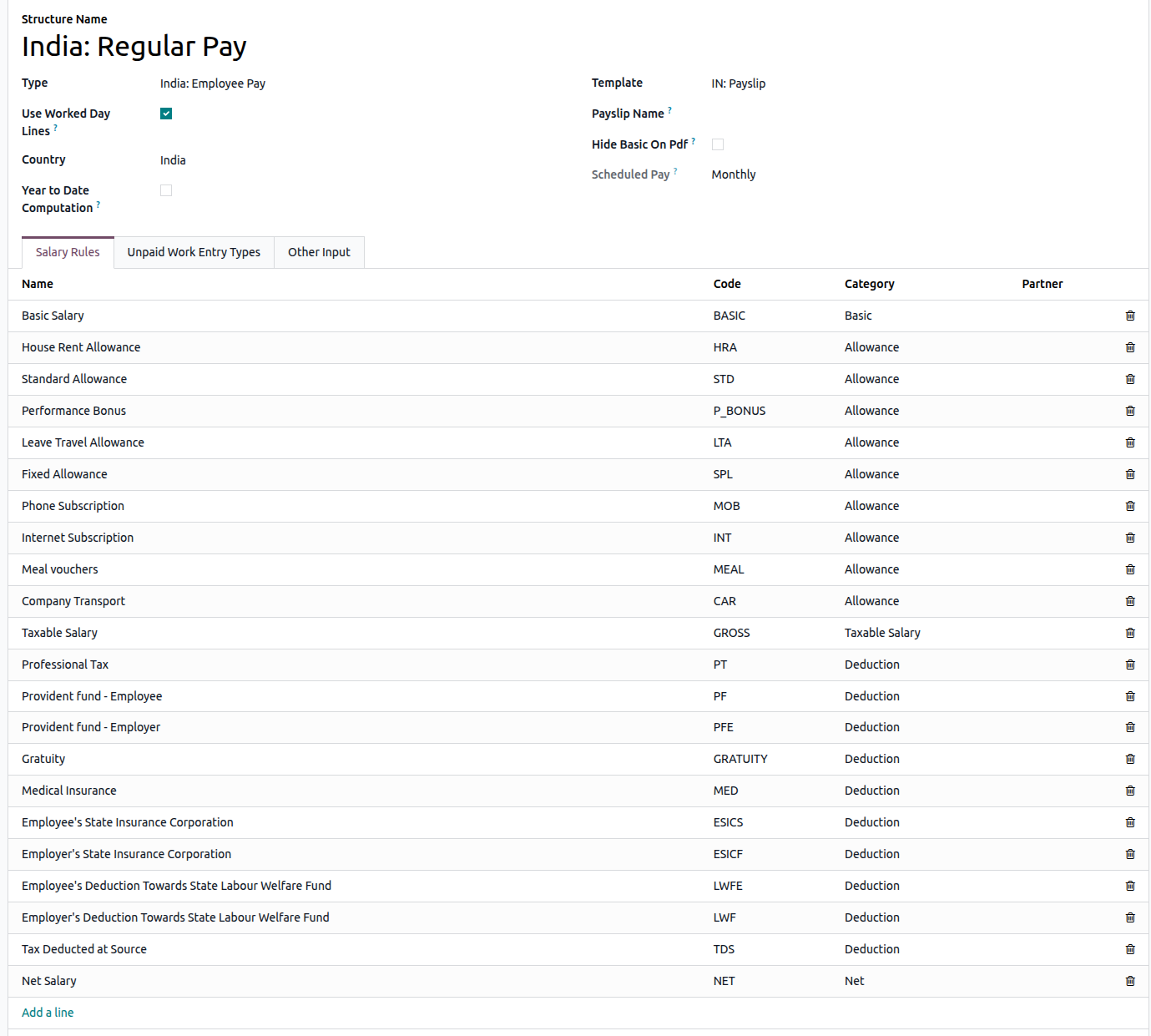
When the l10n_in_hr_payroll module is installed, a new salary structure for India is added: India: Regular Pay under the India: Employee Pay structure type.
The salary structure contains all salary rules needed to calculate wages, statutory salary structure, allowances, deductions, and compliance rules.
급여 규칙
The salary rules control how each allowance, deduction, benefit, and statutory compliances is calculated.
To view the salary rules, navigate to . Click on India: Employee Pay to expand it, and then click India: Regular Pay.
규칙 매개변수
Certain payroll calculations require specific rates or wage caps, and Rule Parameters provide values either as percentages or fixed amounts that can be referenced in salary rules.
Rule parameters can be accessed via . All the Rule parameters will be listed here with the associated salary rules.
Rule parameters are used by salary rules for statutory calculations, ensuring that payslips stay compliant with national and state-level regulations.
중요
Odoo updates rule parameters as needed. It is recommended not to modify rule parameters unless there is an official change in national or state regulations.
인도 급여 실행
Before running payroll, the payroll officer must validate employee work entries to confirm pay accuracy and catch any errors. This includes ensuring that all time off is approved, any overtime is appropriate.
Work entries are synchronized based on the employee’s contract configuration. Odoo pulls from the assigned working schedule, attendance records, planning schedule, and approved time off.
Any discrepancies or conflicts must be resolved, then the work entries can be regenerated.
Once everything is correct, draft payslips can be created individually or in groups, referred to in the Payroll app as Pay Runs.

참고
To cut down on the payroll officer’s time, it is typical to process payslips in batches, either by wage type (fixed salary vs hourly), pay schedule (weekly, bi-weekly, monthly, etc.), department (direct cost vs. administration), or any other grouping that best suits the company.
The process of running payroll includes different actions that need to be executed to ensure that the amount withheld from payroll taxes is correct, the amount that the employee receives as their net salary is correct, and the computation of hours worked reflects the employee’s actual hours worked, among others.
When running a payroll batch, check that the period, company, and employees included are correct before starting to analyze or validate the data.
Once the payslips are drafted, review them for accuracy. Check the Worked Days & Inputs tab, and ensure the listed worked time is correct, as well as any other inputs. Add any missing inputs, such as commissions, tips, reimbursements, that are missing.
Next, check the various totals (gross pay, employee taxes, benefits, employer taxes, net salaries), then click Compute Sheet to update the salary calculations, if there were edits. If everything is correct, click Validate.

회계 체크
The accounting process when running payroll has two components: creating journal entries, and registering payments.
전표 항목 생성
After payslips are confirmed and validated, journal entries are posted either individually, or in a batch. The journal entry is created first as a draft.
중요
It must be decided if journal entries are done individually or in batches before running payroll.

Six accounts from the India CoA are included with the India payroll localization:
210100 Salary Expense: Records the gross salary expense for employees, including the basic pay and any earnings not allocated to specific allowance accounts. This account captures the main salary cost for financial reporting.300001 House Rent Allowance Expense: Records the portion of salary paid as House Rent Allowance. Used to track HRA separately for statutory reporting and tax computation purposes.300002 Standard Allowance Expense: Records recurring allowances that are part of the salary package but do not fall under special categories like HRA or performance bonus. Examples include transport or utility allowances.300005 Performance Bonus: Records discretionary or performance-linked bonuses paid to employees. This account helps separate one-time or variable incentive costs from regular salary expenses.300011 Leave Travel Allowance Expense: Tracks Leave Travel Allowance paid to employees. LTA is often partially tax-exempt under Indian Income Tax rules, so tracking it separately is important for compliance.300004 Fixed Allowance Expense: Records fixed, recurring allowances paid to employees such as meal allowances, special duty allowances, or any other structured component of the salary.
참고
CoA 환경설정은 회사가 인도에 위치한 경우 기본값으로 설정되어 있습니다. 계정 코드와 명칭은 회사에서 필요한 대로 편집할 수 있습니다. 급여 규칙(급여 구조에서 사용)에 연결된 CoA 에 계정이 없는 경우, Odoo에서는 이동 유형과 관계없이 급여 비용 계정으로 전표가 생성됩니다.
Once the journal entry draft appears correct, post the journal entries.

결제 등록
After the journal entries are validated, Odoo can generate payments.
Payments can be Grouped by Partner if there is a partner associated with a salary rule.

급여 마감
If there are no errors, payroll is completed for the pay period.
인도 급여명세서 살펴보기
This payslip provides detailed information on allowances, deductions, compliance requirements, and benefits. It helps employees understand how their salary is calculated, the statutory and organizational deductions applied, and the benefits they are entitled to, ensuring transparency and trust in the payroll process.
더 보기:

급여 보고서
The Indian payroll localization includes payslip-related reports and statutory compliance reports, including:
급여 등록
The Register report provides a detailed month-wise record of salaries paid to employees. This includes allowances, tax compliance, deductions, and benefits for each employee. Employers can use this report to track payroll expenditures and employee earnings.
보고서를 생성하려면 으로 이동합니다. 급여 등록 팝업 창이 나타나면 시작일 과 종료일 을 설정하고, 특정 급여 구조 를 선택하여 해당 급여 구조를 기준으로 필터링할 수 있습니다(선택하지 않을 경우 모든 직원이 대상이 됩니다). 원하는 급여명세서 상태 (지급 완료, 완료 또는 모두)를 선택한 후 급여명세서를 필터링합니다. 필터를 설정한 후 XLSX 내보내기 를 클릭하면 급여 등록 보고서를 다운로드할 수 있습니다.

EPF 보고서
The EPF report lists the contributions made by both employer and employee toward the Provident Fund. It includes the employee’s EPF number, contribution amounts, and employer matching contributions, ensuring compliance with the Employees’ Provident Funds and Miscellaneous Provisions Act, 1952.
To generate the report, navigate to . Click on New, set desired Year and Month and click on Export XLSX File.

ESI 보고서
The ESI report details the contributions made toward the ESI scheme. It provides both employer and employee contribution amounts, along with the employee’s ESI number, which is required for statutory filing with the Employee State Insurance Corporation.
To generate the report, navigate to . Click on New, set desired Year and Month, Select the Report type as per the need and click on Export XLSX File.

Labour Welfare Fund (LWF) Report
This report covers the contributions made toward the Labour Welfare Fund (LWF) by both employer and employee. It tracks the deduction amounts and helps ensure compliance with state-level welfare fund requirements.
To generate the report, navigate to . A Labour Welfare Fund Report pop-up window will appear. Set the Start Date and End Date, select a specific Department to filter them by Department (otherwise all employees are included), click Export XLSX to download the Labour Welfare Fund Report report.

급여명세서 보고서
The salary statement report is used to provide employees with their current salary and cumulative salary, along with all salary components, for the selected year.
To generate the report, navigate to . Click on New, set desired Year and Month, set the description for pdf name. Then Click on Populate to create a pdf for each employee, which can be accessed through the smart button which appears after populating.

직원별 연간 급여
The Yearly Salary by Employee report provides month-wise salary details for the selected year, including salary components and the applicable salary structure.
To generate the report, navigate to . A Labour Welfare Fund Report pop-up window will appear. Set the Year, set Department or Job Position to filter out the employees. Click on Print to download Yearly Salary by Employee Report.
