
المغادرة
عندما يغادر الموظف الشركة، من المهم وجود خطة إنهاء الخدمة لضمان اتباع جميع الخطوات اللازمة، مثل إرجاع المعدات، وإلغاء الوصول إلى أنظمة العمل، وملء نماذج الموارد البشرية، وإجراء مقابلة إنهاء الخدمة، والمزيد. اعتماداً على الشركة، قد تكون هناك عدة خطط مختلفة لإنهاء الخدمة، مُعدة لأقسام أو فروع محددة، لها متطلبات وخطوات مختلفة عن خطة إنهاء الخدمة الرئيسية.
In addition to an offboarding plan, the employee record must be updated to reflect their departure, log the reason why they left, close any open activities associated with the employee, and provide them with any important documents.
عرض خطة إنهاء الخدمة
Before offboarding can begin, it is recommended to check the default offboarding plan that comes preconfigured with the Employees app. To view the current default plan, navigate to . Click Offboarding to view the detailed offboarding plan form.
خطوات خطة إنهاء الخدمة
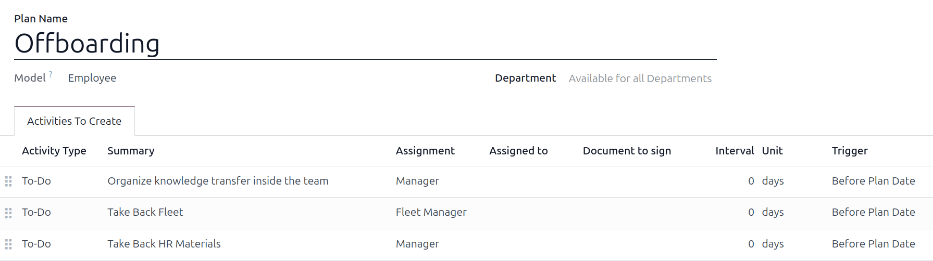
The default Offboarding plan is minimal, with two default steps (three if the Fleet app is installed). All steps are To-Do activities, and are scheduled for the day the offboarding plan is launched (0 days Before Plan Date).
Organize knowledge transfer inside the team: The manager must ensure all knowledge the employee has relating to their job position, is either documented or shared with colleagues so there is no knowledge gap.
Take Back Fleet: The fleet manager ensures any vehicles assigned to the employee are either unassigned (available for other employees) or the next driver is assigned. This step only appears if the Fleet app is installed.
استرجاع مواد الموارد البشرية: يجب على المدير الحصول على أي مستندات ومواد يتطلبها قسم الموارد البشرية. يُوصى بالتحقق مع قسم الموارد البشرية للتأكد من إكمال كل ما هو مطلوب لهذه الخطوة.
تعديل خطة إنهاء الخدمة
خطة إنهاء الخدمة الافتراضية بسيطة، بحيث يمكن إجراء تعديلات لتلبية احتياجات إنهاء الخدمة لأي شركة. كل شركة لديها متطلبات مختلفة، لذلك من الضروري إضافة الخطوات المطلوبة إلى خطة إنهاء الخدمة.
If the offboarding plan is universal, add or modify the default offboarding plan. If the offboarding plan needed is only for a specific department, then a new plan should be created, specifically for that department.
To modify the default plan, first navigate to , then click on Offboarding.
To modify a step, click on the step and an Open: Activities pop-up window appears. Make any desired modifications to the step, then click Save to accept the changes and close the pop-up window.
لإضافة خطوة جديدة، انقر فوق إضافة سطر في أسفل الأنشطة المدرجة في علامة الأنشطة المطلوب إنشاؤها، وستظهر نافذة منبثقة فارغة بعنوان إنشاء أنشطة. أدخل جميع المعلومات في النافذة المنبثقة، ثم انقر فوق حفظ وإغلاق إذا لم تكن هناك خطوات أخرى لإضافتها، أو انقر فوق حفظ وجديد إذا كانت هناك حاجة إلى مزيد من الخطوات.
قم بتكوين جميع الخطوات المطلوبة لخطة إنهاء الخدمة.
إنشاء خطة إنهاء الخدمة
بالنسبة لبعض الشركات، قد تكون هناك حاجة إلى خطط محددة لإنهاء الخدمة لبعض الأقسام. في هذه الحالات، قد تكون هناك حاجة إلى خطة جديدة خاصة بالقسم لإنهاء الخدمة.
To create a new offboarding plan, first navigate to . Click the New button in the upper-left corner, and a blank plan form loads.
أدخل المعلومات التالية في النموذج:
Plan Name: the specific name for the plan.
النموذج: يحدد هذا الحقل المكان الذي يمكن استخدام هذه الخطة فيه. في هذه الحالة، في تطبيق الموظفون. لا يمكن تعديل هذا الحقل.
Department: if left blank (the default setting) the plan is available for all departments. To make the plan department-specific, select a department using the drop-down menu.
Next, add the various steps for the plan by clicking Add a line at the bottom of the listed activities in the Activities To Create tab, and a blank Create Activities pop-up window appears.
أدخل المعلومات التالية في النافذة المنبثقة:
Activity Type: Using the drop-down menu, select the specific activity to be scheduled. The default options are Email, Call, Meeting, To-Do, or Upload Document. If the Sign app is installed, a Request Signature option is available.
الملخص: أدخل وصفاً مختصراً للخطوة.
التعيين: باستخدام القائمة المنسدلة، اختر الشخص المكلف بتنفيذ النشاط. الخيارات الافتراضية هي: السؤال عند الإطلاق، المستخدم الافتراضي، المدرب، المدير، و:guilabel:
الموظف. إذا كان تطبيق الأسطول مثبتاً، يتوفر خيار مدير الأسطول.ملاحظة
يتم تحديد التعيين بالنسبة للموظف. إذا تم اختيار المدرب، يتم تعيين مدرب الموظف للنشاط.
إذا تم اختيار المستخدم الافتراضي، يظهر حقل مُعيَّن إلى. باستخدام القائمة المنسدلة، اختر المستخدم الذي سيتم تعيين هذا النشاط له دائماً.
الفترة الزمنية: اضبط الحقول في هذا السطر لتحديد تاريخ استحقاق النشاط. أدخل رقماً في الحقل الأول، ثم باستخدام القوائم المنسدلة في الحقلين التاليين، حدد متى يجب إنشاء تاريخ الاستحقاق؛ (#) من الأيام، الأسابيع، أو الأشهر، إما قبل التاريخ المخطط أو بعد التاريخ المخطط.
When the Create Activities for is completed, click Save & Close if there are no other steps to add, or click Save & New to add more steps, as needed.
Example
تمتلك شركة متخصصة في برامج الفنون بعد المدرسة خطتي إنهاء خدمة منفصلتين، واحدة للمعلمين العاملين في الميدان، وواحدة لموظفي المكاتب.
تم إعداد خطة إنهاء الخدمة للمعلمين لقسم معلمي البرنامج الفني، وتتضمن مهام متخصصة تتعلق بتلك الوظائف. تشمل هذه المهام التأكد من فهرسة وإرجاع جميع اللوازم الفنية، وتسليم جميع نماذج ملاحظات الطلاب، وإرجاع جميع شارات الوصول والمفاتيح الخاصة بالمواقع المختلفة.

إطلاق خطة إنهاء الخدمة
After an employee has given notice (typically two weeks) or once the company has decided to terminate the working relationship with the employee, the offboarding plan should be launched. Navigate to the and click on the departing employee profile. Click the Launch Plan button, and a blank Launch Plan pop-up window loads.

Using the drop-down menu, select the desired offboarding plan in the Plan field. Then, using the calendar selector, set a date in the Plan Date field. This is typically the day the employee gave notice, but any date can be selected.
The right-side of the Launch Plan pop-up window displays all the steps in the selected plan, grouped by what was selected in the Assignment fields for the various plan steps.
Once the Plan and Plan Date fields are configured, click the Schedule button, and Odoo schedules everything in the plan, according to their respective due dates. All scheduled activities appear in the chatter of the employee profile.
أرشفة موظف
في Odoo، عندما يغادر موظف الشركة يجب أرشفته. يجب تنفيذ هذه الخطوة بعد إتمام إنهاء خدمة الموظف بالكامل. لأرشفة موظف، انتقل أولاً إلى . من هنا، حدد موقع الموظف الذي يغادر الشركة، وانقر على بطاقة موظفه.
The employee form loads, displaying all their information. Click the (gear) icon in the top-left corner, and a drop-down menu appears. Click Archive, and an Employee Termination pop-up window appears.
املأ الحقول التالية في النموذج:
سبب المغادرة: اختر سبب مغادرة الموظف من القائمة المنسدلة. الخيارات الافتراضية هي:
مفصول: اختر هذا الخيار عندما يتم إنهاء خدمة موظف، وقد أصدرت الشركة إشعاراً بذلك.
استقال: اختر هذا الخيار عندما لا يرغب الموظف في الاستمرار في العمل، وقد قدم الموظف إشعاراً بذلك.
Resigned: Retired: Select this option when the employee is retiring.
Became Freelance: Select this option when the employee is no longer working for the company, but is becoming a freelance worker instead.
Mutual Agreement: Select this option when both parties have agreed to terminate their working relationship.
تاريخ انتهاء العقد: باستخدام منتقي التاريخ، اختر آخر يوم عمل للموظف في الشركة.
السبب التفصيلي: أدخل وصفاً مختصراً لمغادرة الموظف في هذا الحقل.
Close Activities: Tick the checkbox next to each type of activity to close or delete any open activities associated with it. It is recommended to tick all checkboxes that are applicable. The available options are:
Appraisals: cancels all appraisals scheduled after the contract end date.
Contract: applies an end date for the current contract.
Company Car: removes the employee as the driver for their current company car, and assigns the next driver, if applicable.
Equipment: unassigns the employee from any assigned equipment.
HR Info: Tick the checkbox next to Send Access Link to send a download link to the employee's personal email address, containing all their personal HR files.
Private Email: This field appears if the HR Info checkbox is ticked. If there is a private email listed on the employee profile, this field is automatically populated. If no private email address is on their record, enter the private email address for the employee.
When the form is complete, click Apply. The employee record is archived, an email with a download link to their personal documents is sent to the employee's private email address (if selected), and a red Archived banner appears in the top-right corner of the employee form. The chatter logs the Departure Date and Departure Reason, and if an access link was emailed.

ملاحظة
While attempting to send the HR documents access link, an Invalid Operation pop-up window may appear, displaying the following error message:
Employee's related user and private email must be set to use "Send Access Link" function: (Employee Name)
If this error appears, click Close to close the pop-up window, then tick the Send Access Link checkbox to deselect it on the Employee Termination pop-up window.
Click Apply to archive the employee and close the selected activities on the Employee Termination pop-up window, returning to the employee form.
Once the employee form, ensure the following fields are populated:
Private Information tab: Ensure an email address is entered in the Email field.
HR Settings tab: Ensure a Related User is selected in the corresponding field.
بعد إدخال المعلومات الضرورية، أعد إرسال رابط الوصول إلى مستندات الموارد البشرية
إرسال رابط الوصول إلى مستندات الموارد البشرية
إذا لم يتم إرسال رابط الوصول عند أرشفة الموظف لأول مرة في نموذج إنهاء خدمة الموظف، فيمكن إرساله بعد أرشفة الموظف في أي وقت.
بعد أرشفة الموظف، لن يكون مرئياً بعد الآن على لوحة بيانات تطبيق الموظفون الرئيسية. لعرض الموظفين المؤرشفين، انتقل إلى لوحة بيانات ، وانقر على (السهم لأسفل) في شريط البحث لإظهار قائمة منسدلة. حدد مؤرشف، بالقرب من أسفل عمود عوامل التصفية، ثم انقر بعيداً عن نافذة القائمة المنسدلة لإغلاقها.
الآن، يظهر الموظفون المؤرشفون فقط على لوحة البيانات. انقر على الموظف المطلوب لفتح نموذج الموظف الخاص به. في هذا النموذج، انقر على أيقونة (الترس) في الزاوية العلوية اليسرى، ثم انقر على إرسال رابط الوصول إلى مستندات الموارد البشرية من القائمة المنسدلة الناتجة. يسجل سجل المحادثات أنه تم إرسال الرابط.