
Zweige
Die Ansicht Zweige bietet einen Überblick über die verschiedenen Zweige in Ihrem Repository.
Phasen
Odoo.sh bietet drei verschiedene Verzweigungsstufen an:
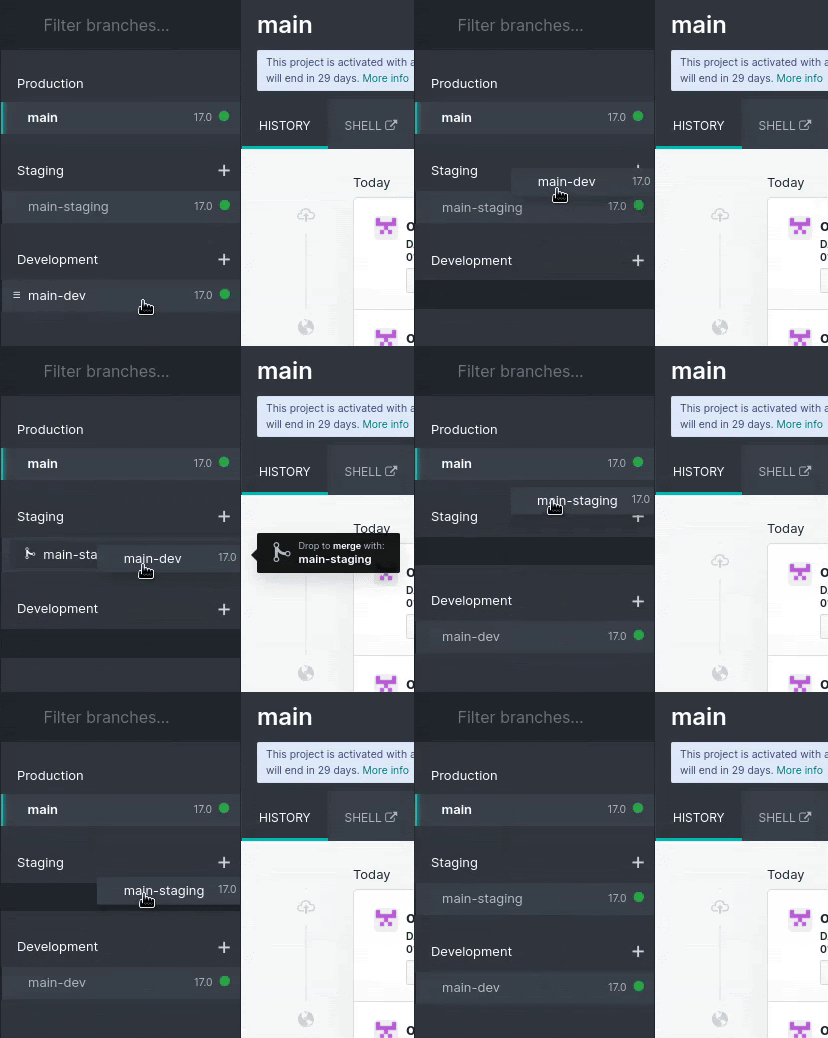
Sie können den Status eines Zweigs ändern, indem Sie ihn per Drag & Drop in die gewünschte Phase ziehen.

Bemerkung
Entwicklungszweige können unter Staging verschoben werden. Wenn Sie versuchen, einen Entwicklungszweig unter Produktion zu verschieben, wird eine Warnmeldung angezeigt, die darauf hinweist, dass Sie pro Projekt nur einen Produktionszweig haben können.
Staging-Zweige können unter Entwicklung verschoben werden, aber nicht unter Produktion.
Der Produktionszweig kann nur unter Entwicklung verschoben werden. Wenn Sie versuchen, ihn unter Staging zu verschieben, können Sie nur eine Zusammenführung durchführen. Eine detaillierte Erläuterung dieses Vorgangs finden Sie im Abschnitt über Zusammenführungen.
Produktion
Der Produktionszweig enthält den Code, der zur Ausführung der Produktionsdatenbank verwendet wird. Es kann nur einen Produktionszweig geben.
Wenn Sie einen neuen Commit in diesen Zweig pushen, wird der Produktionsserver mit dem überarbeiteten Code aktualisiert und neu gestartet.
Wenn die Änderungen ein Modul-Update erfordern, z. B. die Änderung einer Formularansicht, und Sie möchten, dass das Update automatisch durchgeführt wird, können Sie die Versionsnummer des Moduls in seiner Manifestdatei (__manifest__.py) erhöhen. Die Plattform führt das Update durch, wobei die Instanz aus Gründen der Wartung vorübergehend nicht verfügbar ist.
Diese Methode entspricht dem Upgrade des Moduls über das Menü Apps oder mit -u in der Befehlszeile.
Bemerkung
Wenn die Änderungen den Neustart des Servers verhindern oder die Modulaktualisierung fehlschlägt, wird der Server automatisch auf die vorherige erfolgreiche Code-Revision zurückgesetzt und die Datenbank auf ihren vorherigen Zustand. Greifen Sie auf das Protokoll der fehlgeschlagenen Aktualisierung zu, um das Problem zu beheben.
Die Demodaten werden nicht geladen, da sie nicht für die Verwendung in einer Produktionsdatenbank vorgesehen sind. Die Unit-Tests werden nicht durchgeführt, da dies die Nichtverfügbarkeitszeit der Produktionsdatenbank während der Aktualisierung verlängern würde.
Odoo.sh sichert automatisch die Produktionsdatenbank. Es werden sieben tägliche, vier wöchentliche und drei monatliche Back-ups gespeichert. Jedes Back-up umfasst den Datenbank-Dump, den Dateispeicher (Anhänge und Binärfelder), Protokolle und Sitzungen.
Warnung
Bei Verwendung von Testprojekten werden der Produktionszweig und alle Staging-Zweige nach 30 Tagen automatisch wieder in die Entwicklungsphase zurückgesetzt.
Staging
Staging-Zweige dienen dazu, neue Funktionen anhand von Produktionsdaten zu testen, ohne die eigentliche Produktionsdatenbank durch Testdatensätze zu beeinträchtigen. Sie erstellen neutralisierte Duplikate aus der Produktionsdatenbank.
Die Neutralisierung deaktiviert:
Geplante Aktionen
Bemerkung
Um sie zu testen, lösen Sie sie manuell aus oder aktivieren Sie sie erneut. Beachten Sie, dass die Plattform sie seltener auslöst, wenn niemand die Datenbank nutzt, um Ressourcen zu sparen.
Ausgehende E-Mails
Bemerkung
Stattdessen werden sie mithilfe eines Mail-Catchers abgefangen. Eine Schnittstelle zum Anzeigen der von der Datenbank gesendeten E-Mails ist in Ihrem Odoo.sh-Projekt verfügbar. Auf diese Weise werden keine E-Mails an Ihre Kontakte gesendet.
IAP-Services
Zahlungsanbieter und Versandkonnektoren
Bemerkung
Sie werden in den Testmodus gesetzt.
Wenn Sie Änderungen in einer Staging-Datenbank konfigurieren oder anzeigen, stellen Sie sicher, dass Sie diese aufzeichnen (schrittweise notieren, in der Produktion reproduzieren usw.) oder direkt in die Module des Zweigs schreiben, wobei Sie XML-Datendateien verwenden, um die Standardkonfiguration oder -ansichten zu überschreiben. Beispiele finden Sie in der Dokumentation zum ersten Modul.
Bemerkung
Unit-Tests werden nicht durchgeführt. Sie basieren auf Demodaten, die nicht in die Produktions- und Staging-Datenbanken geladen werden. Wenn Odoo die Ausführung der Units ohne Demodaten unterstützt, wird Odoo.sh die Ausführung der Tests auf Staging-Datenbanken in Betracht ziehen.
Staging-Datenbanken werden nicht automatisch gesichert. Sie können jedoch eine Sicherung der Produktionsdatenbank in einem Staging-Zweig zu Testzwecken wiederherstellen oder versehentlich aus der Produktionsdatenbank gelöschte Daten manuell wiederherstellen. Es ist möglich, manuelle Sicherungen von Staging-Datenbanken zu erstellen.
Warnung
Datenbanken, die für Staging-Zweige erstellt wurden, werden nach einem Monat automatisch gelöscht. Um den Zweig erneut zu verwenden, müssen Sie ihn neu erstellen.
Entwicklung
Entwicklungszweige erstellen neue Datenbanken mit Demodaten, um die Unit-Tests auszuführen. Die installierten Module sind diejenigen, die im Zweig enthalten sind. Sie können diese Liste der zu installierenden Module in den Projekteinstellungen ändern.
Wenn Sie einen Commit in einen Entwicklungszweig übertragen, wird ein neuer Server gestartet, eine Datenbank von Grund auf neu erstellt und der Zweig aktualisiert. Die Demodaten werden geladen und standardmäßig werden Unit-Tests durchgeführt, um sicherzustellen, dass die Änderungen keine der getesteten Funktionen beeinträchtigen. Sie können die Tests deaktivieren oder bestimmte Tests mit benutzerdefinierten Tags ausführen lassen, indem Sie zu den Zweigeinstellungen gehen.
Ähnlich wie bei Staging-Zweigen werden E-Mails nicht versendet, sondern von einem Mail-Catcher abgefangen, und geplante Aktionen werden nicht ausgelöst, solange die Datenbank nicht verwendet wird.
Entwicklungsdatenbanken werden nicht automatisch gesichert, und manuelle Back-ups sind nicht möglich.
Warnung
Für Entwicklungszweige erstellte Datenbanken sind für etwa drei Tage vorgesehen. Danach können sie ohne vorherige Ankündigung automatisch gelöscht werden, um Platz für neue Datenbanken zu schaffen.
Zweige zusammenführen
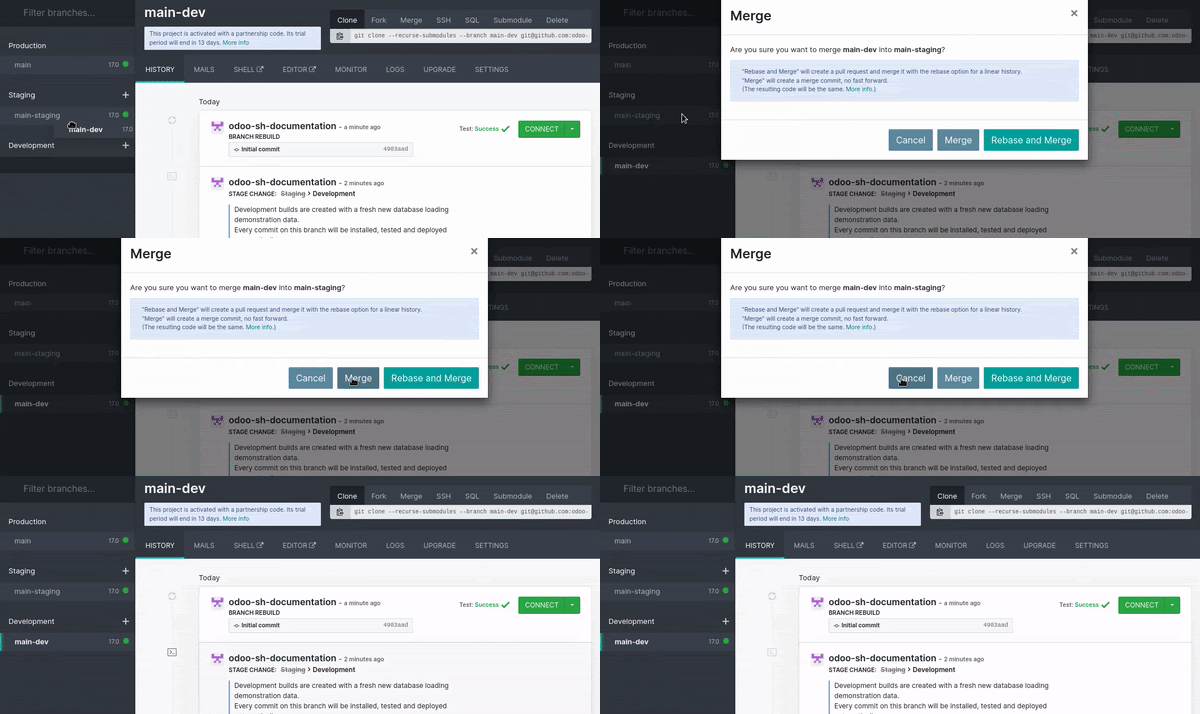
Sie können Ihre Zweige zusammenführen, indem Sie sie per Drag and Drop ineinander ziehen.
Um die Änderungen der Entwicklungszweige mit den Produktionsdaten zu testen, haben Sie folgende Möglichkeiten:
Führen Sie eine Zusammenführung des Entwicklungszweigs in einen Staging-Zweig durch, indem Sie ihn per Drag and Drop auf den gewünschten Zweig ziehen.
Ziehen Sie den Entwicklungszweig per Drag and Drop in den Abschnitt Staging, um ihn zu einem Staging-Zweig zu machen.

Wenn die Änderungen für die Produktion bereit sind, ziehen Sie den Staging-Zweig per Drag and Drop in den Produktionszweig, um sie zusammenzuführen und bereitzustellen.
Bemerkung
Sie können Entwicklungszweige direkt in den Produktionszweig zusammenführen. Allerdings werden die Änderungen nicht über einen Staging-Zweig anhand der Produktionsdaten validiert, sodass ein höheres Risiko besteht, dass Probleme in der Produktionsdatenbank auftreten.
Sie können Entwicklungszweige miteinander und Staging-Zweige miteinander zusammenführen.
Sie können auch direkt auf Ihrer Workstation mit
git mergeIhre Zwiege zusammenführen. Odoo.sh wird benachrichtigt, wenn neue Revisionen in Ihre Zweige gepusht werden.
Beim Zusammenführen eines Staging-Zweigs in den Produktionszweig wird lediglich der Quellcode übernommen. Alle Änderungen, die an der Staging-Datenbank vorgenommen wurden, werden nicht an die Produktionsdatenbank übertragen. Wenn Sie jedoch den Code im Repository ändern, wird er beim Zusammenführen an den Produktionszweig weitergegeben.
Wenn Sie Konfigurationsänderungen in Staging-Zweigen testen und diese auf den Produktionszweig anwenden möchten, müssen Sie entweder:
Schreiben Sie die Konfigurationsänderungen in XML-Datendateien, um die Standardkonfiguration oder Ansichten im Zweig zu überschreiben, und erhöhen Sie anschließend die Version des Moduls in seinem Manifest (
__manifest__.py), um die Modulaktualisierung beim Zusammenführen des Staging-Zweigs in den Produktionszweig auszulösen.Bemerkung
Diese Methode wird für eine bessere Skalierbarkeit Ihrer Entwicklungen empfohlen, da Sie die Git-Versionsverwaltungsfunktionen für alle Konfigurationsänderungen verwenden und so die Rückverfolgbarkeit Ihrer Änderungen sicherstellen.
Übertragen Sie sie manuell von der Staging-Datenbank in die Produktionsdatenbank, indem Sie sie kopieren und einfügen.
Tabs
Verlauf
Der Reiter History (Verlauf) bietet einen Überblick über den Zweig-Verlauf:
Die Commit-Meldungen und ihre Autoren
Die verschiedenen Ereignisse im Zusammenhang mit der Plattform, wie z. B. Phasenänderungen, Datenbankimporte und Wiederherstellungen von Sicherungskopien
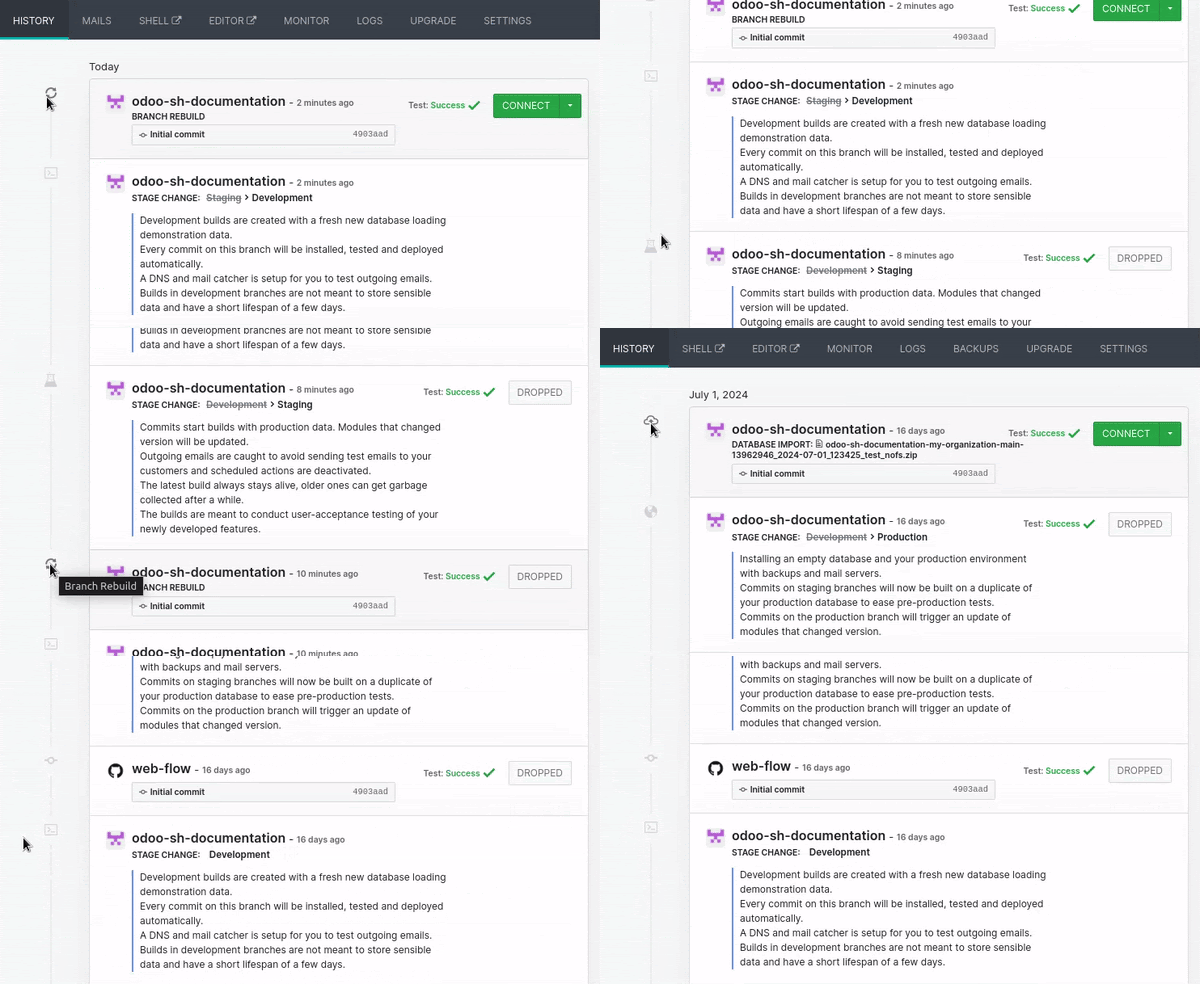
Ein Status in der oberen rechten Ecke jedes Ereignisses zeigt den aktuellen Vorgang in der Datenbank (z. B. Installation, Aktualisierung, Import der Sicherung) oder dessen Ergebnis (z. B. Testrückmeldung, erfolgreicher Import des Back-ups) an. Wenn ein Vorgang erfolgreich war, wird die Schaltfläche Connect (Verbinden) angezeigt, über die Sie auf die Datenbank zugreifen können.
Mails
Im Reiter Mails enthält den Mail-Catcher, der einen Überblick über die von der Datenbank gesendeten E-Mails bietet.
Bemerkung
Der Mail-Catcher ist für die Entwicklungs- und Staging-Zweige verfügbar. E-Mails aus der Produktionsdatenbank werden tatsächlich versendet und nicht vom Mail-Catcher abgefangen.

Shell
Der Reiter Shell bietet Shell-Zugriff auf den Container.
Durch Klicken auf Shell wird eine neue Browserreiter geöffnet, in der Sie grundlegende Linux-Befehle (ls, top) ausführen können. Sie können eine Shell auf der Datenbank öffnen, indem Sie psql ausführen.

Tipp
Sie können mehrere Shell-Reiter gleichzeitig öffnen und deren Anordnung durch Drag & Drop anpassen.
Bemerkung
Shells von Produktionsinstanzen werden rot hervorgehoben, um die Gefahr einer direkten Manipulation durch Produktionsinstanzen zu verdeutlichen, während Shells von Staging-/Entwicklungsinstanzen gelb hervorgehoben werden.
Lang laufende Shell-Instanzen/inaktive Shell-Sitzungen können jederzeit beendet werden, um Ressourcen freizugeben.
Befehle
Hier finden Sie eine Übersicht über nützliche Befehle, die Sie in einem Odoo.sh-Datenbankterminal ausführen können:
odoo-bin shell: zum Öffnen einer Odoo-Shellodoo-update: zum Aktualisieren von Modulen in der Datenbankodoosh-restart: zum Neustarten der Odoo.sh-Dienste (http oder cron)odoosh-storage: um die Speichernutzung des Container-Dateisystems Ihrer Instanz zu überprüfenpsql: zum Öffnen einer Datenbank-Shellmutt: um zu überprüfen, wie E-Mails in Text-Clients angezeigt werden (Staging- und Entwicklungsinstanzen)lnav ~/logs/odoo.log: zum Navigieren in der Dateiodoo.logIhrer Instanzncdu: um den Festplattennutzungsanalysator mit einer interaktiven Benutzeroberfläche zu startengrep: zum Filtern und Suchen von Informationen in Protokoll- oder Konfigurationsdateien
Editor
Durch Klicken auf Editor wird ein neuer Browserreiter geöffnet, über den Sie auf eine integrierte Online-Entwicklungsumgebung (IDE) zugreifen können, um den Quellcode zu bearbeiten. Sie können auch Terminals, Python-Konsolen und Odoo-Shell-Konsolen öffnen.

Sie können mehrere Reiter öffnen und diese per Drag & Drop nach Belieben anordnen.
Siehe auch
Überwachung
Der Reiter Überwachung zeigt verschiedene Leistungsüberwachungsmetriken des aktuellen Builds an.
Vergrößern Sie den Zeitbereich mit dem Cursor oder wählen Sie ihn manuell aus dem Zeitbereichsauswahlfeld. Es ist auch möglich, die Zeitzone zu ändern.

Bemerkung
Technische Protokolle verwenden immer UTC. Um diese Protokolle zusammen mit Ihren Überwachungsmetriken zu analysieren, stellen Sie sicher, dass im Überwachungstool UTC ausgewählt ist.
Ebenso sollten Sie beim Senden eines Supporttickets sicherstellen, dass die von Ihnen angegebenen Informationen auf UTC basieren, da Odoo diese Zeitzone zur Untersuchung von Leistungsproblemen verwendet.
Die Informationen werden regelmäßig aggregiert. In diesem Fall wird eine blau gepunktete Linie zusammen mit dem Stcihwort Aggregate Date (Daten aggregieren) angezeigt. Das bedeutet, dass die Daten vor diesem Datum im Vergleich zu den nach diesem Datum abgeflacht dargestellt werden. Bei der Verwendung des Überwachungstools wird daher empfohlen, sich auf aktuelle Ereignisse zu konzentrieren, um möglichst detaillierte Informationen zu erhalten.
Bemerkung
Punktierte Linien in anderen Farben helfen Ihnen, andere Änderungen am Build (Datenbankimport, Git-Push usw.) zuzuordnen.

Tipp
In jedem Diagramm wird oben links ein Symbol 𝕚 (information) angezeigt. Bewegen Sie den Mauszeiger darüber, um weitere Details zur Darstellung des Diagramms zu erhalten.
Kennzahlen
System
Das Diagramm Memory (Speicherverbrauch) zeigt Informationen zum Speicherverbrauch an:
Memory container (Speichercontainer) stellt Odoo-Worker und Containerprozesse dar.
Memory postgresql (PostgreSQL des Speichers) stellt die Datenbank dar.

Das CPU-Diagramm zeigt Informationen zum CPU-Verbrauch an:
CPU http vertritt die Mitarbeiter von Odoo.
CPU cron/mail stellt geplante Aktionen und eingehende E-Mails dar.
CPU postgresql (Datenbankprozesse)
CPU other steht für Webshells, den Editor usw.

Das Diagramm Storage (Speicherauslastung) zeigt Informationen zum verwendeten Speicher an:
Container stellt den Dateispeicher, die Protokolldateien und die Benutzerdateien dar.
Postgresql stellt die Datenbank und die Indizes dar.

HTTP
Das Diagramm Requests (Anfragen) zeigt Informationen zur Anzahl der HTTP-Anfragen pro Sekunde an:
HTTP successes (HTTP-Erfolge) stellt erfolgreiche Anfragen dar.
HTTP errors (HTTP-Fehler) steht für fehlgeschlagene Anfragen (siehe
odoo.log).HTTP rate limited (HTTP-Quote limiert) stellt abgelehnte Anfragen dar, möglicherweise aufgrund von Personalmangel.

Das Diagramm Concurrent requests (max) (Gleichzeitige Anfragen (maximal)) zeigt die maximale Anzahl gleichzeitiger HTTP-Anfragen pro Sekunde an.

Bemerkung
Datenbank-Worker bestimmen die Anzahl der gleichzeitigen Anfragen, die gleichzeitig bearbeitet werden können. Es ist wichtig, über genügend Worker zu verfügen, um alle eingehenden Anfragen sofort zu bearbeiten. Eine übermäßige Anzahl von Workern verbessert jedoch nicht die Geschwindigkeit, mit der Anfragen verarbeitet werden.
Die Average Response time (durchschnittliche Antwortzeit) zeigt die durchschnittliche Antwortzeit auf HTTP-Anfragen (in Millisekunden) an.

Mails
Das Diagramm Incoming (Eingehend) zeigt Daten zur täglichen Anzahl eingehender E-Mails an:
Received Emails (erhaltene E-Mails) stellt erfolgreich empfangene E-Mails dar.
Received Emails bounced (Nicht zugestellte E-Mails) steht für E-Mails, die nicht erfolgreich empfangen wurden.

Das Diagramm :guilabel:`Outgoing`(Ausgehend) zeigt Daten zur täglichen Anzahl ausgehender E-Mails an:
Sent Emails (Gesendete E-Mails) steht für erfolgreich versendete E-Mails.
Sent Emails bounced (Gesendete, nicht zugestellte E-Mails) stellt nicht erfolgreich versendete E-Mails dar.

Protokolle
Der Reiter Logs (Protokolle) bietet eine Echtzeitansicht der Protokolle Ihres Servers.

Verschiedene Protokolle sind verfügbar:
pip.log: Installation der Python-Abhängigkeiteninstall.log: die Datenbankinstallation (für Entwicklungszweige sind Tests enthalten)odoosh-import-database.log: der zuletzt importierte Dump-Prozessodoo.log: der laufende Serverupdate.log: die Datenbankaktualisierungenpg_slow_queries.log: psql-Abfragen, die ungewöhnlich viel Zeit in Anspruch nehmensh_webshell.log: die in der Webshell durchgeführten Aktionensh_editor.log: die im Editor durchgeführten Aktionenneutralize.log: Neutralisierung der Datenbank (nur Staging)
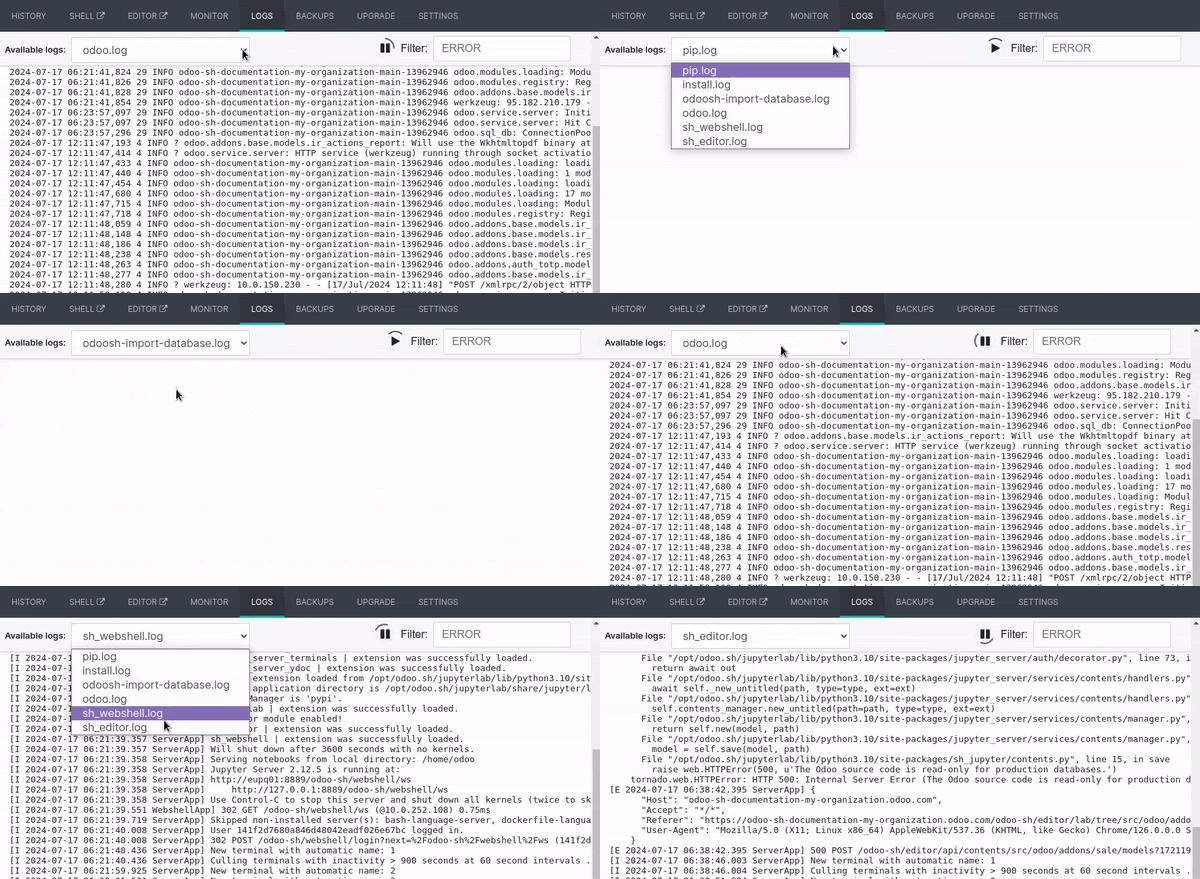
Wenn neue Zeilen zu den Protokollen hinzugefügt werden, werden diese automatisch angezeigt. Wenn Sie zum Ende scrollen, scrollt der Browser jedes Mal automatisch, wenn eine neue Zeile hinzugefügt wird.
Sie können den Prozess zum Abrufen der Protokolle anhalten, indem Sie auf die Schaltfläche (pausieren) in der oberen rechten Ecke klicken. Andernfalls wird der Prozess nach fünf Minuten beendet. Sie können ihn neu starten, indem Sie auf die Schaltfläche (abspielen) klicken.
Back-ups
Im Reiter Backups (Sicherungskopien) werden die verfügbaren Back-ups zum Herunterladen und Wiederherstellen aufgelistet. Hier können Sie ein manuelles Backup durchführen und eine Datenbank importieren.

Die Produktionsdatenbank wird täglich automatisch gesichert. Es werden sieben tägliche, vier wöchentliche und drei monatliche Sicherungen aufbewahrt. Jede Sicherung umfasst den Datenbank-Dump, den Dateispeicher (Anhänge und Binärfelder), Protokolle und Sitzungen.
Bemerkung
Sehen Sie sich den voraussichtlichen Zeitplan für automatische Back-ups an, um ein besseres Verständnis der Funktionsweise des Systems zu erhalten. Diese Datei wird täglich aktualisiert, wobei der aktuelle Tag als Ausgangspunkt dient.
Staging- und Entwicklungsdatenbanken werden nicht automatisch gesichert. Sie können jedoch eine Sicherung der Produktionsdatenbank in Ihren Staging-Zweigen zu Testzwecken wiederherstellen oder versehentlich aus der Produktionsdatenbank gelöschte Daten manuell wiederherstellen.
Die Liste enthält die Back-ups, die auf dem Server Ihrer Produktionsdatenbank gespeichert sind. Dieser Server speichert nur Backups eines Monats: sieben tägliche und vier wöchentliche Back-ups.
Spezielle Back-up-Server speichern dieselben Back-ups sowie drei zusätzliche monatliche Back-ups. Um eines dieser monatlichen Back-ups wiederherzustellen oder herunterzuladen, wenden Sie sich an den Odoo-Support.
Beim Zusammenführen eines Commits, der die Version eines oder mehrerer Module (in __manifest__.py) oder deren verknüpfte Python-Abhängigkeiten (in requirements.txt) aktualisiert, führt Odoo.sh eine automatische Sicherung durch (in der Liste mit dem Typ Update gekennzeichnet), da entweder der Container durch die Installation neuer Pip-Pakete geändert wird oder die Datenbank selbst durch die anschließend ausgelöste Modulaktualisierung geändert wird. In diesen beiden Fällen wird eine Sicherung ausgelöst, da es zu Fehlern kommen kann.
Wenn der zusammengeführte Commit weder die Version eines Moduls noch verknüpfte Abhängigkeiten aktualisiert, wird von Odoo.sh kein Backup ausgelöst, da weder der Container noch die Datenbank geändert wird. Die Plattform betrachtet dies daher als sicher genug. Als zusätzliche Vorsichtsmaßnahme können Sie vor der Änderung der Produktionsquellen ein manuelles Backup erstellen.
Manuelle Backups dienen dazu, eine bestimmte Momentaufnahme von Produktions- oder Staging-Datenbanken zu erstellen (für Entwicklung nicht verfügbar). Diese bleiben drei Tage lang verfügbar. Es gilt jedoch ein Limit von fünf manuellen Backups pro Tag.
Phase |
Automatisches Backup |
Manuelles Backup |
|---|---|---|
Produktion |
Ja (bis zu 3 Monate) |
Ja (3 Tage) |
Staging |
Nein |
Ja (3 Tage) |
Entwicklung |
Nein |
Nein |
Die Funktion Datenbank importieren akzeptiert Datenbankarchive von:
dem Standard-Odoo-Datenbankmanager (verfügbar für lokale Odoo-Server unter
/web/database/manager)dem Odoo Online Datenbankmanager
dem Odoo.sh-Tab Backups (über die Schaltfläche (Download-Optionen))
der Odoo.sh-Ansicht Builds (durch Klicken auf DB-Dump herunterladen)
Upgrade
Der Tab Upgrade kann verwendet werden, um Produktions- und Staging-Branches gültiger Projekte zu aktualisieren. Weitere Informationen zum Upgrade-Prozess finden Sie in der Upgrade-Dokumentation.

Werkzeuge
Der Tab Tools enthält den Code-Profiler. Er wird verwendet, um eine Profiling-Sitzung zu starten, die die Aktivitäten der in der Instanz laufenden Odoo-Worker für maximal fünf Minuten aufzeichnet. Sie können die Sitzung früher beenden, da das Tool bei kürzerer Laufzeit weniger Rauschen im Bericht erzeugt.

Nach jeder Sitzung wird ein interaktives Flame-Diagramm erstellt, um die Zeitverteilung der Odoo-Worker zu visualisieren.
Warnung
Die Ausführung des Profilers verbraucht viele Serverressourcen, daher sollten Sie ihn nicht zu lange laufen lassen. Ziel ist es, eine bestimmte Aktion in Ihrer Datenbank aufzuzeichnen.
Einstellungen
Der Tab Einstellungen listet die verfügbaren Konfigurationsoptionen für den aktuell ausgewählten Branch auf. Die Optionen variieren je nach Phase.

Verhalten bei neuen Commits
Sie können das Verhalten des Branches beim Empfang eines neuen Commits für Entwicklungs- und **Staging-**Branches ändern.
Standardmäßig erstellt ein **Entwicklungs-**Branch einen neuen Build und ein Staging-Branch aktualisiert den vorherigen Build. Dies ist nützlich, wenn die Funktion, an der Sie arbeiten, eine bestimmte Konfiguration erfordert, da Sie diese nach jedem Commit nicht manuell neu konfigurieren müssen.
Wenn Sie Neuer Build für einen **Staging-**Branch auswählen, wird bei jedem Push eines Commits eine neue Kopie des Produktions-Builds erstellt.
Ein Branch, der von Staging zu Entwicklung verschoben wird, wird automatisch auf Nichts tun gesetzt.
Modulinstallation
Sie können auswählen, welche Module automatisch für Entwicklungs-Branches installiert werden sollen.

Um das Standardverhalten zu ändern, deaktivieren Sie die Option Standard verwenden unter Verhalten des Entwicklungs-Builds und wählen Sie eine der folgenden Optionen unter Modulinstallation:
Nur meine Module installieren (enthält keine Submodule): Installiert nur die Module des Branches, ausgenommen Submodule. Dies ist die Standardoption.
Vollständige Installation (ohne Testsuite): Installiert die Module des Branches, Submodule und alle Standard-Odoo-Module. Bei der vollständigen Installation ist die Testsuite deaktiviert.
Liste von Modulen installieren: Installiert die angegebenen Module. Geben Sie dazu deren technischen Namen ein und trennen Sie sie durch Kommas (z. B.
sale_management,website,accountant).
Bemerkung
Wenn die Testsuite aktiviert ist, kann die Installation aller Standard-Odoo-Module bis zu einer Stunde dauern.
Testsuite
Standardmäßig ist die Testsuite für Entwicklungs-Branches aktiviert. Sie können einschränken, welche Tests ausgeführt werden, indem Sie Test-Tags eingeben und diese durch Kommas trennen (z. B. custom_tags,at_install,post_install).
Um die Testsuite vollständig zu deaktivieren, deaktivieren Sie Testsuite bei neuen Builds validieren.
Odoo-Version
Sie können die Version von Odoo für Entwicklungs-Branches ändern, z. B. um upgegradeten Code zu testen oder Funktionen zu entwickeln, während Ihre Produktionsdatenbank gerade auf eine neuere Version aktualisiert wird, indem Sie eine andere Version auswählen.
Standardmäßig ist Neueste als Revision ausgewählt, und die Quellen Ihres Odoo-Servers werden wöchentlich automatisch aktualisiert, um von den neuesten Fehler-, Sicherheits- und Leistungskorrekturen zu profitieren.
Um stattdessen eine bestimmte Revision auszuwählen, wählen Sie diese über das Feld Revision aus.
Warnung
Revisionen laufen nach drei Monaten ab. Sie werden per E-Mail benachrichtigt, wenn sich das Ablaufdatum der Revision nähert. Wenn Sie bis zum Ablauf keine Maßnahmen ergriffen haben, wird das Feld Revision automatisch auf Neueste zurückgesetzt.

Benutzerdefinierte Domains
Sie können zusätzliche <name>.odoo.com-Domains oder Ihre eigenen benutzerdefinierten Domains für alle Branch-Typen konfigurieren.
Um Ihre eigene benutzerdefinierte Domain zu verwenden, müssen Sie:
Den Domainnamen besitzen oder erwerben.
Geben Sie den Domainnamen unter Benutzerdefinierte Domains ein (z. B.
www.mycompany.com) und klicken Sie dann auf Domain hinzufügen.Konfigurieren Sie den Domainnamen (z. B.
www.mycompany.com) im Domain-Manager Ihrer Registrierungsstelle mit einem CNAME-Eintrag, dessen Wert auf den Domainnamen Ihrer Produktionsdatenbank gesetzt ist (z. B.mycompany.odoo.com).
Wichtig
Bare Domains (z. B. mycompany.com) werden nicht akzeptiert. Sie können nur mit A-Einträgen konfiguriert werden, die nur IP-Adressen als Wert akzeptieren. Daher könnte eine Bare Domain plötzlich nicht mehr funktionieren, da sich die IP-Adresse einer Datenbank ändern kann (z. B. nach einem Upgrade, einem Hardwareausfall oder einer Änderung des Datenbank-Hosting-Standorts).
Damit sowohl Ihre Bare Domain (z. B. mycompany.com) als auch Ihre www-Domain (z. B. www.mycompany.com) funktionieren, muss die Bare Domain auf die www-Domain umgeleitet werden. Die meisten Domain-Manager bieten eine Möglichkeit, diese Umleitung zu konfigurieren, die häufig als Web-Umleitung bezeichnet wird.
HTTPS/SSL
Wenn die Umleitung korrekt eingerichtet ist, wird innerhalb einer Stunde automatisch ein SSL-Zertifikat mit Let’s Encrypt generiert, sodass Ihre Domain über HTTPS erreichbar ist.
SPF- und DKIM-Konformität
Wenn die Domain Ihrer E-Mail-Adressen das Authentifizierungsprotokoll SPF oder DKIM verwendet, muss Odoo in den Domainnamen-Einstellungen als sendender Host autorisiert werden, um die Zustellbarkeit ausgehender E-Mails zu erhöhen. Weitere Informationen finden Sie in der Dokumentation zum Konfigurieren von DNS-Einträgen zum Versenden von E-Mails in Odoo.
Wichtig
Wenn Odoo nicht als sendender Host autorisiert ist, werden Ihre ausgehenden E-Mails möglicherweise als Spam gekennzeichnet.
Shell-Befehle
In der oberen rechten Ecke der Ansicht werden mehrere Shell-Befehle angezeigt. Die Befehle können über die Zwischenablage-Schaltfläche kopiert und dann in einem Terminal verwendet werden. Einige von ihnen können direkt über die Benutzeroberfläche von Odoo.sh verwendet werden.

Klonen
Der Clone-Befehl wird verwendet, um eine lokale Kopie Ihres Git-Repositorys zu erstellen.
Example
git clone --recurse-submodules --branch development git@github.com:my-organization/my-repository.git
--recurse-submodules, um die Submodule Ihres Repositorys herunterzuladen--branch main, um zu einem bestimmten Branch des Repositorys zu wechseln (z. B.development)
Bemerkung
Die Ausführen-Schaltfläche ist nicht verfügbar, da der Befehl verwendet wird, um eine lokale Kopie auf Ihrem Rechner zu erstellen.
Fork
Der Fork-Befehl wird verwendet, um einen neuen Branch basierend auf dem aktuellen Branch zu erstellen.
Example
git checkout -b main-1 development && git push -u origin development-1
git checkout -b main-1 mainein Befehl zum Erstellen eines neuen Branches (z. B.development-1) basierend auf dem aktuellen Branch (z. B.development).git push -u origin development-1ein Befehl zum Hochladen des neuen Branches (z. B.development-1) in das Remote-Repository.
Zusammenführen
Der Merge-Befehl wird verwendet, um Änderungen von einem Branch in einen anderen Branch zu übernehmen.
Example
git merge staging-1 && git push -u origin staging
git merge staging-1ein Befehl zum Zusammenführen der Änderungen des aktuellen Branches in einen anderen Branch (z. B.staging-1).git push -u origin stagingein Befehl zum Hochladen der zusammengeführten Änderungen in den Remote-Repository-Branch (z. B.staging).
SSH
Der SSH-Befehl wird verwendet, um sich per SSH mit einem Build zu verbinden.
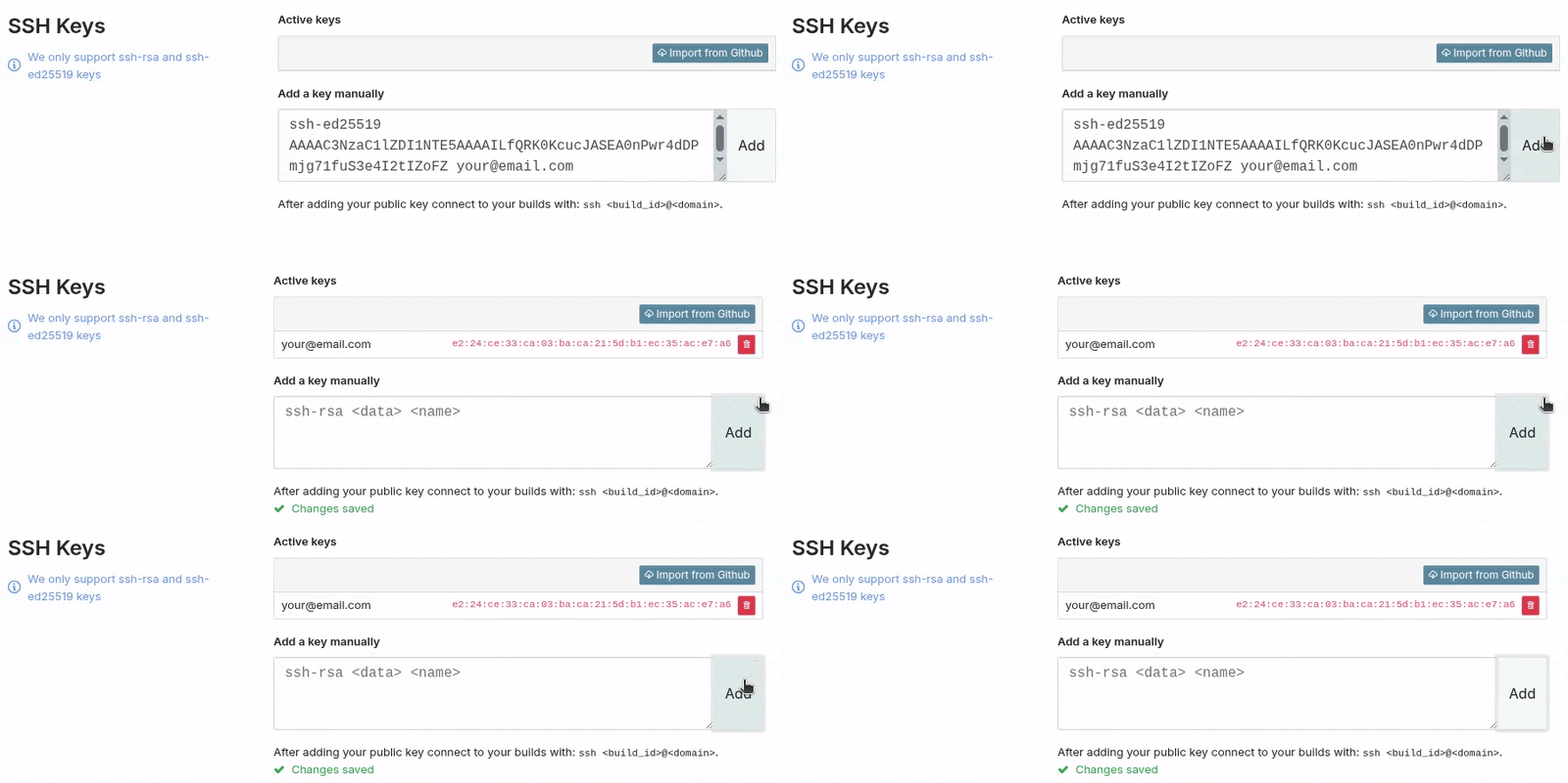
Um den SSH-Befehl zu verwenden, muss zunächst ein SSH-Schlüssel eingerichtet werden. Gehen Sie dazu wie folgt vor:
Kopieren Sie den SSH-Schlüssel in die Zwischenablage <https://docs.github.com/en/authentication/connecting-to-github-with-ssh/adding-a-new-ssh-key-to-your-github-account#adding-a-new-ssh-key-to-your-account>.
Klicken Sie auf Odoo.sh rechts oben auf Ihren GitHub-Benutzer und wählen Sie Profil.

Fügen Sie den SSH-Schlüssel unter dem Feld Schlüssel manuell hinzufügen ein und klicken Sie auf Hinzufügen.
Example
ssh 25004381@my-user-my-repository-staging-25004381.dev.odoo.com
Die Build-ID lautet
25004381.Die Domain zum Verbinden mit dem Build lautet
my-user-my-repository-staging-25004381.dev.odoo.com.
Vorausgesetzt, Sie verfügen über die erforderlichen Zugriffsrechte für das Projekt, wird Ihnen SSH-Zugriff auf den Build gewährt.
Bemerkung
Langlebige SSH-Verbindungen sind nicht garantiert. Inaktive Verbindungen können getrennt werden, um Ressourcen freizugeben.
Untermodul
Der Submodul-Befehl wird verwendet, um einen Branch aus einem anderen Repository als Submodul zu Ihrem aktuellen Branch hinzuzufügen.
Siehe auch
Example
git submodule add -b master <URL> <PATH> && git commit -a && git push -u origin staging
git submodule add -b master <URL> <PATH>ein Befehl zum Hinzufügen eines bestimmten Branches (z. B.master) eines Repositorys (<URL>) als Submodul unter dem angegebenen Pfad (<PATH>) in Ihrem aktuellen Branch.git commit -aein Befehl zum Committen aller aktuellen Änderungen.git push -u origin stagingein Befehl zum Hochladen der Änderungen des aktuellen Branches (z. B.staging) in das Remote-Repository.
Löschen
Der Löschbefehl wird verwendet, um einen Branch aus Ihrem Repository zu löschen.
Bemerkung
Sobald Sie einen Branch löschen, gibt es keine Möglichkeit, ihn wiederherzustellen, es sei denn, es existiert ein Backup. Staging-Branches werden nicht automatisch gesichert, können aber manuell gesichert werden. Development-Branches können nicht gesichert werden.
Example
git push origin :staging && git branch -D staging
git push origin :stagingein Befehl zum Löschen eines bestimmten Branches (z. B.staging) im Remote-Repository.git branch -D stagingein Befehl zum Löschen des bestimmten Branches in Ihrer lokalen Kopie des Repositorys.
Warnung
Bevor Sie einen Branch löschen, lesen Sie den Abschnitt zu Backups, um besser zu verstehen, wie diese funktionieren und wann Sie ein manuelles Backup erstellen sollten.