
Online-Editor
Die Ansicht Online-Editor ermöglicht die Bearbeitung des Quellcodes Ihrer Builds über einen Webbrowser. Sie bietet zudem die Möglichkeit, Terminals, Python-Konsolen, Odoo-Shell-Konsolen und Jupyter Notebooks zu öffnen.

Sie können auf den Editor eines Builds über die Registerkarte Branches, das Dropdown-Menü für Builds oder durch Hinzufügen von /odoo-sh/editor zur URL des Builds zugreifen (z. B. https://odoo-addons-master-1.dev.odoo.com/odoo-sh/editor).
Bearbeiten des Quellcodes
Das Arbeitsverzeichnis setzt sich aus Folgendem zusammen:
.
├── home
│    └── odoo
│         ├── src
│         │    ├── odoo                Odoo Community source code
│         │    │    └── odoo-bin       Odoo server executable
│         │    ├── enterprise          Odoo Enterprise source code
│         │    ├── themes              Odoo Themes source code
│         │    └── user                Your repository branch source code
│         ├── data
│         │    ├── filestore           Database attachments, as well as the files of binary fields
│         │    └── sessions            Visitors and users sessions
│         └── logs
│              ├── install.log         Database installation logs
│              ├── odoo.log            Running server logs
│              ├── update.log          Database updates logs
│              └── pip.log             Python packages installation logs
Sie können den Quellcode (Dateien unter /src) von Entwicklungs- und Staging-Builds bearbeiten. Bei Produktions-Builds ist der Quellcode schreibgeschützt, da das Anwenden lokaler Änderungen auf einem Produktionsserver keine gute Praxis ist.
Bemerkung
Ihre Änderungen werden nicht auf neue Builds übertragen. Es ist notwendig, sie im Quellcode zu committen, wenn sie dauerhaft bestehen bleiben sollen.
Der Quellcode Ihres GitHub-Repositorys befindet sich unter
/src/user.Der Quellcode von Odoo befindet sich unter:
/src/odoo(https://github.com/odoo/odoo)/src/enterprise(https://github.com/odoo/enterprise)/src/themes(https://github.com/odoo/design-themes)
Um eine Datei im Editor zu öffnen, doppelklicken Sie im Dateibrowser-Panel darauf. Sie können die Datei dann bearbeiten. Um Ihre Änderungen zu speichern, gehen Sie zu oder verwenden Sie die Tastenkombination Ctrl+S.
Wenn Sie eine Python-Datei im Addons-Pfad Ihres Odoo-Servers speichern, erkennt Odoo dies und lädt automatisch neu. Das bedeutet, dass Ihre Änderungen sofort sichtbar sind.

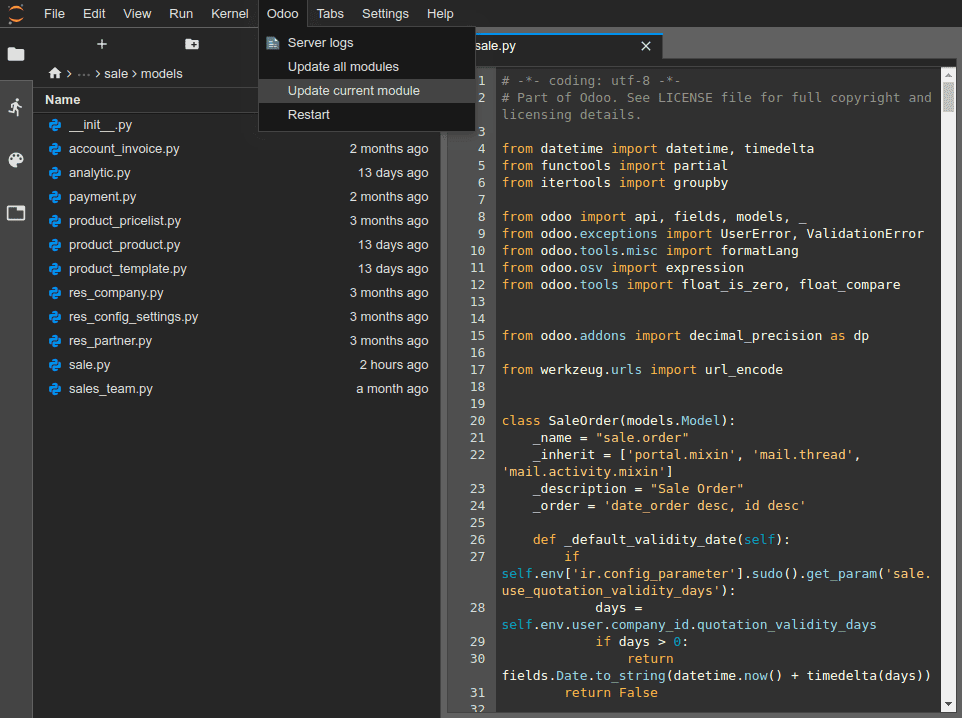
Wenn Ihre Änderungen jedoch in der Datenbank gespeichert sind, wie z. B. die Beschriftung eines Feldes oder eine Ansicht, muss das zugehörige Modul aktualisiert werden, um die Änderungen anzuwenden. Um das Modul der aktuell geöffneten Datei zu aktualisieren, gehen Sie zu .
Tipp
Sie können auch den folgenden Befehl in einem Terminal ausführen, um ein Modul zu aktualisieren:
odoo-bin -u <comma-separated module names> --stop-after-init
Änderungen committen und pushen
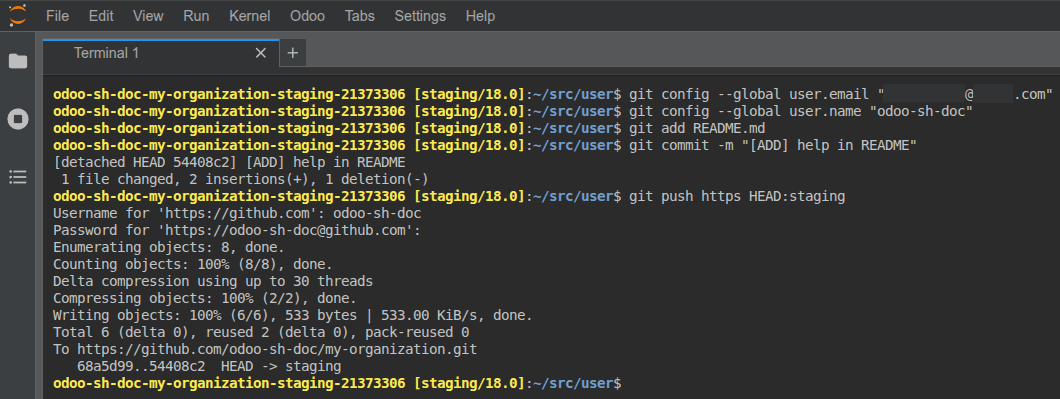
So committen und pushen Sie Änderungen in Ihr GitHub-Repository:
Öffnen Sie ein Terminal, indem Sie zu gehen.
Wechseln Sie zum Verzeichnis
~/src/user.
cd ~/src/user
Geben Sie Ihre Identität an.
git config --global user.email "you@example.com" && git config --global user.name "Your Name"
Stagen Sie Ihre Änderungen.
git add
Committen Sie Ihre Änderungen.
git commit
Pushen Sie Ihre Änderungen.
git push https HEAD:<branch>
httpsist der Name Ihres HTTPS-GitHub-Remote-Repositorys (z. B.https://github.com/username/repository.git).
HEADist die Referenz auf die neueste Revision, die Sie committet haben.
<branch>muss durch den Namen des Branches ersetzt werden, zu dem Sie die Änderungen pushen möchten, höchstwahrscheinlich der aktuelle Branch, wenn Sie an einem Entwicklungs-Build arbeiten.
Sie werden aufgefordert, Ihren GitHub-Benutzernamen und Ihr Passwort einzugeben. Geben Sie Ihre Anmeldedaten ein und drücken Sie die Eingabetaste.
Tipp
Wenn Sie die Zwei-Faktor-Authentifizierung für Ihr GitHub-Konto aktivieren, können Sie ein persönliches Zugriffstoken erstellen und es als Passwort verwenden. Die Erteilung der repo-Berechtigung genügt.
Bemerkung
Es ist nicht möglich, sich über SSH zu authentifizieren, da Ihr privater SSH-Schlüssel aus Sicherheitsgründen nicht in Ihren Build-Containern gehostet wird und auch nicht über einen SSH-Agenten weitergeleitet wird, da Sie über einen Webbrowser auf den Editor zugreifen.
Der Quellordner
~/src/userist nicht auf einem Branch ausgecheckt, sondern auf einer abgetrennten Revision. Dies liegt daran, dass Builds auf spezifischen Revisionen und nicht auf Branches arbeiten, was bedeutet, dass Sie mehrere Builds auf demselben Branch, aber auf unterschiedlichen Revisionen haben können.
Sobald Ihre Änderungen gepusht sind, kann gemäß Ihrem Branch-Push-Verhalten ein neuer Build erstellt werden. Sie können im Editor, von dem Sie gepusht haben, weiterarbeiten, da er dieselbe Revision wie der neu erstellte Build haben wird. Stellen Sie jedoch immer sicher, dass Sie sich im Editor eines Builds befinden, der die neueste Revision Ihres Branches verwendet.
Konsolen
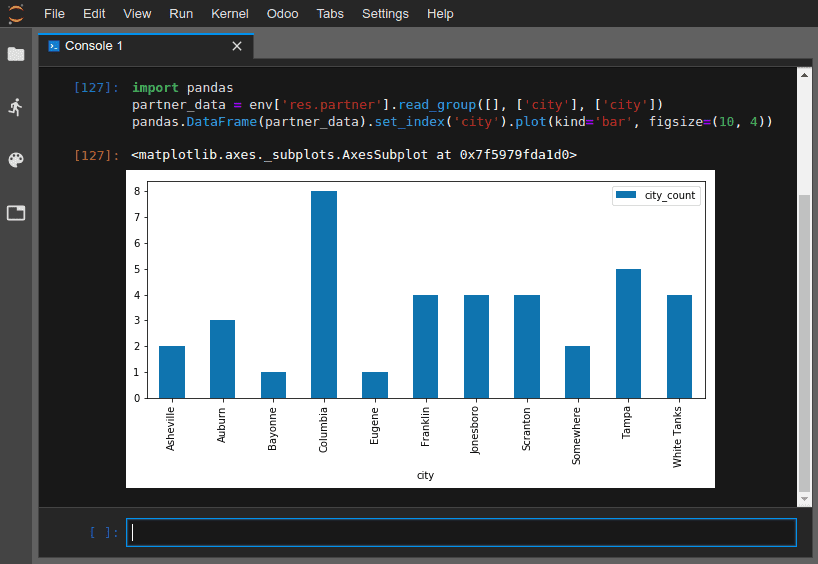
Sie können Python-Konsolen öffnen, bei denen es sich um IPython-interaktive Shells handelt. Die Verwendung dieser Python-Konsolen (anstelle von IPython-Shells in einem Terminal) ermöglicht es Ihnen, ihre umfangreichen Anzeigefunktionen zu nutzen, um Objekte in HTML darzustellen.
Example
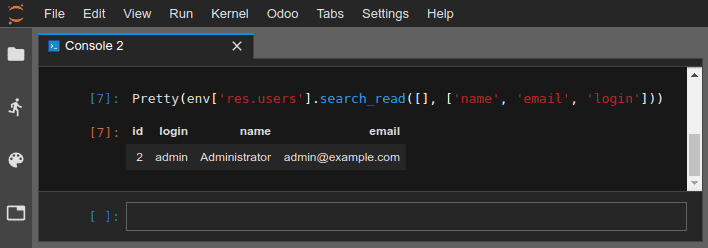
Die Klasse Pretty zeigt Listen auf lesbare Weise an.

Sie können Odoo-Shell-Konsolen öffnen, um mit der Odoo-Registry und den Modellmethoden Ihrer Datenbank zu experimentieren. Sie können auch direkt auf Ihren Datensätzen lesen oder schreiben.
Warnung
In einer Odoo-Shell-Konsole werden Transaktionen automatisch committet. Dies bedeutet, dass Änderungen an Datensätzen auf die Datenbank angewendet werden. Wenn Sie beispielsweise den Namen eines Benutzers ändern, wird dieser auch in Ihrer Datenbank aktualisiert. Verwenden Sie Odoo-Shell-Konsolen daher vorsichtig bei Produktionsdatenbanken.
Sie können env verwenden, um Modelle Ihrer Datenbank-Registry aufzurufen, z. B. env['res.users'].
env['res.users'].search_read([], ['name', 'email', 'login'])
[{'id': 2,
'login': 'admin',
'name': 'Administrator',
'email': 'admin@example.com'}]