
온라인 편집기
온라인 편집기 보기를 사용하면 웹 브라우저에서 빌드의 소스 코드를 편집할 수 있습니다. 또한 터미널, Python 콘솔, Odoo 셸 콘솔 및 `Jupyter Notebook <https://jupyterlab.readthedocs.io/en/stable/user/notebook.html>`_을 열 수 있습니다.

빌드의 편집기는 브랜치 탭, 빌드 드롭다운 메뉴 <odoo-sh/builds/stages/features>`를 통해 액세스하거나 빌드 URL에 `/odoo-sh/editor`를 추가하여 액세스할 수 있습니다(예: `https://odoo-addons-master-1.dev.odoo.com/odoo-sh/editor).
소스 코드 편집
다음과 같이 작업 디렉토리가 구성되어 있습니다:
.
├── home
│    └── odoo
│         ├── src
│         │    ├── odoo                Odoo Community source code
│         │    │    └── odoo-bin       Odoo server executable
│         │    ├── enterprise          Odoo Enterprise source code
│         │    ├── themes              Odoo Themes source code
│         │    └── user                Your repository branch source code
│         ├── data
│         │    ├── filestore           Database attachments, as well as the files of binary fields
│         │    └── sessions            Visitors and users sessions
│         └── logs
│              ├── install.log         Database installation logs
│              ├── odoo.log            Running server logs
│              ├── update.log          Database updates logs
│              └── pip.log             Python packages installation logs
개발 및 스테이징 빌드의 소스 코드(/src 하위 파일)를 편집할 수 있습니다. 프로덕션 빌드의 경우 프로덕션 서버에 로컬 변경 사항을 적용하는 것은 좋은 관행이 아니므로 소스 코드는 읽기 전용입니다.
참고
변경 사항은 새 빌드에 전파되지 않습니다. 변경 사항을 유지하려면 :ref:`소스 코드에 커밋 <odoo-sh/editor/commit>`해야 합니다.
GitHub 저장소의 소스 코드는
/src/user아래에 있습니다.Odoo 소스 코드 위치는 다음과 같습니다:
/src/odoo(https://github.com/odoo/odoo)/src/enterprise(https://github.com/odoo/enterprise)/src/themes(https://github.com/odoo/design-themes)
편집기에서 파일을 열려면 파일 브라우저 패널에서 파일을 더블 클릭하세요. 그런 다음 파일을 편집할 수 있습니다. 변경 사항을 저장하려면 키보드 단축키를 사용하세요.
Odoo 서버의 애드온 경로에서 Python 파일을 저장하면 Odoo가 이를 감지하고 자동으로 다시 로드하므로 변경 사항이 즉시 표시됩니다.
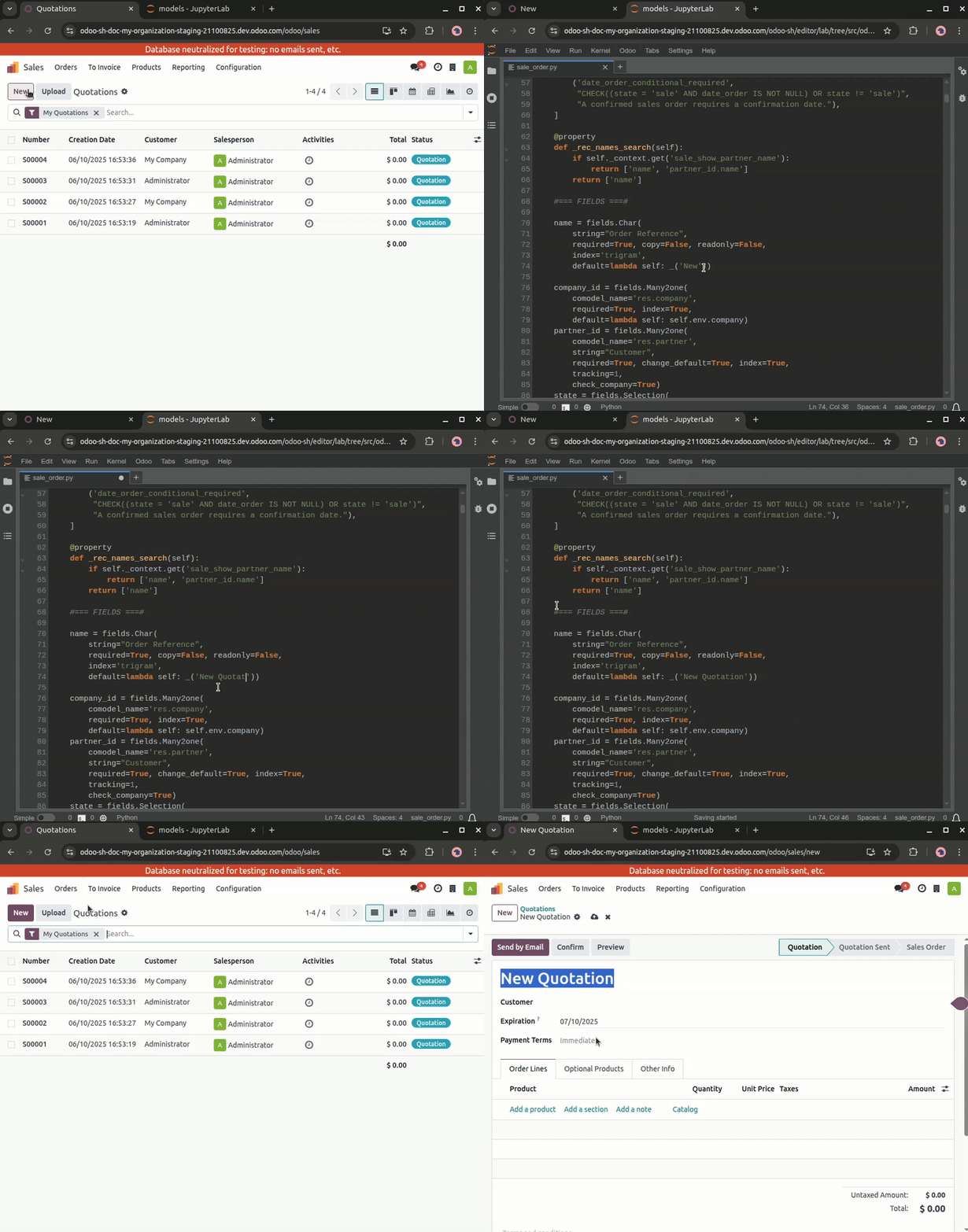
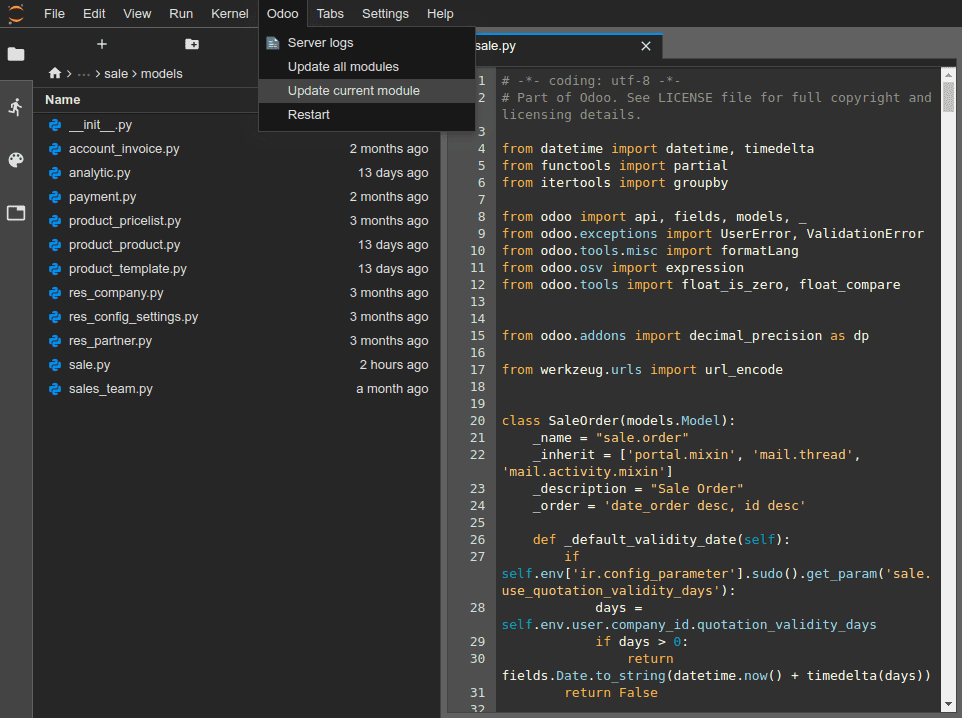
그러나 필드 레이블이나 뷰와 같이 변경 사항이 데이터베이스에 저장된 경우 변경 사항을 적용하려면 관련 모듈을 업데이트해야 합니다. 현재 열려 있는 파일의 모듈을 업데이트하려면 :menuselection:`Odoo –> 현재 모듈 업데이트`로 이동하세요.
팁
터미널에서 다음 명령을 실행하여 모듈을 업데이트할 수도 있습니다:
odoo-bin -u <comma-separated module names> --stop-after-init
변경 사항 커밋 및 푸시
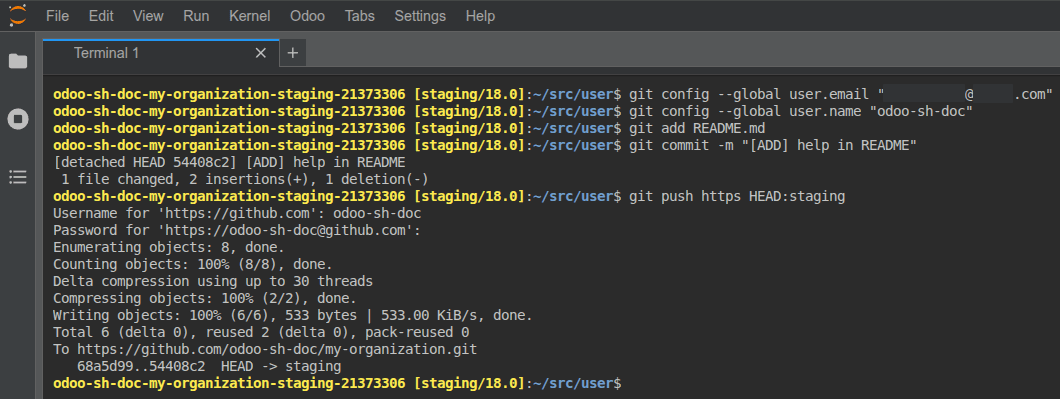
GitHub 저장소에 변경 사항을 커밋하고 푸시하려면:
:menuselection:`파일 –> 새로 만들기 –> 터미널`로 이동하여 터미널을 엽니다.
디렉토리를
~/src/user로 변경합니다.
cd ~/src/user
신원을 확인하세요.
git config --global user.email "you@example.com" && git config --global user.name "Your Name"
변경 사항을 준비하세요.
git add
변경 사항을 커밋하세요.
git commit
변경 사항을 푸시하세요.
git push https HEAD:<branch>
https`는 *HTTPS* GitHub 원격 저장소의 이름입니다(예: `https://github.com/username/repository.git).
HEAD는 커밋된 최신 리비전을 나타냅니다.`<branch>`는 변경 사항을 푸시할 브랜치 이름으로 교체해야 하며, 개발 빌드에서 작업하는 경우 대부분 현재 브랜치일 것입니다.
GitHub 사용자 이름과 비밀번호를 입력하라는 메시지가 표시됩니다. 자격 증명을 입력한 후 Enter 키를 누릅니다.
팁
GitHub 계정에 대해 2단계 인증을 활성화하는 경우 `개인 액세스 토큰 <https://docs.github.com/en/authentication/keeping-your-account-and-data-secure/managing-your-personal-access-tokens#creating-a-fine-grained-personal-access-token>`_을 생성하여 비밀번호로 사용할 수 있습니다. `repo 권한 부여 <https://docs.github.com/en/repositories/managing-your-repositorys-settings-and-features/repository-access-and-collaboration/inviting-collaborators-to-a-personal-repository>`_로 충분합니다.
참고
보안상의 이유로 개인 SSH 키가 빌드 컨테이너에 호스팅되지 않으며, 웹 브라우저를 통해 에디터에 액세스하므로 SSH 에이전트를 통해 전달되지도 않기 때문에 SSH를 사용하여 인증할 수 없습니다.
소스 폴더 `~/src/user`는 브랜치가 아닌 분리된 리비전에 체크아웃됩니다. 빌드는 브랜치가 아닌 특정 리비전에서 작동하므로 동일한 브랜치에서 서로 다른 리비전으로 여러 빌드를 가질 수 있습니다.
변경 사항이 푸시되면 :ref:`브랜치 푸시 동작 <odoo-sh/branches/tabs/settings>`에 따라 새 빌드가 생성될 수 있습니다. 푸시한 에디터에서 계속 작업할 수 있습니다. 생성된 새 빌드와 동일한 리비전을 가지고 있기 때문입니다. 그러나 항상 브랜치의 최신 리비전을 사용하는 빌드의 에디터에 있는지 확인하십시오.
콘솔
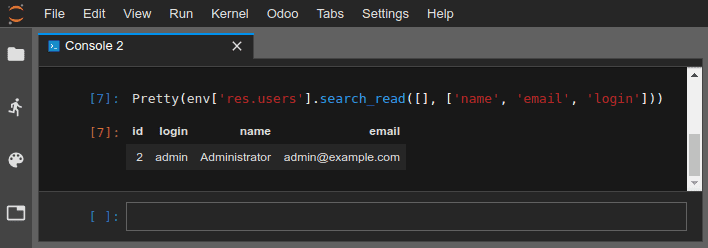
`IPython 대화형 셸 <https://ipython.readthedocs.io/en/stable/interactive/tutorial.html>`_인 Python 콘솔을 열 수 있습니다. 이러한 Python 콘솔을(터미널 내 IPython 셸이 아닌) 사용하면 `풍부한 디스플레이 기능 <https://ipython.readthedocs.io/en/stable/config/integrating.html#rich-display>`_을 활용하여 객체를 HTML로 표시할 수 있습니다.
Example
Pretty 클래스는 목록을 더욱 읽기 쉽게 나타냅니다.


Odoo 셸 콘솔을 열어 데이터베이스의 Odoo 레지스트리 및 모델 메서드를 실험할 수 있습니다. 레코드에 직접 읽거나 쓸 수도 있습니다.
경고
Odoo 셸 콘솔에서는 트랜잭션이 자동으로 커밋됩니다. 즉, 레코드에 대한 변경 사항이 데이터베이스에 적용됩니다. 예를 들어 사용자 이름을 변경하면 데이터베이스에서도 업데이트됩니다. 따라서 프로덕션 데이터베이스에서는 Odoo 셸 콘솔을 신중하게 사용하십시오.
env`를 사용하여 데이터베이스 레지스트리의 모델을 호출할 수 있습니다(예: :code:`env['res.users']).
env['res.users'].search_read([], ['name', 'email', 'login'])
[{'id': 2,
'login': 'admin',
'name': 'Administrator',
'email': 'admin@example.com'}]